
 By
By It can become very frustrating for the users if the headset stops working in the middle of a task. Out of nowhere, the mic may stop responding, or sound may stop coming from the apps.
If you’re facing any certain problem with your headsets, then don’t worry, in this guide, there are solutions for every challenge encountered by Plantronics users.
I had an issue with my Poly Voyager UC headset not working properly after Windows 11 update. After going through so many guides, I found the particular solution. So to make things easier for you, I have compiled a list of major problems faced by many users around the globe. And presented easy, quick fix solutions for headsets not working properly. So let's fix your Plantronics headsets:
Common Troubleshooting Issues
If you are worried about Plantronics headsets not working properly, then first you can apply this easy method. Unplug the AC power from the headsets and remove the battery. After that, wait for a few seconds and reinsert it. This simple step refreshes the model and makes it work properly.
But for other major and specific problems, you can discover the solutions below:
1. Headset Connected But No Sound From Apps
It may happen that headsets are connected through Bluetooth, and the status connected shows on the PC. But still, you hear no sounds from the apps.
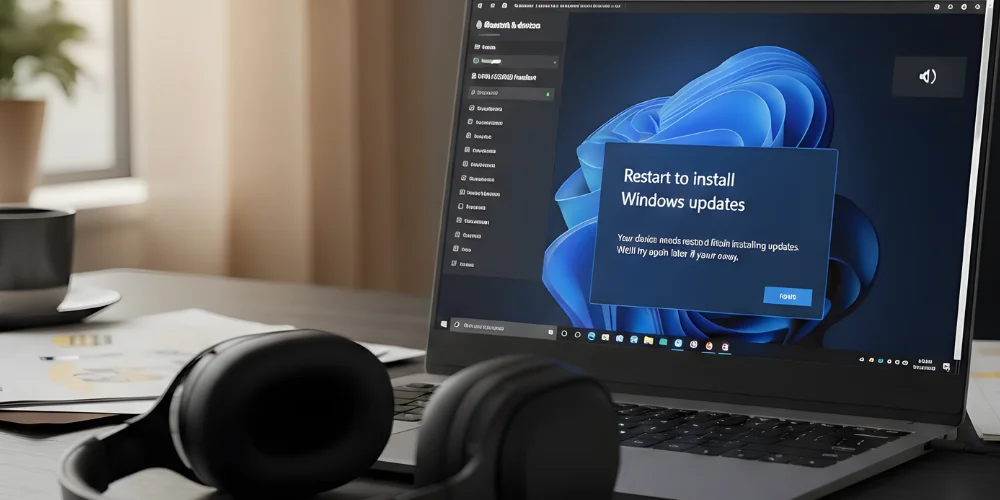
Simple Solution: This happens when there is a pending window update on your device. Just install the Windows update, and the problem would most likely be fixed. If the problem still occurs after the update, then try to uninstall and reinstall it.
2. Poor Audio Quality in Other Apps
The Plantronics headsets may work fine on other devices, but have poor sound quality on Chrome and other such apps.
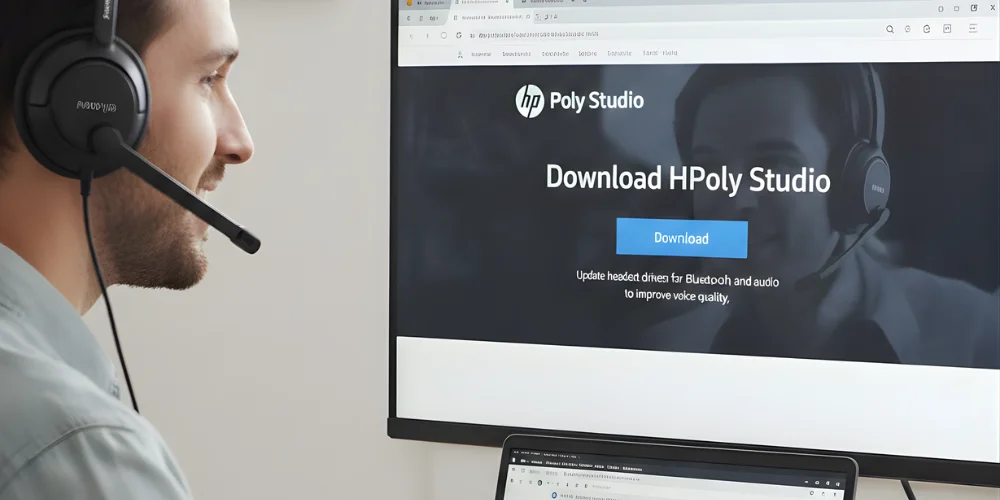
Quick Fix: To resolve such a problem, you have to go to the official HP support site and download HP Poly Studio. From here, you can update the headset drivers for Bluetooth and audio. Doing so can improve voice quality.
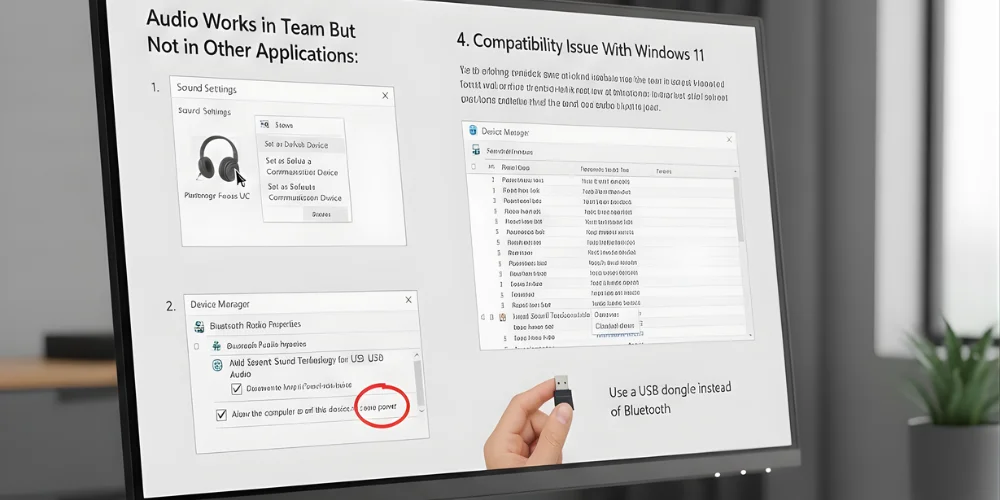
3. Audio Works in Team But Not in Other Applications:
Some users report problems with Plantronics headsets not working in applications, but doing just fine in Teams. This usually happens when teams hijack the Bluetooth connection
How to resolve:
Step 1: You can fix this issue by following this substep. Sound Settings → More Sound Settings → Right Click on Headset to set as Default Device for music or Default Communication Device for calls.
Step 2: If the first step doesn’t work, then your Bluetooth might have been put to sleep. Now follow this step to fix this issue. Device Manager → Bluetooth Radio Properties →Disable this option “Allow computer to turn off this device“.
4. Compatibility Issue With Windows 11
It has been reported by several user online that their Plantronics headsets stop working, particularly on the Windows 11 update. For some, even updating the drivers doesn’t work. The reason for this is that Intel Smart Technology (ISST) often has conflicts with Windows 11.
The Solution: To solve this problem, go to Device Manager, scroll to find "Intel Smart Sound Technology for USB Audio" and just disable it. In addition to that, you can consider using a USB dongle instead of Bluetooth, because it has the capability to deal with Windows 11 Bluetooth bugs.
5. System Audio Work But Silenced on Call
Here is another most common problem for Plantronics headset users. It happens that the audio seems fine on the device, but as soon as the team meeting starts, you can’t hear any sound.
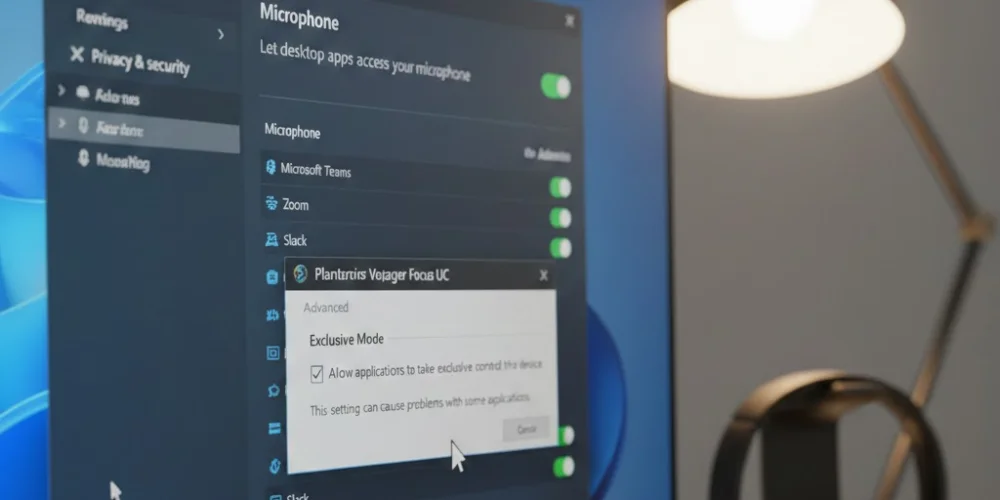
How To Fix:
You can go to Settings → Privacy and Security → Microphone. There make sure that the option for “Let desktop app access your microphone” is turned on.
Next, go to Sound Properties → Advanced and disable the box that states “Allow applications to take exclusive control of the device.” This step prevents the problem in the audio system.
6. Problem with Plantronic Headset Mic
It is among the major problems encountered by Plantronics headset guide users. Sometimes the mic stops working altogether in Windows. This occurs due to the software incompatibility between the Windows Audio Service and the HP Poly Lens software.
To fix plantronics headset mic not working, you need to follow several important steps. That is why I have created a complete procedure to fix it.
So there you have it, in a few easy steps, you can make your Plantronics headsets work properly. Make sure to bookmark this link so that you can solve any problem you encounter in the future.
Comments (0)
No comments yet. Be the first to comment!
Leave a Reply
Your email address will not be published. Required fields are marked *