
 By
By One of the major problems faced by many users around the world is that out of nowhere, their Plantronics headset mic stops responding. It is understandable how frustrating it can be if you're attending an important meeting on Zoom, Microsoft Teams, or any other platform. I also went through a similar problem with my Voyager 5200 UC, and had to go through so many forums until I found the perfect solution.
To make things easier for you, I have created this troubleshooting guide with simple steps. Let’s have a look at why this problem is so common and what you can do to fix your Plantronics headset mic not working.
Why the Problem Occurs
The reason why the mic of headsets does not work occasionally stems from many reasons, which are outlined below:
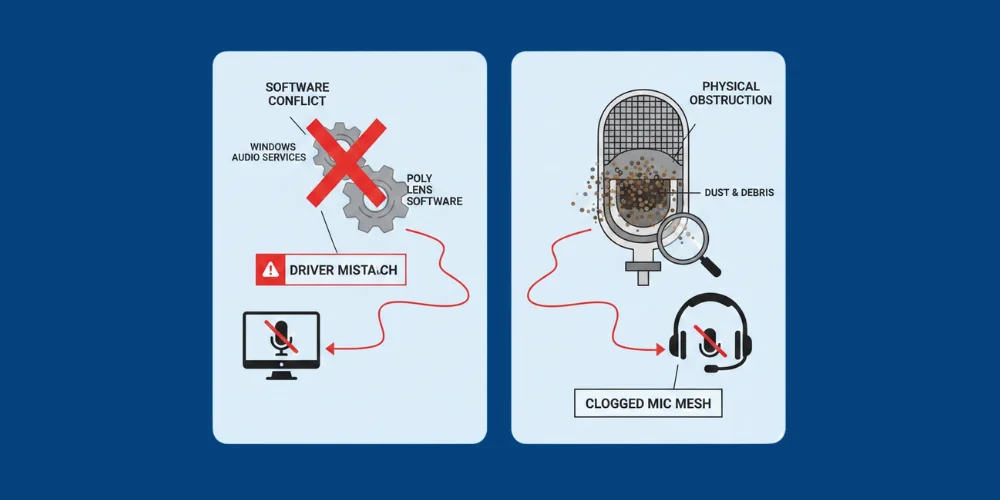
- The problem occurs because the Windows audio services and Poly Lens software are not compatible with each other. This can cause a driver mismatch.
- It may also happen due to a physical obstruction. Dust and debris may compile inside the microphone mesh and clog it.
- The mic may also not work due to a conflict in the privacy settings. A third-party app may take control of audio input.
- Sometimes it is not a technical reason and happens if USB cables or 3.5 mm jacks are not properly plugged in.
Solutions for Headset Mic not Working
If your mic stops working, at first, don’t just assume that there is something wrong with software or hardware. You can first check if all the cables or plugs are perfectly connected. After that, if the problem still persists, you can just clean the mic with the help of a brush.
And if that doesn’t work, then you can resort to the following step-by-step guide to fix the Plantronics headset's mic.
1- Check Default and Sound Settings
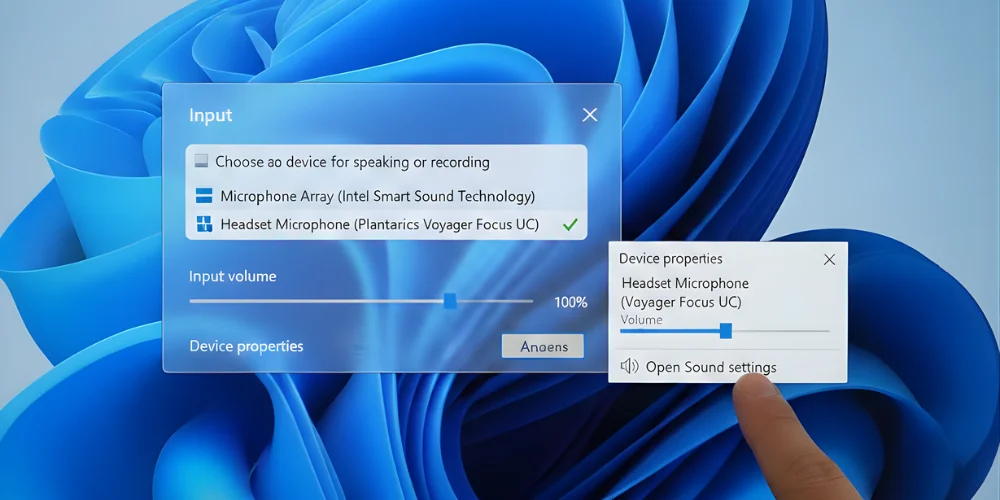
It can happen that Windows selects the built-in laptop mic as the default instead of the Plantronics headset one. To solve this, press the right-click button on the volume icon on the taskbar on the desktop.
There, you can select the open sound settings. Now, click on the input drop-down and select Plantronics headsets as the default. Also, make sure that the volume is not set to a lower level in the slider in Device Properties.
2- Go Through Windows Privacy Permissions
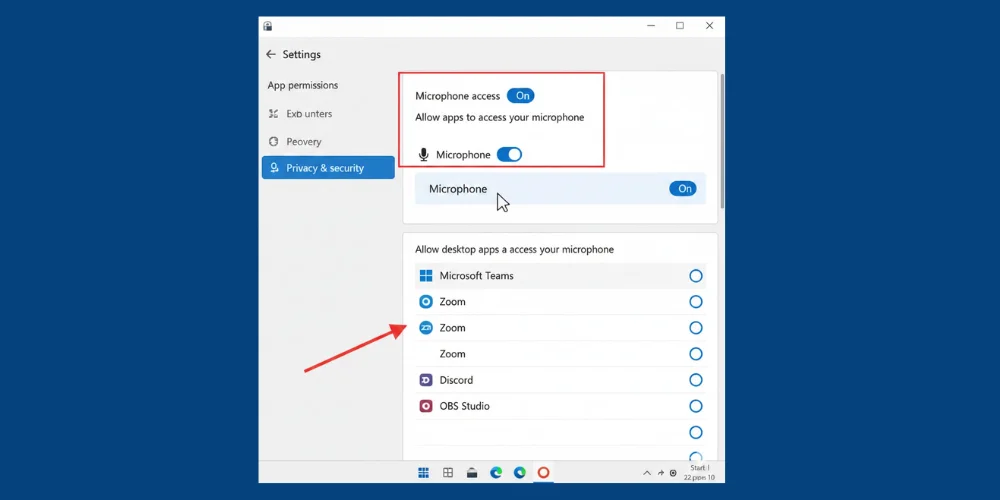
Sometimes, after an update, the Windows option ‘Microphone access for this device’ is turned off automatically. Due to this, the headset mic may not be recognized.
To solve this, go to Settings →Privacy→ Microphone. There switch "Allow apps to access your microphone" on. In the same tab, scroll down to see if your specific app, like Zoom or a meeting, has permissions granted or not.
3- Reinstall Drivers Through Device Manager
The errors in the driver can make the mic stop working. This thing can be resolved by uninstalling and reinstalling the driver in Device Manager.
To do so, right-click on the Start button (Windows icon on the desktop) and select the Device Manager option. Go to the Sound, Video, and Game Controllers section. There right click on the Plantronics device and uninstall it.
Now unplug your headset and restart the computer. Once the headsets are plugged in, Windows will automatically reinstall the required driver.
4- Download Poly Lens App and Update Firmware
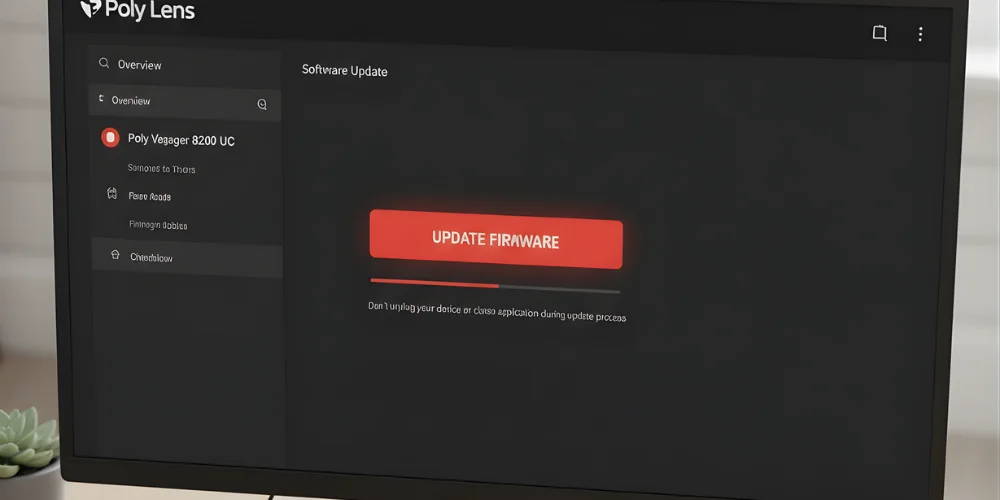
The Poly owned by HP, the company behind Plantronics headsets, keeps on updating the solutions for common software errors reported by users. So, if all of the above steps fail, don't worry, just download the Poly Lens (formerly Plantronics Hub) app.
You can connect your headset to the device and run the app to see if any updates are available or not. Try to download updates as soon as possible to keep your device setup safe and secure.
5- Re-Establish Connection
The Plantronics mic may also stop working if the connection between the headset and the USB dongle is affected. You can fix it by switching your headset off and unplugging the power cable. After 10 seconds, plug back the device. This step fixes the link and establishes a strong connection between the headset and the operating device.
At last, I hope all these solutions work out for you. And if they don’t, it means you need to seek expert advice and inspection. If that doesn’t work, you can consider a new headset purchase. You can read my Plantronics headsets guide to get the idea about the top models and buying advice.
No comments yet. Be the first to comment!
Leave a ReplyYour email address will not be published. Required fields are marked *