
Got a new Skullcandy headset? Great choice! Skullcandy is a manufacturer of some of the most popular wireless headphones in the world.
However, when you are in doubt of how to connect skull candy headset, there is nothing to worry about. This blog will guide you through it in easy steps.
Whether you want to connect your Skullcandy headset to your phone, laptop, TV, PS4, or Xbox, we have you covered. Let's get started!
What You Need Before You Start
Before connecting your Skullcandy headset, make sure you have these things ready:
- Your Skullcandy headset (fully or partially charged).
- The device you wish to be connected to (phone, laptop, TV, or gaming console)
- Bluetooth turned on on your device.
- An environment that is quiet and has not too many wireless devices around.
Pro Tip: Before pairing, make sure you charge your headset at least 30 percent. Connection problems may be caused by low battery.
How to Connect Skullcandy Headset
In order to connect a Skullcandy headset , follow these 4 simple steps:
- Turn your Skullcandy headset OFF.
- Press and hold the Power button for 4–6 seconds until the LED flashes red and blue. This means it is in pairing mode.
- On your phone, laptop, or TV, go to Settings → Bluetooth → turn it ON → select your Skullcandy headset from the list.
- Wait a moment. When it says "Connected," you are all set!
Step 1: How to Put Skull Candy Headset in Pairing Mode
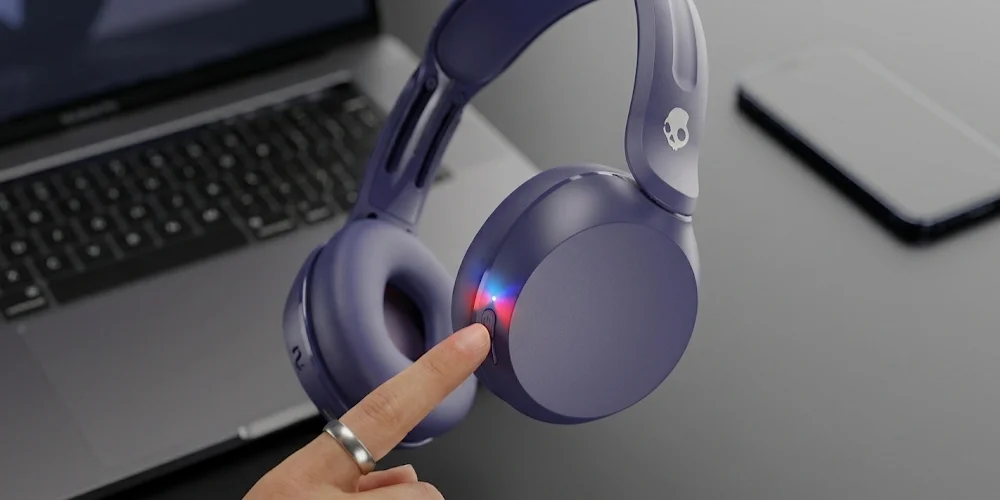
Your headset must be in the pairing mode before it can be connected to any device. This implies that the headset is ready to discover and associate with a new device.
It can be done in most Skullcandy models in the following way:
- First switch off your Skullcandy headset.
- Hold the Power button 4-6 seconds.
- Observe the LED light. Your headset is in pairing mode when it turns red and blue.
- You may also hear a voice say "Pairing" on some models.
The steps slightly vary in different Skull candy models. The following are some of the popular ones:
Good to Know: When your headset is not pairing, switch it OFF. Then, press and hold the Power button again.
Step 2: How to connect Skull Candy Headset to Android Phone.
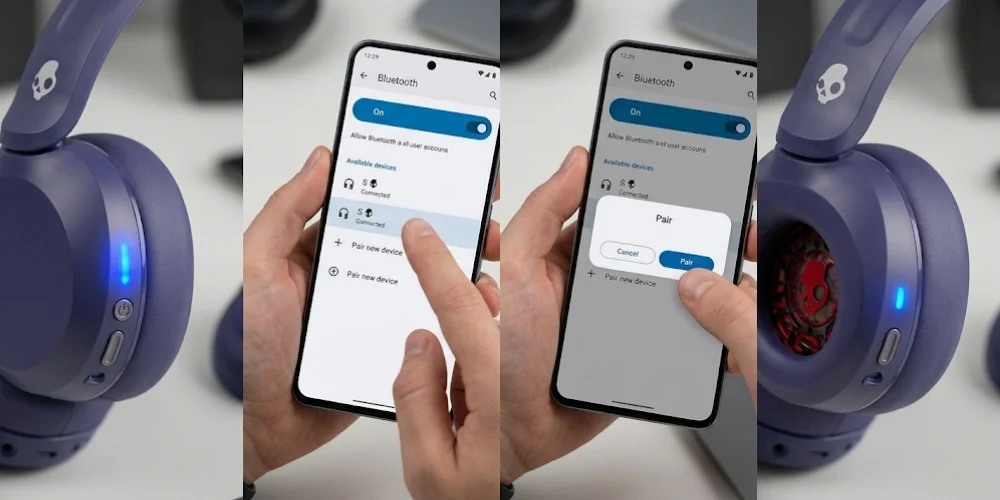
It is easy and fast to connect your Skullcandy headset to an Android phone. Follow these steps:
- Put your Skullcandy headset in pairing mode (see Step 1 above).
- Swipe down on the top of the screen on your Android phone to access Quick Settings.
- Tap and hold the Bluetooth icon to access Bluetooth settings.
- Make sure Bluetooth is turned ON.
- Tap "Pair new device" or "Add device."
- Wait several seconds. Your Skullcandy headset will be listed.
- Tap on the name of your Skullcandy headset (such as, Skullcandy Crusher).
- Click on Pair in case there is a pop-up. Your headset will indicate connected.
That's it! Your Skull candy headset is now connected to your Android phone. You are able to listen to music, receive calls and so on.
Step 3: Skull Candy Headset: How to connect to iPhone or iPad.
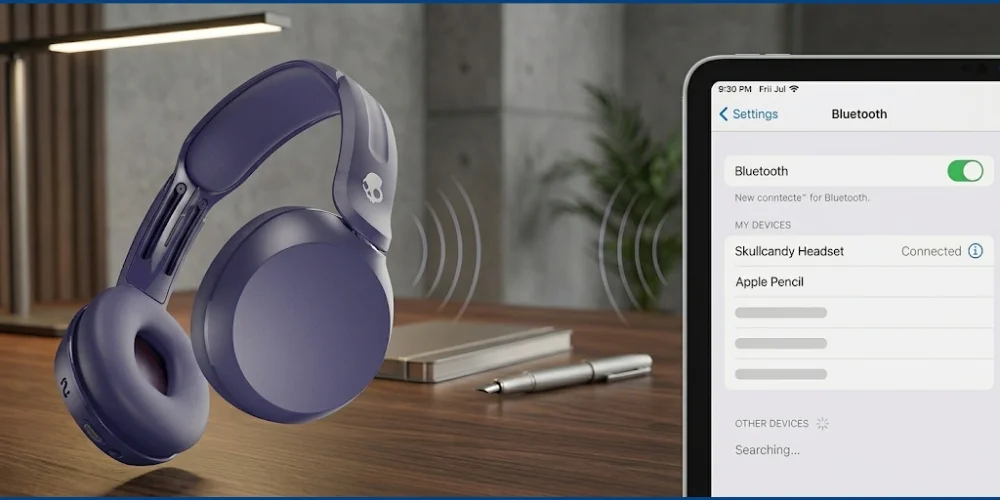
Skullcandy headsets are compatible with Apple devices. The following is the way to match them:
- Put your Skullcandy headset in pairing mode.
- On your iPhone or iPad, open the Settings app.
- Tap "Bluetooth."
- Turn Bluetooth to ON (it would change to green).
- Your phone will begin searching the devices around. Wait a few seconds.
- Tap your Skullcandy headset under Other Devices.
- Your headset will be transferred to My Devices and indicate Connected beside the headset.
Note: Skull candy headsets aren’t Apple devices, so you won’t see any special animation. All you have to do is to find the "Connected" status.
Step 4: How to Connect Skull Ccandy Headset to Windows Laptop or PC
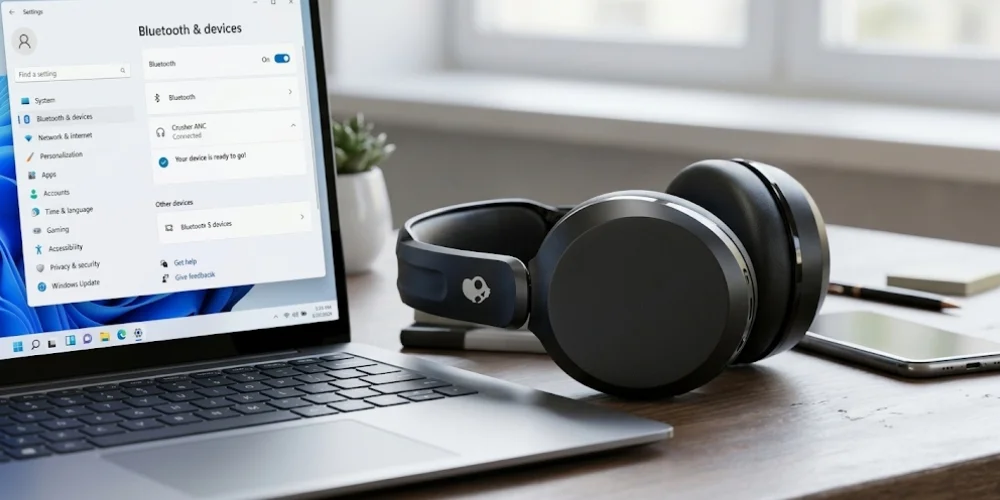
Majority of windows laptops are equipped with Bluetooth. Desktop computers may need a Bluetooth USB adapter if they don't have one already. To connect:
- Place your Skullcandy headset in pairing.
- Click the Start Menu (Windows icon at the bottom-left) on your Windows PC.
- Click on Settings (gear icon).
- Click "Bluetooth & devices" (Windows 11) or "Devices" (Windows 10).
- Ensure that Bluetooth is activated.
- Select Add device or Add Bluetooth or other device.
- Select "Bluetooth" from the pop-up options.
- Your PC will scan the nearby devices. Click on your Skullcandy headset name.
- Wait a moment. When you are done, you will see Your device is ready to go!
Tip: To add a Bluetooth device, simply right-click the Bluetooth icon on the taskbar (at the bottom right) and select Add a Bluetooth device.
Step 5: How to Connect Skull Candy Headset to Mac or MacBook.
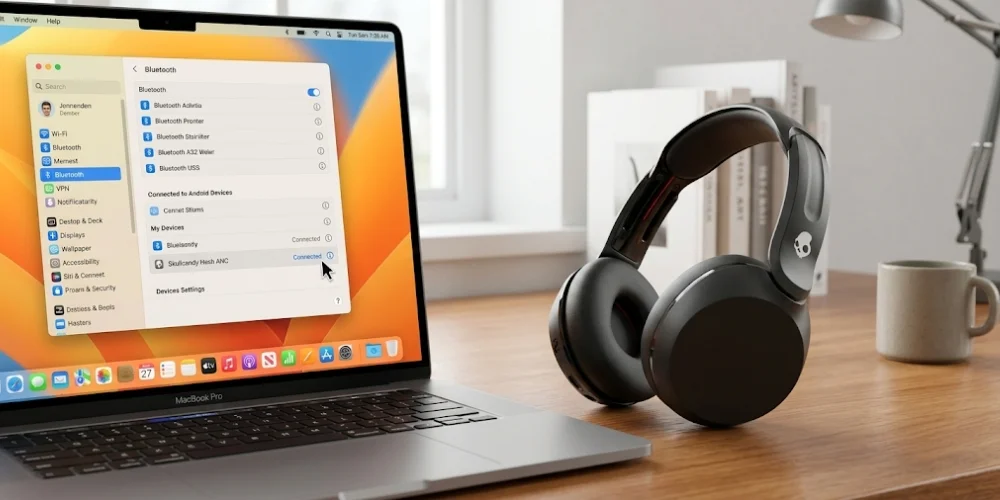
It is easy to connect Skullcandy Headset to a Mac. Follow these steps:
- Turn on your Skullcandy headset to pairing mode.
- Click the Apple menu (top-left of your screen).
- Click on System Preferences (or System Settings on macOS Ventura and later).
- Click "Bluetooth."
- Ensure that Bluetooth is switched on.
- Find your Skullcandy headset in the list of devices.
- Click on the name under its name, and then on the word connect.
Your headset is now ready to use with your Mac. The Bluetooth icon in the top menu bar can also be clicked to access it faster.
Step 6: How to connect Skull Candy Headset to TV
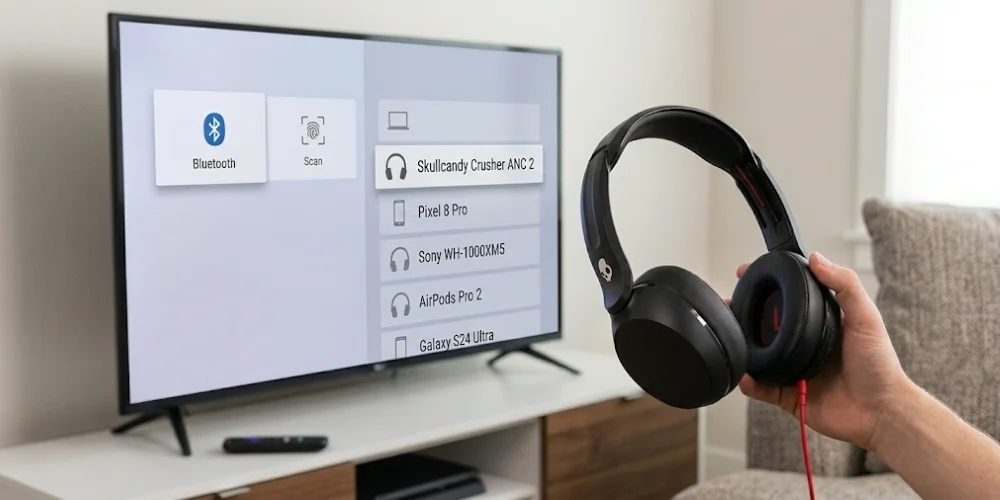
Most of the smart TVs of today are Bluetooth enabled. The following is how to use your Skullcandy headset to connect to a TV via Bluetooth:
- Place your Skullcandy headset in the pairing mode.
- Open Settings or Home menu on your TV remote.
- Select Sound, Remote and Accessories or Bluetooth (depending on TV brand).
- Choose Pair Bluetooth Device or similar.
- Your TV will search for nearby Bluetooth devices.
- Choose your Skullcandy headset.
- Wait until the connection is established.
What if My TV doesn't have Bluetooth?
A Bluetooth audio adapter can be used. All you have to do is to plug it into the headphone jack or optical audio port of your TV.
Your Skullcandy headset is then paired with the adapter and you are ready to go! This also allows two individuals to listen to headphones simultaneously.
In addition, in the audio settings of your TV, change the Digital Audio Format to PCM. This guarantees the clean and clear sound via the adapter.
Step 7: How to Connect Skull Candy Headset to PS4, PS5 or Xbox
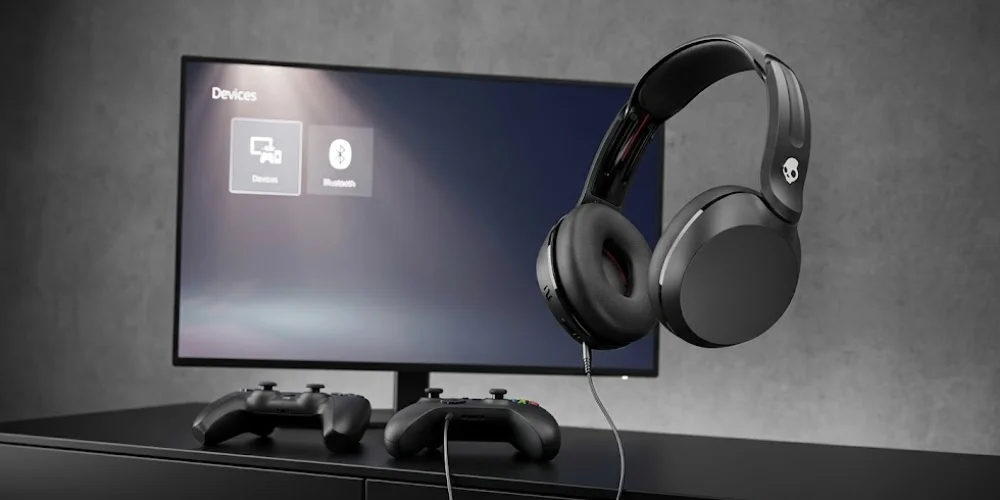
Connecting to PlayStation (PS4 or PS5)
The PlayStation consoles are compatible with Bluetooth, although they are only compatible with certain Bluetooth profiles. Certain Skullcandy models are directly connected. Here's how:
- Select Settings on your Playstation.
- Choose either PS4 (Devices) or PS5 (Accessories).
- Choose "Bluetooth Devices."
- Turn on your Skullcandy headset to pairing mode.
- Choose your headset when it appears in the list.
Notice: Not every Skull candy headset is compatible with PS4 or PS5. In case it fails, just plug it in the controller using the 3.5mm audio cable that was included with your headset.
Connecting to Xbox
Xbox consoles do not have standard Bluetooth audio. To use your Skullcandy headset with an Xbox:
- Connect to the 3.5mm headphone jack on the Xbox controller.
- Or use a Bluetooth USB device that is inserted into the USB port of the Xbox.
Your headset will be immediately ready to use as soon as you plug in it with a cable, both as an audio and a microphone.
How to Pair Skull Candy Headset to Two Devices (Multipoint Pairing)
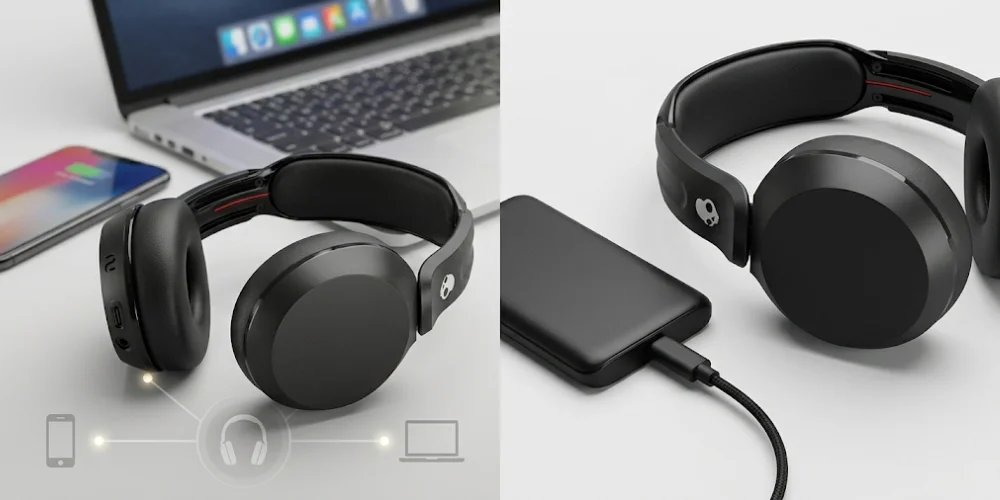
Certain Skullcandy headsets can be paired in multipoint. This allows you to be connected to two devices simultaneously - such as your phone and laptop.
This is the way it works:
- Use the above steps to connect your Skullcandy headset to the first device.
- Re-pair your headset without unplugging it to the first device.
- Turn on Bluetooth on the second device and choose your Skullcandy headset.
- The two devices are connected.
Audio cannot play from both devices at the same time. However, when you receive a call on your phone when you are listening on your laptop, the call will be prioritized. You can easily alternate them.
Troubleshooting: What to Do If Your Skullcandy Headset Won't Connect
Having trouble? Don't panic. The most frequent fixes are:
Fix 1: Headset is Not appearing in Bluetooth List
- Ensure that your headset is in the pairing mode (LED flashing red and blue).
- Bring your headset nearer to the device - 3 feet is the best.
- Switch off and switch on Bluetooth on your device.
- Reboot your phone or laptop and re-attempt.
Fix 2: Headset Connected Previously And Will Not Reconnect
- Go to Bluetooth settings on your device.
- Find your Skullcandy headset in the list.
- Tap the settings icon next to it and choose "Forget" or "Unpair."
- Switch off and switch on your headset.
- Prepare it fresh by following the above steps.
Fix 3: Headset Disconnects
- Check your battery - low battery results in frequent drops.
- Keep within 33 feet (10 meters) of your connected device.
- Avoid microwaves, Wi-Fi routers and other electronics that cause interference.
- Attempt to change your Wi-Fi to 5GHz band to minimize Bluetooth interference.
Fix 4: How to reset your Skullcandy Headset
When all fails, most issues can be resolved by a factory reset. The following is the case with most models:
- Unpair your Skullcandy headset with your device.
- Press and hold the Power button and the Volume Down button simultaneously (3 seconds).
- LED will flash, and you might hear Disconnected.
- The headset will automatically go into the pairing mode.
- Repeat it anew.
Note: Depending on the model, reset procedures may differ. Model-specific instructions can be found on the Skull candy support site, or in your user manual.
Final Thoughts
When you have easy steps to follow, learning how to connect Skullcandy headset is not difficult. First, charge the headset. Then put it in pairing mode. Then, turn on Bluetooth on your phone and select the name of the headset.
In case the connection is not functioning immediately, do not panic. Re-try, re-boot the two devices or delete old Bluetooth entries. Most problems are easy to solve.
On an Android phone, iPhone, Windows laptop, Mac, TV, or game console - the process takes just a few seconds and is typically completed in less than a minute.
Should something go amiss, a simple reset and a new pairing nearly always solves the problem.
At Find Headsets, we're here to help you get the most out of your audio gear. Check out our other guides, headset reviews, and purchasing tips to get the right headset to suit your requirements.
No comments yet. Be the first to comment!
Leave a ReplyYour email address will not be published. Required fields are marked *