
Have a Blue Parrot headset on your desk and have no idea how to get it to work? You are not alone. Some open the box and press the buttons at once. They hope that a miracle will happen. Sometimes it works. It is not the case most of the time.
This guide will take you through it all. These are some important steps to pair Blue Parrot with both iPhone, Android, and laptops. You will also know what to do if it still does not connect after you have tried everything.
Start Here Before You Do Anything Else
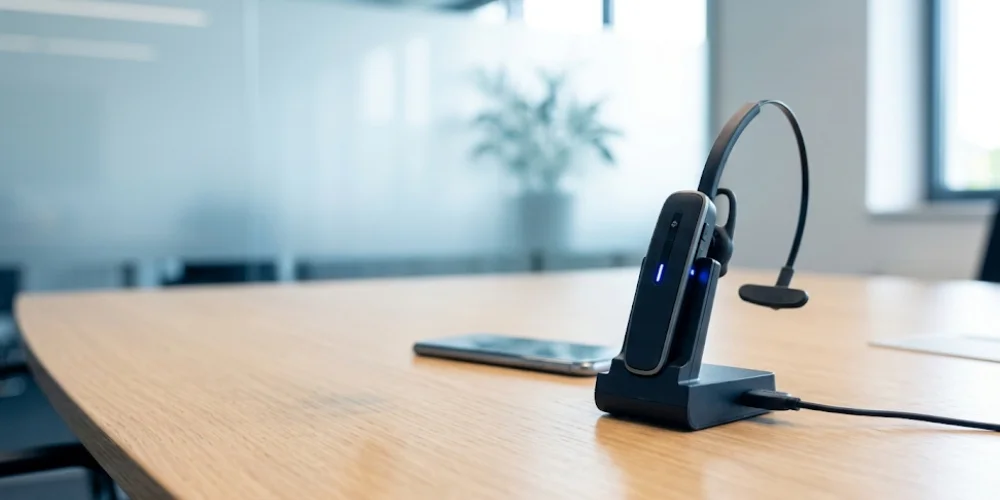
Your headset must be on charge before it will enter pairing mode. Expect nothing if your battery is empty. First, plug it in for a minimum of 20 minutes. You are ready to roll when the LED lights up during its charge.
If you've ever connected this headset to another phone in the past, definitely turn that old device off. Or you can toggle its Bluetooth off. Blue Parrot headsets will automatically attempt to reconnect with the last device they were connected to. If an old paired phone is within range with Bluetooth on, it will cause the headset to lock onto it. It will not search for a new device. Many people neglect these things and mess up.
Know your model before connecting to any device. You can get the model number of your headset by flipping it and finding it on the small sticker.
Getting the Headset into Pairing Mode
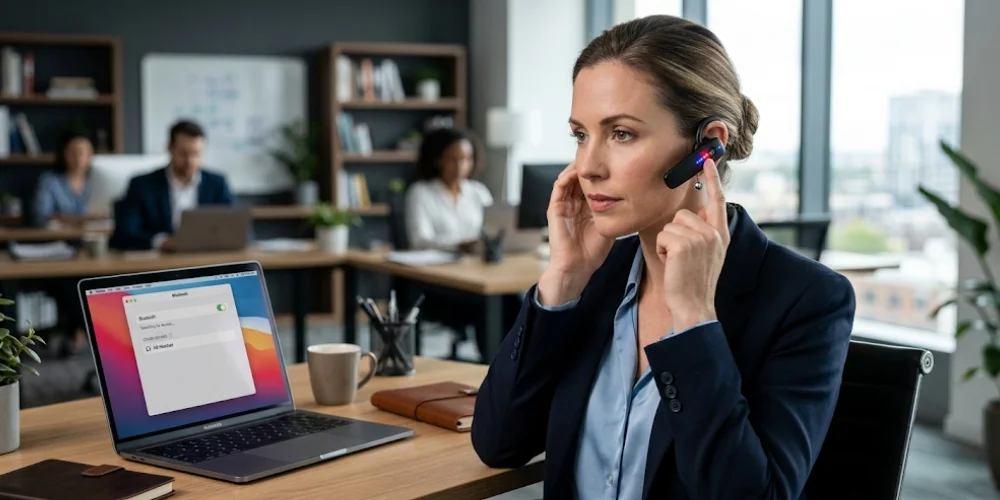
This is where most people get stuck. Pairing mode would essentially mean the headset is communicating: "I am here and searching for something to pair with. Your phone does not know the headset exists until it is within that mode.
Here is how you do it.
When the headset is fresh out of the box and has never been paired. hold down the Multi-function Button or MFB, until you hear it say "Power on." Keep holding. The LED will start flashing red and blue together after approximately six seconds, followed by the message "Pair mode." That is your signal. The headset is now ready.
The process is a little different if the headset has been previously used. Turn it off first. Next, turn off and keep holding the MFB down for roughly six seconds. It flashes red and blue, says "Pair mode", and is in your ear.
Pairing with an iPhone
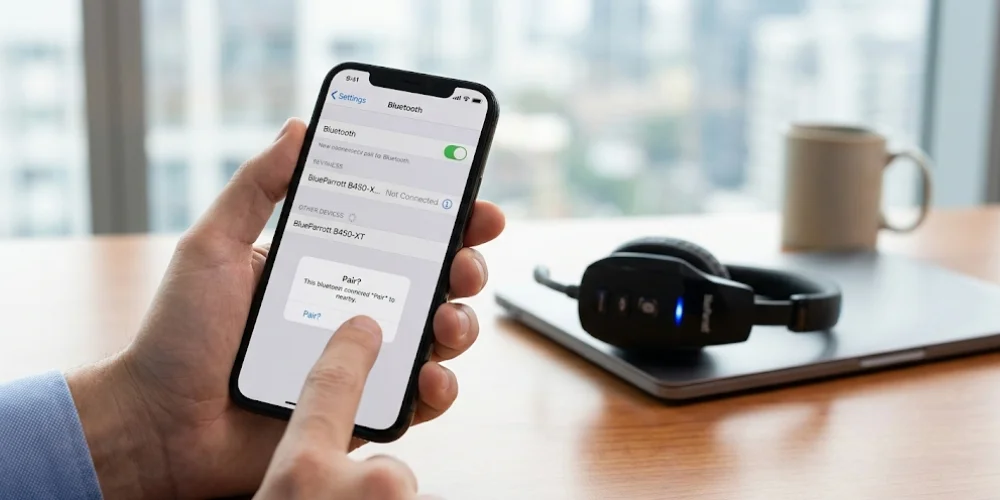
Open your iPhone Settings and turn on Bluetooth. Your phone immediately begins scanning. Wait approximately ten seconds to find “BlueParrott B450-XT" listed under Other Devices.
Your phone may ask you for a PIN before connecting. If it does, enter 0000 and tap Pair. Your headset will be connected and light will change to a steady blue flash. It only pairs a Bluetooth headset the first time, after which your iPhone will remember it. It connects automatically every time you turn it back on. No need to dive back into Settings.
Ensure calls are actually routing to the headset instead of being routed out of your iPhone speaker right after the pairing. iPhones do tend to default back to the phone speaker sometimes.
Pairing with an Android Phone
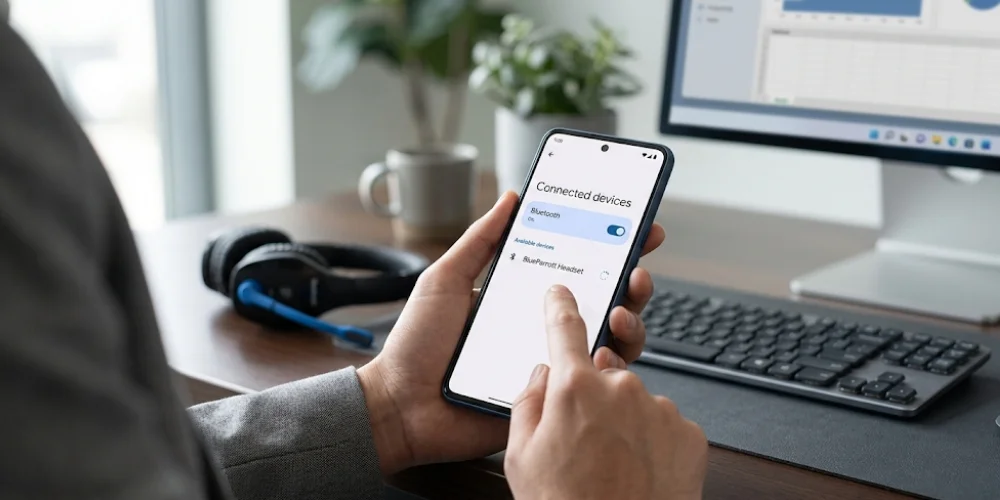
Go into Settings for Android. Search for "Connections" or "Connected devices". Samsung phones typically say "Connections," and most other Android phones indicate "Connected Devices" or just plain Bluetooth. Press Bluetooth and enable it if not on.
Your phone starts scanning. Your Blue Parrot headset should show up in that list after 10 seconds. Tap it. When a pop-up requests a PIN, type 0000 and confirm it. You will hear that the headset is connected, and you are all set.
For Samsung users, there's an additional screen where you can select what you want to use the device for: calling or media. Pick both.
Pairing with a Windows Laptop or Desktop

This one has a trick step that throws most people off. Getting it paired is simple. There's one more thing after that to get sound out of the headset.
Step 1: Pair the headset
Head over to your Windows computer and click on Start, then select Settings. Make sure Bluetooth is on. In the window that opens, press "Add Bluetooth or other device" and select "Bluetooth". Windows will search and should find your Blue Parrot headset. Click it. You will see then that Windows says your device is good to go.
You will also need to go into those apps' audio settings if you're using Zoom or Skype. You are to manually set the Blue Parrot as your speaker and microphone. Some apps fail to respect Windows defaults and need you to specify them separately.
NFC Pairing
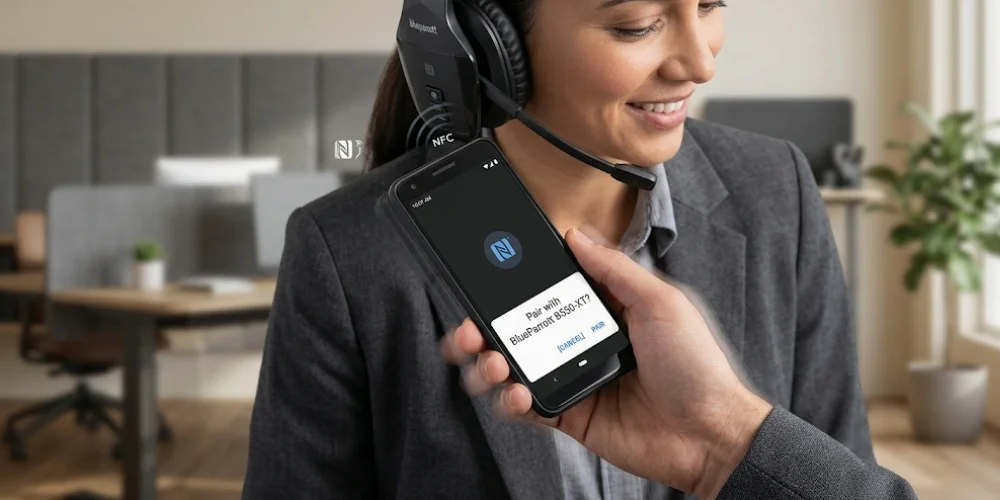
NFC is an integral part of some of the Blue Parrot line. Near Field Communication enables two devices to establish a connection just by bringing them close together. No menus, no scan required, and no more waiting!
You simply have to ensure that NFC is enabled in the settings of your Android phone. Turn the headset on. Next, just hold your phone to the NFC area on the headset line. You keep holding the same thing for around one second. You pick up your phone, it vibrates, and says, “Do you want to pair”? Say yes. That is it.
This alternate NFC pairing method doesn't work for this purpose on iPhones. Use Bluetooth settings above if you have an iPhone.
Connecting to Two Devices at the Same Time
That is one of the best features of Blue Parrot headsets that most will never even know about.
Its name is Multipoint Mode, and it has already been enabled by default. It allows you to connect two devices. It enables answering phone calls without even touching anything if you are using the headset with your laptop and a call comes in on your phone. The headset handles it.
All you have to do is pair the headset to the first device, then just pair it with the second device as normal. It really is as simple as that.
In addition, many Blue Parrot models also store up to eight devices in memory. So if you routinely juggle a work phone, a personal phone, and a PC, the headset can remember each one.
When It Still Does Not Work
Let me elaborate on the actual problems that people face.
Sometimes, the headset was never actually in pairing mode. This may happen when you open Bluetooth on your phone too late after the two minutes have expired. Make sure the light blinks red and blue, not only blue. If you see a constant slow blue flash means it is connected to some other devices.
The headset appears to be connected, but audio is not heard. This is always because the headset isn't set as the default audio device on a computer. Double-check that audio is not still playing through the phone's own speaker on phones.
If your device connects and suddenly gets disconnected. Check that the battery is fully charged. Sometimes walls or other materials can limit wireless range. Those headsets are good for about 300 feet of line of sight.
Nothing at all is working. You are factory resetting, which wipes the memory of the headset and resets everything to zero. The specific button combo will vary based on your model. Check that out in the manual or BlueParrott's support page. You press a bunch of buttons for six to nine seconds for most models. You will hear "Pair mode" and lights flashing rapidly after the reset. All old pairings are erased. You can now PAIRED fresh and enjoy.
The BlueParrott App Is Worth Grabbing
You can download the BlueParrot App for free from the App Store and Google Play. It indicates your battery percentage and allows you to customize the function of the BlueParrott button on the side. It also provides the user guide all from your phone.
For Android users, it is also where you update the headset software. Updates are delivered via Wi-Fi through the app and take about 30 minutes. Remember to have both the headset itself and your phone charged up to a minimum of 50%, so that the update doesn't get interrupted halfway through.
You Are Ready to Go
The whole pairing process is less than five minutes. Pair the headset by entering it into pairing mode. Turn on your Bluetooth on your device and tap the name of the headset. You are now connected. It is this type of headset that is made to suit everybody on the phone. It smoothly connects back to your phone when you press the button.
Contact Blue Parrot support in case it is not able to connect properly. The information about the manufacturer and model name is on its guide page. In case the headset is not connecting, you can also reset it to factory settings, which will clear any bugs.
No comments yet. Be the first to comment!
Leave a ReplyYour email address will not be published. Required fields are marked *