
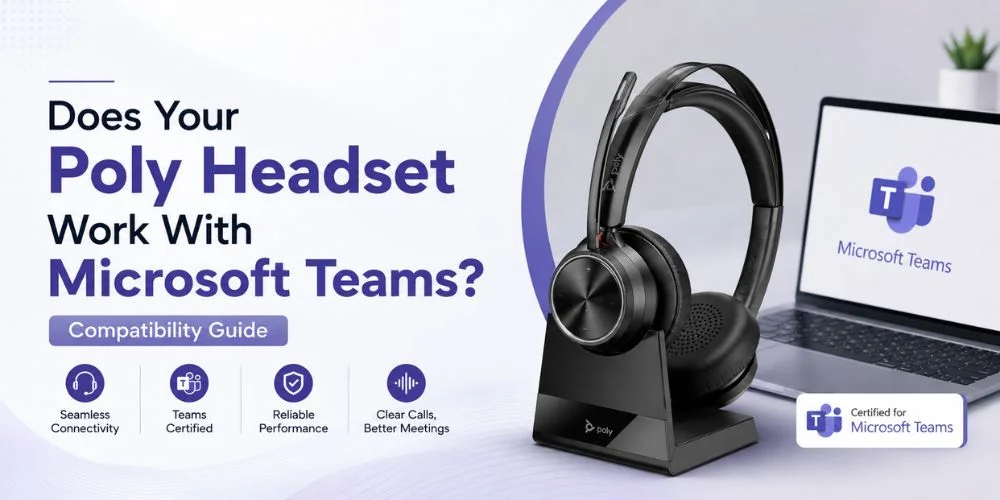
You attend a Microsoft Teams meeting and your microphone won't work. Perhaps Teams continue to use your laptop speakers rather than the headset, or perhaps the mute button on your headset doesn't control the meeting.
These problems can make you wonder, Does Your Poly Headset Work With Microsoft Teams? Yes, there are many Poly headsets that are compatible with Microsoft Teams, even those that are officially certified by Microsoft Teams. Depending on the device, basic microphone and speaker functionality may be provided, or further functionality such as Team controls, call answering, call ending, mute microphone, call volume, notification lights and indicators are provided.
The actual experience will vary depending on the Poly headset, connection type, firmware version, and Team support. Not all Teams features are available on a headset that can be used for simple audio. This guide will help you to check compatibility, connect your headset, access Teams controls, troubleshoot common audio issues, and compare the different options you have so you can select the best headset for your work environment.
Do Poly Headsets Work With Microsoft Teams?
Yes, Poly has several headsets that are compatible for the Microsoft Teams meeting, calling, and business communication.
There is a distinction between compatibility and certification and this is important to understand.
In most cases, the same headset can be used for microphone and speaker in Teams. Others can hear you and you can speak at meetings.
A Microsoft Teams certified headset has been tested to support Teams experiences. Depending on the model, it might provide greater integration such as call controls, mute sync, a dedicated Teams button, or other supported functions.
Some certified Poly devices are compatible with users to answer or end calls, adjust volume and mute the microphone as well as access supported Teams functions directly from the headset.
Not all the models of Poly are equipped with these features. A headset can deliver very good sound in Teams, but cannot support all the controls for the hardware settings.
Hence why it's always best to cross-check the model, and not take it for granted that every Poly headset is exactly the same!
What Features Do Poly Headsets Support With Microsoft Teams?
The available features depend on the model, but supported Poly devices can provide more than basic audio.
Microsoft Teams Button
Some models include a dedicated Teams button that can provide quick access to Microsoft Teams. Depending on the device and supported integration, the button may bring Teams to the foreground or provide access to supported Teams functions.
This can be useful for employees who spend most of their working day inside Teams.
Call Answer and End Controls
Supported models can allow you to answer or finish a call directly from the headset.
This is especially convenient when the computer is positioned away from your immediate reach or when you are moving around during a conversation.
Mute and Volume Controls
Many professional headsets include physical controls for microphone mute and volume. On supported Teams-certified devices, these controls can interact with Teams more closely.
However, a physical mute button does not guarantee synchronized Teams behavior on every model. Always check the specifications for your exact device.
Busy Light and Call Status
Some office-focused models provide visual indicators that show when you are on a call. This can be useful in shared workspaces because colleagues can see that you are busy without interrupting you. The presence and behavior of these indicators vary by product.
Plug-and-Play Connection
USB headsets are generally straightforward to install. Connect the device to the computer, allow the operating system to recognize it, and select it inside Teams.
Wireless models may require a Bluetooth pairing process or a dedicated USB adapter or base
Device Management
Supported Poly software can provide additional tools for device configuration, firmware updates, and management.
These tools can be particularly useful for businesses managing many headsets.
The key point is that these features vary by model. Do not assume that a physical button or LED automatically means it will work with Teams..
Which Poly Headsets Are Compatible With Microsoft Teams?
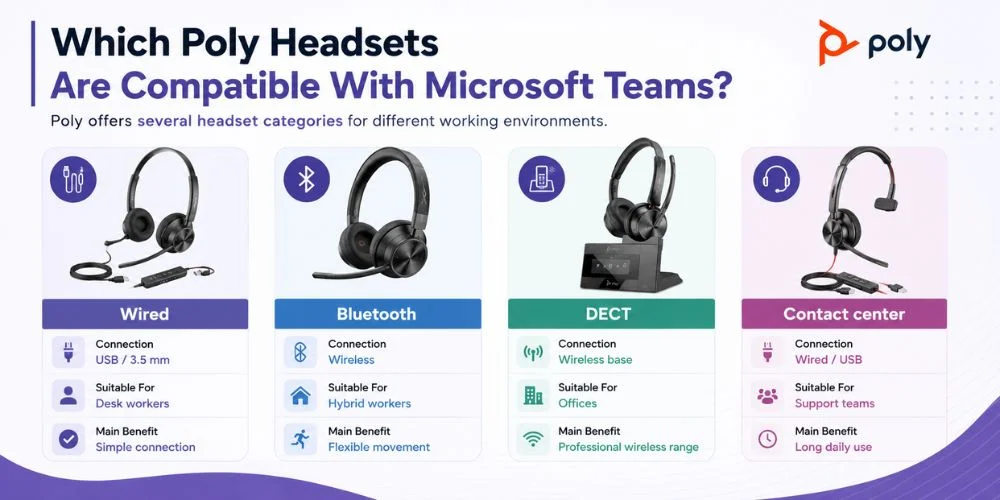
Poly offers several headset categories for different working environments.
| Poly Headset Type | Connection | Suitable For | Main Benefit |
|---|---|---|---|
| Wired | USB / 3.5 mm | Desk workers | Simple connection |
| Bluetooth | Wireless | Hybrid workers | Flexible movement |
| DECT | Wireless base | Offices | Professional wireless range |
| Contact center | Wired / USB | Support teams | Long daily use |
Wired Headsets
The wired headsets are hardwired into your computer.
These can be a great option for workers that end up spending a lot of their day sitting at a desk. No pairing process or charging a wireless battery are required.
A USB connection may also simplify the setup of headsets to the same standard for the business IT team.
Bluetooth Headsets
The Bluetooth models are freer than wired devices.
They are helpful to those that change devices or move while communicating.
Depending on the features included in the model, some can be used with a computer and a smartphone.
However, not all of the Team's controls are available on Bluetooth as opposed to a supported USB adapter. For advanced use of the call functions, refer to the recommended connection method for the specific model.
DECT Headsets
DECT headsets are based on a wireless base unit.
The base is attached to the computer and the headset can communicate wirelessly with the computer.
This arrangement is typical in office environments where staff members have to stand up while talking on the telephone.
When communication in the workplace is more critical than a mere Bluetooth connection and wireless mobility is a requirement, DECT can come into play.
Contact Center Headsets
There are a variety of needs among contact center users.
They can be using their headset for hours at a time and receive calls throughout the day.
In such scenarios, microphone capabilities, comfort, durability and convenience of connection may be of more importance than their casual use capabilities.
How to Check if Your Poly Headset Supports Teams
You should check the exact model number before purchasing a new headset or troubleshooting your existing headset.
This information is typically provided on the product label, headset, base, packaging or original documentation.
Then check the following:
Microsoft Teams support: Ensure a particular model is supported for use in Teams.
Microsoft certificate: See if Microsoft has certified the specific device.
Connection type: Determine if she uses USB, Bluetooth, DECT or another kind of connection.
Call controls: Know what call controls are available for use (e.g., mute, answer, end, volume).
Operating system: Ensure that it runs on the same Windows or macOS operating system as your computer.
Wireless: Accessories may require a particular USB adapter or base.
Firmware: See if the manufacturer has a firmware update suggestion.
This is particularly relevant when businesses are purchasing multiple headsets. Teams features might not be the same in two models of a family.
How to Connect a Poly Headset to Microsoft Teams
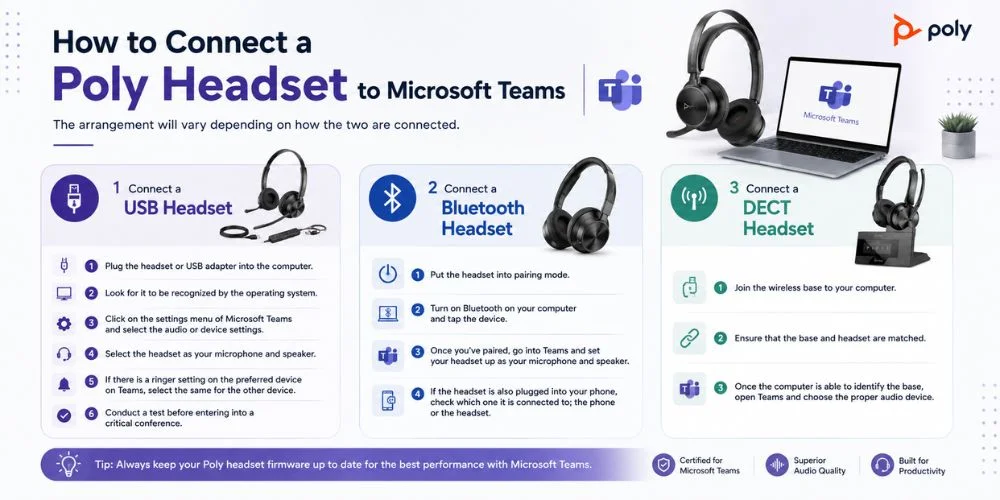
The arrangement will vary depending on how the two are connected.
Connect a USB Headset
Plug the headset or USB adapter into the computer.
Look for it to be recognized by the operating system.
Click on the settings menu of Microsoft Teams and select the audio or device settings.
Select the headset as your microphone and speaker.
If there is a ringer setting on the preferred device on Teams, select the same for the other device.
Conduct a test before entering into a critical conference
Connect a Bluetooth Headset
Put the headset into pairing mode.
Turn on Bluetooth on your computer and tap the device.
Once you've paired, go into Teams and set your headset up as your microphone and speaker.
If the headset is also plugged into your phone, check which one it is connected to; the phone or the headset.
Connect a DECT Headset
Join the wireless base to your computer.
Ensure that the base and headset are matched.
Once the computer is able to identify the base, open Teams and choose the proper audio device.
Can Polycom Connect to Microsoft Teams?
Yes, it is possible to connect Polycom to Microsoft Teams.
Polycom devices are compatible with Microsoft Teams; compatibility is dependent on the model.
The Poly brand name has been used for products that were originally known as the Poly brand name, Polycom.
Older equipment may have unique connection requirements, software and firmware needs than newer equipment.
An older Polycom headset then might be capable of handling audio, but not newer features for Teams.
If you have an older device, find out what it is before replacing it. It may be good for your regular calls too.
What Headsets Are Supported by Microsoft Teams?
Microsoft Teams is compatible with a variety of different headsets, both manufactured and certified.
For Poly users, the question is how will the headset be used?
For the person working at one desk, a wired model might be suitable.
Bluetooth might be easier for those who travel from device to device.
DECT can be beneficial for workplaces where staff require wireless mobility for telephone conversations.
Users of contact centers might require an extended use model.
What is most critical is to verify the exact device's compatibility and supported Teams features, rather than by manufacturer name alone.
What Are the Best Microsoft Teams Headsets?
This will depend on whether you want a wired or wireless connection, how long you wear the headset for, if you work in a noisy environment or if you're concerned with Teams controls.
Best Wired Poly Headset for Desk Users
Poly Blackwire 5220 is a good option for users wanting a wired connection.
It also features USB and 3.5 mm compatibility, providing flexibility in connecting to computers and other compatible devices.
It has a noise-canceling microphone for better voice clarity during calls. As it's wired, you don't need to worry about wireless battery management, either.
Best Wireless Poly Headset for Flexible Work
The Poly Voyager 4320 UC is designed for the use of wireless operation.
When one needs to move from place to place while talking or does not want to have a cable attached to the computer.
This kind of headset can be used for hybrid working environments with workers who frequently move between various tasks and locations.
Best Poly Headset for Mobile Calling
The Poly Voyager 5200 has a compact one ear design.
It would be good for people who would like a smaller headset for voice communication instead of a large stereo headset.
The single ear also enables the user to have an awareness of their surroundings while talking
Best Poly DECT Headset for Office Use
The Poly Savi 8445 is a professional office communicator.
The DECT wireless technology features a separate base, making it ideal for those who want to get away from their desk during a call.
This kind of system is particularly useful in the work environment where wireless range and mobility are critical.
Best Teams-Certified Poly DECT Headset
Poly Savi 7410 is a Microsoft Teams Certified DECT headset.
It might be a good option for businesses looking for a professional wireless solution that has Teams certification.
It is a DECT device for office communication and is not designed to be used for personal listening.
How to Set Your Poly Headset as the Microsoft Teams Audio Device
A headset may be connected successfully, but Teams still utilizes the laptop's microphone or speakers.
To resolve this, open Teams settings to the audio or device section.
Select headset for speaker and microphone.
Use the preferred device in the ringer option, if available.
Test the microphone and speaker.
If Teams shows no headset, the first thing to do is to check the sound settings on your computer. The device must be recognized by the operating system for the device to be used normally by Teams.
Look to see if another application is using the microphone or Bluetooth connection.
Does the Poly Headset Mute Button Work With Microsoft Teams?
It can, however, depending on the model.
There are devices that are Teams-certified with integrated controls that communicate with Teams.
This can enable functions like mute, answer, end call or volume adjustment to be activated directly from the headset.
Other models might have a physical mute button, which only mutes the headset microphone, but doesn't synchronize with Teams.
Available controls also may vary based on the connection method.
A headset can enable additional Teams capabilities, for instance, if connected via its recommended USB adapter as compared to Bluetooth.
If you need functions like headset control, look at the specifications of the exact model you're thinking about purchasing before you make your purchase.
Why Is My Poly Headset Not Working With Microsoft Teams?
If the headset is not working correctly in Teams, it does not necessarily mean that it is incompatible.
It can just be the audio input/output device that is selected.
Common causes include:
- The other microphone is being used by the teams.
- Teams is playing with another speaker
- The headset is muted
- The Bluetooth is connected to another device.
- This USB connection is unstable.
- The base of the DECT unit is not plugged in
- Microphone permission has been denied.
- Firmware is outdated
- Teams needs to restart
Do the basic ones first, before configuring advanced settings.
How to Fix Poly Headset Audio Problems in Teams
1. Check the Physical Connection
Ensure that the USB cable, Bluetooth, base or adapter is securely plugged in.
2. Check Teams Audio Settings
Set up Open Teams and ensure that the correct headset is selected for input and output.
3. Check Microphone Permission
The ability to use the microphone depends on your operating system.
Ensure that Teams is allowed to use the microphone.
4. Test the Headset
Take advantage of the Teams test feature or another recording app.
If the voice functionality is working in another application, the issue might be Teams configuration.
5. Check Mute
Examine the headsets and Teams.
One of them might have been muted.
6. Restart Teams
Do the same for the application and relaunch.
There are sometimes temporary software problems that can impact device detection.
7. Reconnect Bluetooth
Unplug the device from the computer and re-pair it (if you have paired it with Bluetooth).
8. Check the Wireless Base
If using a DECT, ensure the correct base to computer connection and that the headset is paired correctly.
9. Check Firmware
If the issue persists, see if there is an approved firmware update for the exact model.
How to Update Poly Headset Firmware
Firmware is the software embedded in the headset, which assists in communicating with connected devices.
These updates can be issued by manufacturers to enhance the performance, resolve bugs, or accommodate compatibility changes across devices.
Before updating, make sure to find out exactly which model you have.
Follow the software and instructions recommended by the manufacturer for that device.
Do not install firmware designed for use on a different model.
If the headset is already functioning properly, don't always have to update it just because a newer version exists.
Do You Need Poly Lens for Microsoft Teams?
Normally not, you do not need to have Poly Lens to use a compatible Poly headset with Teams.
Teams can communicate via the microphone and speaker of the headset without other headset-management software.
When it comes time to make changes to the device, manage the device's firmware, or perform any other administrative tasks, Poly Lens can be useful for supported devices.
If a specific user has one headset that is functioning properly, he or she might not need any extra software.
Management tools can be easier to keep equipment running throughout the workplace, for a business that uses numerous devices.
Poly Headset vs Microsoft Teams Certified Headset: What's the Difference?
Not all headsets are mutually exclusive, either a Poly headset or a Microsoft Teams-certified headset is not a completely distinct category.
Poly is a description of the manufacturer and their headset products.
Team compatibility refers to the ability of the device to be used with the platform.
Teams certification a particular device assessed to be suitable for use with supported Teams experiences.
Therefore, a certified headset can give businesses that rely heavily on Teams an extra level of assurance.
However, it is not just the certification that you should consider when shopping.
The quality of the microphone, comfort, connection type, battery life, wireless range, wearing style and controls used should also be considered.
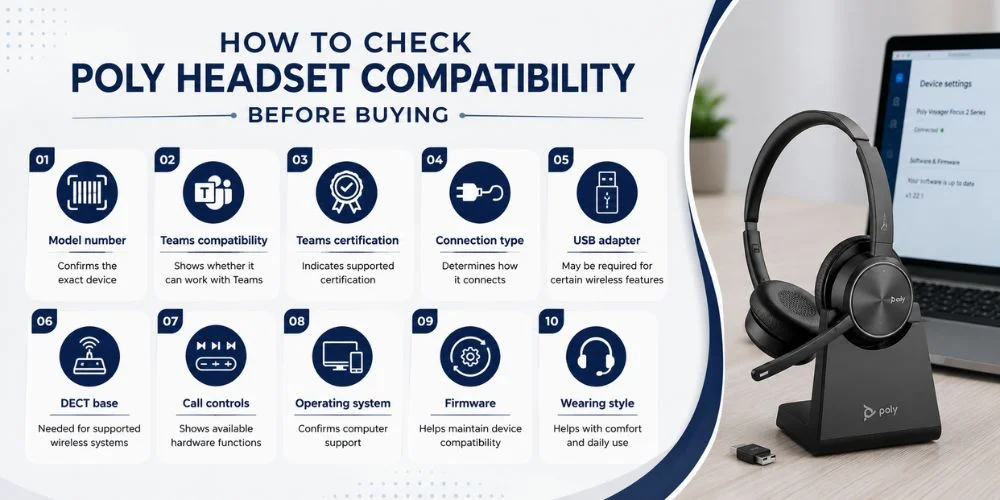
How to Check Poly Headset Compatibility Before Buying
Before purchasing, check the exact product specifications.
| Check | Why It Matters |
|---|---|
| Model number | Confirms the exact device |
| Teams compatibility | Shows whether it can work with Teams |
| Teams certification | Indicates supported certification |
| Connection type | Determines how it connects |
| USB adapter | May be required for certain wireless features |
| DECT base | Needed for supported wireless systems |
| Call controls | Shows available hardware functions |
| Operating system | Confirms computer support |
| Firmware | Helps maintain device compatibility |
| Wearing style | Helps with comfort and daily use |
Read the contents of the box, too.
Certain wireless types could need a special adapter or base to allow for the set up.
What to Do If Your Poly Headset Works on Teams but Has Limited Features
At times, everything seems to be going well, except for one feature.
For instance, you can hear the meeting but speak normally and the answer or mute button will not affect Teams.
This doesn't necessarily mean that the headset is broken.
It is possible that that particular model is unable to support that function.
The connection method also can have an impact. Some features may require the recommended USB adapter or wireless base.
Check the model specifications, firmware and connection if a feature should be supported.
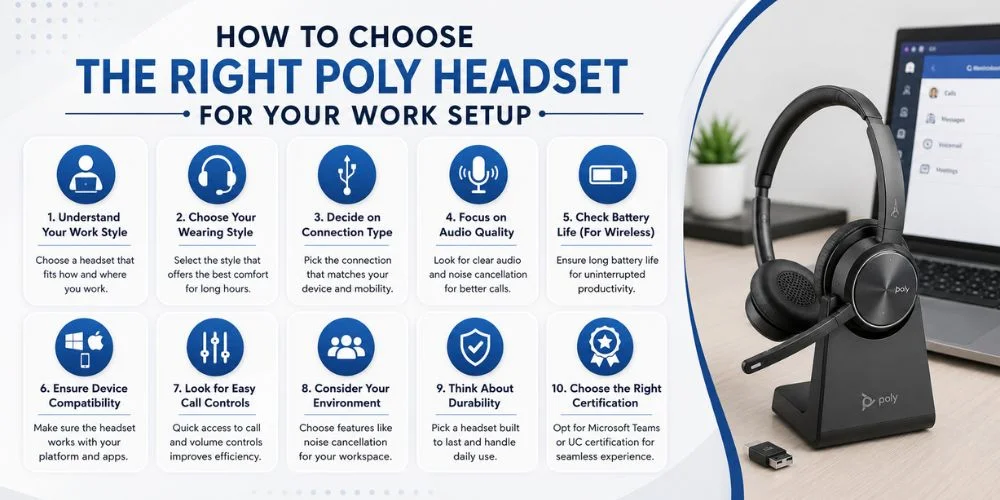
How to Choose the Right Poly Headset for Your Work Setup
Your working environment should guide your decision.
Fixed Desk Work
If you don't plan on moving around or need a simple setup, use a wired connection.
Hybrid Work
Bluetooth may be helpful when working between two different locations or devices.
Office Mobility
When you must move away from your desk but need to stay in touch with calls, DECT may be the better choice.
Contact Center Work
Pay attention to comfort, long term use, microphone performance and overall durability.
Teams-Focused Business
In the case of Teams being your primary collaboration tool, pay special attention to certification and supported controls.
Avoid paying for what you don't use. Instead, concentrate on the functions which can straighten up your workday.
What If Your Headset Works With Teams but Sound Quality Is Poor?
The best sound quality is not a given in every environment, even when compatible.
If the microphone is not being heard by others, review the microphone placement and background noise.
If the meeting participant(s) cannot be heard well, verify the selected speaker and volume setting.
The nature of your work is pertinent as well.
A quiet home office will be different to a busy customer service floor.
Microphone noise reduction and proper microphone placement are more important in an environment with a high level of background noise.
Comfort also plays into experience. Even if a headset has excellent audio performance, it might not be comfortable after a while, and is therefore not recommended for an extended duration of a Teams meeting.
Can One Poly Headset Work With a Computer and Phone?
Some Poly headsets can be used with multiple devices.
This is helpful if you frequently use Teams on your computer and get phone calls on your smartphone.
The support for multiple devices, however, depends on the model.
Make sure that the headset can connect to multiple devices or switch between them before purchasing.
Keep in mind the type of device you are using may determine the type of call controls available.
What Should Businesses Consider When Buying Poly Headsets for Teams?
When purchasing individual headsets, businesses should keep in mind more than the price of the headset.
Consider the working methods of the employees,and how IT will control the devices.
Wired headsets can make deployment easier if everyone is at a specific desk.
Wireless solutions might be more convenient if employees need to move around.
If you are working in a big office, wireless range, charging, accessories, and replacements might be a consideration.
In addition, IT administrators should look into firmware management and if the headsets can be shared between departments.
It can be easier to train and trouble shoot with fewer models supported.
Final Thoughts
Does Your Poly Headset Work With Microsoft Teams? For most Poly models, many of its features can be used successfully with Teams, but features vary based on the specific device.
The basic compatibility will offer you dependable microphone and speaker capabilities, and Teams-cleared versions might offer further supported controls and more integration.
When purchasing, verify the model number, connection type, certification, accessories required, controls supported, operating system, and firmware requirements.
However, if you're having issues with the headset you have, review the audio settings in Teams, computer permissions, connection, mute status, and firmware, before replacing the headset.
Lastly, the best headset for you will be the one that suits your working environment and communication needs. At FindHeadsets, we provide detailed headset information and practical guidance to help you find the right headset for your needs. Our team is dedicated to providing you with accurate and useful information based on our experience with business headsets, enabling you to make an informed and confident choice before you buy.
Frequently Asked Questions
Will my Poly headset automatically appear in Teams?
A supported and correctly connected device should normally be available in Teams' audio settings. If it doesn't show, the first thing to check is the computer's device setting and connection.
Can I keep using my existing Poly headset?
Yes, if it offers you the sound quality and functionality you require. Test it before deciding to replace it, as it is a specific model.
Does Teams certification mean every feature will work?
No. Certification is applicable to supported Teams experiences, with individual models potentially having different controls and capabilities.
Can I use a Poly headset with Zoom or other meeting apps?
There are Poly headsets that can work with a variety of communication platforms. Platform specific features may vary, however, so please consult the specifications for your model.
Is USB better than Bluetooth for Teams?
Both are not necessarily the best. Both wired (USB) and wireless (Bluetooth) offer advantages for stationary computers, and Bluetooth offers greater mobility.
Is DECT better than Bluetooth?
Blended is better for professionals working in the office, and Bluetooth may be more convenient for individuals that connect directly to computers and phones.
Can I use the laptop microphone with my Poly headset speakers?
Yes. The microphone and speaker do not need to be the same device as teams can use separate input and output devices.
Why does my headset work in Windows but not Teams?
Teams might be in a different input/output device. Open Teams audio settings and manually select the headset.
Does a wired headset need updates?
Depending on the device, some models are capable of firmware updates via the wires. Please refer to the manufacturer's specifications for your headset.
No comments yet. Be the first to comment!
Leave a ReplyYour email address will not be published. Required fields are marked *