
Are you someone struggling with online mic testing? You are exactly where you need to be. To test your microphone online, open the FindHeadsets microphone test tool. To perform the testing, allow microphone access in your browser and say something into your mic. Your microphone captures audio if the tool detects your voice. Don’t worry if it doesn’t, because at the end of this guide you will be able to test your mic and fix common problems on multiple devices.
The Quick Answer: How to Test Your Mic in 7 Seconds
This is the quick way if you want to know that your mic is in working order right now without installing any software. This quick test will help you to identify problems related to ambient noise, low volume and muffled voices.
- To start with, head over to the FindHeadsets testing tool in your browser.
- Click Start Test Mic and hit Allow when your browser asks for microphone permission.
- Speak at your normal volume for almost 8 seconds into the mic you have.
- Watch the visual input meter to see if the sound is registering and then listen to the playback to check for clarity, static or echo.
Step by Step: Testing Your Microphone Right in Your Browser
A browser-based testing tool is always the best first choice because they save you from the clutter of different operating systems. They help you to identify exactly what an app like Zoom, Microsoft Teams or Google Meet will receive.
Important: Even if your mic passes the browser test, still double check that the correct microphone is selected inside your meeting app’s settings instead of relying on “Same as System”.
Here is how to perform the complete check:
Launch a Browser Mic Test
Open your web browser and go to the online test page mentioned above. This tool will process everything locally inside your browser which means your audio recordings are not stored or uploaded to external servers.
Grant Permission When Prompted
Your browser will pop up a dialog asking for permission to access your audio hardware. All you have to do is click Allow. If you mistakenly hit “Block” your browser won’t be able to detect sound even if your mic is working fine. So, do it carefully!
Speak Normally and Watch the Input Bar
Do not yell or whisper. Talk at the volume you normally use during a meeting or gaming session. Look for the dynamic visual feedback, a dynamic meter that bounces up and down as you talk which confirms your computer is receiving an active audio signal.
Listen Back to Your Test Recording
Visual feedback tells you sound is coming through and playback tells you how it actually sounds. Play back your test sample to listen for background hums, crackles or low volume levels.
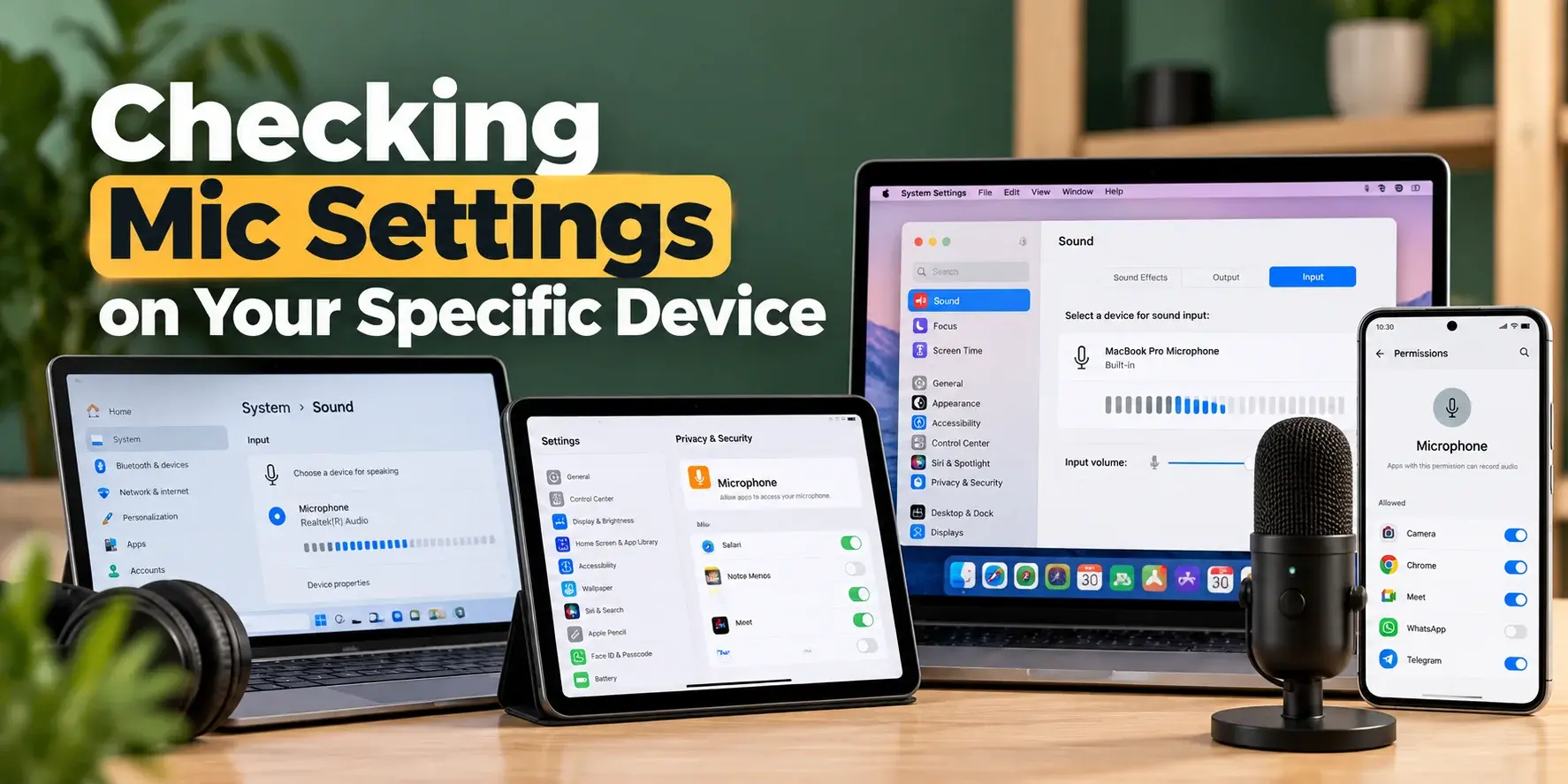
Checking Mic Settings on Your Specific Device
If the browser test shows no sound through then your operating system might be routing audio to the wrong place or keeping your input muted.
Windows (10 & 11)
Check Input Settings
Go to Settings System ⇨ Sound. Under the input section, make sure your actual microphone (such as your USB headset or external mic) is selected in the dropdown menu.
Test the Signal
Speak out loud while looking at the Test your microphone bar. If the blue bar does not move then click Device Properties to ensure the input volume is not set to 0 or muted.
Mac (macOS)
Verify System Settings
Open System Settings ⇨ Sound and click the Input tab.
Select the Device
Pick your headset or external mic from the list.
Check Levels
Speak into the mic and watch the Input level meter. Adjust the Input volume slider While testing your voice to ensure the eter bounces near the middle to upper range without hitting the maximum peak and keeping your audio crisp and free of distortion.
Android
Check App Permissions
Go to Settings ⇨ Apps ⇨ See all apps. Now tap the browser or calling app you are using and select Permissions. Make sure Microphone is set to Allow while using the app.
Clean the Port/Grille
Android mics often pick up lint in the bottom microphone hole. A soft brush can clear trash that is blocking your voice.
iPhone or iPad (iOS)
Check Privacy Controls
Head to Settings ⇨ Privacy & Security ⇨ Microphone. Ensure the toggle next to Safari or your preferred calling app is turned ON.
Test with Voice Memos
Open the internal Voice Memos app and record a short clip to confirm if the hardware mic on the bottom or near the camera is working or not.
What Is Wrong With My Mic & How To Fix It Fast
Audio issues usually come down to one of seven common culprits. Figure out the issue your mic is having and fix your specific problem.
The Computer Can’t Find Your Mic at All
If your device is not listed anywhere, unplug your headset or USB mic, wait for 5 seconds and plug it back into a different USB port. Avoid using unpowered USB hubs which sometimes fail to deliver enough power to external audio devices.
Your Browser is Blocking Microphone Access
If you accidentally pressed “Block” when the pop-up occurs for permission then:
- Look at the address bar next to the website URL.
- Click the Lock icon or Permissions icon.
- Toggle Microphone to Allow then refresh the webpage.
Your Mic is Plugged in, But No Sound is Coming Through
Check for the physical mute switches. Many wired office headsets and gaming headphones have an inline mute toggle along the cable or a flip to mute boom arm. Even if software settings are correct, a physical switch will still cut the signal completely.
You Sound Super Quiet or Faint
Your input gain is likely set too low. Open the sound settings of your computer and pull the mic input slider up to around 70-80%. Avoid taking it straight to 100% right away as maxing out input volume often introduces background hiss.
Persistent Background Noise or Buzzing
Static is frequently caused by electrical interference or bad ground connections like charging a laptop with a cheap power adapter while using a wired mic. Try unplugging your laptop charger to see if the static stops. Moreover, move desk fans, AC fans or loud keyboards away from the mic capsules.
Annoying Echo or Hollow Room Sound
Echo happens when your microphone picks up the sound coming out of your speakers and creates a feedback loop. The easiest fix for this is wearing headphones while speaking. If you are using an internal mic then lower your speaker volume so the sound does not bounce back into the microphone.
Your Computer is Using the Wrong Mic
Laptops usually default to their built-in webcam or internal microphones. These pick up an enormous amount of room echo and fan noise. Always make sure to double-check your calling app settings to confirm it is explicitly locked onto your dedicated headset mic but not “Default Device”.
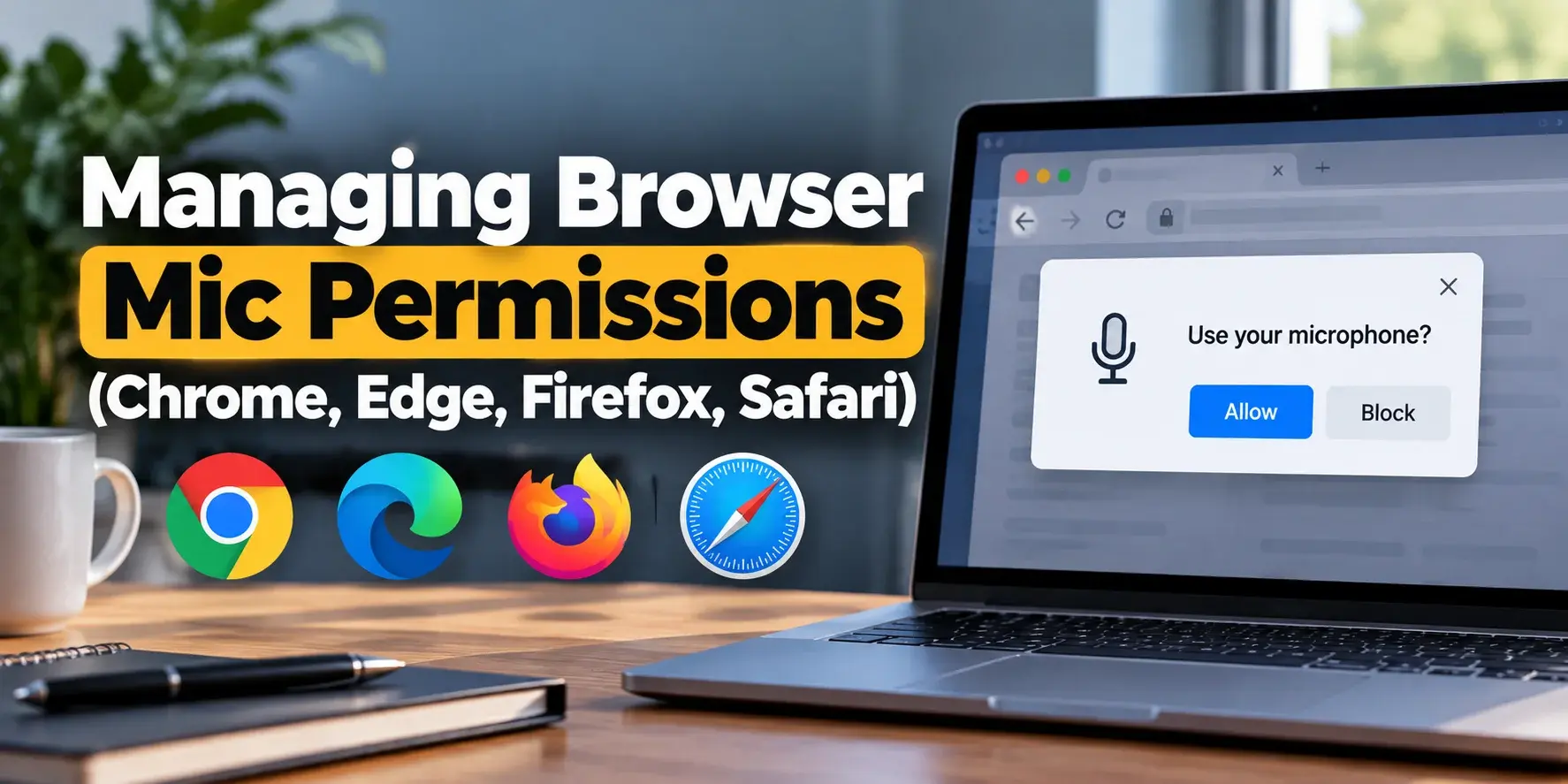
Managing Browser Mic Permissions (Chrome, Edge, Firefox, Safari)
If your browser won’t let you test your mic, here is how to unblock permission across major browsers.
Google Chrome
- Click the three dots in the top right and then Settings.
- Go to Privacy and security ⇨ Site settings ⇨ Microphone.
- Select your preferred input device and ensure “Sites can ask to use your microphone” is enabled.
Microsoft Edge
- Click the three dots ⇨ Settings.
- Select Cookies and Site permissions ⇨ Microphone.
- Confirm the correct mic is selected and check that the site is not listed under the Block list.
Mozilla Firefox
- Click the padlock icon next to the URL in the address bar.
- Clear the Use the Microphone restriction if it says “Blocked”.
- Refresh the page and click Allow when asked.
Apple Safari (Mac/iOS)
- Open Safari ⇨ Settings for This Website… (or tap the aA button on iOS).
- Look for Microphone and change the setting from Deny to Allow or Ask.
Practical Tips For Crystal Clear Voice Audio
Getting your mic to turn on is only half the battle. Making your voice sound crisp, natural and clear comes down to acoustic habits and what you look for in a microphone.
Position the Mic Capsule Correctly
If you are using a headset with a boom mic, place the capsule about two fingers away from the corner of your mouth. Placing it directly in front of your lips will capture heavy breathing and popping “P” sounds (plosives).
Dial in Your Gain Levels
Set your mic level so that normal speech is comfortably around the middle to upper area of the meter. If your audio level constantly gets the maximum red zone then your voice will clip and distort.
Control Your Room Environment
Soft surfaces absorb sound reflection. If your office has hardwood floors and bare walls, adding a rug, curtains or a desk pad immediately reduces that echoey “bathroom” sound.
Inspect Your Physical Connections
Unplug 3.5 mm jacks and wipe away dust. For Bluetooth headsets, clear out old paired devices if you experience frequent signal drops or compressed sound quality.
Keep Device Drivers Current
On Windows, outdated audio drivers like Realtek or vendor-specific software often cause phantom mic dropouts. Check Device Manager regularly for updates.
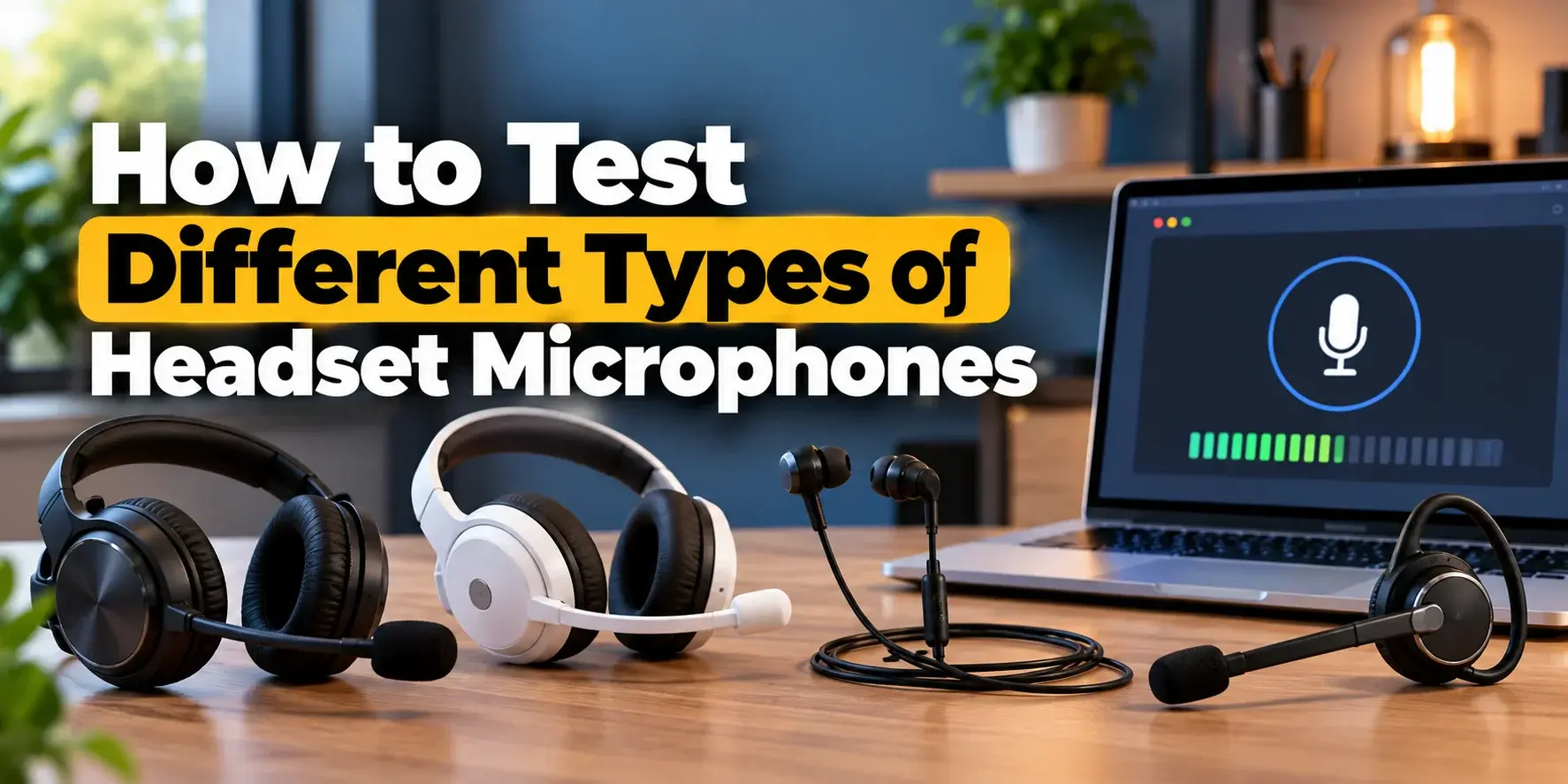
How to Test Different Types of Headset Microphones
Different connection types come with different troubleshooting checks.
Wired 3.5mm Headsets
If your headset uses a single 3.5mm audio jack, make sure your computer port supports combined TRRS input (headphones + mic). Older desktop PCs usually require a Y-splitter cable to separate audio out and mic-in.
USB Headsets
USB headsets rely on their own built-in audio processing hardware and drivers. If your USB microphone stops working or is not recognized then check your Device Manager and audio driver settings to ensure the driver has not crashed or disabled the device rather than relying on reconnecting physical ports.
Bluetooth Headphones
Bluetooth bandwidth is shared between audio output and input. When activating the microphone on older Bluetooth profiles, audio quality sometimes drops to mono ( Handsfree profile). Moving closer to your device or using a dedicated Bluetooth USB adapter may help improve stability. Though, actual results ultimately depend on your specific headset device compatibility.
Gaming Headsets & Built-in Mics
Gaming headsets often include companion software like Logitech G HUB or Razer Synapse. Always ensure that the mic gain is not muted inside the desktop app of brand as app level mutes override Windows settings.
Browser Mic Test vs. System Settings: Which One to Choose?
Both testing methods serve a clear purpose but they shine in different scenarios.
| Scenario | Browser Mic Test | System Settings Test |
|---|---|---|
| Quick check before a meeting | Best choice | Overkill |
| Listening to live audio playback | Instant recording playback | Requires recording software |
| Fixing undiscovered hardware | Won’t detect unplugged gear | Best choice |
| Adjusting system wide gain | Can not modify OS levels | Best choice |
Trusting Your Audio Setup: Why Quality Gear Matters
While quick fixes and browser tests clear up software hiccups, poor noise cancellation or muffled sound often come down to the limits of the basic hardware. Standard laptop microphones and budget earbuds are notoriously prone to picking up ambient office noise and room echoes.
If you regularly host client calls, manage team meetings or present online then having reliable audio hardware makes a world of difference. Specialized audio providers like FindHeadsets focus on professional grade communication tools. They offer dedicated noise-cancelling headsets from brands like Yealink, Poly, Jabra and Sennheiser designed to filter out surrounding workspace noise and keep your voice clear.
Final Checklist Before Your Next Call
Fixing microphone issues comes down to a quick process of elimination. If your voice is not coming through clearly then run these simple checks.
- Check the physical hardware and ensure cables are plugged in tightly and physical mute switches are toggled off.
- Confirm OS settings and verify your operating system has selected your primary headset mic and the volume level is turned up.
- Verify browser access and check site permissions to make sure your browser is not blocking audio input.
- Run a quick test and fire up the FindHeadset Free Mic Test to listen to an 8 seconds recording of your voice before jumping on your call.
No comments yet. Be the first to comment!
Leave a ReplyYour email address will not be published. Required fields are marked *