
Using a headset with your desk phone, computer and mobile phone can make it easy to lose track of time when switching between devices.
Even when both are components of your daily workflow, you might need to unplug one device before you can use the other one.
So, can Yealink headsets connect to more than one device? Yes, most Yealink headsets will support multiple devices simultaneously, but the number and type of connections will vary by model.
But it is not necessarily true that a number of devices can be connected and receive calls simultaneously.
In this guide, we'll explain the differences between Yealink models, how to connect them, which accessories you may need, and how to fix common connection problems.
How Many Devices Can a Yealink Headset Connect To?
The connection limit depends on the headset model, its connection method, and the devices you use. Some models are specifically intended for desk phones and computers, whereas others are more flexible when it comes to mobile and hybrid working.
| Yealink Headset Version | Supported Devices | Connection Methods | Simultaneous Connections or Switching |
|---|---|---|---|
| Standard (WH62/WH63) | PC and compatible desk phone | USB, EHS cable, or telephone cable, depending on setup | Can connect to a PC and compatible desk phone. Confirm the supported simultaneous connections for the specific setup. |
| Portable (WH62/WH63 Portable) | PC or compatible desk phone | WDD60 dongle or USB, depending on setup | The WDD60 connects to one device at a time. You may need to move the dongle between devices to switch connections. |
| Hybrid (WH64/WH68 Hybrid) | PC, compatible desk phone, and mobile phone | USB, DECT, or Bluetooth, depending on the model and setup | Offers multiple connection options. Confirm which devices can remain connected simultaneously for the specific model. |
| Workstation (WH64/WH68 Workstation) | PC, compatible desk phone, and mobile phone | USB, Bluetooth, and other supported connections, depending on the model | Multi-device support depends on the model and setup. Verify simultaneous connectivity and switching requirements before choosing a headset. |
Note: Remember, not all connection options can be held at once on a headset. Different models have different connection limits and features such as call handling, so please consult the specs before purchase.
What Is the Difference Between Paired and Connected Devices?
Pairing is not the same as connecting. It's important to know the distinction to prevent issues when switching between a computer, phone, and desk phone.
Pairing devices: The connection information of the paired device has been saved in the headset. It may be possible to pair again without having to do the entire pairing procedure.
Connected devices: The headset is connected to the device. This can enable audio or call control, depending on the model.
Multiple simultaneous connections: The headset can connect with several devices simultaneously. This is the feature you'll want if you need to keep the computer and mobile phone connected.
For instance, WH66 & WH67 models will store up to 8 recently connected devices but connect up to 2 Bluetooth devices at a time. Don't mistake the number of saved devices with the number of devices connected concurrently.
Can a Yealink Headset Connect to a PC and Desk Phone at the Same Time?
Yes. The Yealink WH62 and WH63 models are compatible with a compatible computer and desk phone with their base.
The computer is usually connected via USB and the desk phone is connected via a supported connection, which is typically USB, an EHS adapter, or a telephone cable (depending on the phone and configuration).
This is helpful for staff who work from the desk phone and attend meetings on the computer. They can use the same headset for both workflows rather than having a headset at their desk for each.
However, compatibility matters. Not all desk phones will have the same connection type or call-control capabilities. Before ordering, make sure you know what cable or adapter is required for your phone.
For more flexibility with mobile devices, check out Yealink WH66 or Yealink WH64 Hybrid models.
Can WH66 and WH67 Connect to More Than One Device?
Yes. The Yealink WH66 and WH67 can connect to one USB and two Bluetooth devices at the same time. This allows the setup to be compatible with a USB connection to a computer, while still being compatible with a mobile phone or compatible IP phone via Bluetooth.
For instance, you could use your computer for a Microsoft Teams meeting and your mobile phone for receiving calls. How you navigate between those audio sources depends on the available call-handling options of the headset.
The WH66 and WH67 are not the same, so make sure to compare their features and the connection requirements of your work environment before making a selection. The Yealink WH66 and Yealink WH67 product options can be viewed.
Can WH66/WH67 Connect to an iPhone?
Yes. Both models can be paired with an iPhone via Bluetooth.
To connect your headset:
- Ensure that the headset is on and available for pairing.
- Go to iPhone Settings and choose Bluetooth.
- Switch on Bluetooth and wait for the headset to be listed in the list of available devices.
- Choose the headset and pair it.
Do a test call to ensure you can hear the other person and your microphone is working.
If the headset is not showing up, try to determine if it is already connected to another device or if the Bluetooth connection slots are full. If you must go into pairing mode or delete an existing pairing, follow the directions for your specific model.
Can Yealink WH64 and WH68 Connect to a PC, Desk Phone, and Mobile Phone?
The WH64 and WH68 series provide a variety of connections; the specific features will vary by version. Hybrid and Workstation (and other variants) may vary in their connectivity with computers, desk phones and mobile devices.
The setup can be compatible with a USB or supported wireless adapter for a computer or desk phone, or Bluetooth for a mobile phone. But don't take it for granted that all WH64 or WH68 versions can support all three connections at once.
Prior to selecting a model, verify the exact variant, the base or adapter needed, whether it is desk-phone compatible, and the number of simultaneous connections. You can compare the Yealink WH64 Hybrid, Yealink WH64 Workstation and Yealink WH68 Workstation options.
How Do Yealink Headsets Connect to a Computer?
The majority of Yealink headsets are USB, wireless adaptor, or Bluetooth connected to a computer. It depends on the model as well as the type of connection required - wired connection, via a base (wireless), or via Bluetooth.
USB Connection
- Computer calls and online meetings are frequently done via a USB connection.
- Plug the base, cable, or supported USB adapter of the headset into your computer.
- Allow the computer to recognize the device.
- Access the sound settings of your operating system.
- Set the Yealink headset as the input & output device.
- Check in the calling app and make sure it is using the same headset.
- Make a test call to check the microphone and speaker.
For models like the WH62, the base is included in the connection setup. Other models may have a compatible USB adaptor or other connectivity option. Do not connect to accessories other than those recommended for the model.
Bluetooth Connection
If you have a headset that has Bluetooth, you might have the option to directly sync the device with your computer.
Follow headset pairing instructions.
- On your computer, go to the Bluetooth settings.
- Look for available devices.
- Pair and select your Yealink headset.
- Make it the sound input/output device.
- Test it in the app that you use to call.
If the computer fails to detect the headset, verify its pairing mode, Bluetooth settings and established connections. A headset that can be used with a base may need to be wired into a base rather than Bluetooth.
How Do You Connect a Yealink Headset to a Phone?
The steps vary based on whether you are referring to a cell phone or desk phone.
If your headset has Bluetooth functionality, use it for a mobile phone. Place the headset in pairing mode, go to the phone's Bluetooth, choose the headset, and make a call.
You might need a base, USB cable, telephone cable or electronic hook-switch (EHS) adapter for your desk phone. The optimal configuration is dependent upon the model of the desk phone and the headset compatibility.
If you are able to hear the calls but are not able to either answer or end the calls with the headset controls, see if your desk phone is compatible with remote call control and if it requires a particular adapter. It is not always possible to have a working audio connection with all call-control features supported.
If supported by the device, Yealink USB Connect can also be used to manage the settings and firmware.
What About an iPhone?
You may be able to link your Yealink headset to your iPhone using Bluetooth if your Yealink model has mobile connection capabilities. The WH66 and WH67 support this capability, along with other compatible models such as the WH64 and WH68 (hybrid) models.
Before suggesting a headset, please check the specific model and version's official specifications regarding Bluetooth mobile connectivity.
Also, if you plan to connect the headset to your computer and your iPhone simultaneously, verify the supported connection types as well as the limit of devices that can be connected to the headset at the same time.
The standard models of the WH62 and WH63 cannot directly connect via Bluetooth to an iPhone.
Can a Yealink Headset Connect to Two Bluetooth Devices at Once?
Yes, but only with models that have the ability to connect two or more than two Bluetooth devices simultaneously. The WH66 and WH67 can maintain two Bluetooth connections while also supporting one USB connection. The BH70 also has dual Bluetooth connectivity.
This can help ensure that a computer and mobile phone are synced without the need to re-pair the headset. But when two devices are connected at the same time, it does not mean that the calls from both devices will combine together or that switching will occur automatically. Call priority and audio switching is dependent on the headset, connected devices and calling applications.
For those who primarily need to connect to a computer and smartphone, consider the Yealink BH70 and BH74. If you also require a desk-phone base, you might want to opt for a compatible WH-series base rather.
Does a Yealink Headset Automatically Switch Between Devices?
Certain Yealink headsets provide easy switching between connected devices, but automatic switching is not always possible. The headset can switch to a live call, switch to a new audio source or force you to manually select the right device.
If the headset doesn't change as it should:
- See what devices are connected.
- Ensure that the appropriate headset is selected in your computer and calling app.
- If it is using the headset, end or disconnect the current audio session.
- See the headset's user instructions for call priority and switching.
- Check the model's compatibility with the connection combination you want to use.
Resetting the headset is not a first step in general. Start by checking the active connections and audio settings.
Can You Connect Multiple Yealink Headsets to One Base?
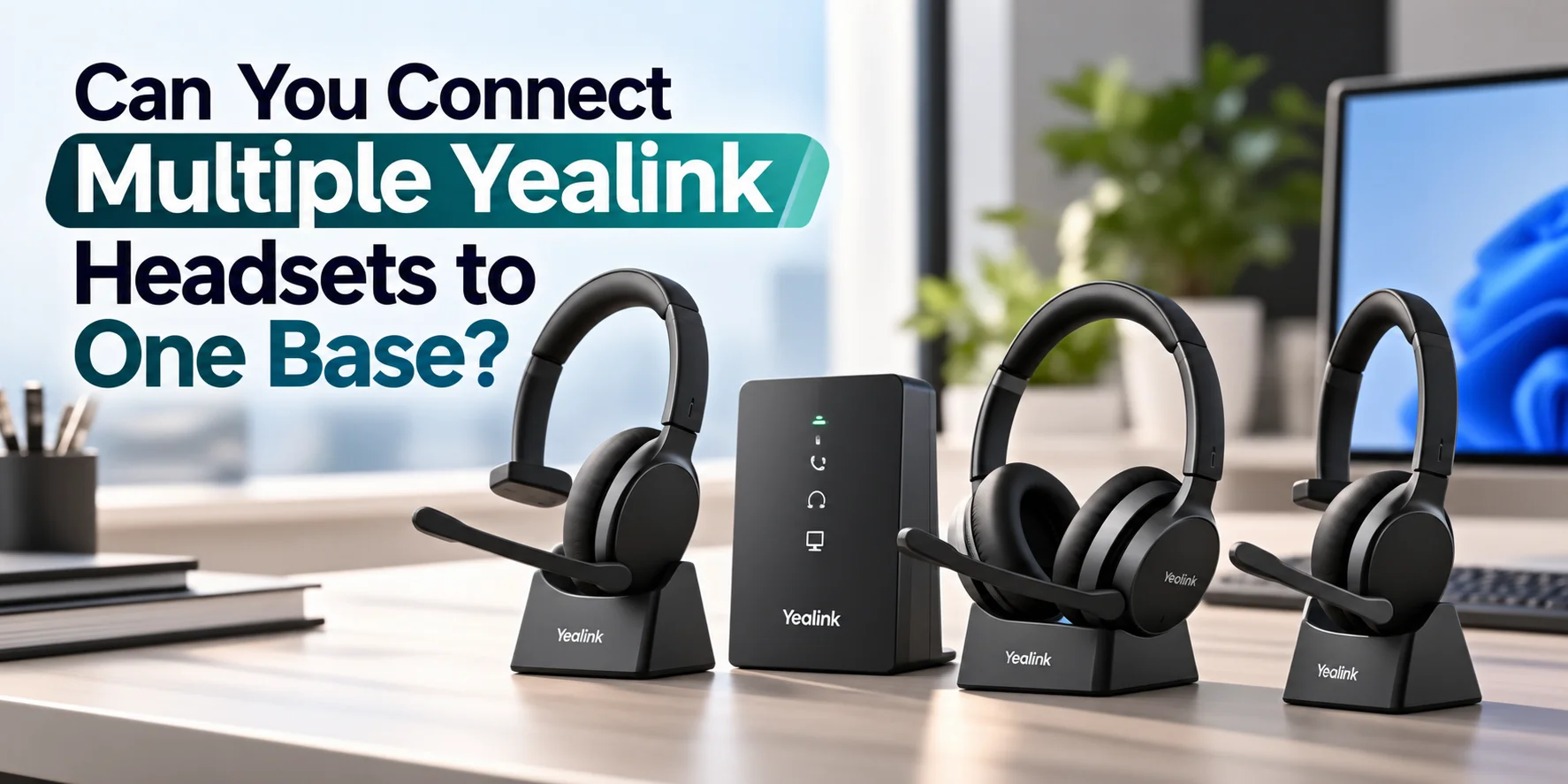
Yes, some Yealink bases can hold multiple headsets to use for conferencing. Unlike multiple connections between one headset and multiple devices.
For instance, WH66 and WH67 bases can be paired to provide up to four headsets for conferencing: one main headset and three secondary headsets. The WH63 E2 manual states that there are a maximum of 2 headsets supported on each base station for conferencing.
These limits are specific to the model. Not all Yealink bases support the same number of headsets, or can be used by multiple people without any of them interfering with each other's bases. The feature is designed to be used on supported conferencing workflows.
This can be useful for staff training, call coaching, or when a supervisor wants to hear or be a part of a call. Check base and headset fit before installing multiple headsets.
How Do You Add Another Yealink Headset to the Same Base?
It is dependent on the headset and base. The base's headset or conferencing can be used to add a secondary headset on supported WH66 and WH67.
In general:
- Ensure that the main headset and base are connected and functioning.
- Power on the additional compatible headset.
- Follow the model-specific procedure for registering or adding the headset.
- Wait until you see the base or headset confirm the connection.
- Test audio before live use of the setup.
Some models need to connect the headset to the base or to pick an option in the base. Others have a different registration process. Do not follow the steps of one model to another as they are specific to the exact model and firmware.
Can One Yealink Headset Work With More Than One Base?
Some Yealink headsets are capable of connecting to multiple compatible bases or adapters; however, it is not safe to use a single headset simultaneously with two bases.
This is important if you have to move between an office workstation and another work area. If not, the headset might require registering with the other base or using a supported connection method to operate in the other base.
Some WH62 and WH63 setups include Auto-Connect options for bases or the included WDD60 dongle. The behavior is dependent on the actual model and configuration. Before purchasing another base or expecting the headset to automatically switch between workstations, review the instructions.
What Is WDD60 and When Do You Need It?
The WDD60 is a WDD USB dongle designed to enable a compatible Yealink wireless headset to be connected to a computer using a DECT wireless connection. It offers a wireless link without the need to link the headset to a desk phone base.
The WDD60 can only be attached to a single host device. It does not support connecting a headset and a desk phone to the same dongle. If you have to use both devices, you might have to change the dongle from one device to the other or plug into a compatible desk phone jack on a base or other supported accessory.
There is not all Yealink headsets that support the WDD60, please check the compatibility before ordering. If you have both a computer and a desk phone, find out which type of connection your headset will support, and if it is able to connect to either device at the same time or will require you to switch between them.
Do You Need a Bluetooth Dongle?
Not always. You may not need to purchase an extra dongle if your computer is already equipped with Bluetooth and the headset has direct Bluetooth connectivity.
But Yealink accessories are used for various purposes. The Bluetooth adapters (BT50, BT51) and the WDD60 based on DECT are not interchangeable. Their compatibility depends on the type of headset that you have and the type of connection method that you require.
Adding a generic Bluetooth dongle to your headset may not offer the same features or call controls if your headset is designed to function with a base. Check the model's specifications before purchasing an adapter.
What Is Yealink USB Connect?
Yealink USB Connect is the desktop software that allows to manage supported Yealink devices. It can assist in device configuration, firmware updates, and pairing or Bluetooth support, depending on the model.
If your headset is not functioning as desired, the software might be able to check its settings or update the firmware. The list of features varies from device to device, so not all of these features will be available for all headsets.
Why Is My Yealink Headset Connected but Not Working?
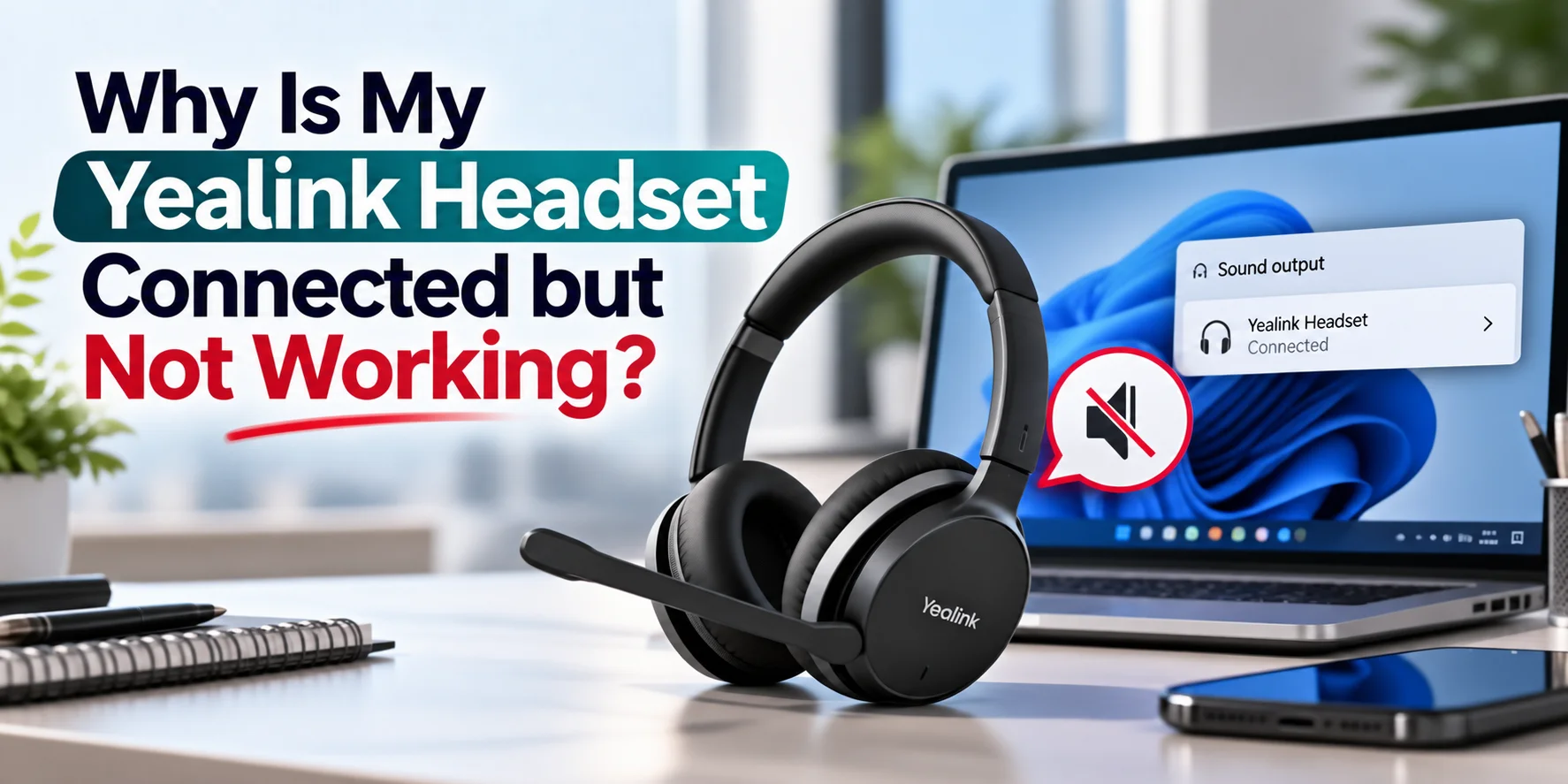
A headset that appears to be connected but doesn't play audio or work with the microphone as expected. It could be due to the computer's volume settings, the application that is calling the computer, another connection or a different accessory.
Try these checks before replacing the headset:
- Check your computer's sound settings: Set up the Yealink headset as the input/output device.
- Verify in the calling application: Check the microphone and speaker settings in Teams, Zoom or other calling software to ensure they are functioning correctly.
- Inspect other connected devices: An active Bluetooth connection is used by another device.
- Turn off an unused Bluetooth device: If the headset is currently at its limit of simultaneous connections, release a connection slot and retest.
- Check the wireless connection: Get closer to the base or connected device and minimize potential interference.
- Verify firmware and configurations: If applicable, use the proper Yealink management tool.
- Re-pair if necessary: If the connection is still broken, unpair the Bluetooth and re-pair it.
- Inspect cables and adapters: Ensure that the cable, base or desk-phone adapter is connected and compatible.
If all of this does not resolve the issue, double-check the headset's compatibility with your computer or phone before resetting it.
What Is the Difference Between DECT and Bluetooth for Multiple Devices?
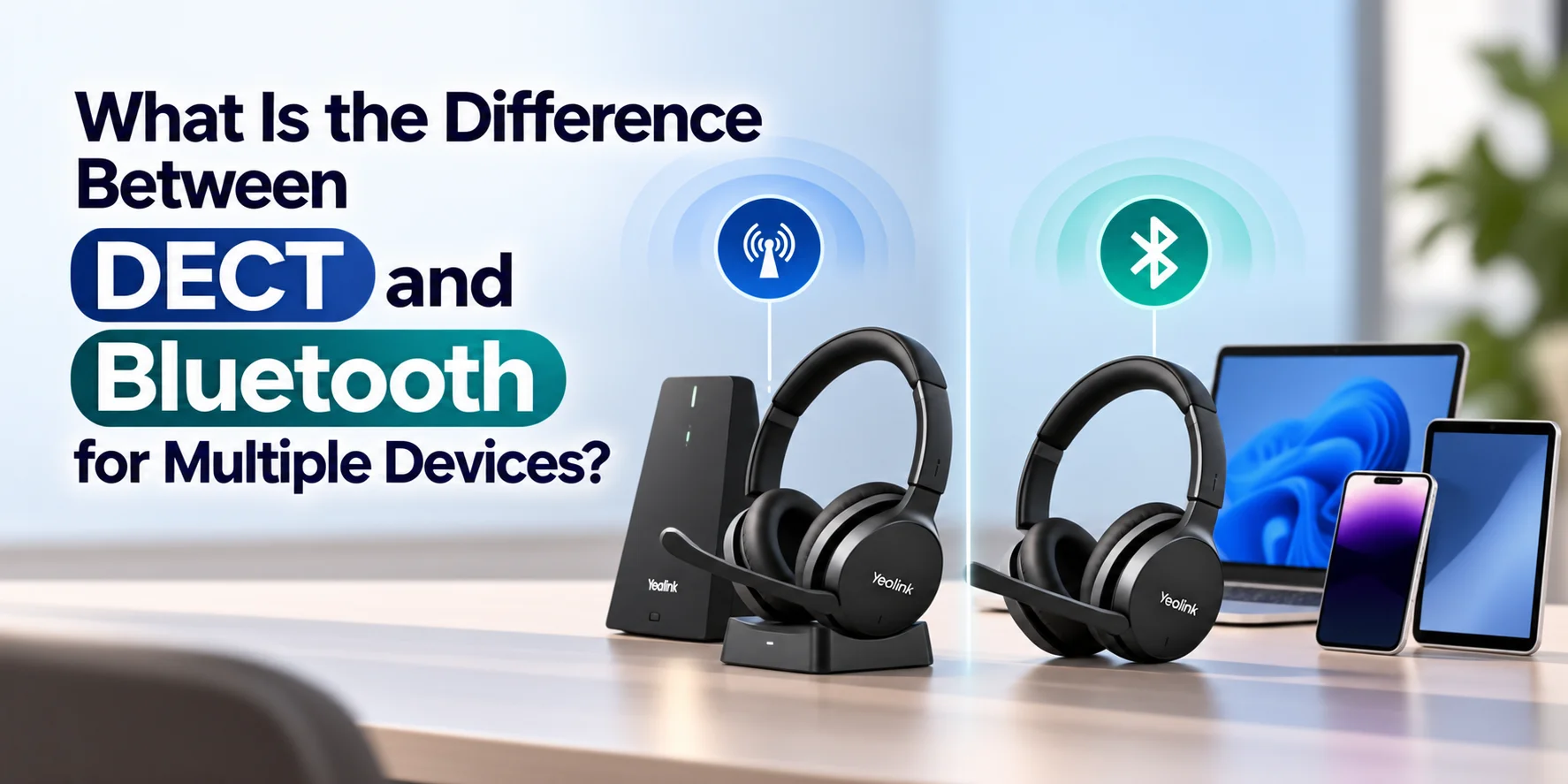
DECT and Bluetooth are not used for the same thing. Depending on the devices you use and how far you need to go from your workstation, you can choose between them.
DECT
DECT headsets are usually wirelessly linked to a special base or compatible dongle. They're often found in office settings where users require a headset for their desktops and/or phones.
There are some models of Yealink DECTs with a range of up to 160 m (525 ft) and others with a range of up to 120 m (394 ft). These are maximum ranges under suitable conditions and not a guarantee of the distance to the office. The usable range can be limited due to walls, interference and workspace layout.
Bluetooth
Compatible headsets can be connected directly to mobile phones and computers via Bluetooth. It is ideal for customers who are constantly switching between a laptop and smartphone, or for those who work outside of the office without a desk-phone base.
If your workflow requires a desk phone, computer and mobile phone, see if the headset can support the necessary connection types simultaneously. DECT and Bluetooth are not synonymous, and the selection should be based on the devices and call-handling requirements.
Which Yealink Headset Should You Choose for Multiple Devices?
The best model will depend on the devices you use on a regular basis, and whether you want multiple devices to connect at the same time, or just want to switch between devices.
If You Need a PC and Deskphone
If you work primarily at a desk and use a computer, you might want to think about the WH62 or WH63. Make sure that the cable or adapter required is there and that your phone is supported.
If You Need PC, Deskphone, and Mobile Connectivity
Compare the WH66, WH67, WH64 Hybrid and WH68 Workstation families. The way they connect and how many they can connect at once depends on the model and version, so please check the exact specifications before making a decision.
If You Mainly Need a Computer and Smartphone
If you want to make computer calls over Bluetooth with no need for a desk-phone base, you might want to consider the BH70 or BH74. Check their features and compatibility with your calling platform.
If You Need Hybrid Office/Home Use
Find a model that is compatible with the devices to be used at both locations. See if you require a base, a USB adapter, Bluetooth or a compatible DECT dongle. The headset that fits your home computer might require a different type of connection with your office desk.
If You Need Several Headsets for Training
Look for models that support multi-headset conferencing. The WH63 E2 document states that it supports up to two headsets, while the WH66 and WH67 bases can support up to four. Before buying team headsets, check the exact model and setup.
What Should You Check Before Buying a Multi-Device Yealink Headset?
When ordering, check these things out to ensure the headset is suitable for your workflow:
Devices: Identify the computer, desk phone, mobile phone, and other devices you will use.
Simultaneous connections: Ensure that the number of devices that can connect simultaneously is not the number of devices that can be paired.
The connection method: Decide if you should use USB, Bluetooth, DECT or all of these.
Base requirements: Decide if you require a base for your headset to connect to a desk phone or computer.
Adapter and Dongles: Make sure they are compatible with the accessories like BT50, BT51 or WDD60 before purchasing one.
Calling platform: Ensure that the platform and applications are compatible with your operating system, including any Teams-specific requirements.
More than one headset: For conferencing with more headsets, see the supported limit on the base.
Desk-phone connection: Check the phone type, cable, EHS adapter and the features supported by call-control.
Mobile Bluetooth: For iPhone or Android phone users, check that your headset can connect directly via Bluetooth.
Work environment: Consider whether you need wireless movement around an office, a compact home-office setup, or a headset that can work in both places.
You can save yourself a lot of money by ensuring that these things are taken care of first so that you don't get a headset that works on your PC but not your desk phone or mobile working.
Conclusion
So, can Yealink headsets connect to more than one device? Yes, but it is dependent on the model, with the number of simultaneous connections varying. The WH62 and WH63 are compatible with computer and desk-phone setups; the WH66 and WH67 feature one USB connection and two Bluetooth connections. The capabilities of WH64 and WH68 are different according to the version.
If you still don't know which headset will work for your system, reach out to the Find Headsets team and provide the following information: Computer, desk phone and mobile device information.
We will guide you in checking the compatibility and selecting the correct connection method. You can also use our Yealink headset comparison to determine which headset suits your calling requirements for the day.
No comments yet. Be the first to comment!
Leave a ReplyYour email address will not be published. Required fields are marked *