
Your Poly headset may appear connected, but you still can't hear any sound. You might also see the headset in your computer, hear a connection tone or even have the microphone functioning and the speakers muted.
Before concluding that the headset is faulty, check the place where the audio is not working. The issue can be caused by the incorrect playback device, a loose USB connection, silence, Bluetooth connection, calling-app settings, a DECT base or a Windows/Mac set up problem.
The positive is that you can most of the time detect the cause without necessarily resetting or replacing the headset.
In this article I explain why your poly headset has no sound, and how you can fix it step-by-step. It includes all types of poly headsets (usb, wired, bluetooth), bt600 & bt700 adapters, savi and dect system, windows & mac computers, microsoft teams, zoom, softphones and desk phone.
What Causes a Poly Headset to Have No Sound?
You might not be able to hear anything in a Poly headset since your computer or phone is routing audio somewhere different rather than the headset. The headset is not able to be chosen as the active playback device but can be connected correctly.
Common causes include:
- Poly headset is not chosen as an output device.
- Loose USB, 3.5mm, or quick-disconnect.
- Low volume or muted audio
- Bluetooth pairing or connection problems
- BT600 or BT700 adapter problems.
- Microsoft Teams, Zoom, Webex, or softphone options.
- Savi or DECT base configuration.
- Incorrect desk-phone connection
- Problems with the driver or firmware.
- Faulty cable, adapter, base or headset.
The most effective one is based on the connection of your headset. Begin with the basic checks, then proceed to model-specific troubleshooting.
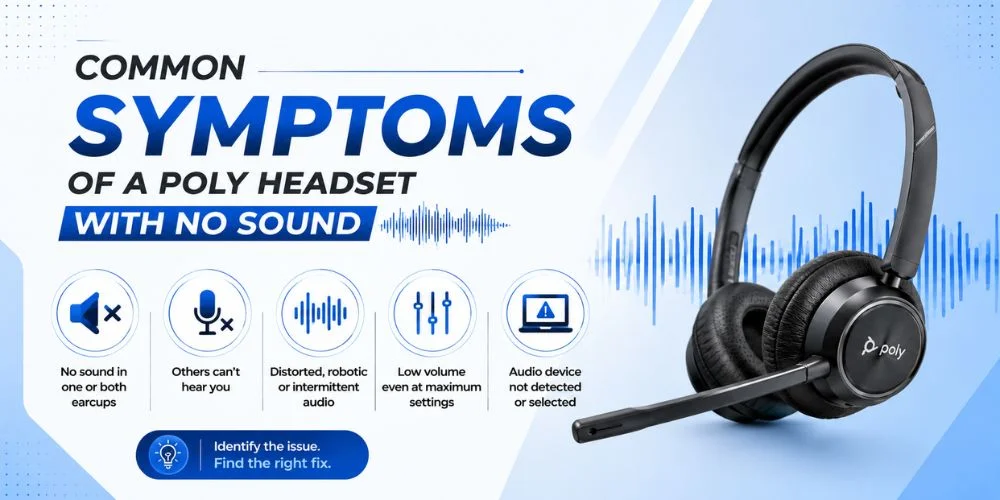
Common Symptoms of a Poly Headset With No Sound
The exact symptom can help you determine where to start.
The Poly Headset Is Connected but Silent
Windows or MacOS can identify the headset and audio is transmitted to laptop speakers, a monitor or any other device connected. Test the chosen playback device.
The Headset Does Not Appear in Sound Settings
In case the Poly headset does not appear in your list of available audio devices, verify your USB connection, Bluetooth adapter, USB port or device-recognition settings.
You Hear Nothing but the Microphone Works
This typically indicates a playback issue as opposed to a microphone issue. Test the output device, volume, mute controls and application speaker settings.
Music Works but Calls Have No Sound
When YouTube, music, or system sounds are functioning normally and Teams, Zoom, Webex or your softphone is not working, then the calling application might be using a different speaker.
Audio Cuts In and Out
Periodic sound may be due to loose cable, unstable Bluetooth, adapters, wireless interference, or software.
The Headset Works on Another Computer
When the same Poly headset functions correctly on a different compatible device, it is more probable that the original computer, USB port, driver or audio setup is the cause.
How Do I Fix a Poly Headset With No Sound? Step By Step Process
Firstly, reconnect the headset and plug USB devices directly into the computer. Choose Poly headset as the playback and communication device and verify the headset and computer volume and mute settings. When calls are not working, but normal audio is, make sure that the correct speaker is selected in Teams, Zoom, Webex, or your softphone. For wireless models, check the Bluetooth connection, BT600/BT700 adapter, or Savi/DECT base as applicable. In case the issue persists, verify the check supported firmware with Poly Lens and test the headset with another compatible device before resetting it.
1. Check the Poly Headset Connection
Change software settings only after starting with the physical connection.
USB Headset
Unplug the headset and directly insert it into your computer. Not to use a USB hub, splitter, or other device when troubleshooting. In case your computer has a second compatible USB port, then also give it a try.
When the headset remains unresponsive, then test it in another computer which is compatible. In case it works there, the initial computer or USB connection can be to blame.
Wired Headset
- Test the entire cable run.
- This could consist of:
- USB cable
- 3.5mm connector
- Quick-disconnect connection
- Inline controller
- Adapter or amplifier
Ensure that all connections are completely inserted and inspect the cable as to visible damage.
Bluetooth Headset
Turn off and turn on the Bluetooth connection.
When the headset is used with several devices, be sure to ensure that you are connected to the computer or phone you are using at the moment. Then play regular computer audio and then test a call.
This assists in ascertaining the functionality of the wireless connection itself.
2. Check Windows Sound Settings
When your Poly headset won't work, but the headset is connected, it might be that Windows is just sending audio elsewhere.
Open:
Settings → System → Sound
Select your preferred output device, and select your Poly headset or Poly adapter.
Should Windows have an option to a separate communication-device, then choose the Poly headset in that area too.
Check Volume and Mute
Prior to transition to advanced troubleshooting:
- Turn up the volume of the computer.
- Turn up the volume of the headset.
- Check the physical volume controls.
- Ensure that headset is not muted.
- Check the volume and mute of the application.
- Then play music, a video, or any other typical audio.
In the event that you can hear the sound using the headset, the fundamental playback connection has been established.
Check Other Connected Devices
Windows can pick the wrong audio device in case you have multiple audio devices connected.
Send sound to:
- Laptop speakers
- External monitors
- Bluetooth earbuds
- USB speakers
- Another headset
Choose Poly headset by hand, and recheck the audio.
3. Set the Poly Headset as the Default Audio Device
A connected headset is not necessarily the active playback device. Open your windows sound settings, and choose the Poly headset as your output device. Also make it the default communication device, should it be available.
This is particularly crucial when your computer has just been connected to another headset, monitor, Bluetooth device or USB audio device.
In case the output device is switched, and the sound is restored, no reset or replacement of the Poly headset is required.
4. Test Normal Audio Before Testing Calls
This easy test may save you time.
Play a You Tube video, music, system sound, or other normal audio.
If Normal Audio Works
Your headset and computer can communicate successfully.
When Teams, Zoom or another calling application is silent, concentrate on the audio settings of that application.
If Normal Audio Does Not Work
Continue checking the:
- Output device
- USB connection
- Bluetooth connection
- BT600/BT700 adapter
- Savi/DECT base
- Drivers
- Headset hardware
This difference will assist you in deciding if all audio or calls are affected by the problem.
5. Fix Poly Headset No Sound in Teams, Zoom, or Softphones
When normal computer audio is functioning, but the calls are silent, verify the calling application.
Manually select the Poly headset as the speaker in the audio settings of Microsoft Teams, Zoom, Webex, or your softphone.
Do not think that by defaulting to Poly in Windows, the application is using Poly.
Check the Microphone Separately
When you can hear the other person, but they cannot hear you, then the speakers may be the problem and not the microphone input.
Check that:
- Poly is selected as the microphone.
- The headset is not switched off.
- The application is allowed to use the microphone.
- The microphone is functional in the audio test of the application.
When there is a problem in the audio of only a single application, then concentrate on the application rather than making system-wide changes.
6. Fix a Poly Headset With No Sound on Mac
On Mac, open:
System→ Settings → Sound
Choose a Poly headset or compatible adapter as the output device.
Then play audio normally.
If Music Works but Calls Do Not
Go to the audio settings within Teams, Zoom, Webex, or your softphone and select the Poly headset as the speaker.
If Mac Does Not Recognise the Headset
Try:
- Turning off and turning on the headset.
- Trying another compatible connection.
- Restarting the Mac.
- Checking the headset with another compatible device.
Provided that it functions in another computer, then it could be the initial Mac setup.
7. Troubleshoot Poly BT600 or BT700 With No Sound
In case your Poly headset has a BT600 or BT700 USB adapter, verify that the adapter is not connected to the headset.
Check the USB Adapter
Troubleshooting: Directly connect the adapter to the computer and do not use a USB hub. Test the recognition of the adapter by the computer. Test it in case there is a second compatible USB port.
Check the Wireless Connection
When the adapter is recognised but the headset is not playing, ensure the wireless connection between the adapter and headset is connected.
Reconnect the headset if necessary.
In case the headset functions with a different supported connection, the computer-side connection or the adapter can be the problem.
The right connection procedure will rely on your Poly model and the devices that it accommodates.
8. Fix a Poly Savi or DECT Headset With No Sound
Savi and other DECT systems need more checks as the headset is able to communicate via a base.
Check the Base
Make sure:
- Base is powered.
- The base is attached properly.
- The base is attached to the headset.
- The appropriate sound source is chosen.
When the inappropriate source is chosen, a headset may seem to be on and be silent.
Check the Headset-to-Base Connection
In case the headset and base do not communicate properly, refer to the pairing or subscription instructions of your specific model.
Do not use a reset or pairing procedure from another Poly model.
Compare Audio Sources
When the Savi is working with the computer, but not the desk phone, check the phone-side connection.
Assuming it works with the desk phone but not the computer, examine the connection on the computer side. This comparison can easily be used to pinpoint where the problem is arising.
9. Fix a Poly Savi With No Sound on a Desk Phone
Troubleshooting desk-phones is not the same as troubleshooting computers.
Check:
- Cable between the desk phone and Poly base
- Proper phone and base ports.
- Base Desk-phone source selected.
- Headset-to-base connection
- Required EHS cable
- Lifter of handset, where necessary.
- The headset system is compatible with the desk phone.
In case your Poly headset functions on your computer, but not on the desk phone, the headset might not be the issue.
Confirm the phone-side configuration prior to buying a replacement.
10. Check Poly Headset Drivers on Windows
In case Windows had previously recognised your headset, but then it stopped, then there is a possibility of a driver problem.
Open:
Device Manager
Test the appropriate audio, USB or Bluetooth devices. In case of a driver conflict, use the supported options in Windows to update or re-install the affected device driver.
In case the issue began right after updating their driver, see whether Windows has a Roll Back Driver feature.
Roll back only a driver when it is evident that the update is related to the headset issue.
11. What If the Problem Started After a Windows Update?
Windows update can modify device drivers or audio settings.
In case your Poly headset is no longer playing sound since an update:
- Check the selected output device.
- Reconnect the headset.
- Restart the computer.
- Verify the driver.
- Test normal audio.
- Check your calling application.
Do not think that the headset itself is not working anymore because the issue has emerged after an update.
12. Update Poly Headset Firmware
In case basic troubleshooting fails to resolve the issue, ensure that your Poly headset is updated to a supported firmware.
Poly Lens or use the existing software that is suggested to be used with your Poly device.
Before updating:
- Check the model of the headset.
- Plug the device into the computer.
- Avoid a USB hub.
- Go by the instructions in your model.
- Do not disconnect the device when updating.
- Do not install firmware that is not meant to be used in another product.
Firmware may be a factor in compatibility and performance of the device, however, the firmware should not be the initial option when the headset is merely attached to the wrong output device.
13. Test the Poly Headset on Another Device
Test the headset on a different compatible device in case the headset remains silent even after checking the connection, audio settings, application and supported software.
| Test Result | What It May Mean |
|---|---|
| Works normally on another computer | Original computer or settings may be responsible |
| Works with another connection | Cable, adapter, or connection may be the problem |
| Works for music but not calls | Calling-app settings may be responsible |
| Works on computer but not desk phone | Phone-side setup may be involved |
| Fails across compatible devices | Hardware, firmware, cable, adapter, or base may need attention |
You can sample another Windows computer, Mac, phone, or connection that is supported.
This test can be very helpful compared to the continual changing of irrelevant settings.
14. Should You Reset a Poly Headset With No Sound?
One of the last steps in troubleshooting should be to reset.
Before resetting, check:
- Physical connection
- Output device
- Volume and mute
- Calling-app settings
- Bluetooth adapter
- DECT base
- Drivers
- Supported firmware
Poly products are not all the same in terms of the reset procedure. A reset process of a Voyager model might not be applicable to a Blackwire or Savi model.
Follow the directions with your specific headset.
In case your model has the use of Poly Lens to reset, use the option given by that device.
Test Before Resetting
Alternatively, first test the headset on another compatible device.
When it works in that place, re-setting it might not help resolve a pre-existing issue since it might be your computer, phone, adapter, or application.
15. When Is a Poly Headset Hardware Problem?
When the headset persists to malfunction with compatible devices, a hardware issue is more probable.
Watch out for such signs as:
- The headset is not compatible with several computers.
- The connector or cable is ruined.
- The headset keeps on disconnecting.
- The USB adapter is not recognised in other computers.
- The Savi or DECT base is not able to keep a connection.
- The headset is non-responsive following model-specific troubleshooting.
- The headset has physical damage.
- A wireless headset will not boot up upon being charged.
- Test the headset using another compatible or supported connection before purchasing a replacement.
- Should it be successful elsewhere, enquire about the initial arrangement.
Should it break down in any location, the headset, cable, adapter, base or any other part might need service or replacement.
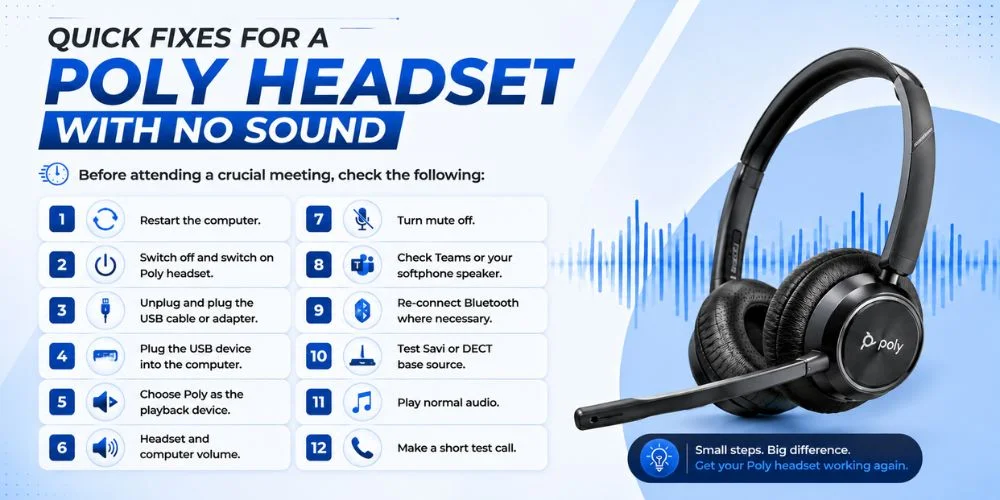
Quick Fixes for a Poly Headset With No Sound
Before attending a crucial meeting, check the following:
- Restart the computer.
- Switch off and switch on Poly headset.
- Unplug and plug the USB cable or adapter.
- Plug the USB device into the computer.
- Choose Poly as the playback device.
- Headset and computer volume.
Turn mute off.
- Check Teams or your softphone speaker.
- Re-connect Bluetooth where necessary.
- Test Savi or DECT base source.
- Play normal audio.
- Make a short test call.
In case these steps fail, go further with the above model-specific troubleshooting.
How to Prevent Poly Headset Audio Problems
There are some basic routines that can minimize sound issues in vital calls.
Test Before Important Meetings
Test the headset with the application you intend to use. It can assist you in discovering troubles with Teams, Zoom, or your softphone prior to an important meeting.
Keep Supported Software Updated
Check Windows, application and Poly software updates before significant calls. After an update, test the headset again.
Check Your Connection
In the case of USB headsets and adapters, do not have loose connections and superfluous USB hubs. In the case of wireless systems, ensure that you check the adapter, base, battery and connection prior to a significant call.
Keep a Backup
When your job requires a lot of calls, have a compatible wired headset or other supported audio device on hand.
A backup will help to save time in case troubleshooting requires more time than anticipated.
Final Poly Headset No-Sound Checklist
| Problem | First Thing to Check |
|---|---|
| USB headset has no sound | Direct USB connection and output device |
| Wired headset is silent | Cable, connector, and inline controller |
| Bluetooth headset has no sound | Bluetooth connection and playback device |
| Savi/DECT has no audio | Base and selected audio source |
| Desk phone has no audio | Phone cable, base, and compatibility |
| BT600/BT700 has no audio | Adapter recognition and wireless connection |
| Teams has no sound | In-app speaker selection |
| Microphone does not work | Input device and mute status |
| Headset stopped after update | Windows audio settings and drivers |
| Works on another computer | Original computer configuration |
| Fails on several devices | Possible hardware issue |
When Should You Contact Poly Support?
When you have not heard anything in your Poly headset even after following the necessary troubleshooting procedures, consult the support information of your particular model or contact the relevant support or service provider.
Be prepared with the following information:
- Exact Poly headset model
- Connection type
- Model computer or phone.
- Operating system
- BT600/BT700 adapter or DECT base, where necessary.
- Calling application
- When the headset is connected what happens?
- Steps that have already been taken in troubleshooting.
This information can assist in identifying the problem with the headset, adapter, base, computer, phone or software.
When the headset has warranty or service coverage, then it is advisable to check these options prior to buying a replacement.
Find the Right Poly Headset for Your Setup
It is sometimes troubleshooting that indicates that the headset itself is functional, but the existing configuration is no longer appropriate. In the case of computer calls, you should consider having a USB, Bluetooth or wireless DECT connection.
In the case of desk phones, check phone compatibility and any necessary cables, EHS accessories, handset lifters or base equipment, then select another model.
The correct headset must be compatible with your computer, telephone system, connection type, calling software and daily work needs. FindHeadsets offers a variety of Poly products to suit your installation.
Final Thoughts
The fact that a Poly headset with no sound does not necessarily imply that the headset is broken.
The issue can be caused by a mere audio control, USB device, Bluetooth device, calling software, Savi or DECT base, desk-phone set-up, driver, firmware, or hardware element.
Begin with the fundamentals: verify the connection, choose Poly headset as the output device, verify volume and mute, and verify normal audio.
When music works but calls fail, concentrate on Teams, Zoom, Webex or your softphone preferences. When you are using a Savi or DECT system, verify the base and the audio source chosen. With BT600 and BT700 configurations, test the adapter individually.
After the basic checks have failed, only proceed to firmware, driver or reset troubleshooting. Assuming the headset fails in additional compatible devices, the hardware or an accessory might require maintenance or replacement.
Frequently Asked Questions
Why is my Poly headset connected but has no sound?
Your computer might be transmitting audio to some other device. Choose Poly headset as the playback device, and adjust volume, mute and audio settings in your calling application.
What should I check first when my Poly USB headset has no sound?
To troubleshoot, simply connect the headset to your computer without using a USB hub. Next choose Poly headset as the output device and test normal audio.
Why does my Poly headset work for music but not calls?
You are using another speaker to make your calling application. Open Teams, Zoom, Webex or your softphone audio preferences and choose the Poly headset.
Why does my Poly headset have no sound in Teams?
Select the speaker in Teams. In case normal computer audio functions but Teams is not working, the issue might be connected with the audio settings of the application.
Why does my Poly Savi have no sound?
Test the Savi base, choice of audio source, headset-to-base connection and connection between the base and computer or desk phone.
Why does my Poly Savi have no sound on a desk phone?
Check telephone interface cable, telephone and base port, selected desk-phone source, headset connection, compatibility, and any necessary EHS cable or handset lifter.
Why does my BT600 or BT700 have no audio?
Connect the adapter directly to the computer and check whether it is recognised. Next is to check the wireless connection between the headset and adapter.
Should I update my Poly headset firmware?
In case the simple troubleshooting fails to repair the issue, verify on a compatible update with the help of the software suggested by your specific Poly model.
Should I reset my Poly headset if there is no sound?
A later troubleshooting step should be a reset. Check connection, output device, volume, application settings, adapter or DECT base, drivers and supported firmware first.
How do I know if my Poly headset needs replacing?
Check it with a different compatible device. In the event that it performs there, the source computer, phone, adapter or setup could be the cause. When it does not work on several compatible devices, the headset or an accessory can be in need of repair or replacement.
Why is my Poly headset not working after a Windows update?
First of all, check whether windows switched the active output device. Next, verify the speaker of the appropriate driver and your calling application. Before proceeding to the advanced troubleshooting, reconnect the headset and restart the computer.
What should I do if my Poly headset has no sound on Mac?
Go to Open System Settings, then Sound, and choose the Poly headset as the output, and test normal audio. Assuming music is fine but not the calls, make sure the speaker you have chosen within your calling app.
No comments yet. Be the first to comment!
Leave a ReplyYour email address will not be published. Required fields are marked *