
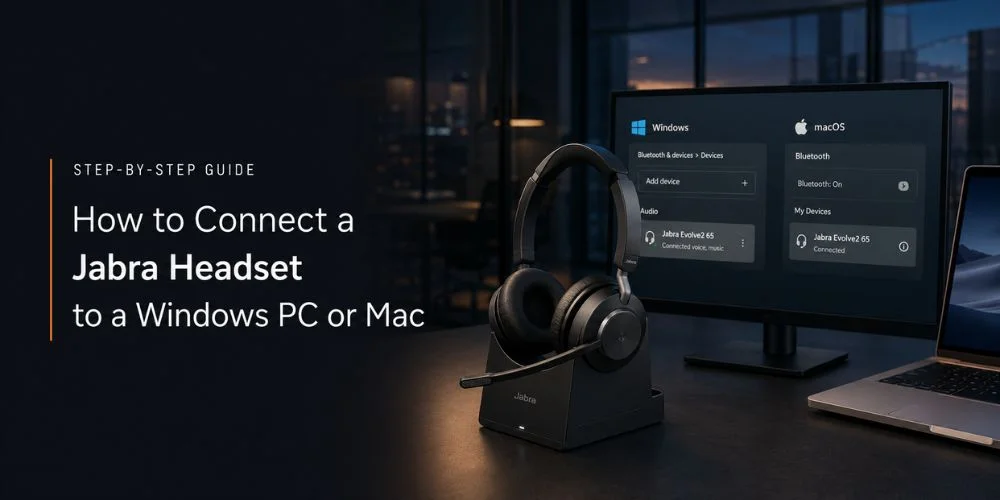
Almost every remote worker or gamer experiences problems when connecting a new Jabra headset to a computer. You may plug in your Jabra Evolve2 series or a robust Jabra Elite series, turn it on and get no sound. Or worse, you find that your computer gives sound through its tiny speakers while your microphone is recording only static noise.
If you’re currently staring at blinking blue light on your Jabra headset while your Windows PC or Mac refuses to cooperate. Take a deep breath. You are in the right place.
We have spent time testing, troubleshooting and configuring different audio hardware. In this comprehensive master guide we are going to break down every single method to connect your Jabra headset to a Windows or macOS computer. Whether you are using raw Bluetooth, a dedicated Jabra Link USB adapter or trying to diagnose a stubborn driver conflict. You will walk away with a fully functional setup.
Why Jabra and Why Getting It Right Matters
Jabra has built a legendary reputation for making world class audio gear. From call centre headsets for background noise to high end wireless earbuds.
However, modern operating systems like Windows 10, Windows 11 and the various models of macOS handle things differently. The operating system may select the wrong audio device or microphone profile if you simply power on your headset.
To experience the true power of your Jabra hardware, you need to set your connection cleanly. Let’s check what you need to know before you touch a single setting.
Things to Check First Before You Begin
Before diving into the operating system, let’s run through the essential checklist. Skipping these foundational steps is the #1 reason most of the connections fail.
Check the Battery
Make sure your Jabra headset has enough battery. If it is brand new out of the box, plug it into a USB-C charger for at least 15 minutes. A weak battery can cause Bluetooth connection problems or cause the headset to disconnect.
Understand the two Connection Methods
Jabra headsets generally connect to computers in two different ways:
Built-in Bluetooth
This connects the headset directly to the Bluetooth hardware built into your Windows PC or Mac.
Jabra Link USB Adapter
This is a USB-A or USB-C adapter that connects the headset to your computer. Some Jabra headsets come with compatible Jabra Link for easier computer connectivity.
Pro Tip: If your headset came with a Link adapter, always use it over your computer’s built-in Bluetooth. It guarantees a stable connection and native integration with calling platforms.
Put Your Jabra Headset in Pairing Mode
Your Jabra headset needs to be in pairing mode before a new computer can detect it. Simply turning the headset on isn’t enough if it is already paired to your smartphone.
How to Enter Pairing Mode
Turn on your Jabra headset, press and hold the Power/Bluetooth switch (or the dedicated Bluetooth button) for 3 to 5 seconds until the LED indicators begin flashing a blue light ( or sometimes alternating blue and red). You may also hear an audio saying “ Pairing mode”.
How to Connect a Jabra Headset to Windows (10 & 11)
Windows handles audio devices through two primary lenses. One is native system settings and the other is legacy control panels. Check out how to get connected cleanly on Windows 10 and 11.
Connecting via Built-in Bluetooth
Open Windows Settings
Press the Windows key + I on your keyboard simultaneously or click the Start menu and select the gear icon (Settings).
Navigate to Bluetooth & Devices
On Windows 11, click on Bluetooth & Devices in the left sidebar. Ensure the main toggle switch at the top is turned On.
On Windows 10, click on Devices then select Bluetooth & other devices. Ensure Bluetooth is toggled On.
Initiate Pairing
Click the prominent Add device button at the top of the window. From the pop up window that appears, select Bluetooth ( the top option: “Mice or keyboards, pens or audio devices or other kinds of Bluetooth).
Select Your Jabra Device
Windows will scan for active signals. Because you put your headset into pairing mode in the previous section, your Jabra model, e.g Jabra Evolve2 65 Stereo / Mono or Jabra Elite 85h will appear in the list. Click on it.
Finalize the Handshake
Windows will pair with the headset. You will likely hear a confirmation tone in your ear and the LED on your headset will turn solid blue for a few seconds. Click Done.
Connecting via Jabra Link USB Adapter
If your Jabra headset came with a USB dongle, this method is virtually foolproof.
Plug in the Dongle
Insert the Jabra Link USB adapter into an available USB port on your desktop or laptop.
Observe the LED
The tiny LED light on the USB dongle will light up. Because Jabra pre-pairs these dongles at the factory. It will instantly search for its designated headsets.
Power On
Turn on your Jabra headset. Within 2 to 4 seconds, the LED on the dongle will turn a steady blue or purple. It indicates that a secure and low-latency wireless link has been established. No manual Bluetooth pairing required!
How to Connect a Jabra Headset to macOS
macOS manages audio routing with exceptional elegance. But finding the right menus can occasionally feel like a treasure hunt depending on whether you are running older software or macOS Sonoma/Sequoia.
Connecting via Built-in Mac Bluetooth
Open System Settings
Click the Apple logo in the top left corner of your screen.
On modern macOS: Select System Settings.
On older macOS: Select System Preferences.
Locate Bluetooth
In the sidebar of System Settings, click on Bluetooth. Ensure the master toggle switch is turned On.
Trigger Pairing Mode
Make sure your Jabra headset is in pairing mode (holding the power/ Bluetooth button until the blue light flashes rapidly).
Find Your Device
Look down the list under My Devices or Nearby Devices. Your Jabra headset will show up here.
Connect
Hover your mouse pointer over the headset name and click the Connect button that appears to the right. The status will change to connected and you are good to go.
Connecting via the Jabra Link USB Adapter on Mac
Insert the Adapter
Plug the Jabra Link USB dongle into your Mac. If your Mac only features USB-C ports and your dongle is standard USB-A then use a reliable USB-C to USB-A hub or adapter.
Power On
Turn on your Jabra Headset.
Automatic Handshake
The Mac will instantly recognise the USB device as an external sound card and the pre-paired dongle will link to your headset automatically.
The Most Important Step: Configuring Your Audio Settings
Connecting your headset via Bluetooth or a dongle is only half the battle. Just because your computer is connected to the headset does not mean it is actively routing your operating system to run sound to your Jabra device.
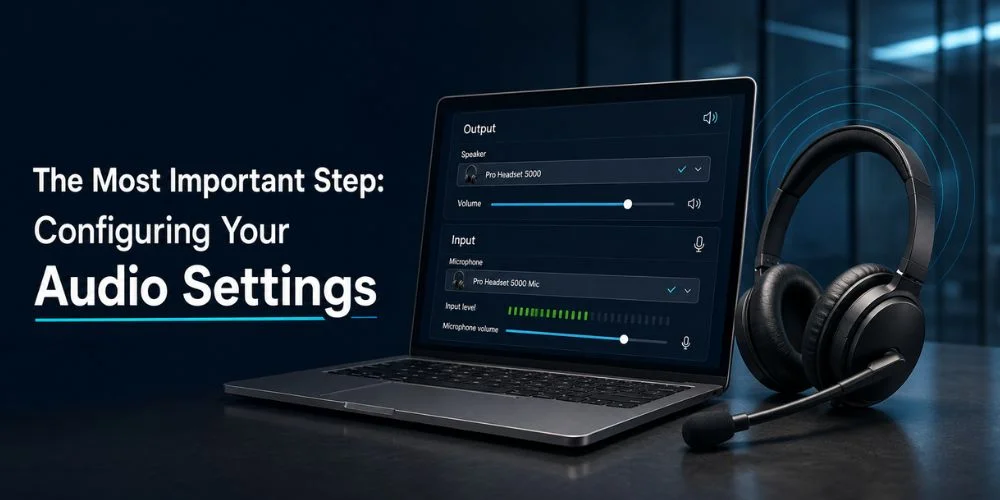
Setting Audio on Windows 10 & 11
1- Look at the bottom-right corner of your taskbar and click the Speaker icon (or press Windows key + K for quick cast/ audio settings).
2- Click the small arrow next to the volume slider to view your available audio output devices.
3- Select your Jabra headset for Playback (Output). You may see two options: Headphones and Headset (AG Audio). Always select Headphones or the primary device name for high quality sound.
4- To verify microphone input, click right on the speaker icon and select Sound Settings. Scroll down to Input and ensure your Jabra microphone is selected as the active recording device.
Setting Audio on macOS
1- Go to Apple Menu ⇨ System Settings ⇨ Sound.
2- Under the Output tab, scroll through the list and select your Jabra headset or Jabra Link dongle.
3- Click on the Input tab right next to it and select your Jabra headset as your input microphone device.
Pro Tip: You can also hold down the Option (Alt) key on your keyboard and click the speaker icon in the top Mac menu bar. This gives you a fast menu to switch inputs and outputs instantly without opening system settings.
Unleashing Full Potential: Jabra Direct Software
If you want to get the maximum of your hardware, do not skip this section. Jabra provides a free and exceptional desktop companion application called Jabra Direct. It is available for both Windows and Mac.
Firmware Updates
Headsets come with firmware that may be months old. Jabra Direct checks for updates and bugs. It improves microphone noise cancellation and boosts battery stability.
Audio Adjustment
You can adjust the equaliser (EQ) settings to boost bass or enhance vocal clarity for conference calls.
Sidetone Adjustment
Sidetone allows you to hear your own voice in the earpieces when speaking. It prevents you from shouting on calls. You can raise or lower this level inside Jabra Direct.
Call Control Integration
Ensure seamless integration with Microsoft Teams, Zoom and Cisco Jabber so that pressing the mute button on your headset physically mutes you in the software application.
Advanced Troubleshooting When Things Go Wrong
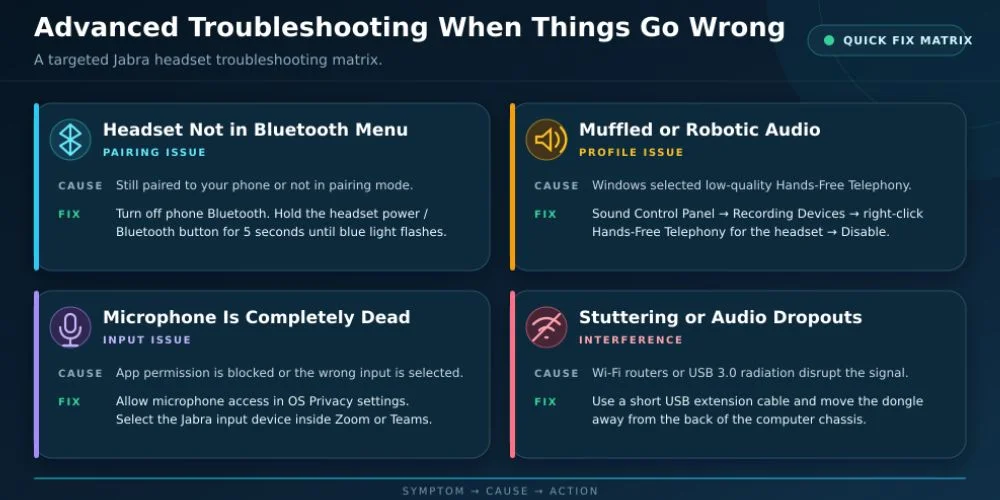
Technology misbehaves even with the best hardware. If you hit a roadblock, run through this targeted troubleshooting matrix:
| Symptoms | Probable Cause | Corrective Action |
|---|---|---|
| Headset won’t show up in Bluetooth menu | Headset is still paired to your phone or not in pairing mode. | Turn off your phone’s Bluetooth temporarily. Hold the headset power/ Bluetooth button for a full 5 seconds until the blue light flashes rapidly. |
| Audio sounds muffled or like a robot | Windows switched to the low quality “Hands-Free Telephony” profile. | Go to Sound Control Panel → Recording Devices, right click Hands-Free Telephony for your headset and select Disable. |
| Microphone is completely dead | App permission or wrong input selected. | Check OS privacy settings to ensure apps have permission to use the microphone. Verify the input source in Zoom/ Teams matches the Jabra device. |
| Constant stuttering or dropouts | Wireless interference from Wi-Fi routers or USB 3.0 port radiation. | If using a USB dongle, use a short USB extension cable to move the dongle away from the back of the computer chassis. |
How to Perform Factory Reset on a Jabra Headset
If all else fails, a factory reset clears out corrupted pairing registries.
1. Turn on the headset
2. Press and hold the Volume Up button and the Multi-Function/Call button simultaneously for about 15 seconds. Hold until the LED flashes purple (or pink) and you hear a reset tone.
3. Delete the headset from your computer’s Bluetooth memory, restart your computer and pair it fresh from scratch.
Final Thoughts
Connecting a Jabra headset to Windows or Mac does not have to be a difficult task to perform. By ensuring your headset is properly primed in pairing mode, choosing a USB link adapter over native Bluetooth whenever possible and manually verifying your operating system you unlock a flawless audio experience.
Take a few moments to install Jabra Direct to keep your firmware fresh and you will enjoy crisp calls and reliability for years to come.
Frequently Asked Questions
Why won’t my Jabra headset appear in my Windows or Mac Bluetooth list?
If your computer can not find your headset, it is usually because the headset is not actively in pairing mode or is connected to another device. To fix this, turn off Bluetooth on your phone temporarily. Then with your headset powered on, press and hold the power/Bluetooth button for 3 to 5 seconds until the LED light flashes rapidly in blue.
Should I use my computer’s built in Bluetooth or the Jabra Link USB adapter?
Use the Jabra Link USB adapter when possible. Because Jabra pre-pairs these adapters at the factory, they provide an instant plug and play connection without manual pairing. Furthermore, the USB dongle offers a more stable wireless range and native call control integration with software like Microsoft Teams and Zoom compared to standard motherboard Bluetooth chips.
Why does my audio sound muffled during calls?
This happens when Windows or macOS accidentally routes your audio through the low fidelity Hands-Free Telephony profile instead of the high quality stereo profile. To fix this on Windows, open your Sound Settings and ensure your default playback device is set simply to Headphones rather than Headset.
How do I update the firmware on my Jabra headset?
To keep your headset running smoothly and patch any bugs, download and install the free Jabra Direct software on your Windows PC or Mac. Plug your headset into the computer using a USB cable, open the application and Jabra Direct will automatically detect your model and notify you if a firmware update is available.
Can I connect my Jabra headset to two devices at the same time?
Yes. Many Jabra models support Multipoint technology, allowing you to connect to two devices simultaneously. Only one device can stream audio at any given moment.
Can I use a Jabra wireless headset with a wired USB cable instead?
Yes. On most modern USB-C Jabra models, you can plug the headset directly into your computer via a USB-C cable.
No comments yet. Be the first to comment!
Leave a ReplyYour email address will not be published. Required fields are marked *