
 By
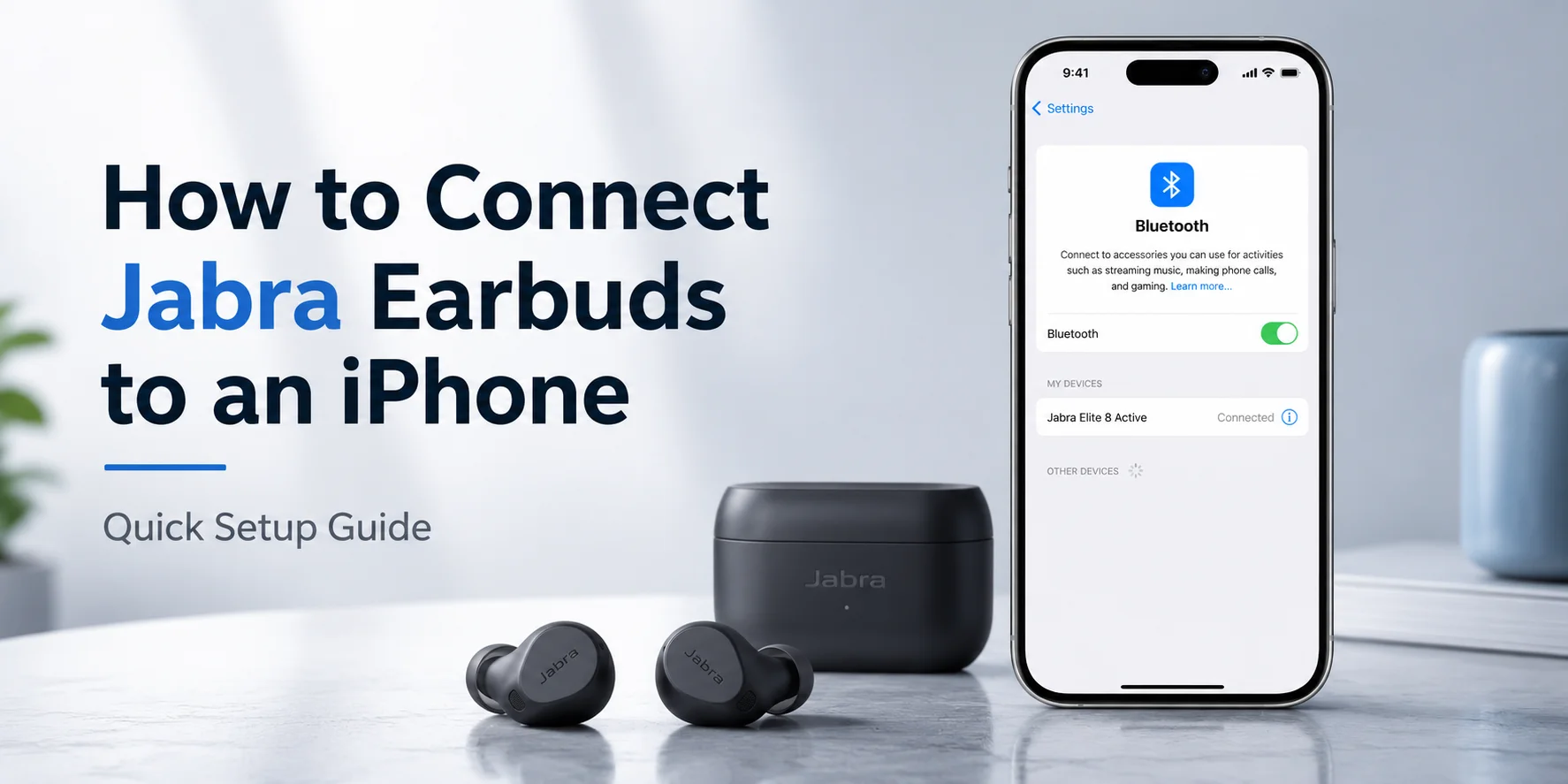
By Jabra earbuds are known for connecting to smartphones like the iPhone very smoothly. People have started to rely more on wireless audio devices for everyday use, like calls, music, and entertainment. Jabra earbuds offer reliable Bluetooth performance and are compatible with a variety of Apple devices.
When it comes to Jabra earbuds connecting to an iPhone, they provide a very user-friendly and hassle-free experience. Due to the latest Bluetooth technologies, Jabra Bluetooth earbuds connect within seconds to users' Apple devices. Moreover, they maintain a stable and long-term connection for calling, entertainment, or multitasking.
In this Jabra earbuds Bluetooth setup guide with iPhone, I will provide an easy step-by-step guide for effortless connection. This will offer users the opportunity to enjoy convenience, high-quality audio, and dependable performance in their daily routine.
Important Note on Tested Solutions
All the methods that will be discussed further are carefully tested by my experienced technicians and me. Moreover, every step written in this guide is experienced in real-time situations to check the authenticity. The guide is based on hands-on experience from real users, practical testing, and industrial trusted resources and feedback.
In this blog, you will learn how to connect your Jabra earbuds to your iPhone. You will gain the knowledge to overcome the pairing issues in simple steps. In addition, you will also come across the most common issues faced by users during connection and their troubleshooting procedures.
Models of Jabra Earbuds Connecting to iPhone
Jabra earbuds come in different variants that are mentioned below.
Jabra Elite 3
Jabra Elite 4
Jabra Elite 5
Jabra Elite 7 Active
Jabra Elite 7 Pro
Jabra Elite 8 Active
Jabra Elite 10
Jabra Elite 75t
All of these models are the latest and can connect to users' iPhones very quickly. They follow the same connection methods, but they can have a minor difference in their exact button combination. Whether it's a new model like the Jabra Elite 8 Active or Elite 10, or it is an older variant like the Jabra Elite 65t. Here is a “one-size-fits-most” standard guide for making a stable connection.
A Step-by-Step Guide on How to Connect Jabra Earbuds to an iPhone
It is very simple to connect Jabra earbuds with any smartphone, tablet, or mobile device by following simple steps.
- To connect earbuds with a smartphone, turn on the Bluetooth setting on the device.
- Remove the earbuds from the charging case and turn on the earbuds.
- Press and hold both Left and Right buttons at the same time for at least 1 second. Both earbuds' LEDs will start flashing green.
- For pairing mode, keep the Left and Right buttons pressed together for 3 seconds.
- When the LED on the Right earbud flashes blue, the earbuds will be ready to pair with the iPhone.
- Go to the Bluetooth menu on the iPhone for pairing. Select the Jabra earbuds from the list.
- Wear the earbuds for proper voice guidance instructions.
- Enter the “0000” four zeros as a pin code if you are asked for one.
Note: When the earbuds are turned on in the range, they automatically connect with the last connected device.
How to Pair Jabra Earbuds with an iPhone
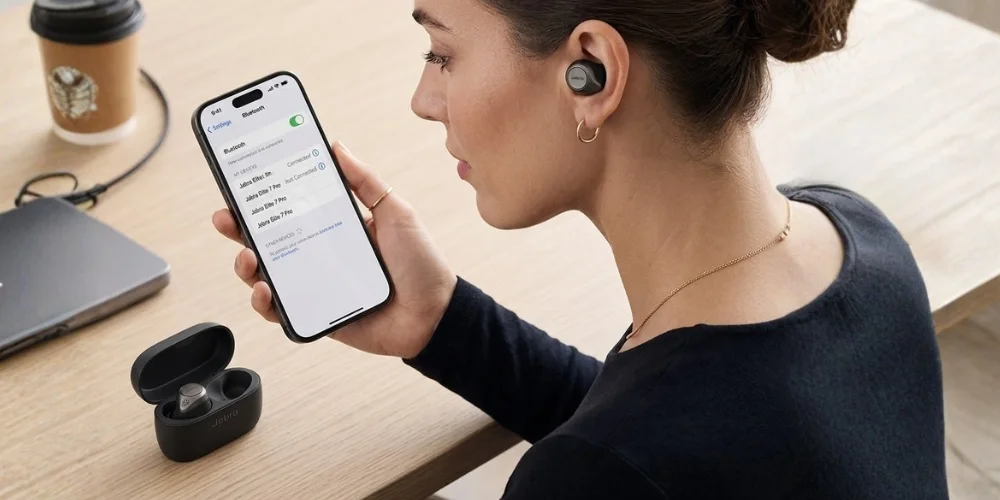
In order to pair your smart device, like an Apple device, to Jabra earbuds, you need to follow a few simple steps.
- To pair your device, turn on your Bluetooth settings on your iPhone.
- Press and hold the Right button on your Right earbud to turn it off manually. When the red light flashes, it will indicate that it has turned off.
- Now press and hold the Right button for at least 3 seconds until the LED flashes blue.
- The earbuds are ready to pair with your iPhone.
- For pairing, go to the Bluetooth menu on your iPhone and select the Jabra earbuds from the list of devices.
- Now wear your earbuds one by one to hear the instructions in the voice guide.
- If it asks for the pin code, enter four zeros “0000.”
How to Check if Your iPhone has Paired with Jabra Bluetooth Earbuds or Not
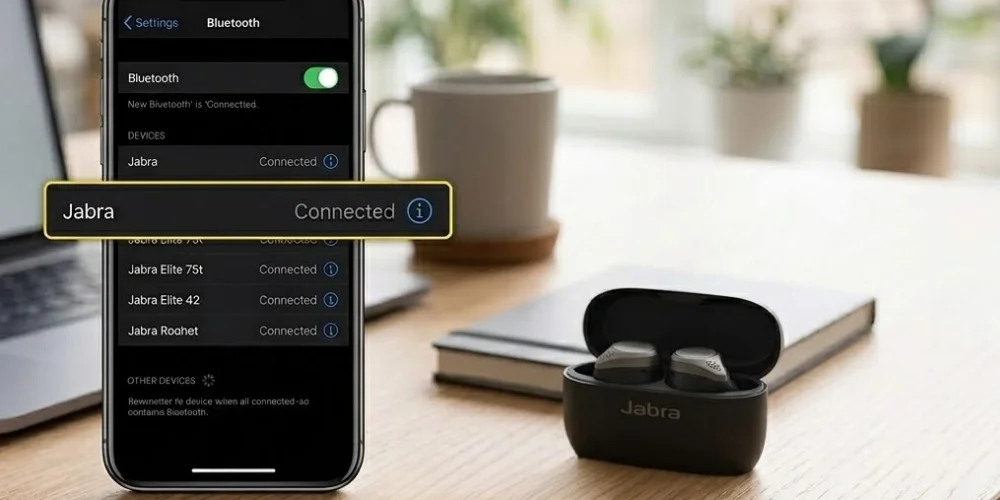
It is very easy and simple to check whether your iPhone has paired with Jabra earbuds or not. If the pairing is successful, then your earbuds will appear in the list of connected Bluetooth devices on your iPhone. Moreover, you will also hear your Bluetooth connection announcement in your earbuds as well. The voice will be “Ready to pair.”
But if the pairing is not successful, you can repeat the steps and try again to pair. If it still does not connect, then you can try it on any other device to figure out the problem.
How to Pair Elite 65t to iPhone
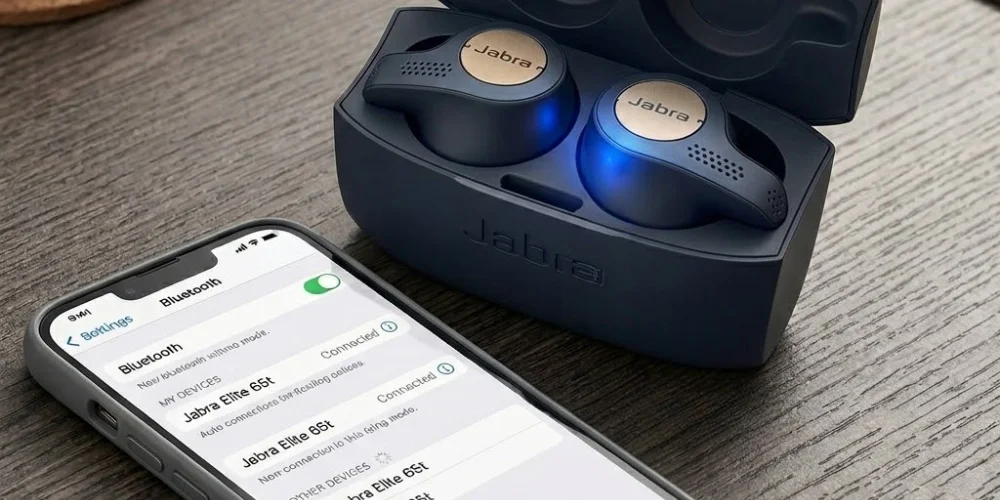
For the older Jabra earbud models like Elite 65t, you can start pairing by turning them off first. Press and hold the multifunction button on the Right earbud for at least 5 seconds. When the earbud flashes blue, you can pair.
How to Connect Via iPhone Settings
Users can easily connect through the iPhone settings when the earbuds flash blue. It indicates that they are ready to pair with your iPhone. You can do it by following these simple steps
- Open your iPhone's settings and tap Bluetooth
- Ensure that your toggle is On.
- Look for your Jabra earbuds model in the list of other devices like Jabra Elite 7 Active.
- Tap the name to make a connection.
- If it asks for the PIN code, enter “0000” four zeros.
Note: If you see two entries (one with a "LE-" prefix and one without), always tap the one without "LE" first to ensure a high-quality audio connection.
Table Comparison for Entering Pairing Mode
In order to better understand the requirements and steps for pairing with different Jabra earbud models, a table is given below. It shows three different but main ways through which users can pair their devices, depending on different models.
Table Comparison for Entering Pairing Mode
| Model Series | Method | Indicator |
|---|---|---|
| Elite 10 (Gen 1 & 2), Elite 8 Active | Wear earbuds, press and hold Left & Right buttons simultaneously for 3 seconds. | Voice says, "Ready to pair." |
| Elite 3, 4, 5, 7 Pro/Active | Take it out of the case. Press and hold the Left & Right buttons for 3 seconds. | LED flashes Blue. |
| Elite 75t, 85t | Take it out of the case. Press and hold the Left & Right buttons for 3 seconds. | The LED on the right earbud flashes Blue. |
| Elite 65t (Older) | Start with them off. Press and hold the right button for 5 seconds. | LED flashes Blue. |
How to Pair New Elite 10 Gen 2 Jabra earbuds with iPhone
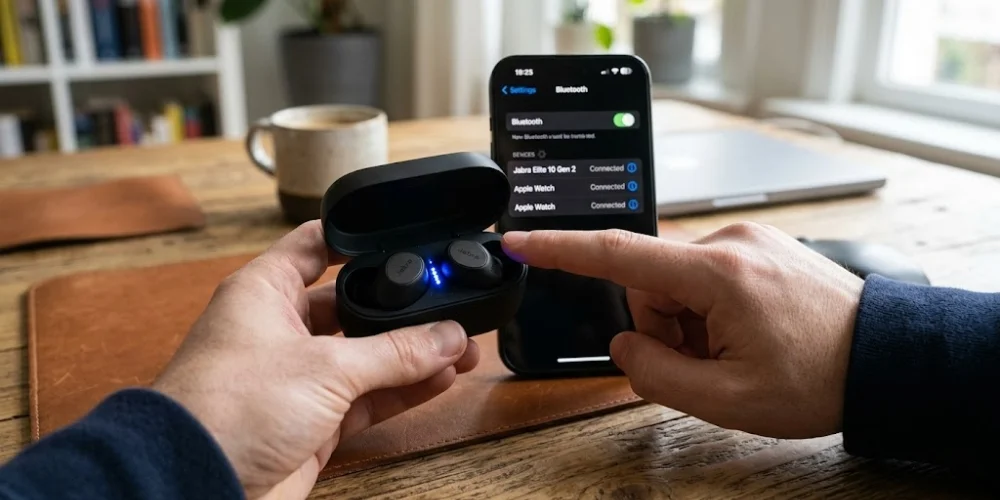
If you are using the new Elite 10 Gen 2, then you can pair it with your iPhone through the smart case as well. You need to follow simple steps
- Open the case
- hold the button for 3 seconds
- The internal LED flashes blue
- Pairing is complete
The Essentials of the Jabra Sound+App
If you want to enjoy the Jabra earbuds with your iPhone, then it is a must to have the combination of the Jabra Sound+ app. It is no longer an option. Through this, you get a complete pack of functions like
Firmware Updates
If you want to fix bugs and improve the quality of noise cancellation, then you need to manually update the Jabra earbuds with the help of this App.
Find My Jabra
By any chance, if you lose any of your earbuds. You can find them through your iPhone’s GPS. It will show you the location where they were last connected and used.
MySound
This app is designed to provide safety to hearing users. It runs a test for creating a custom EQ equalisation profile for your ears.
Widget
If you want to know how much battery percentage is left of your earbuds, you can add a Jabra widget to your iPhone Home Screen. It will show you the battery percentage.
How to Troubleshoot the Reset of "Pink Flash"
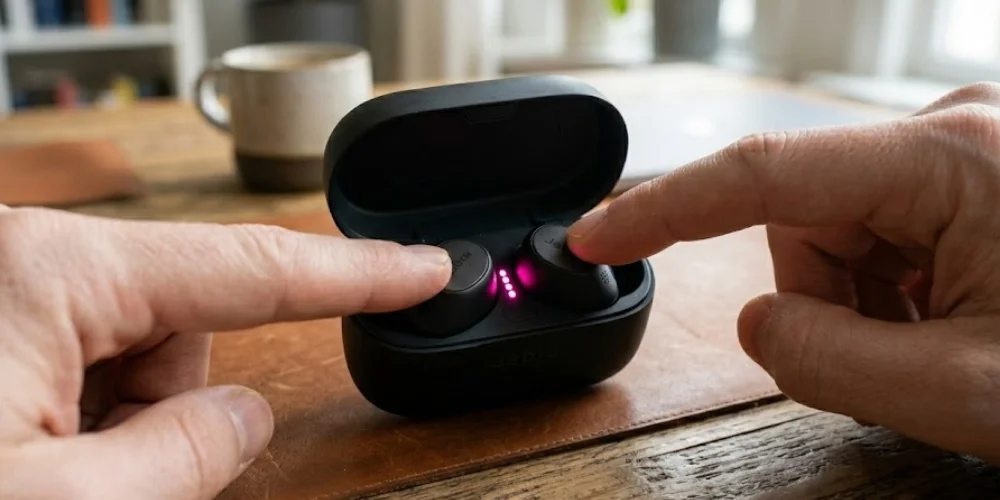
Sometimes users also complain that their only earbud is not getting connected, or neither of them is working. If it happens, then you need to go for a factory reset. You can easily Factory reset by following the simple steps mentioned below:
- Forget the Jabra earbuds from the Bluetooth list of your iPhone. You can simply do it by removing the earbuds entry.
- Put both Jabra earbuds back into the charging case.
- Press and hold the Left and Right buttons at the same time for at least 10 seconds. When the LED flashes pink, then leave them.
- Close the charging case lid for 5 seconds to completely reset.
- Try pairing from scratch after taking them out of the case.
Using "Multipoint" (iPhone + Mac/iPad)
The Jabra earbuds are very well known for connecting to two devices at the same time. Their multipoint productivity allows them to stay connected to your iPhone and any other Apple device, like a MacBook, simultaneously. This can be done by
- First, pair your earbuds to your iPhone.
- Then hold the buttons on your earbuds for 3 seconds to put them in the pairing mode.
- Then pair your second device.
How Does this Pairing Work?
By this dual pairing, you won't miss any of your notifications and alerts from your phone when you are working on your Mac. When your iPhone rings, the Jabra will automatically switch your earbuds' sound to your iPhone call.
Crux f the Discussion
Jabra earbuds are well known for providing high-quality sound to iPhone users. It is very easy to connect them with each other with the help of a few easy steps. Moreover, if you are using the newest models of earbuds, their connection is very easy, but if you are using the variants, this guide will also help you connect.
Most users find difficulty, and they ask how to connect Jabra earbuds to an iPhone. It can be done within seconds if the right path is followed.
Frequently Asked Questions
You can put your Jabra earbuds into pairing mode with your iPhone by following some simple steps.
- Take both earbuds from the charging case.
- Press and hold the buttons on both earbuds for approximately 3–5 seconds.
- When the LED flashes blue, that means pairing mode is on.
Jabra Bluetooth connection can fail due to several reasons, such as if it is already connected to another device (laptop, tablet, etc.), a glitch, Bluetooth being turned off, or the earbuds not being in pairing mode. There can also be too many saved devices in the earbuds' memory.
To fix these problems, follow these troubleshooting steps:
- Turn Bluetooth OFF → ON
- Forget the device → reconnect
- Reset the earbuds by holding the buttons for at least 10 seconds until the LED flashes purple.
You can make your Jabra earbuds discoverable by turning their pairing mode on. You need to:
- Turn OFF earbuds
- Press and hold both buttons until the LED flashes blue
- Go to Settings → Bluetooth
- From the Bluetooth list, select your Jabra earbuds.
Your iPhone might not detect your Bluetooth headphones due to small issues like the earbuds not being in pairing mode, a glitch in the iPhone's Bluetooth, or your earbuds being connected to another device. An iOS bug can also occur.
To fix these issues, follow these steps:
- Toggle Bluetooth OFF/ON
- Restart your iPhone
- Forget old devices
- Reset network settings if needed
If your Bluetooth is refusing to pair, it could mean that your earbuds are out of range, have low battery, or there is a compatibility issue or software bug.
Fix it by following these steps:
- Restart BOTH devices
- Turn Bluetooth OFF/ON
- Reset the earbuds
- Try pairing again from scratch
No comments yet. Be the first to comment!
Leave a ReplyYour email address will not be published. Required fields are marked *