
 By
By Just imagine your Turtle Beach headset is ready, your Xbox is powered on, and you are very excited to jump into your bed to play your favorite game. But then you find one issue that your headset is not connected to your Xbox.
If this is your first time, it's okay, but if you are already a user of a Turtle Beach headset and you have switched to a new console, then you still don't need to worry. Want to know why? Because the connection process can be a little bit confusing. You'll need to understand that different Turtle Beach models use different connection methods, and it is not possible for the gamer to learn all of those technical methods.
That's where my gammer fellows get stuck. So don't worry, it's just not you. Modern gaming headsets come with advanced features and multiple setup options. So a little guidance will be very helpful for you.
A proper connection is essential, not only for game audio, but it also gives you clear voice chat, accurate directional sound like footsteps, and you can smoothly communicate with your teammates. So if the headset is not connected correctly, you might experience problems, like
- You will get no sound.
- Your microphone will not work.
- You will face unbalanced audio.
So you don't need to worry. The good news is that connecting a Turtle Beach headset to your Xbox is very easy and straightforward. And the simple steps are very easy for you. Once you learn them, you will be good to go. Whether your headset is wired, USB, or wireless.
In this guide, you will learn the exact process of how to connect your Turtle Beach headset to your Xbox console, so you can come back to gaming without frustration. So let's get started with these steps.
First-Hand Experience Methods for Successful Connections
All the methods which are mentioned below are tested on an Xbox Series X using the Turtle Beach Stealth 600 Gen 2. We are guiding you with the accurate and effective methods that have proven positive during our experiments.
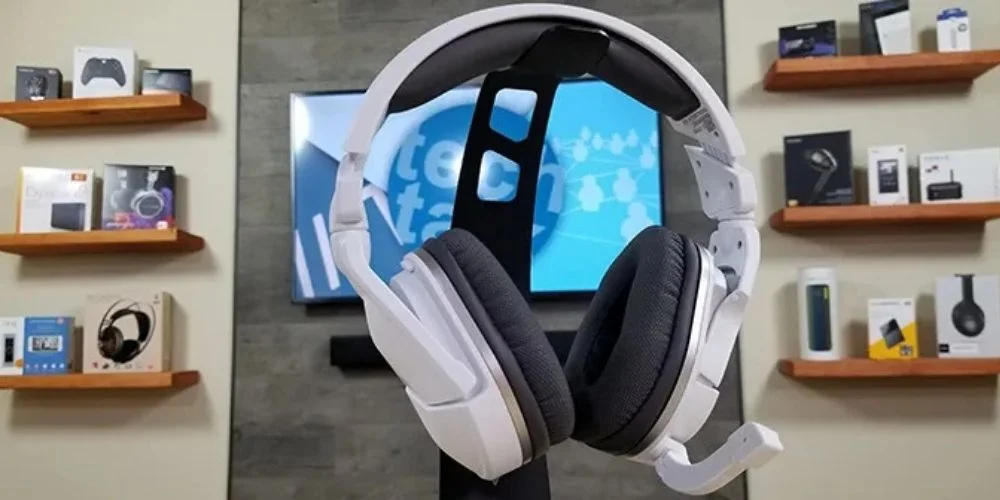
All these troubleshooting steps are tried and tested by us on real world use. These are not just theoretical steps, but they are practical in terms of how the headset behaves during actual pairing attempt.
Types of Headsets Turtle Beach Offers?
There are two types of headsets that Turtle Beach provides. They are wireless and wired headset. The wireless models are then divided into two versions.
1-Direct wireless connection in which no transmitter is required
2- Wireless with a USB transmitter, which is a dongle or transmitter-based.
A step-by-step guide is given below for you to understand how you can connect your Turtle Beach headset to your Xbox. All these steps are based on our hands-on testing experience. We have tested them on Xbox Series X using the Turtle Beach Stealth 600 Gen 2.”
Connecting Wirelessly with Direct Pairing and no Dongle
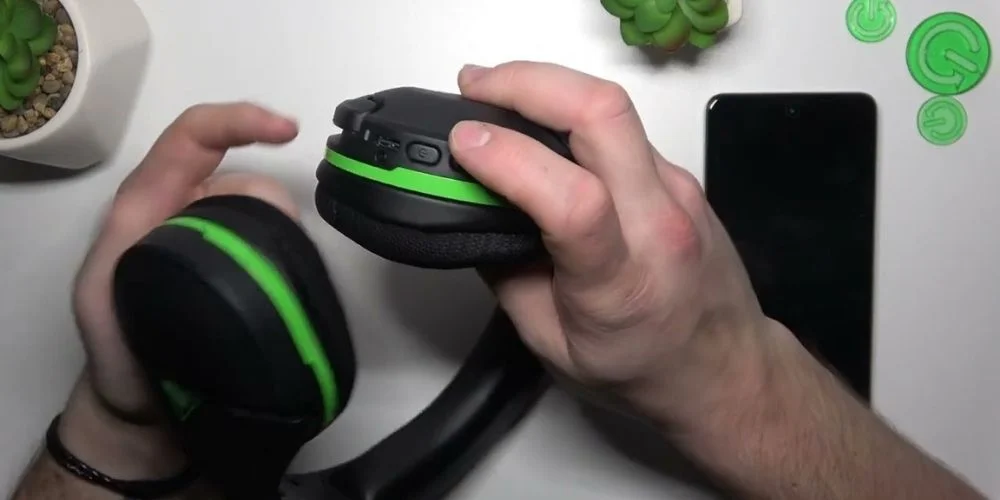
If you have a wireless Turtle Beach headset, then you can make a connection without using any transmitter or dongle. Because this headset is designed for Xbox, you can directly connect to your Xbox by following the steps given below steps.
Step 1: Power on Your Headset
The very first step is to check whether both of your devices are on or not. If not, then turn on your Xbox and press and hold the power button of your headset until the LED lights up.
Step 2: Activate Xbox Pairing Mode
Then you need to activate your particular console into pairing mode. You need to press your console’s pairing or enrollment button. You can find the button on given locations below based on your console variant.
Xbox Series X|S: Front panel, bottom right
Xbox One S/X: Front panel, bottom right
Original Xbox One: Left side, next to the disc drive
Step 3: Activate Headset Pairing
Then you need to press and hold the connect button on your headset. You can release the button once your headset's LED flashes.
Step 4: Confirm Connection
Once both devices' LEDs light will turn solid, it means that your devices have been paired successfully. The whole process completes within a second. Now you can enjoy your gaming.
Note: For this kind of connection, “Stealth 600/700 Gen 1 & 2” are the compatible models.
A Quick Tidbit that Worked in Our Testing
It is very common to face the problem that your headset does not pair successfully on the first try. So you don't have to panic. You don't have to panic, and you don't have to worry. Your headset is not faulty, or your Xbox is not corrupted. It's just that you need to do a few simple steps to make it on the run again.
You simply need to power cycle your Xbox. This will help you reset the connection.
Step 1: The very first thing that you need to do is to turn off your console completely, unplug it from the power source for about 30 seconds.
Step 2: You need to plug it back in and turn it on again. Once your Xbox restarts, it will start re-pairing your headset again. You just need to wait patiently during this time. And this can ensure this can prevent unnecessary pairing errors.
Note: “We can tell you Based on our testing, that Gen 2 Max headset models usually take a little bit longer to connect as compared to other versions. So they need 10 to 15 seconds extra to complete the pairing process.”
Connecting Wirelessly with USB Transmitter or Dongle
If you have a Turtle Beach headset that comes with a transmitter or a dongle, then you would need a compatible type of dongle. Most Turtle Beach Headsets come with a USB Type-A that is dedicated to console types like Xbox or PlayStation.
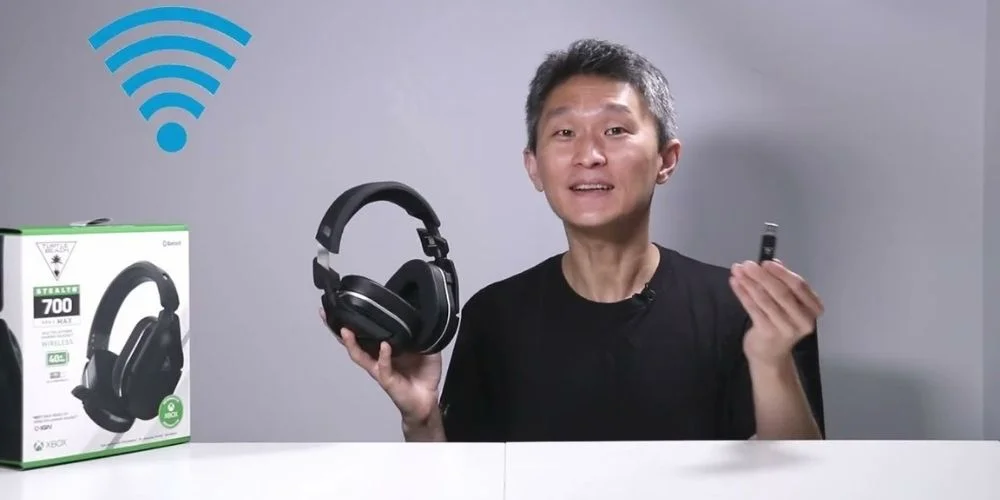
You can follow the steps below to establish a successful connection.
Step 1: Set the USB Transmitter
Check whether your dongle is set for Xbox or PC. If it's set for PC, then you need to switch it to “XBOX” mode.
Step 2: Plug It In
After switching your settings from PC to Xbox, you need to insert the transmitter into a USB port on your Xbox.
Step 3: Power on the Headset
Now, if your headset is not powered ON, then you need to power it ON. And if it is already ON, then it will pair automatically with the transmitter.
Step 4: Check the LEDs
After this, when you will notic solid green light on both the headset and transmitter LEDs, then your headset is ready to use.
Note: Turtle Beach headset Models like Stealth 500, Stealth 600/700 Gen 2 MAX, and Stealth Pro are compatible with this type of connection.
Wired Connection with 3.5mm Cable
If you have a Turtle Beach wired headset, then you need to look for an audio jack. Some models of these headsets have a standard 3.5mm audio jack. Here’s how to connect:
Step 1: Plug in the Cable
You can connect your headset cable jack to the bottom of your Xbox controller.
Step 2: Turn On Xbox
After plugging in your headset jack, press the Xbox button to turn it ON.
Step 3: Speaker Icon
After this, go to the screen and select the speaker icon.
Step 4: Adjust Audio Settings
Then adjust the headset volume to control how loud the game sounds.
Step 5: Adjust Chat Mixer
After adjusting the audio settings, adjust your chat mixer setting so that you can balance game audio and voice chat.
Note: Some wired headset models with 3.5mm audio jack, like Turtle Beach Recon 70, 50, 50P, 200 Gen 2, and 500, are compatible with Xbox.
Troubleshooting Tips for Turtle Beach Headsets
Electronic devices can sometimes experience connection or firmware issues. Even high-quality Turtle Beach headsets may run into minor problems. Below are simple and effective troubleshooting solutions to help you quickly fix common issues.
How can I fix my Turtle Beach headset if it isn’t responding?
If your Turtle Beach headset is not responding, perform a hard reset. Press and hold the Connect and Mode buttons together for about 20 seconds. This process restores the headset and resolves most temporary connection or freezing issues.
How can I update my Turtle Beach headset firmware?
To update your Turtle Beach headset firmware, install the latest update through the Turtle Beach Audio Hub on your PC or Mac. Keeping your firmware updated improves performance, fixes bugs, and prevents connectivity problems.
Can I use spatial audio or surround sound on Xbox with a Turtle Beach headset?
Yes, you can enable spatial audio for a more immersive gaming experience. Follow these steps:
- Go to Settings on your Xbox
- Select General
- Choose Volume & Audio Output
- Set Headset Format to Windows Sonic for Headphones
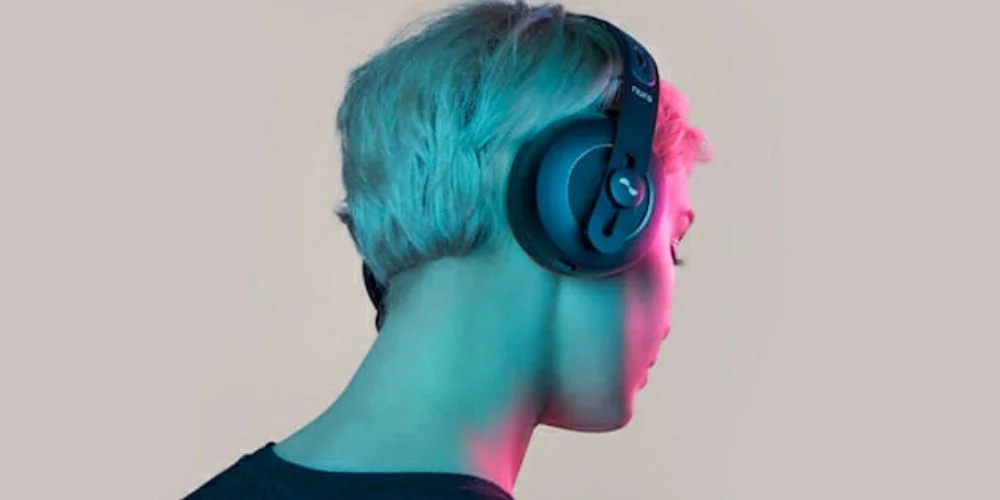
Accessories & Compatibility Connection Problem
Sometimes it happens that some accessories are faulty or there is a problem with compatibility. So you can check whether all parts are working or not.
Headsets have some accessories that can be replaced if they do not work, such as replacement ear cushions, USB transmitters, or charging docks
If all the parts are working, then you can check for updates. If your Xbox needs to be updated. Sometimes it also causes a connection problem. For this yu need to make sure that your firmware is updated.
Final Thoughts
It's very common to face a problem connecting your headset to the Xbox. Whether you're using wired or wireless headsets, or a USB transmitter. These headsets are best known for giving excellent sound quality and comfort. It has amazing features that increase your gaming experience.
You can easily connect your gaming headsets to your gaming console by following the guide that we have discussed. You can enjoy clear game audio and chat.
Troubleshooting Tips
Even high-quality Turtle Beach headsets can face connection or firmware issues. Below are simple solutions to fix the most common problems quickly.
No comments yet. Be the first to comment!
Leave a ReplyYour email address will not be published. Required fields are marked *