
Can't connect your Poly headset? Have you recently opened a new one? Perhaps it was OK last week, but it won't pair this week. Regardless of the reason, this guide will assist. It explains how to connect a Poly Bluetooth headset correctly, step-by-step. You'll also discover what to do if it fails to connect so you are not left guessing.
Poly is a popular choice for calls, meetings, and everyday use. However, depending on your phone, computer, and headset model, pairing may be slightly different. That is why this guide does not stop at one generic list of steps. This guide begins with the simple, general steps that will work for most Poly headsets.
Then it further breaks it down. There are steps to follow for each device: iPhone, Android, Windows, and Mac. Specific Poly model notes will also be provided. For the exact model of Voyager you have, you can find information below. This includes fixes for common pairing and sound issues and a BT600 or BT700 computer call adapter.
Note: Poly used to be called Plantronics. The pairing process is the same as outlined in this guide if you search for "Plantronics Voyager 5200 pairing.
Quick Answer
Pairing a Poly Bluetooth headset requires you to first turn it on. Press and hold the power or call button, toward the Bluetooth icon. Hold for approximately 3-5 seconds. Wait for the red and blue flashing lights to come on. The term "pairing" will also be used. Then, access the Bluetooth settings of your phone or computer. Choose a Poly headset from the list. Accept the connection. The majority of Voyager headsets connect in less than 30 seconds. If calling through the computer, a Poly BT600 or BT700 USB device will allow you to achieve more reliable connectivity than the built-in Bluetooth.
How to Connect a Poly Headset to Your Phone or Computer
The pairing process is slightly different for phones and computers when using a Poly headset. The following are the steps to be taken in both cases. For additional information, please see your model's notes further down.
Pairing to a Phone or Tablet
1. Adjust the headset to the on position.
2. Turn on pairing mode. Press and press the power and call button toward the Bluetooth icon. Maintain this position for approximately 3-5 seconds. Tilt the flash when it flashes red and blue. It is also possible to hear a voice saying “pairing.”
3. Tap Bluetooth on your phone or tablet.
4. Click the name of the headset in the list. It could be "Poly Voyager 5200" or "Voyager Focus".
5. If asked for a code, type 0000. The majority of headsets are code-less. Certain phones require this default code.
Pairing to a Computer with a USB Adapter (BT600 or BT700)
1. Connect the adapter to a USB port of the computer.
2. Turn on pairing mode on the headset. Repeat step 1 above (button and hold).
3. Turn on pairing mode on the adapter. Press the small button on the adapter. Pairing can also be done using the Poly Lens app.
4. Wait for both lights to turn solid. Both parts are connected if it is a solid light.
After you connect your Poly headset, it will retain the memory of the connection. It will re-connect on its own the next time, as long as Bluetooth is turned on and they are within range.
How to Pair a Poly Headset with iPhone
1. Turn on pairing mode on your headset.
2. Tap Settings > Bluetooth. Ensure that Bluetooth is enabled.
3. Tap the name of the Poly headset as soon as you see it under "Other Devices".
4. Wait for it to say "Connected.
Remove the headset from the Bluetooth list, if it was previously paired with another phone. iPhones are able to remember a previous pairing. This may prevent the new pairing from functioning.
How to Pair a Poly Headset with Android
1. Put your headset into pairing mode.
2. Click Settings > Connected Devices > Pair New Device.
3. When you see it in the list, tap the Poly headset.
4. If you see a pair, take it.
There are some slight differences in Android phones between brands. Some people use the word “Bluetooth” to replace the word “Connected Devices.” The steps are still the same.
How to Pair a Poly Headset with Windows
1. Enable the pairing function of the headset. If you have a Poly BT600 or BT700 USB adapter, connect it.
2. Tap the Settings > Bluetooth & Devices > Add Device.
3. Choose Bluetooth. Click on Poly headset in the list.
4. After connecting, go to Sound Settings. Ensure that the headset is the one being picked up, and not another mic/speaker.
5. Windows should automatically detect the USB adapter if you use one. No driver is necessary for use.
How to Pair a Poly Headset with Mac
1. Turn on pairing mode on the headset.
2. Select the Apple button. Select System Settings > Bluetooth.
3. Click on “Nearby Devices” and choose the Poly headset.
4. Confirm the connection. Next, go to Sound Settings. Ensure that the headset serves as speaker and microphone for your Mac.
Typically, Macs are compatible with Bluetooth headsets. In case of sound problems, look at the input and output settings.
Poly Voyager Pairing Notes by Model
The above procedure is applicable to most Poly headsets. However, there are a few models which have their own little quirks. Before you match each one up here are the things you should know.
Poly Voyager 5200
The Poly Voyager 5200 is a one ear headset. It is designed for call takers who receive calls throughout the day. Pairing should be done by sliding the power switch directly to the "on and pairing" position. Avoid first pairing and then turning it on. This headset is also capable of pair bonding with two devices. This allows you to remain connected with your phone and laptop. There is no need to re-pair between them.
Connect the Voyager 5200 to a computer following the Windows or Mac instructions above. Or connect it with the small USB adapter provided for a more stable connection. It helps with desktop computers that don't have built-in Bluetooth. To pair with an iPhone, follow the iPhone instructions above. There is no additional work on either device required for the 5200.
Poly Voyager Focus 2
The Poly Voyager Focus 2 is an over-ear headset. It is designed for use in the office and at home for work. It also muffles external sounds. To begin pairing, hold down the Bluetooth button on the earpiece. Listen for the voice response. This model comes in two versions: one with Bluetooth only, and one that comes with the BT600 adapter. To ensure that you pair with the correct version, please verify the version prior to joining.
Poly Voyager 4310 and 4320
Small, lightweight headsets designed for extended use. 4310 comes with a single ear cup. The 4320 has two. To start pairing, hold the call button for a few seconds. Wait for the light to flash. There are also some with a small USB adapter. This adapter allows for computer calls to be made, and is often a more reliable connection than a laptop's Bluetooth device.
Poly Voyager 6200 UC
The Poly Voyager 6200 UC is a neckband type headset. It's designed for business and office calls, including calls in Microsoft Teams. Pairing is started by pressing the Bluetooth button on the neckband. This model is tightly integrated with Teams. It has buttons that correspond to the app for answer, mute and end call. This may not work as well with a standard bluetooth headset. This model would be a better option if you need to use Teams call buttons for your work.
Poly BT600 vs BT700: Which USB Adapter Do You Need?
Not all setups are best suited to regular Bluetooth. For those who make many computer calls, a Poly USB adapter may help.
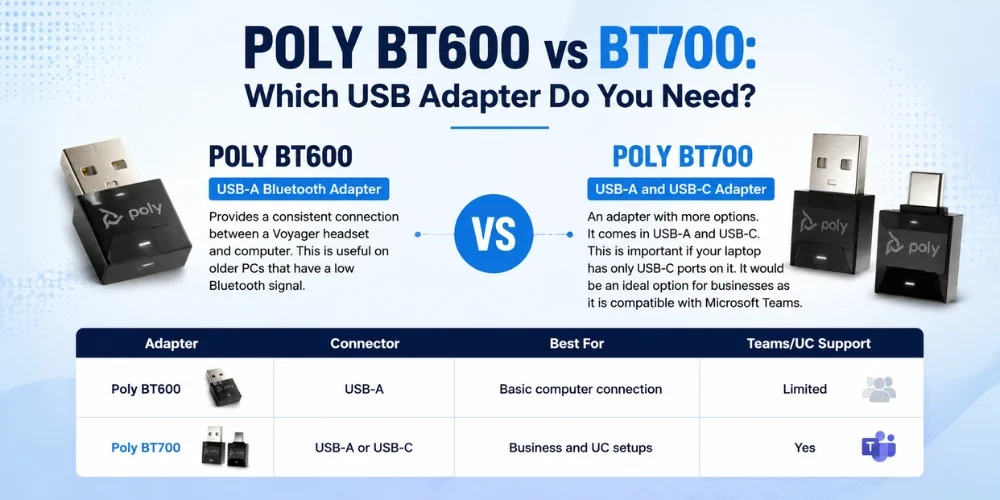
Poly BT600 is a USB-A Bluetooth Adapter. Provides a consistent connection between a Voyager headset and computer. This is useful on older PCs that have a low Bluetooth signal.
Poly BT700, an adapter with more options. It comes in USB-A and USB-C. This is important if your laptop has only USB-C ports on it. It would be an ideal option for businesses as it is compatible with Microsoft Teams.
| Adapter | Connector | Best For | Teams/UC Support |
|---|---|---|---|
| Poly BT600 | USB-A | Basic computer connection | Limited |
| Poly BT700 | USB-A or USB-C | Business and UC setups | Yes |
If your primary use for the computer is computer calls, you might prefer a Poly USB headset to just Bluetooth. This is the case at very busy offices, where other Bluetooth signals can interfere.
Poly Headset Troubleshooting: Common Pairing Problems
This section includes the most popular issues people look for. These can all be caused by different things. Match your problem with the heading.
Poly Headset Not Showing in Bluetooth
Make sure the headset is not only on, but in pairing mode as well. Poly headsets will be flashing a blue and red light in pairing mode. This is not the continuous light you see when it is simply turned on. Attempt to bring the headset closer to the device if it still doesn't appear. Repeat the steps of turning Bluetooth on and off and repeat the process. Some laptops require the Bluetooth adapter to be switched off and on in the Device Manager.
Poly Headset Not Pairing or Won't Finish Connecting
If the headset appears but fails to complete the pairing process, turn off and then turn on Bluetooth on the phone or computer. Try again. This is caused by an old Bluetooth driver on some Windows laptops. Update Windows. After failing to connect with the headset two or three times, remove it from the Bluetooth list of devices. Restart both devices. Afterwards begin to pair fresh.
Poly Headset Connected but No Sound
This will typically refer to the pair of headsets, but your device is using a different speaker or mic. Examine your sound settings. Manually select the Poly headset. The apps such as Teams or Zoom can have their own audio setting on computers. Make sure the app's sound settings are correct, as well as your computer's.
Microphone not working
If there is sound but no one is able to hear, inspect the headset's boom arm (if it has one). Some Poly headsets mute the microphone if the boom is lifted. Additionally, verify the Audio permissions of your mic in the app or computer settings. Certain applications block the microphone until you turn it on. If you're using Windows, be sure that the Poly headset is the default recording device, and not just the playback device.
One Side has no Sound or Audio Cuts In and Out
If using two ear cups, the sound from only one side is weak, it's a weak connection. Get closer to your device. Remove any objects that interfere with the signal. If the headset is still experiencing sound that cuts in and out, see if there is a firmware update available for it.
Choppy or Robotic-Sounding Audio
If calls are choppy, it is likely due to Bluetooth interference. Occurs more frequently in offices that have a large number of wireless devices. Keep away from routers and other headsets. If it only occurs on calls while using the computer, then use a Poly BT600 or BT700 adapter for a cleaner connection.
Headset connects to the Wrong Device
If your headset is still getting connected with your phone, you need to disable Bluetooth on your phone for a while. Don't pair the device you are not using. This can also be prevented by the two-device support of the Voyager 5200 (as described above).
Headset Keeps Disconnecting
Drops may be caused by distance, interference or other wireless devices in the vicinity. Keep no more than 30 feet away from your device with an open space in between. If drops occur at exactly the same time of day, e.g. when the computer goes to sleep, look at the power settings. Some laptops switch off the Bluetooth power to conserve battery.
Works on Phone but Not Computer
This is typical for older laptops that have weak Bluetooth. This is typically solved by using a Poly BT600 or BT700 adapter that provides your computer with a built-in Bluetooth radio.
Works on Computer but Not in Teams
If the headset is functioning on your computer and not in Teams, review the model. A standard Bluetooth headset can still place calls in Teams, but the buttons are not synced with the app as they are with the UC (see the Voyager 6200 UC notes above). Also, make sure that Teams has the headset selected in its own settings.
BT600 or BT700 Not Connecting
Try another USB port and unplug the adapter. Certain ports, such as those on a USB hub, do not provide adequate power. If that doesn't do the trick, press pairing on both the adapter and headset at the same time. Check if the adapter is not detected by your computer, then try a new USB cable or port.
Two Poly Headsets Interfering with Each Other
Shared offices can result in static or cross-connect if two headsets are placed close together. This is more likely to happen with older generations of Bluetooth. Maintain a distance between desks. Avoid having two headsets in the same room simultaneously.
When to Reset the Headset
If none of the other options are successful, perform a factory reset. Steps may vary between models. Refer to the manual of your headset, or head over to Poly's official support site for correct steps. It will reset all pairings – you'll have to re-pair it as if it were new.
When to Check Firmware
It may be due to old firmware which causes issues that resemble a broken headset. Firmware can be checked and updated with Poly Lens or Plantronics Hub software. Try this if a headset that worked fine before stops working. In many cases, the "broken headset" problems are simply old firmware.
Find the Right Poly Headset at FindHeadsets
You can easily pair with the right headset. It also allows it to be used on a daily basis easily. You can compare the Poly Bluetooth headsets side by side at FindHeadsets. See which models will work with two devices.
You can also identify which ones are best integrated with Microsoft Teams. Not sure between Voyager 5200, Voyager Focus 2 and a UC model such as Voyager 6200? Our team can assist you in choosing the right one for you and your working style.
Also available are the Poly BT600 and Poly BT700 adapters. We also have Poly wired and USB headsets. This will help you create a desktop that's perfect for your office or home desk. All products we sell are tested for use, not just on paper specs.
Final Thoughts
You now know how to pair a Poly Bluetooth headset to a phone, tablet, or computer. The basic actions are still easy to do, but little details within the model can make a big difference to the screen. Where you are not sure which steps apply to you, use a model rather than a general guide, and make sure to use the model notes above.
Don't presume the headset is broken if it still fails to connect. Most pairing scenarios result from setting, old driver or low battery. They are not due to a bad headset. Follow the troubleshooting section corresponding to your problem. You should be on a call in a couple minutes.
If you're still on the hunt for a headset, check out the complete Poly Voyager lineup. It is also possible to compare Bluetooth to Poly wired headset and Poly USB headset choices. This can help you make the right choice in advance of purchase, ensuring your new headset will work seamlessly the first time.
Frequently Asked Questions
Do I need a BT600 or BT700?
If you're making lots of computer calls, and you want a better connection, or if you need Teams support, which the BT700 provides.
Is a Plantronics headset the same as a Poly headset?
Yes. Plantronics changed its name to Poly. Plantronics devices such as the Plantronics Voyager 5200 come in pairs and are paired the same way as described in this guide.
Do I need the Poly Lens app to pair a headset?
NO, Poly Lens is only required when setting up or updating the firmware. Basic pairing is compatible with the standard Bluetooth configuration on the phone or computer.
Is a wired Poly headset more reliable than Bluetooth?
Unlike a wireless headset, a wired one is not paired and doesn't lose connections, making it ideal for a desk environment. The freedom to move around during a call is one of the advantages of using a Bluetooth headset.
Why does my Poly headset show a different name in Bluetooth settings?
If you're using a Poly BT600 or BT700 adapter, the pairing may appear as the adapter's name rather than the model of the headset. This is normal and does not impact call quality.
No comments yet. Be the first to comment!
Leave a ReplyYour email address will not be published. Required fields are marked *