
Poly microphone not working is one of the most common complaints made by headset users and it usually occurs at the worst possible time, like at the heart of a video conference. You speak into your headset and the person on the conferencing software says he or she doesn't hear you, you check your headset and see the light on, and the cable looks okay, but your voice doesn't come through.
You'll learn every common reason why your Poly Microphone is not working and a step-by-step solution to make it work. You will get to know how to enable mute settings, how to fix the incorrect audio input device, how to update outdated drivers, how to disable Windows exclusive mode, how to update the firmware with Poly Lens and even how to know whether the issue lies within the hardware itself.
This blog will explain all the troubleshooting problems with the headsets, be it wired USB, wireless Bluetooth or even wireless USB dongles to softphones. You will know what to search at the finish, in the right sequence and you will not have to wait long before your microphone is up and running.
Common Reasons Your Poly Microphone Stop Working
First of all, we should determine the cause of this issue. The reason is most of the time one of these.
1. Loose or Broken Cable
With headsets that have cables, make sure that the cable is connected. Half in: voice is not passing. Although the cable seems to be in good shape, it may also lead to the same problem when it is bent, cut or even worn out.
2. Incorrect Microphone on Your Computer
Unless you change your mind, your computer can listen via one audio input device at a time. The list of recording devices may not show the Poly headset, and instead the microphone of the laptop. This may happen if you install a software update, or add a new device.
3. Old or Broken Drivers
A driver is a small program which is located on your computer. It assists your computer's sound card to comprehend and utilize your headset. Depending on the condition of this program, your headset might be capable of connecting to this program, but not transmitting sound.
4. Muted Microphone
This is one of the most frequent reasons of all. Poly headsets with a mute button on the ear piece or on the headset cable are numerous. The rest of the headsets will automatically turn off to a power off state when the boom arm is pulled up. Oh and by the way, Zoom and Teams are also conferencing apps with their mute button! Mute your microphone without even knowing is very easy to do.
5. Bluetooth Connection Problems
The Poly headset is a wireless device that is connected to the computer either by Bluetooth or USB dongle. This connection can be disconnected or even broken even though it is on the screen as a connection to the headset. This is a typical problem with Bluetooth connectivity in a crowded office environment with many other Bluetooth devices in the environment.
6. Conflicts Between Apps
The same microphone can be used by two or more apps or softphones. Here, you will be able to be heard by one application and not by another application even though both applications claim to be using the microphone.
7. Outdated Firmware
Firmware is similar to the little brain located in your headset. It is employed to control the motions of the headset. The firmware is outdated, and might be incompatible with the latest version of Windows or MacOS, leading to the malfunctioning of the microphone.
8. Hardware Damage
Should all of the above be done and it still does not work, then the last possibility of failure is the destruction of the headset itself. This may be a wire that is broken, a piece of a microphone or a broken boom arm. It is the least common, but still, it occurs, and is particularly prevalent with older headsets.
9. Microphone Volume Set too Low
The microphone can be on but the volume is too low to be heard. This is not readily apparent since the headset is still plugged in and appears to be functioning.
10. Exclusive Mode Turned on in Windows
There's a setting in Windows to allow an app to have full microphone access. When this is turned on, other applications cannot utilize the mic when it is in use, even when they may say that they are attempting to use it.
11. Blocked or Dirty Microphone
It can be blocked by some dust, dirt or a torn foam cover on the small opening which allows sound to enter into the microphone. This may make your voice muffled or unheard with time.
12. Boom Arm too Far from Your Mouth
The microphone should be used at the position of the boom arm that is closest to the speaker's mouth. When the voice is bent excessively far, it will be extremely quiet or not sounding at all.
13. Wear Sensor Issue on Wireless Headsets
Wireless Poly headsets have an inbuilt sensor to determine whether you are wearing the headset or not. This sensor may be deceived and turn-off the microphone when it is thought that the headset is not worn.
Step by Step Guide to Fix a Poly Microphone That Is Not Working
Let's now solve the problem. Step by step go through these steps.
Step 1: Check the Cable, Ports, and Battery
Do the simplest first. Unscrew the cable and screw it in. Make sure that it is tight and not loose. When you are wearing a headset that needs a USB adapter, then use another USB port on your computer. During the years, some ports and terminals become nonfunctional. In addition, in the case of wireless headsets, check the battery status because at times the mic may be faulty when the battery is low.
Step 2: Check the Mute Button and the Mute Light
Listen to your headset. A large number of Poly headsets will appear as a solid red light when un-muted. Check a mute control (which can be on the earpiece or the cable itself). When your headset has a boom arm, make sure that you fold it down towards your mouth, and not up, as some headsets will automatically mute when the boom arm is in the out position. After verifying the headset, go into your call app (Zoom or Teams) and check to see if the mic is muted in there as well.
Step 3: Set Your Poly Headset as the Default Microphone
Your computer will need to have a default mic. Click the little speaker symbol at the bottom right of your windows computer screen. Click Sound Settings. Click on the Input section and select your Poly headset out of the list of audio input devices.
Mac: Configure in System Settings, Sound, and then Input, and then your Poly headset. This one will be able to resolve numerous issues since the computers will automatically add a built-in microphone without your knowledge.
Step 4: Update or Reinstall Your Drivers
On a windows computer, right-click and execute the Device Manager. To this, seek Device Manager. Click the arrow in the Audio inputs and outputs section to view this section. Click on the Update driver in the list to update your Poly device. Should this not assist, take the headset off the list, and unplug/replug the headset.
The audio driver will be re-installed automatically and the sound card reconnected. The majority of Mac drivers are not required to be updated, because they are frequently automatically updated with system updates, but in case you have to install the newest version, you are supposed to connect your headset and restart your computer.
Step 5: Update the Firmware Through the Poly Lens App
On a computer, start the Poly Lens program. Unless you have already downloaded it, you will need to do so, which we will demonstrate in the following section. Once open, insert the headset either using USB or Bluetooth.
The app will check to see if there are any updates on the headset. Assuming that it does, then click on install and allow it to complete. If so, then restart your headset so that the new firmware will have a full effect.
Step 6: Test on a Different App or Device
This will assist in determining the source of the problem. Use another computer or phone if possible to use your headset. You can also use another call app temporarily like testing Zoom to use in place of Teams temporarily.
In case your microphone or application is functional in a different location or with another application, then you possess the correct mic or app. In case it is not working anywhere anymore, then it is likely that the problem is with the headset itself.
Step 7: Restart Your Headset and Computer
It appears to be a minor process, yet it does work. When a computer is restarted, all small glitches in the computer's operating system over the years are eliminated. Switch off the computer, wait a few seconds and switch it on again. In case your headset has a power button, then switch it off and on also. Make another attempt at your call.
Step 8: Check Mic Permission in Your App Settings
In case everything else seems to be fine, then it may be that the computer is preventing your call application from using the microphone. This is a permission setting that has nothing to do with selection of an input device. In Windows, click on Settings, Privacy and Security,
Make sure that the microphone is turned on in general and for the app you are using. When you are not sure whether your call app is on or not and it is not listed on a Mac, visit System Settings, Privacy and Security, Microphone. After modifying the changes here, close the app fully and reopen it so as to be aware of the change.
Step 9: Check the Microphone Volume Level
Even then, when you pick up your headset well, it may not be loud enough. Click on the speaker icon, right click and choose Sound Settings on Windows. In Input, select your Poly headset and under Volume check to determine if it is turned up. You can also tap on the Device Properties and look at the Levels tab, and adjust the volume level, in case you feel that it is very low.
Step 10: Turn Off Exclusive Mode in Windows
It has a Windows feature known as Exclusive Mode - only one application can use the microphone. This can be enabled and it can muter all other applications even with your headset plugged in. To correct this, right click the speaker icon, choose Sound settings, and then choose your Poly headset, then choose the devices properties, and then the advanced tab. Uncheck the box which states: Allow applications to gain exclusive control of this device.
Step 11: Clean the Microphone and Check the Boom Position
With time, dust and dirt may build up in the small opening through which your voice is transmitted to the microphone and this can prevent or block your voice from entering the microphone. Gently clean microphone area with soft dry cloth. You can do this when you are doing it, too: Hold the boom arm near your mouth, two fingers away from your lips: The farther the boom arm is the farther your voice will sound or the less you will hear.
Step 12: Check the Wear Sensor on Wireless Headsets
There are some wireless Poly headsets with a small sensor that can determine whether it is being worn or not. This sensor can sometimes think the headset isn't on your ears, and turn the microphone off automatically. Test whether or not you can adjust your headset by putting the headset on your head, or test the Poly Lens app and find a wear sensor setting that can be switched off or reset.
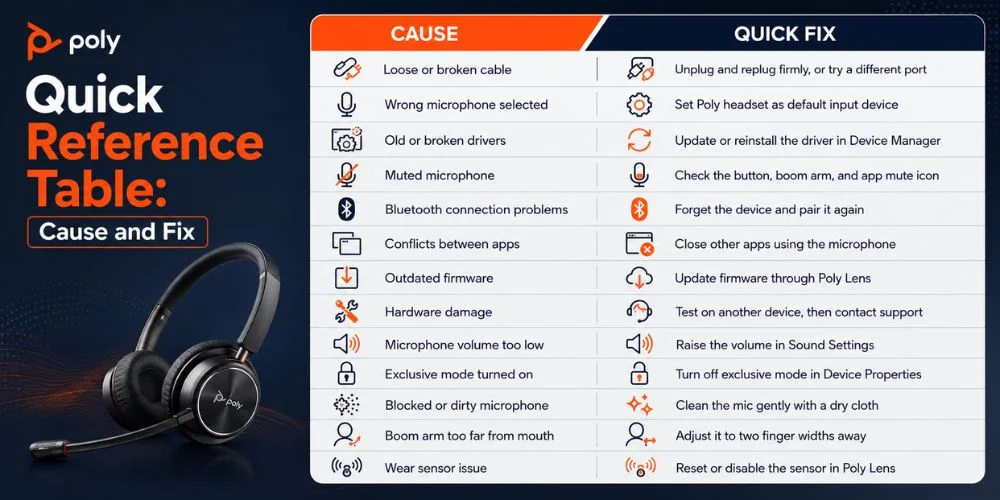
Quick Reference Table: Cause and Fix
| Cause | Quick Fix |
|---|---|
| Loose or broken cable | Unplug and replug firmly, or try a different port |
| Wrong microphone selected | Set Poly headset as default input device |
| Old or broken drivers | Update or reinstall the driver in Device Manager |
| Muted microphone | Check the button, boom arm, and app mute icon |
| Bluetooth connection problems | Forget the device and pair it again |
| Conflicts between apps | Close other apps using the microphone |
| Outdated firmware | Update firmware through Poly Lens |
| Hardware damage | Test on another device, then contact support |
| Microphone volume too low | Raise the volume in Sound Settings |
| Exclusive mode turned on | Turn off exclusive mode in Device Properties |
| Blocked or dirty microphone | Clean the mic gently with a dry cloth |
| Boom arm too far from mouth | Adjust it to two finger widths away |
| Wear sensor issue | Reset or disable the sensor in Poly Lens |
How to Use Poly Lens to Fix Microphone and Firmware Issues
Poly Lens app is a free app created by Poly. Although your headset might not be showing any issues at this time, it is better to download it since that way you will be able to notice any minor issues before they develop into major ones.
After opening it and connecting the headset, it will display handy information on its own, such as the current firmware version, the connection signal strength and battery level. When there is a mistake, the app will normally show a warning sign on your device and a short message of what could be wrong.
All you need to do is to connect the headset and open Poly Lens and update the firmware. The app will be automatically updated- it will not be necessary to seek an update. If there is an update, select install and allow it to install. This typically only takes a couple minutes. Once it's done, reboot the headset to ensure that the update is fully applied.
For those using an older headset, non-supported by Poly Lens, an older application called Poly Lens is available. It functions in a similar manner and encompasses many of the same older devices.
Poly Model Specific Tips: Blackwire, Voyager, and Sync
All Poly headsets will not be the same, and here are two additional tips concerning the various kinds of headsets.
Blackwire Wired Headsets
In the case of the Blackwire headset being wired, check the cable around the boom arm. It will probably wear out sooner than the other components in the cable and this is particularly so when you use your headset on a daily basis.
Voyager Wireless Headsets
In most cases, pairing issues may be accrued with time assuming that you are using a Voyager series wireless headset. To find out more about the reset process, please see the Bluetooth troubleshooting section below.
Sync Speakerphones
In case a speakerphone is attached to the Sync line, do not use the speakerphone yourself, but make sure that there is somebody nearby using it. This type of speaker is often found in meeting rooms, and you don't know it might be running another speaker somewhere.
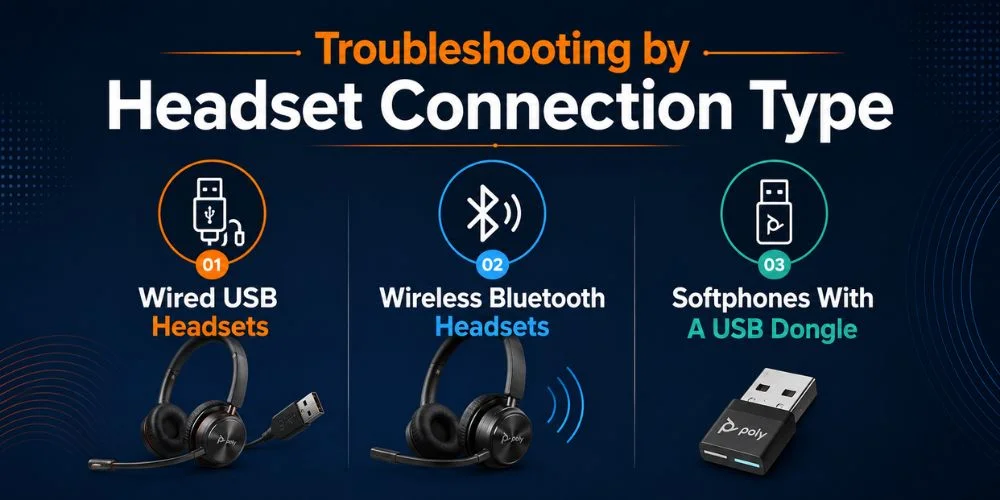
Troubleshooting by Headset Connection Type
Poly headsets can be connected in many ways and it helps to know which of the many ways you have before beginning.
Wired USB Headsets
The majority of issues can be attributed to a loose cable, broken cable or improper selection of an input device in the computer when a headset is directly connected to the USB port. The next cases will be directly addressed in the steps 1, 3 and 4 of this guide.
Wireless Bluetooth Headsets
The weak signals/ lost pairings are the most prevalent reason when using a headset connected to Bluetooth, either via the computer or inbuilt Bluetooth radio of Poly. Disregard the device and reconnect it and insert the headset in a sensible distance of the computer.
Softphones With A USB Dongle
Connects many Office headsets to a softphone (RingCentral, Cisco Webex, 3CX) with the BT700 adapter. When the mic works in one softphone, and not the other, you will need to make sure that in the settings of the particular softphone, the dongle is configured to be the sound input (not the computer).
When to Contact Support or Check Your Warranty
When none of the above steps work and your Poly microphone still fails to work, it's time to call it quits on self troubleshooting.
Please call the official Poly support and bring the model number and a short list of what you have done so far. This will enable the support team to bypass the basic tests and proceed to more in-depth testing.
To check your warranty, visit the official Poly support website and enter your headset's serial number. This is normally located at the bottom of the headset or on the original box. Your headset may be covered and you can either get a free repair or a replacement.
Should you be in doubt as to whether you need to repair your current headset or buy a new one, you can visit FindHeadsets and compare Poly headsets and get help in making a decision on which headset will fit you better.
Conclusion
So, in this detailed guide, you will learn everything about why your Poly Microphone is not working. A Poly microphone which is not working is typically a minor problem. It can be a working mute button, the wrong device of audio input is selected, an old driver or a firmware that needs an update.
If your microphone is not working, you can follow this guide step-by-step, taking no shortcuts, and your microphone is back in working order without being repaired. An effective microphone is more than just a luxury than you think, particularly in conducting crucial meetings, online classes and VoIP conferences.
Once your mic is back up and running, it's a good idea to periodically check your sound and update your firmware to avoid connectivity issues in the future.
In case you have read the instructions in this guide, as well as having experienced some issues, or when you think it is time to replace your headset, go to FindHeadsets. Here you will receive actual Poly headsets, and helpful hints to make your decision on what type of headsets to use in your system.
Frequently Asked Questions
Why is my Poly mic not working on Zoom?
This is typically due to Zoom being configured to use a different microphone than your Poly headset. It can also occur when Zoom is unable to access your microphone. Try the audio settings within Zoom first, and then the audio permissions in the computer's system settings.
How do I unmute my Poly headset mic?
Check the earcup or in the cable for a mute button. Make sure the boom arm is down or up; some models will mute automatically when the boom arm is raised. Check the headset itself, and the call app you are using as well, as it could have its own mute button that is activated independently.
Where can I download the Poly Lens app?
It is possible to download Poly Lens directly from its official support website. Look up Poly Lens and the type of computer you are running (Windows or Mac) and download the official version from their site. Do not download it from another website to ensure that you have a safe and updated download.
Why does my Poly mic work in one app but not another?
This is typically the case if other applications use different microphones. Your Poly may be picked up in Zoom and not in Teams or vice versa. It may also occur if Windows Exclusive Mode is allowing one application to use the microphone exclusively, preventing all other applications from doing so at the same time.
How far should the boom mic be from my mouth?
The boom arm length should be approximately two fingers from the corner of the mouth, for the best sound. If bent too far away, the voice may sound quiet, muffled or not heard at all.
Why is my Poly headset connected but the mic still is not working?
This can typically be due to the input device being selected, the volume of the microphone being too low, or the wear sensor thinking the headset isn't attached to the head. It is usually the case that if you go through each setting sequentially, you will find the exact cause.
No comments yet. Be the first to comment!
Leave a ReplyYour email address will not be published. Required fields are marked *