
 By
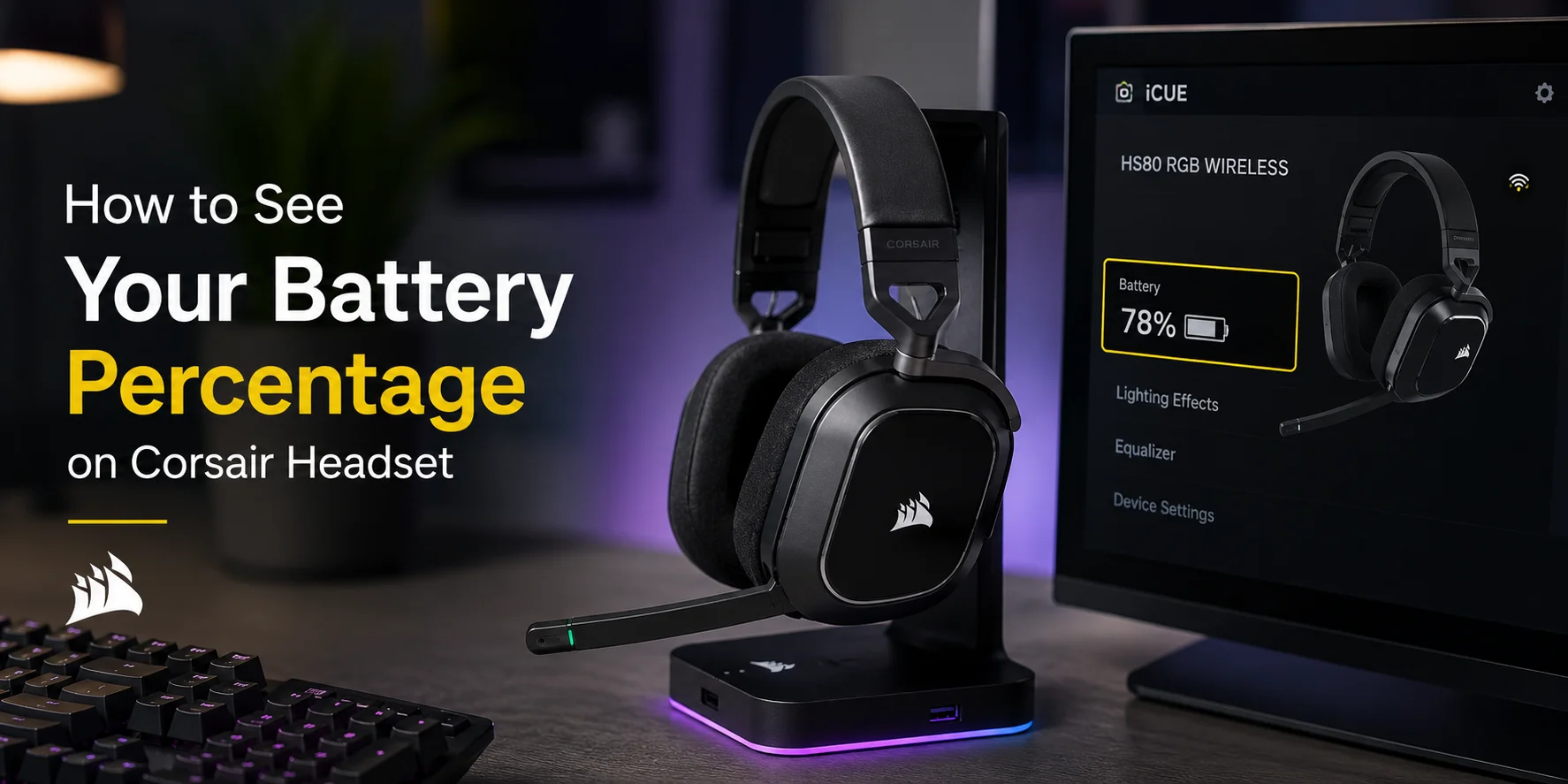
By If you are using a Corsair wireless headset, A common question arises in your mind, How can I see my battery percentage on my Corsair headset? Honestly, it is not a big deal, as many people are going through the same issue.
Maybe you are in the middle of a game, in a meeting, or just listening to music. Nothing is worse than your headset dying without giving a warning. It disturbs you alot and spoils your mood instantly. But you don’t need to worry about it.
Because I have some good news for you?
“Corsair gives you various options to check your headset’s battery level. Once you know where to look, it's very easy.”
In this complete guide. I will walk you through every method that really works well. It is also explained why some users get confused, and share pro tips to increase battery life. Let's get started.
For Busy Person (Quick Answers)
As you know, in today's busy life, everyone is rushing here and there for their multiple activities daily. So it's really hard to manage time to research and get to know the solution for your Corsair headset battery percentage. So, keeping in mind all these things, I have listed all the methods shortly below to save your time and resolve your problem with quick answers.
You can see your Corsair headset battery percentage by:
Using Corsair iCUE software (Most accurate and best): It helps you to know the exact battery percentage in figures. It is the most reliable and exact method to check out your battery percentage.
Checking Windows Bluetooth battery (Bluetooth Models Only): If you don't want to install any specific software than you can use this method. But it will not show you the exact battery percentage.
Listening to voice prompts or LED indicators on the headset: These are built-in prompts or LED indicators. It will still not show you the exact battery percentage. This method only shows you whether the battery is full, low, or about to die.
By using system tray indicators (Limited Support): You can also use this method to see the battery percentage of your Corsair headset by using system tray indicators. It only shows the estimated battery level.
Friendly Tested, Advice by The Author
“Corsair iCUE is highly recommended from my side, as I have personally tested all the methods given above. Some of the other methods are good as well, but for checking the exact battery percentage, Corsair iCUE is the perfect solution.”
Now, I’m going to explain these methods in detail, step by step.
Check Battery Percentage Using Corsair iCUE (Most Accurate & Best)
Suppose you want the easiest and most accurate way to check your Corsair headset’s battery level. I would honestly recommend using Corsair iCUE. It is Corsair's own official software. It works smoothly with their headsets and provides trustworthy battery information.
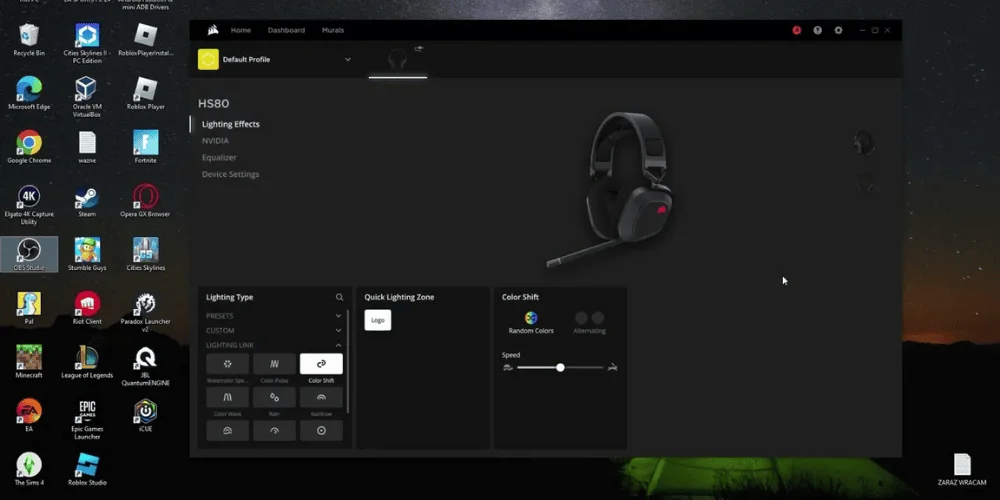
Instead of guessing if your headset is still charged. You can know the exact percentage of your battery using iCUE. In this way, you can easily determine when you have to charge your headset before it dies during a gaming session or a call.
How to Check Battery Percentage in iCUE
From the official website of Corsair, download and install Corsair iCUE. Connect your Corsair headset. Now, Open iCUE. Click on your headset from the home screen. Look at the battery indicator, you will see the exact percentage clearly.
Why iCUE is the most Reliable Choice
It shows the exact battery percentage in numbers
It works with all the wireless headsets with Corsair
It sends you a notification when the battery is dying
You can set the power-saving and RGB settings
Experienced Pro Tip: To get the benefits from iCUE Keep iCUE updated. Because sometimes the older versions fail to show the exact battery percentage.
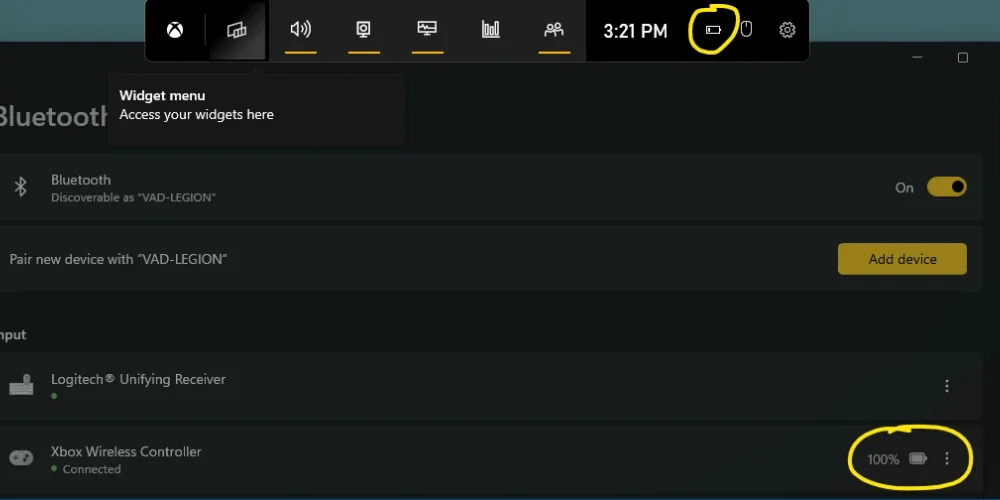
Check Corsair Headset Battery Percentage in Windows (Bluetooth Models Only)
Most of the time, the new Corsair Bluetooth headsets show their battery level directly in the Windows settings. Which is perfect for those users who do not want to install extra software. However, this feature also depends on the type of connection and the model of headset you are using.
If your Corsair headset supports Bluetooth battery reporting. Windows shows the percentage of the battery right in the device list.
How to Check Battery Percentage in Windows
To check that the headset’s battery level is available in Windows, you can follow some simple steps. They are given below;
Open settings on your system or PC.Go to Bluetooth and devices. Look for your Corsair headset in the list of devices that are connected. If the battery percentage is supported in Windows, it will display next to the device name.
Important Limitations To Keep in Mind
While checking battery percentage in windows you have to keep in mind some important limitations:
Works with certain Bluetooth-enabled Corsair headsets
The battery readings are less accurate than Corsair iCUE, mostly
The battery percentage might update slowly or show the estimated percentage instead of the exact percentage
If your headset uses a USB wireless connector, than the windows typically would not show the battery percentage at all.
Friendly Suggestion:
Due to these limitations, the Windows battery display is a good choice for a rough estimation. But still, if you want the exact battery percentage in digits than the Corsair iCUE is the best choice.
Check Battery Level Using Voice Prompts & LED Indicators (No Software Needed)
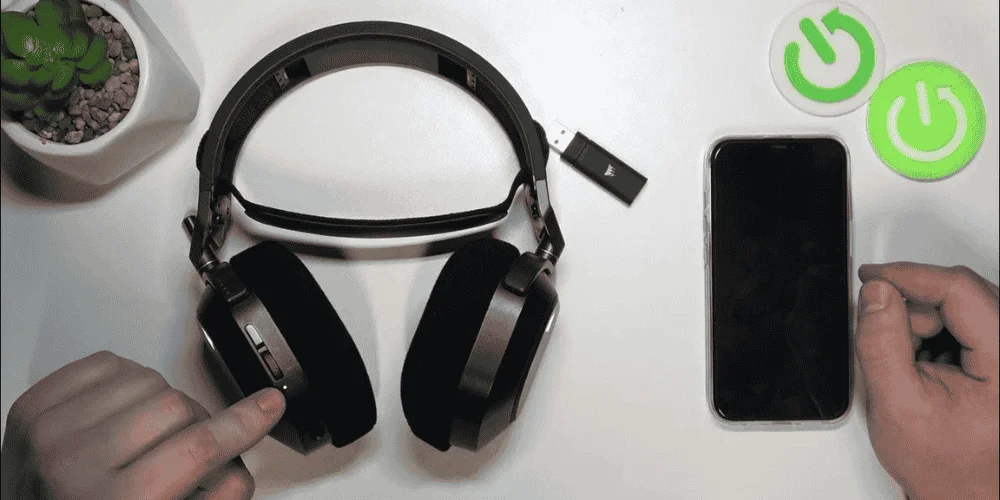
If you don't want to install any software to check your battery percentage. So, don't worry Corsair headset still gives the basic battery information. Now you must be thinking how it is possible?
So, by using the built-in voice alerts and LED indicator lights, it is possible. This method is simple and fast and works out of the box.
While it will still not show you the exact battery percentage. It is perfect just for knowing whether the battery is full, low, or about to die.
What Voice Battery Alerts Indicate
Many Corsair headsets announce when the battery percentage is high, medium, or low. These voice battery alerts usually play when you turn on the headset or the battery drops to a critical level.
LED Color Meanings (Varies by Model)
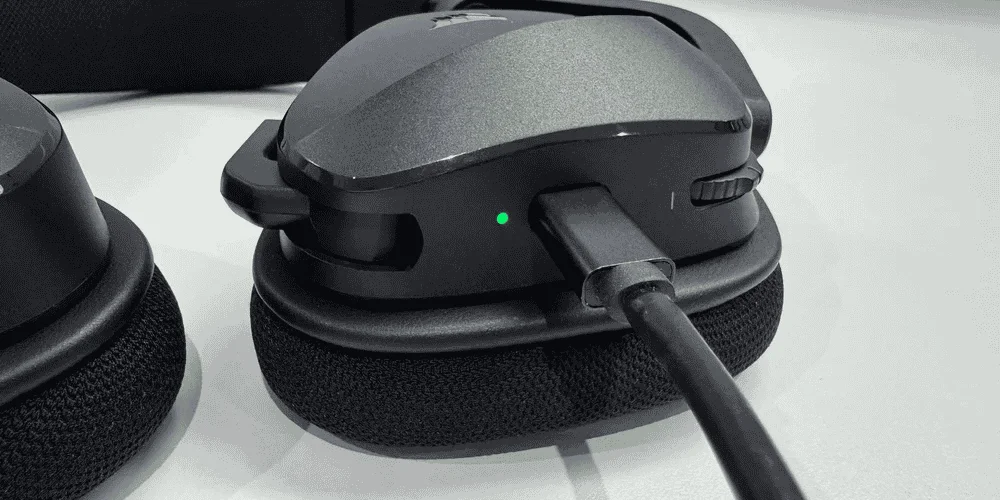
When your headset is being used or charged. The LED lights indicate the battery level. It indicates three lights: green, yellow or orange, and blinking red. Now you must be curious to know what these lights mean. Don't worry, below we have discussed what these light shows are:
Green light: It means the battery percentage is high
Yellow/Orange: It shows that the battery percentage is at a medium level
Red (Blinking): The red blinking of the light shows that your battery is about to die now
But you need to keep in mind that the LED color can change a little bit depending on the model of your headset. So, it is always a good idea to check your headset’s manual to be sure.
Check Battery from The System Tray (Limited Support)
Some people notice the battery icon when clicking the Windows system tray. Especially when using Bluetooth headsets. It feels like a small win in the first. But there is a problem that it does not always work. Most Corsair headsets that use the USB connectors do not support it.
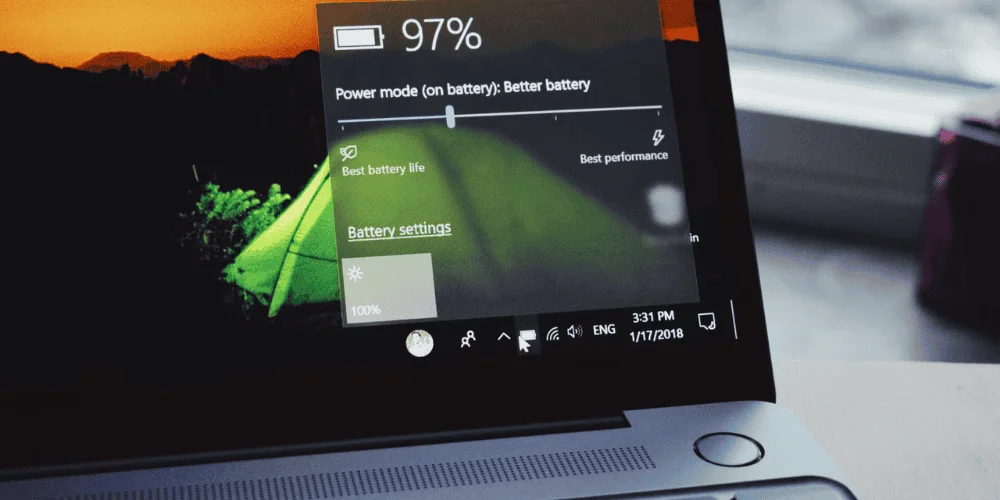
Even when it shows up, the battery percentage level is usually just an estimation because it does not show the exact battery percentage. So enjoy it if you see it, but do not depend on it. Just think of it as a bonus surprise, but it is not a trusted way to check your battery percentage.
Why You Might Not See Battery Percentage (Common Reasons)
So, if you are looking for the common reasons why you can't see the battery percentage.
They are given below:
Maybe the iCUE is not updated, or maybe it is not installed
The system software of the headset is outdated
The headset may be connected with the USB connector so that the window will not show the battery percentage
It can cause due to the Bluetooth drivers being outdated
The headset model does not support on-device battery reporting
Additional Tip
So, here we come to know that, if you keep your system software and iCUE up to date, most of the issues and problems are solved!
How Long do Corsair Headset Batteries Last?
The battery life can be changed depending on the model and settings of the headset. On average, you can expect around 20 to 24 hours of use. When RGB lighting is turned off. And about 12 to 16 hours when the RGB is on.
Many supported models also have fast charging. Which can give you several hours of use with less than 15 minutes of charging.
Experienced Level Tips to Make your Corsair Headset Battery Last Longer
Here are some experienced-level tips to make your Corsair headset so that it helps the battery last longer. These tips are used by the users of Corsair.
Battery Saving Tips for Corsair Headsets
- • Turn off the RGB lighting in iCUE to increase battery life.
- • Enable auto-sleep mode to save battery when not in use.
- • Keep the headset volume a little lower to conserve battery.
- • Fully charge your Corsair headset before starting a long gaming session.
- • Avoid keeping the headset plugged in for days at a time.
Making these small changes can help you increase the battery life of your Corsair headset. Also checkout the article why my bt8 is beeping to resolve beeping problem checkout it.
Final Thoughts
So, what is the best method to check the battery percentage on your Corsair headset? The best experienced level method is Corsair iCUE. It keeps the battery percentage exactly in the numbers. So you don't need to estimate the exact battery percentage. Plus, you will not be afraid of cutting down in the middle of the game or during a call. Even if you don't want to install extra software. Still, you have voice alerts and LED lights that still work well enough to help you know the estimated percentage of the battery.
Once you are able to check, a dead headset would not surprise you anymore. Read this guide; it will help you a lot to keep your headset battery charged during long gaming sessions or calls. You will thank yourself during your next long gaming session by following this guide.
Additional Tip For Users
To avoid battery issues during a call or a long-term gaming session, make it a habit to charge your headset before starting important calls or extended gaming sessions.
To keep the battery healthy over time, always try to maintain the battery level between medium and high rather than letting it drain completely.
No comments yet. Be the first to comment!
Leave a ReplyYour email address will not be published. Required fields are marked *