
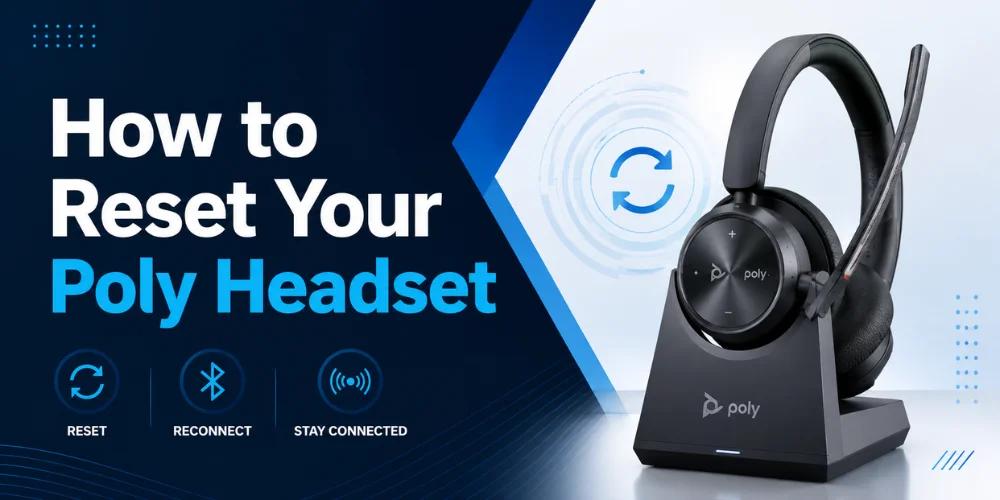
A Poly headset can make work calls easier, but as with all wireless devices, it can start to malfunction over time. May drop calls, not pair, freeze buttons, or not appear in Teams or Zoom.
The majority of these issues have nothing to do with the headset being broken. They're from a stored connection that has sneaked up on them, without their awareness. In most situations, you don't need to purchase a new headset. All you need is the correct reset for your model.
No single reset is applicable to all Poly headsets. Steps vary depending on the model you own. They also vary depending on the problem as a headset that won't pair requires a different remedy than one that has frozen buttons.
This guide shows you how to reset your Poly headset by model. It also includes the software reset option via the Poly Lens app, so you can apply the fix to your specific issue. It also includes the software reset option via the Poly Lens app, so you can apply the fix to your specific issue.
How to Find Your Poly Headset Model
Before you begin, be sure to know what type of headset you have, as you don't want to waste your time. The majority of Poly headsets will have the model name on the inside of the headband or the bottom of the ear cup. If the print has worn off, please refer to the original box or the order history.
The model name is also displayed in the Poly Lens app after the headset is connected to the computer or phone. The app displays the exact model and the firmware version; which is a quick method to ensure you are on the correct part of this guide.
Why Your Poly Headset Needs a Reset
Each wireless headset has a little connection information stored on it. This includes the base (dongle) it was last connected to and the phone it was last paired with.
This information can become confused if the headset has no power, goes too far from its base, or changes between devices frequently. This old data will be erased with a reset and the headset will form a new connection.
There are some indications that a reset is the correct solution. You can experience dropped calls even when sitting near the base. The charging light could come on and the battery won't charge. The headset can be plugged into your computer, but not your phone.
It could have been fine yesterday and not today for no apparent reason. Always reset the headset before assuming that it is broken.
How to Reset a Poly CS500 Headset
The CS500 family includes the CS510, the CS520, and the CS540. These headsets are plugged into a desk phone via a base. The reset will only affect the base and the headset.
Unplug the power adapter from the base. Remove the headset from the base. Remove the battery from the headset by opening the battery compartment on the rear of the headset. Some newer CS models have a sealed battery. If you don't find a battery cover, refer to your manual.
Wait about 30 seconds. A shorter wait may not be long enough for the headset to reset completely. Replace the battery, cover and reconnect the base to the power source. Wait until the base light is stable and steady, then set the headset back on the base.
Within 10 seconds, a light on the headset should blink green. This means that the reset was successful, and the headset is now charging properly.
If you are unable to remove the CS500 headset, you can reset the connection by unplugging the base alone, waiting 30 seconds, and then docking the headset again as the base restarts. This will not completely empty the battery, but it will reset the wireless link, which is sometimes sufficient.
How to Reset a Poly Savi or Voyager Office Headset
This family includes such models as the Savi 8410, Savi 8420, Savi 8445, and Voyager Office headsets. They can plug into a desk phone, computer, and sometimes a phone simultaneously. This is why there are a few more steps to the reset.
Unplug the power adapter from the base. Unplug the USB cable that runs to your computer. Remove the headset from the cradle and wait 30 seconds or so. Insert the power adapter into the power source first. Now reconnect the USB cable. The base lights will turn back on. When the power light comes on green, insert the headset into the cradle. It will flash to indicate that the reset was completed.
Repeat these steps if the headset does not work properly. This time, also take out the battery during the wait. A small tool may be required for some models to remove the battery cover. Please read your guide first before attempting to open it.
How to Reset a Poly Voyager Bluetooth Headset
The Bluetooth models, such as the Voyager Focus 2, are connected to your computer via a small dongle. They are also frequently linked with a phone. If you need to reset both connections, perform a full reset.
Unplug the dongle from the computer. Switch the headset to the off position. On your phone, go to Bluetooth settings, locate the headset and delete it. This is a common mistake; your cell phone will continue to attempt to use the old connection.
Turn the phone back on and wait a minute for the phone to reboot. Turn the headset on. A voice should be heard saying it is on. Insert the dongle into your computer again, and wait for the light to become solid blue. Repeat the process of putting the headset in pairing mode and attaching it to your phone.
To learn more about pairing to a new device, see our pairing guide.
Poly Headset Reset Steps by Model
Use the table below to find your headset. Then jump to the matching section for full steps.
| Model Family | Common Models | Connects To | Reset Type |
|---|---|---|---|
| CS500 Series | CS510, CS520, CS540 | Desk phone through a base | Base and battery reset |
| Savi and Voyager Office | Savi 8400 series, Voyager Office | Desk phone, computer, and sometimes a phone | Base, USB, and battery reset |
| Voyager Bluetooth | Voyager Focus 2, Voyager UC models | Computer through a dongle, plus a phone | Button reset, dongle reset, or full app reset |
If your model isn't listed here, visit the official Poly support page for the manual of your headset. Older models might have the reset button elsewhere.
Fix Buttons That Stopped Working
Occasionally the headset works, but the call, mute or volume buttons do not. This requires a different fix from the above.
Firstly, charge the headset for approximately 20 minutes. If the battery is low, the buttons may freeze and appear to be broken. For most models of Voyager, press the power button and hold it for approximately 10 seconds, then let it go.For most models of Voyager, press and hold the power button for about 10 seconds and then release it, causing the headset to restart automatically.
Allow it to completely resume before giving it a little more charge before testing the buttons once more. If this still doesn't resolve the issue, a firmware update via the Poly Lens app, which is discussed below, will often resolve the issue.
Re-Pair a Voyager Headset to Its Base
The headset isn't always the issue. The connection between the headset and the base. Instead of resetting the Voyager headset, if it charges fine, but does not connect calls via the base, try this.
Turn the headset off. Hold the pairing button for approximately 2 seconds until the pairing button flashes. Reconnect headset. Switch to pairing mode and listen for a voice confirmation of pairing.
Factory Reset a Poly Headset With Poly Lens
The Poly Lens app can reset a headset to factory settings if there are any issues with the button or cable reset. This will reset all of the saved connections and settings at once. Use only after the easier steps above.
Install the free Poly Lens software on your computer or mobile device.Download the free Poly Lens software to your computer or mobile device. Use USB, dongle or Bluetooth to connect the headset. Open the headset in the app and go to its settings.
Select "Restore" or "Restore to factory settings". Verify and wait for the action to complete. Don't disconnect the headset or close the app during operation. The headset will boot up with a blank set up, like when it was new. After this you will have to set your options once again, as it needs to be paired.
Fix a Poly Headset Teams or Zoom Cannot Find
This problem is NOT the same as the one above. The headset is connected to your computer perfectly, but the meeting application is not. This occurs most often on shared computers with USB headsets.
Unplug the headset or its dongle and connect it to another port on your computer. Avoid docks and monitoring ports, as they may prevent connection.
Make sure that no other application is using the microphone, such as another call that is open. On your meeting app, select Poly as the speaker and as the microphone. If it still doesn't appear, update or reinstall the Poly Lens app, and restart your computer.
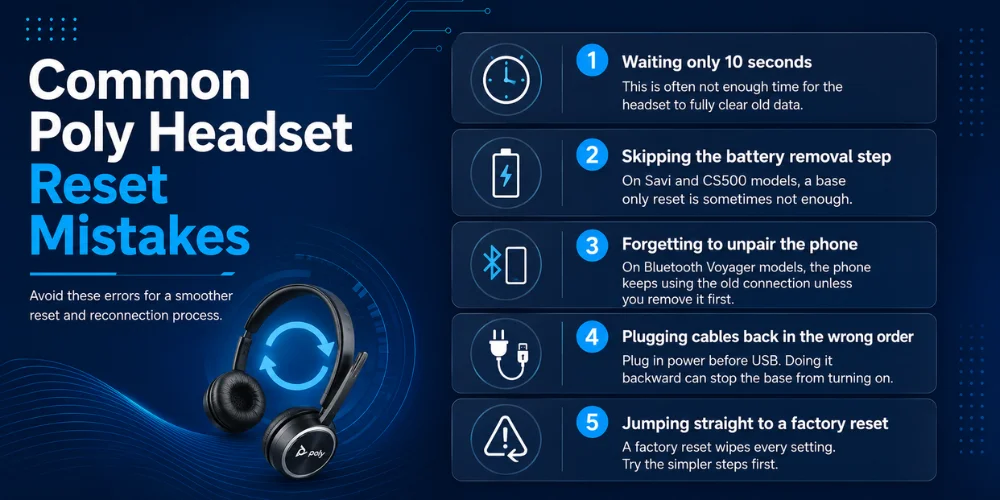
Common Poly Headset Reset Mistakes
| Mistake | Why It Causes Problems |
|---|---|
| Waiting only 10 seconds | This is often not enough time for the headset to fully clear old data. |
| Skipping the battery removal step | On Savi and CS500 models, a base only reset is sometimes not enough. |
| Forgetting to unpair the phone | On Bluetooth Voyager models, the phone keeps using the old connection unless you remove it first. |
| Plugging cables back in the wrong order | Plug in power before USB. Doing it backward can stop the base from turning on. |
| Jumping straight to a factory reset | A factory reset wipes every setting. Try the simpler steps first. |
Tips to Avoid Needing Resets So Often
A reset is a solution to a problem once it occurs, but some practices can reduce the likelihood of the problem occurring in the first place. Ensure that your headset is within its normal range of the base or dongle, as a weak signal is one of the top reasons for dropped connections.
Do not completely discharge the headset battery on a regular basis, but charge it completely before it runs out. The Poly Lens app is subject to regular updates for connection issues, so check every few months for any updates.
Last but not least, don't connect the same headset to multiple devices simultaneously, as having multiple connections is a frequent cause for the data getting muddled up in the first place.
Still Not Working? Try This
There are a number of checks that can be made if a reset completes, but the same problem reappears, to determine the actual cause.
Use a different headset, base or dongle on a different port or second computer. If it doesn't work there, it's because the problem is not with the headset, but with the port or computer. If the headset doesn't power on at all, use a cable you know works for a minimum of an hour, and attempt again. When a battery is dead, it can appear just like a broken headset. If this does not help, your headset may require servicing. Have your model number and proof of purchase on hand to contact Poly support.
Final Thoughts
This is because most headset issues can be resolved by following the reset procedure that matches the problem, rather than repeating the same procedure for each problem.
There are some fixes that are slightly different for a headset that won't pair, for one that has frozen buttons, and one that keeps dropping calls. Using the wrong fix is just a waste of time, so don't.
So you know how to reset your Poly headset. To reset your Poly headset, unplug the base or dongle from power, remove the headset from the base or dongle, wait approximately 30 seconds, and then plug everything back in in reverse order. The Bluetooth models also require you to disconnect the headset from the phone before you can use it again. If the buttons are frozen, a single hold of the power button restarts the headset, but does not clear settings. Or, if all else fails, the Poly Lens app can perform a full factory reset.
First, for the section above that corresponds to your model, then the button reset if the controls went "stuck" and finally the full Poly Lens factory reset if all else failed. The wait times are not as big an issue as people think and if you wait in order the first time, you don't have to do it all over again.
Need a New Poly Headset? Shop With Confidence
If none of the above is able to keep your headset connected, the battery or hardware may be ready to give up the ghost. FindHeadsets has a selection of Poly headsets, and trusted brands such as Jabra, Yealink, Logitech and Sennheiser, allowing you to compare headsets side by side before purchasing.
Our team is located in Franklin Park, Illinois, and we're closely connected with these brands, which helps us direct customers to the appropriate model for their desk phone, computer, or mobile setup.
All products list compatibility information, meaning you can be sure a headset will work with your system before you send it in. If you aren't sure which model is best for your setup, our support team is available 24/7 to assist you in making the decision.
Whether you're in a busy call center or a quiet home office, check out the models, prices and compatibility guides of all Poly headsets at FindHeadsets.
Frequently Asked Questions
How long should I wait during a Poly headset reset?
About 30 seconds. 10 seconds is cited, but the additional seconds will allow your headset to completely disconnect from the previous connection.
What is the difference between a button reset and a factory reset?
A button reset will only clear the current connection. Typically resolves pairing or audio issues. A factory reset in Poly Lens erases all saved settings, and should be used only if other steps have not worked.
Will a reset delete my saved settings?
A normal reset will NOT. A complete factory reset via Poly Lens will, as it removes all settings from the headset.
My headset still will not respond after a reset. What now?
Be sure to perform the correct steps for your specific model, as each family resets differently. If it still doesn't respond, try it on another port or computer, to eliminate hardware issues.
Do I need the Poly Lens app to reset my headset?
Just in the case of a full factory reset or firmware update. There is no application for the daily button and cable resets above.
How often should I reset my Poly headset?
There is no set schedule. Only reset if you have a true problem, e.g. dropped calls or a failed pairing. Resetting a headset that is functioning properly will not make it better
No comments yet. Be the first to comment!
Leave a ReplyYour email address will not be published. Required fields are marked *