
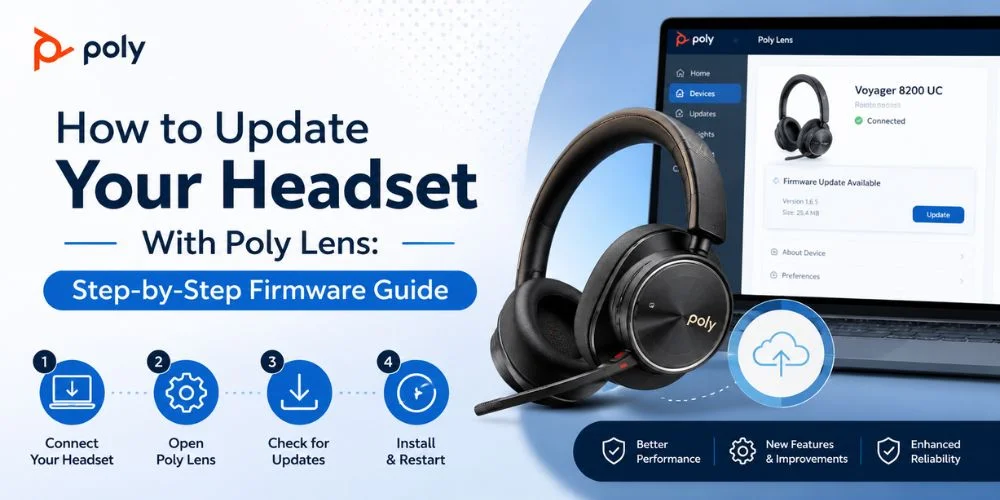
If your headset is compatible, you will need to update it using the Poly Lens software that is available for your computer. To do this, connect the headset or headset base to your computer and, in your chosen Poly compatible software, select the headset and check for an available firmware update. If an update is available, follow on screen instructions and leave the device connected until the update is finished.
First, if you want to know how to update your headset with Poly Lens , you need to check the support of your headset, install the correct software and ensure a stable connection. While firmware updates enhance compatibility, performance, and reliability, disruptions during the update process or the installation of wrong firmware can lead to issues.
In this guide, you will learn what you should prepare before starting the update, how to get the current Firmware version, how long the update may take, and what to do if your headset is not detected or the update fails.
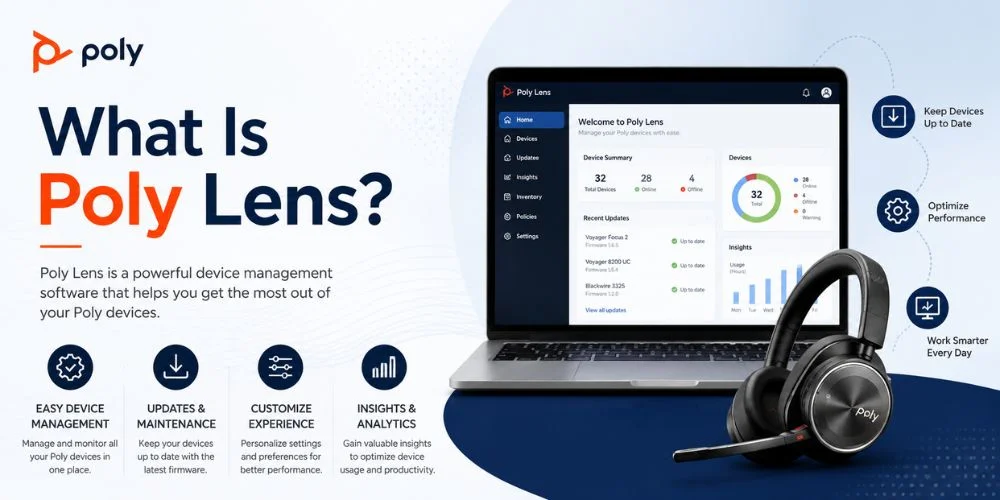
What Is Poly Lens?
Poly Lens is a Device Management platform for compatible Poly headsets and devices. It can enable you to view information about devices, control supported settings, and install available firmware updates.
When looking for the poly lens app, you'll notice that HP Poly is now being used in the desktop software version. For 2026, HP changed the name of Poly Lens Desktop to HP Poly Studio Desktop and the cloud and device management capabilities of Poly Lens remain available.
Older guides might still refer to Poly Lens Desktop because the software's name on your computer may be new, or because the software's interface may be different from the older version of Poly Lens.
What Do You Need Before Updating a Poly Headset?
Please ensure your headset and computer are prepared prior to starting the update.
Usually, you will require:
- Use a certified Poly headset or base to ensure compatibility.
- A computer running Windows or Mac OS.
- The correct application for the desktop.
- The appropriate USB link.
- A stable connection during the update.
- While needed, the headset battery is adequate.
If you are looking for a poly lens download, use official HP resources or the software provided for your particular device. Do not download the firmware from unofficial sites since the wrong firmware can lead to compatibility issues.
The base of a DECT headset is typically plugged into the computer. Some Bluetooth devices may need to be plugged in with a USB cable during firmware installation, and USB models can do so via their USB cable.
What Should You Do Before a Poly Firmware Update?
But there are a few steps to prepare that can make the update smoother.
First, be sure that the firmware is up to date, and that the software is detecting the right model of headset. Update the headset prior to use if at all possible, particularly if the update includes a wireless device.
It's also important to close applications that are in use with the headset. Do not start the update just before a very important call or meeting as the headset might be temporarily unavailable during the update.
Last but not least, plug the device into the computer and ensure the USB cable is tight. Do not disconnect any devices during the update.
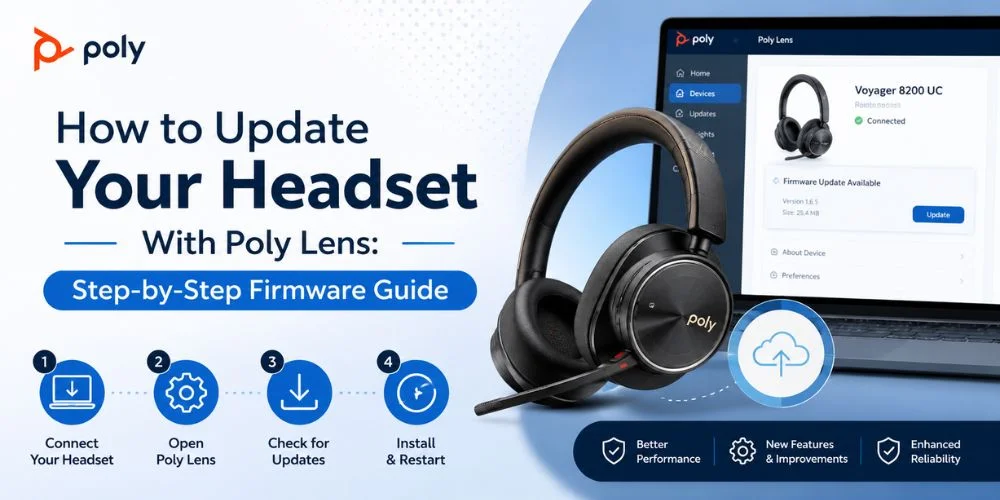
How to Update Your Headset With Poly Lens
The basic updating process is simple, but may differ from model-to-model.
1. Connect Your Headset or Base
Use a suitable base for a DECT headset. Connect the headset directly using USB for a USB headset.
For models equipped with a Bluetooth adapter, follow the Bluetooth connection instructions provided for the model.
A direct connection for the software to detect the correct headset and maintain the connection during the update.
2. Open the Desktop Software
Run the installed app and let it discover your device.
The software might now be branded as HP Poly Studio Desktop instead of the previous Poly Lens Desktop. This is particularly important when following older online guides since the interface may be different.
3. Select Your Poly Device
Once the headset or base is detected, choose it from the list of devices.
The information you see depends on the model, and may include the product name, the version of the firmware, connection status, and available settings.
Note the current firmware version prior to updating. This will help you to reference the update later.
4. Check for a Firmware Update
Check for an Update in the device overview.
If there is compatible firmware available for your headset, the software should offer an option to start the firmware update procedure. If no update is seen, it's possible your headset is already up to date.
Never install firmware supplied for any other model of Poly.
5. Start the Firmware Update
Click the update option, and let the software install.
Do not unplug the headset or base during the process. Do not make any calls, play audio or remove the USB cable during the update.
6. Wait for the Update to Finish
Installing the firmware may take a few minutes.
The headset can temporarily be unresponsive during the installation of new firmware. Does not necessarily mean the update has failed.
Do not disconnect the device until the software gives the “Installation Finished” message.
7. Confirm the New Firmware
Once updated, go back to the device information and verify the firmware version.
If the version has been changed to the expected release, then the update has been successfully installed.
The headset should also be tested. Do a test call, test the microphone, test audio playback, and ensure that there is no problem with the connection.
What Are the Benefits of Keeping Your Poly Headset Updated?
Regularly updating your Poly headset firmware can help ensure that your headset operates reliably and is compatible with your computer, communication system and compatible accessories.
Firmware updates could be a bug fix, performance enhancement, security, or any other improvement that makes the device work better with the latest software.
It can also be useful when you are having connection, audio, microphone or device recognition problems. But, don't install a newer version just because there is one.
If your headset is functioning correctly, see the update details first, and ensure that the firmware is for your specific model.
It is possible to keep up to date without downloading firmware files by checking for updates regularly using the supported Poly software.
How to Check Your Poly Headset Firmware Version
It's also possible to check the firmware version before and after updating to make sure that it's updated.
Open the desktop software and find out which device is connected and check the information of the devices. The information on the firmware may be different depending on the headset model and version of the software.
This information can also be helpful if you reach out to technical support as the support staff may query your headset's firmware version.
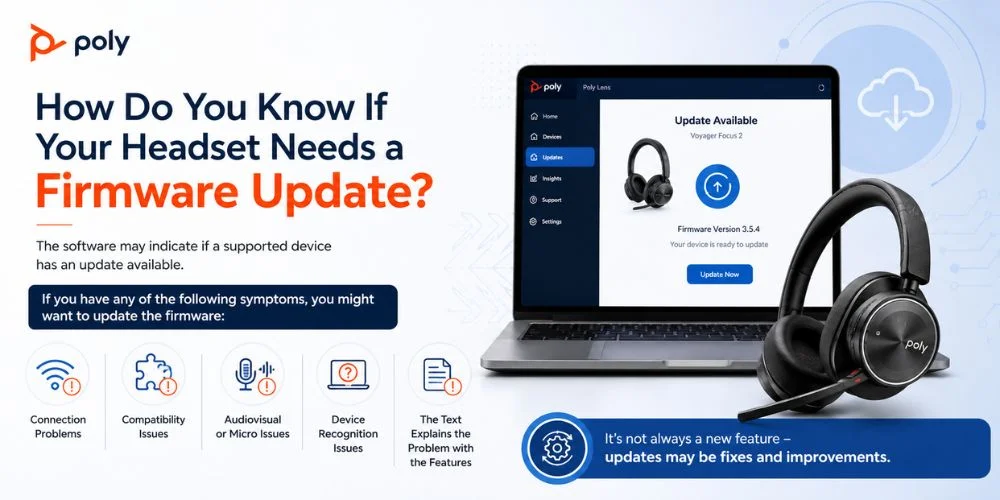
How Do You Know If Your Headset Needs a Firmware Update?
The software may indicate if a supported device has an update available.
If you have any of the following symptoms, you might want to update the firmware:
- Connection problems
- Compatibility issues
- Audiovisual or micro issues
- Device recognition issues
- The text explains the problem with the features.
It's not always a new feature - updates may be fixes and improvements.
Before installing an update, be sure that it is compatible with your specific headset model.
How Long Does a Poly Headset Firmware Update Take?
The Poly headset firmware update typically will take several minutes, depending on the headset model, firmware package, computer, and connection.
The headset can be temporarily unplugged during installation. Do not disconnect or attempt to use it until the software says the software update is complete, as this is normal.
If the update seems to be stuck for an unusually long time, take a look at the software status prior to acting. Do not disconnect the device immediately: Disconnecting during the firmware installation may cause more problems.
Why Is My Poly Headset Not Detected?
If the poly headset software cannot detect it, make sure that the connection is first.
Make sure:
- Headset or base is on.
- The USB cable is properly secured.
- The device is directly plugged into the computer.
- There is sufficient battery power in the headset.
- DECT Base is plugged in correctly.
There is software available that is compatible with your headset.
Unplug any USB hub and plug the device directly into the computer. A direct link can resolve the issue of communication on the USB.
What If Poly Lens Does Not Show an Update?
If the firmware update is not available, then it can't be found for your device.
The latest supported firmware may already be in your headset, or your model might have a different update system.
Please ensure you know the exact model and refer to the existing documentation before attempting manual installation.
An incompatible firmware package can cause further issues, so it is advisable to check before installation.
Can You Update a Poly DECT Headset?
Yes, but there are supported Poly software to update compatible Poly DECT headsets.
Many DECT systems have the base as the link between the wireless headset and computer. Connect the matched base to the computer, and let the software recognize it.
For instance, the Poly Savi 7310 is a wireless headset for professional office communication. The model is available from the Find Headsets line of Poly wireless headsets.
The update needs may vary by Savi model and must be confirmed prior to update by referring to the instructions for your particular device.
Can You Update a Poly Bluetooth Headset?
Cables are not required if the Bluetooth headset is compatible with the Poly software that supports firmware updates.
The connection type is different for each model. Some will rely on USB for an update and supported Bluetooth devices can have mobile software available.
Before installing a firmware update, verify if the device affected by this update is a headset with a USB Bluetooth adapter.
What Is the Poly BT700 Driver Used For?
The BT700 is a USB Bluetooth adaptor to connect compatible Poly devices with a computer.
If your computer cannot detect the adapter, or your headset is not connecting correctly, see if the adapter shows up correctly in your computer's device settings.
Any poly bt700 driver problem troubleshooting should begin with recognizing the adapter. Next, see if the headset is connecting properly.
Please note that if your problem is with the adapter, the headset firmware doesn't necessarily need to be updated. Test individual sections of the connection.
What If the Firmware Update Fails?
If the firmware update doesn't work, begin with the basic connection checks.
Reconnect headset or base straight to the computer and restart the desktop application. Then look to see if the device is found, and if the update is available again.
You can also:
- Ensure the connection with the USB port is secure.
- Restart the application.
- Restart your computer.
- Keep the headset plugged in.
- Verify the specific model of the device.
- Verify software version.
- Check the support details of your headset.
Do not install another model's firmware just because the file looks like it is the same.
Poly Headset Connection Types and Update Methods
| Connection Type | Common Setup | Update Consideration |
|---|---|---|
| DECT | Headset + base | Usually update through the connected base |
| Bluetooth | Headset + computer/mobile device | Update method depends on the model |
| USB | Headset directly connected to computer | Usually straightforward through desktop software |
| USB Bluetooth Adapter | Headset + compatible adapter | Check whether the update applies to the headset, adapter, or both |
What Happens If You Disconnect the Headset During an Update?
Unplugging the headset or base during firmware installation may cause the firmware to be interrupted.
Therefore, do not turn it off until the software says the software has been fully updated.
Also do not make any calls, play media or perform similar tasks during installation.
How to Keep Your Poly Headset Software Updated
Do not install your headset software each time you use the headset.
Rather, you should leave the supported app and look for updates if it is needed.
It is particularly useful to check for updates when:
- You experience a headset connection issue.
- Your computer no longer recognizes the device.
- Any sound or microphone adjustment.
- It is not working as it should for a supported feature.
- You are experiencing compatibility problems.
Maintaining the headset firmware and management software, and keeping them up to date, can make troubleshooting easier and ensure compatibility.
Find the Right Poly Headset for Your Setup
Adding a firmware update will help you keep your current headset running, but it's just as crucial to select a headset that fits your work environment.
Find Headsets supplies Poly office communication, remote working, customer service and professional calling headsets. Various connection options are available, such as DECT, Bluetooth, or USB.
For computer-based calls, you can consider the Poly Blackwire wired headset range. Wireless office communications are available with DECT-based Poly Savi models.
Select your headset depending on the computer, phone system, communication platform, connection needs and work environment.
Final Thoughts
Knowing How to Update Your Headset With Poly Lens can help you keep your Poly device compatible, reliable, and ready for everyday calls. In most cases, all you have to do is plug a headset or base directly into your computer, open the supported desktop software, choose your device and install the firmware update that is available.
If the headset is not detected or updating fails, verify the connection, software, hardware compatibility, and current firmware version, before advanced troubleshooting. Update the device with the firmware designed for your specific model and do not disconnect it until the update has finished.
Frequently Asked Questions
How do I update my headset with Poly Lens?
Simply plug in your compatible Poly headset/based into your computer, then open the desktop software and select the device, and then choose the available firmware update. Leave the device plugged in until the installation is done.
Where can I download Poly Lens?
Look for the software that is compatible with your Poly device using official HP resources. The recent change of the Poly's name to HP Poly Studio may be reflected in the desktop application.
Why is my Poly headset not detected?
Test the USB connection, power, battery, compatibility and connected base. Plugging the device to the computer rather than a USB hub can help as well.
Does Poly Lens update headset firmware?
Yes, compatible equipment may be employed to search for and install any firmware updates that are offered. The functions that can be used will vary from model to model.
Can I update a Poly DECT headset?
DECT systems are compatible and can be updated via supported software, and typically the base is directly interfaced with the computer.
Can I update a Poly Bluetooth headset?
For sure, it's possible to update the firmware of compatible Bluetooth models, although different devices will require different approaches.
Why is no firmware update available?
Your headset might already have the most recent supported firmware or the headset might have a separate update process. Check the exact device model prior to attempting a manual update.
Should I disconnect my headset during an update?
No. Keep the headset or base connected until the update has finished. It may be disconnected during installation and cause the process to be interrupted.
What should I do if the firmware update fails?
Connect it straight to the computer and restart the software and see the headset model and connection. If the issue persists, follow the support instructions for your device as per the following.
Is Poly Lens still the desktop software name?
Later releases of Poly Lens Desktop are known as HP Poly Studio Desktop. Poly Lens cloud and device management functionality continues to be available.
No comments yet. Be the first to comment!
Leave a ReplyYour email address will not be published. Required fields are marked *