
 By
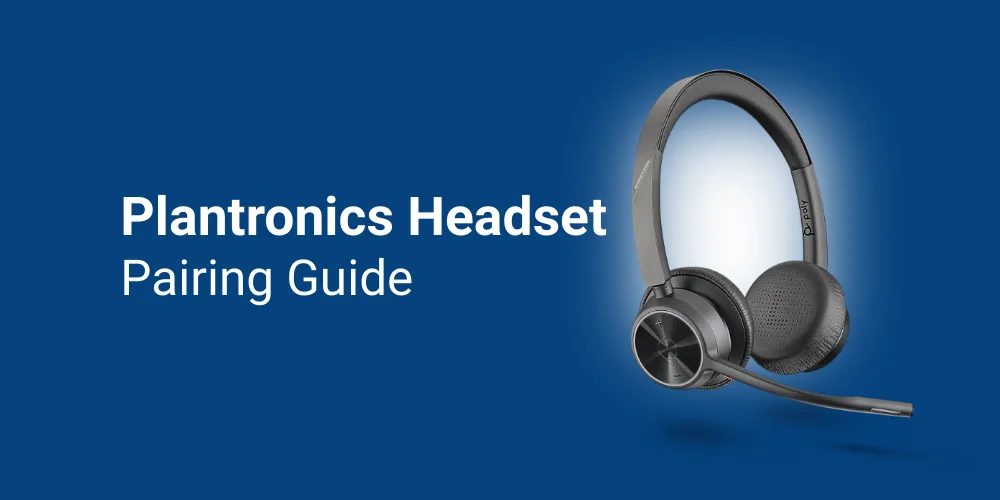
By So you just bought your new Plantronics (Poly) headsets, but are having trouble thinking about how to pair them. Well, initially, pairing may seem a bit tricky. But once you learn how to connect your model with a device using the right advice, you won’t have to face any problems.
Here is another important thing to note: not all Plantronics headsets pair the same way. I own two models. Voyager 5200 and BackBeat Go 2, and both of them connect in their own way. I had difficulty finding the right information for pairing my Plantronics headsets. So to make things easier for you, I have created this simple step-by-step Plantronics headset pairing guide. Scroll down to find all the information you need.
Identify Your Plantronics Headset Type
For pairing your Plantronics headset with the device. We have divided the headsets into three major categories:
1. Headset with Sliding On/Off Switch
This includes models such as Voyager 5200 / 5200 UC, Voyager 4200, and Explorer 210 / 240 / 395
2. Models with a Single Button for Power and Call Control
It includes headsets, including Discovery 975 / 925, M70 / M90 / M165 Marque, Voyager 835 / 855, and Explorer 50 / 55
3. Editions with Dedicated Power Button
Headsets with such buttons involve models like Voyager Legend / Legend UC and BackBeat Go 2
Pairing Instructions For Plantronics Headsets
You’ll find the Plantronics headset pairing guide with different instructions across various device types below.
Plantronics Headset Pairing with Mobile Phone/Tablet
Step 1:
Let your headset become discoverable in the following ways:
For Sliding Switch: Turn on your headset and press and hold the call control button for at least 5-6 seconds. Once the lights start flashing red and blue, then you can let go.
For Single Button: Switch on the headset by pressing the button and holding for 5-6 seconds until the alternating red and blue light starts to flash.
For the Dedicated Power Button: Press the power button to turn your headset on. Keep on holding the button until you see a flashing LED with red and blue.
Step 2
On the mobile device, go to Settings, find the Connections tab, and select the Bluetooth option. Then allow Bluetooth to discover nearby devices. Once the name of your model appears, select it.
Step 3
Now, in some headsets, you may be prompted to apply a passkey. You have to enter 0000. After that, you’ll hear that the pairing is successful.
How To Pair Plantronics Headsets with PC and Laptop
You can pair your Plantronics headset in two ways:
Through Bluetooth: Follow step one for making your Bluetooth headset discoverable. Press right and go to Settings. There search for the Bluetooth option and turn it on. Now you'll have the option to add a device, and from the list you can select your model.
Through USB Adapter: If your headset comes with a USB adapter. Then all you have to do is plug it into the computer. Now make your headset discoverable. Now, for some devices, you may need to hold a tiny pairing button on the USB dongle. If pairing has not occurred, then it will appear red and blue, but after pairing, both the dongle and headset will become solid blue.
Pairing with Desk Phone
The models from the Voyager and Savi series are designed to fit office desk phones. For pairing such a model, you can follow these steps:
- Plug the headset into the charging base.
- Hold the Bluetooth pairing button on the base or select headset mode on the desktop until it starts to flash red and blue.
- Put your headset in pairing mode by following step 1 in the first section.
- Once the headset and base are synced, the solid light will confirm the connection.
Facing Any Problem With Pairing Plantronics Headset?
If you're facing any problem while connecting your headset, then you can follow these simple tips:
Reset Pairing History
If the headset is connected to too many devices, it can affect pairing. So to clear the history, hold the call control button and volume up at once till the LED turns purple. This step would refresh the memory, but not for all models. If it doesn't work, you can use the Poly Lens software for refreshing the memory.
Check for Interference
The frequency at which Bluetooth operates is 2.4 GHz. This frequency can be interrupted by Wi-Fi routers or other microwave devices. So make sure to establish a pairing connection while sitting close to the device and away from other interfering devices.
Update Firmware
In order to keep your headset compatible with the operating system, you have to update the firmware regularly. To do so, you can download Poly Lens (formerly Plantronics Hub) software on your PC. You can connect your model through USB and check for the latest updates.
Missing Passkey Issue
For the models that require a passkey 0000, but it does not work, then it means your headset may be connected to other devices. So first unpair your headset model from the previous device and repeat the pairing process.
By following the Plantronics headset pairing guide, you can connect any model to your desired device. If you’re facing any other issue with Poly
, You can view Find Headsets website to read my troubleshooting guides.
No comments yet. Be the first to comment!
Leave a ReplyYour email address will not be published. Required fields are marked *