
 By
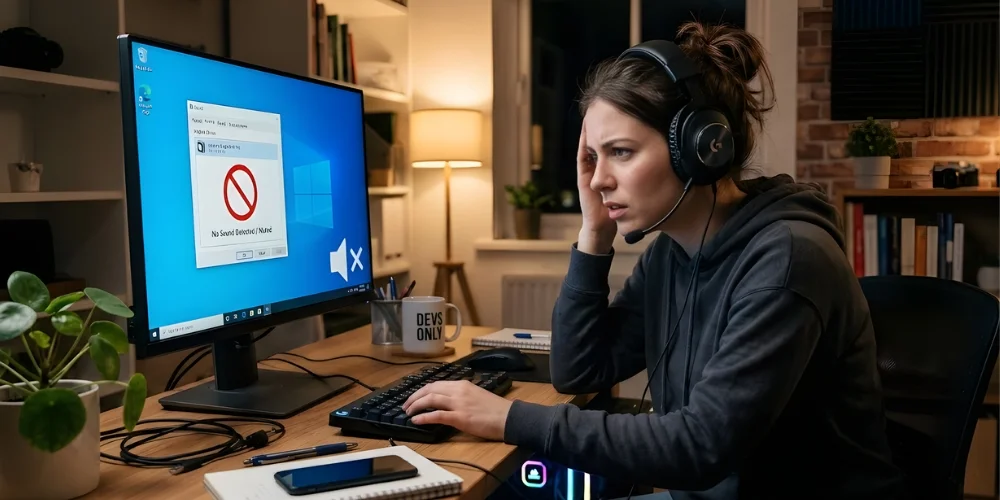
By Just imagine you're on a meeting call with your business partners, or you're recording audio for your content, and suddenly you hear no voice through your headset. Now you think that you are the only one who is facing this issue, but no. You are not alone. Gamers, students, and online learners who are dependent on listening to online lectures by professors and studying can also go through this problem as well. The sound is not delayed like an echo or too loud, but it is completely silent.
Facing a problem like “why their headset audio is not working on PC” is not unfixable.It mostly happens when you notice that your headset is connected, but there is no audio playing. You can also face a problem where system volume icons show thathead your sound is playing, but you still hear nothing. On the other hand, if your audio works in some applications but does not work in other applications. It means that there is a problem with app-specific settings or there is a driver conflict.
In this case, your sound suddenly stops after a Windows update. It can even stop when you install a new driver. Well, I understand that this problem can be frustrating when you connect everything but still fail to hear the audio. With the help of this guide these problems can not only be detected but also fixed using simple and easy troubleshooting steps. These can help you in figuring everything out to get back to work.
Content Notice: All the Issues and Fixes are Test Proofed
All these troubleshooting methods have been tested by our software experts and engineers. Moreover, these steps are written by an audio troubleshooting specialist with hands-on experience fixing headset audio not working on Pc.
All the issues and their fixes that we will discuss in this blog are based on real-world testing. We have gathered all the information from industry documentation and user-reported solutions from the top-ranking tech platforms. In this blog, you will get a detailed explanation of how you can detect symptoms and causes. Moreover, we will give you the easy resolution steps for your problems on how and why your headset audio is not working on Pc.
Who Is Most Affected When Headset Audio Stops Working on a PC?
This question seems very uni-field oriented, but it is not the complete truth. This question addresses everyone.
Remote Workers and Office Professionals
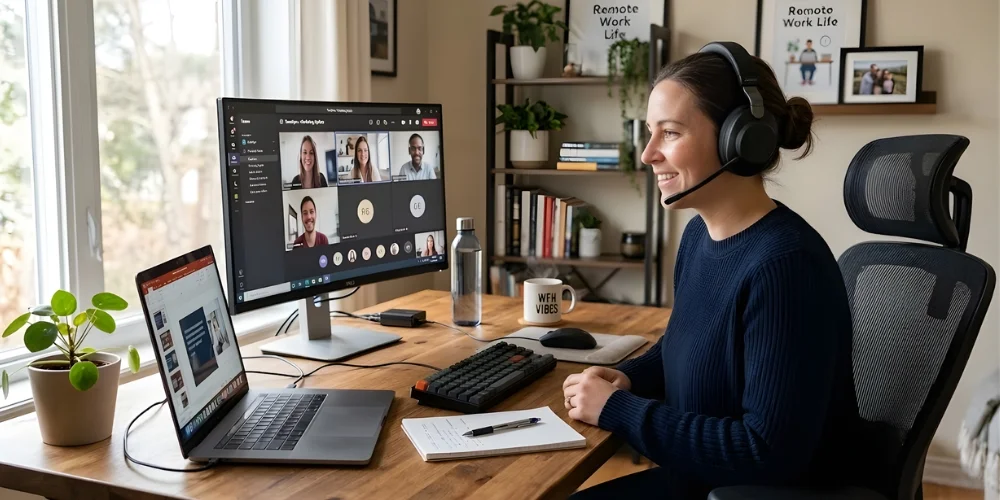
It does not matter whether you are a remote worker or work in the office. If your headset audio stops, you suffer the most. And to be very honest, it feels very frustrating in the extremely demanding and high-responsibility organizations.
Your work heavily relies on video meetings and online communication platforms such as Zoom, Microsoft Teams, and Google Meet.
“But what is the point of joining the meeting if your headset audio stops working during an important meeting?”
It not only interrupts conversations but also delays your decision-making, which can obviously affect your performance.
Virtual Gamers and Multiplayer Environment
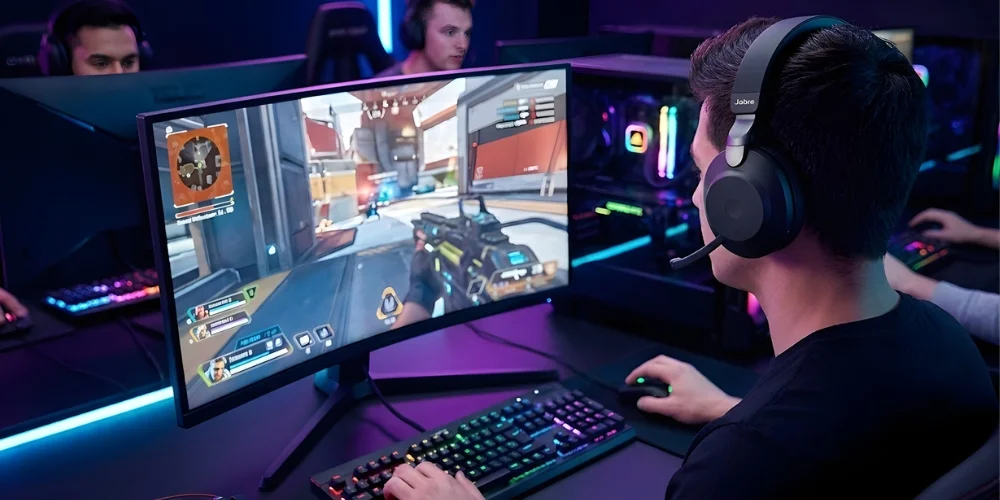
On the other hand, if you are a gamer, and your headphone is not working, it seems like a fun activity for others. But for you, it can be a matter of life and death. In competitive multiplayer games, audio cues help you to detect your enemy's movement, and your communication with your teammates for quick reaction depends on sound. But without a proper sound, your gameplay experience can be ruined, and performance can drop significantly.
Content Writer and Streamers
Moreover, I agree with the content creators and streamers that your work also depends on reliable audio devices. Whether you're a video editor, podcaster, or streamer, you need to monitor your sound quality in an accurate way. When headset audio fails, you cannot edit the recording or maintain a professional streaming setup, and this can be really frustrating to students.
Students and Online Learners
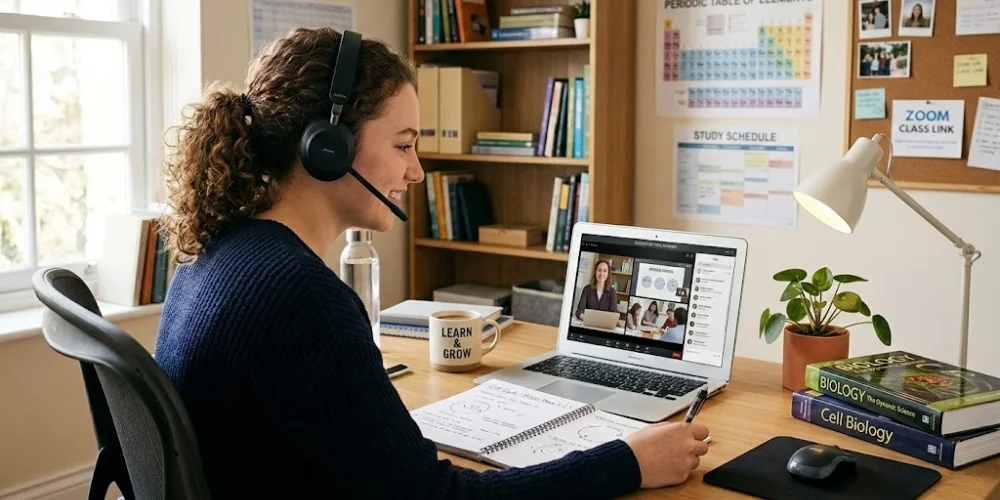
Furthermore, if you're a student or online learner, you can face a real challenge if your headset audio stops working. In today's education system, the classes have become virtual, and professors provide recorded lectures. It is very important for you to not miss your educational content just because of no sound or disrupted sound. And you know what? It is totally agreed that audio failures can cause students to miss important explanations or instructions, which is not good at all.
So in short, when an audio problem appears, even if it's a small problem, it can lead to communication breakdown, which interrupts the productivity and functionality of every field of work. And most importantly, the ones who depend on their computers for daily tasks suffer the most with this workflow interruptions.
So what is the solution?
The best solution, which I will be explaining to you in this guide. This will include step-by-step help from my side to fix everything from basic hardware checks and Windows sound settings to more advanced solutions.
In this guide, we will learn together how to fix driver repairs and system service troubleshooting. Whether it is related to your built-in speaker or you're using wired headphones. I will help you identify why your computer has no sound. And in addition to this, even if you're using a USB audio device or you have a Bluetooth headset, I will help you how you can restore the sound effectively
How to Tell if Your Headset Audio is Not Working on PC
It is very common to face issues with the audio of your headsets not working properly on your pc. It gets frustrating when you try everything and are still not able to fix it. For this, it is very important to understand where the actual issue lies. Without knowing the proper cause, you can not solve the issue. Below are some common signs and symptoms that can help you determine where the real problem is so that you can move to the troubleshooting process.
No Audio from Speakers or Headphones
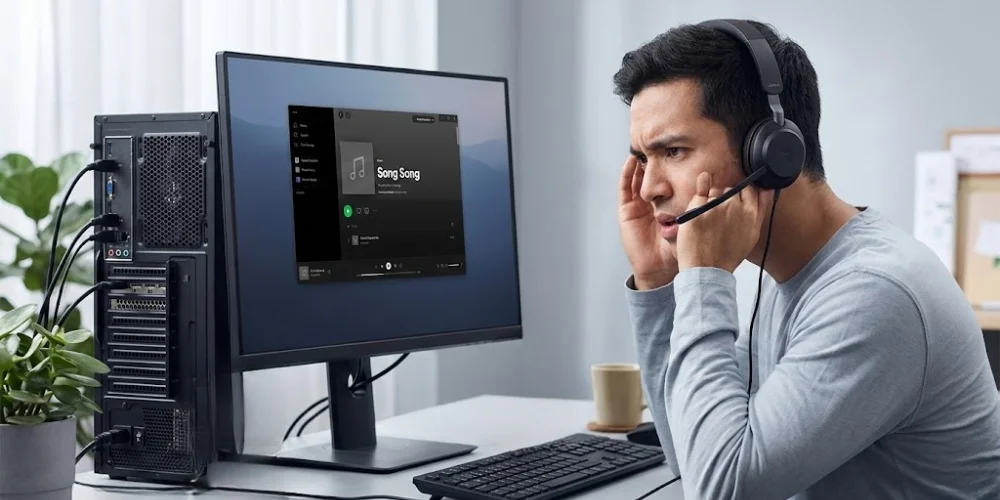
If you do not hear any sound from your speakers or headphones at all, it means that your device is not connected or plugged in correctly. It might be muted, or the user has not selected the sound as the default audio for a particular device.
Volume Icon Shows Sound, but Nothing Is Heard
If your PC’s volume icon is showing the movement of sound waves in the display, but you are not able to hear audio. It means that your system is playing audio, and the problem is with your output device. You may have selected the wrong output device.
Sound Works in Some Apps but Not Others
If you notice that some applications on your system are playing audio while others can not, it means that you have muted the app in the window volume mixer. Or it can be due to the app's separate sound setting.
Distorted or Crackling Audio
When the audio is broken or unclear, it is a symptom that the user's system might have outdated drivers or a loose cable connection. Sometimes, when the system makes buzzing noises, it indicates that the problem is with the speakers.
Bluetooth Device Connected but No Sound
Users often make a mistake by not setting their device as the default output, which causes the audio problem. In this situation, you may face an issue of no sound when your Bluetooth device is connected.
Audio Device Not Showing in Playback Settings
If your audio device is not showing in the playback settings, then you need to check your drivers. When the drivers are not installed, or the device is not properly connected, then your system shows such problems.
Speakers Detected but Disabled
You can overcome this problem simply by enabling your speakers manually in the sound control panel. This is a plausible explanation of why your computer detects your speakers, but they are turned off in settings.
Sound Suddenly Stopped After Windows Update
If your audio was working perfectly before you updated your Windows, but after the update, you are facing a problem. Then your drivers may have changed, or they are not compatible with your audio device. This can cause the sound to stop.
Note: “All these problems are real-world scenarios that were faced by our clients, which we have sorted out in the easiest steps that are discussed below in this detailed guide.”
What Are The Causes Of Headset Audio On PC
Before fixing any problem, one must know what the issue is and where it lies. To make you know about the possible causes that many users face, below is the gathered data in detail for your better understanding and knowledge.
Hardware-Related Causes
Most users do not pay attention to the cables that are not fully plugged in or broken on the inside. This causes distortion in the traveling of sound signals, which causes a problem. Even if the cable is damaged in a small area, it still stops audio completely.
Loose or Damaged AUX/USB Cables
Faulty Audio Port
Faulty audio ports that are damaged internally or are worn out restrict the audio delivery. Users need to check their headphones or speaker ports to ensure the proper functioning of the ports.
Speakers are not Powered on
There are some speakers that can work when they are connected to electricity. If they are not connected or charged properly, they will not produce sound.
There are some common signs through which this issue can be identified. There is no power indicator light or startup sound from the speakers. In addition, if your device is detected but it is silent, it makes sure that the speakers have an issue.
Headphones Plugged into the Wrong Jack
Desktop PCs come with multiple audio ports. There are two main ports. One is the green port, which is used for audio output, where speakers or headphones are plugged in. On the other hand, there is a pink port, which is for a microphone.
So if your headphone is plugged into the microphone jack, the sound output will not work. In the older systems, these ports are differently placed, but in modern laptops, there is only one port that works for both.
Hardware Failure
If you are trying to run a software troubleshoot on a physically damaged component, it will not fix the issue. This failure can be in any part of the computer, including the sound card, speakers, or headset.
You can test your device on any other computer, which will help you confirm the hardware failure. Some possible failures are that your speaker drivers get blown up, or the user has damaged or broken the headphone cable. Moreover, you need to check for, users should also check for motherboard audio chipset damage or internal sound card malfunctioning.
Software & System Causes
Software and system issues occur when Windows settings are misconfigured or internal services are disrupted. There are certain reasons due to which it happens, which are listed below.
The Wrong Default Output Device was Selected
When the wrong device is selected as the default, your speakers or headphones do not receive sound. In fact, your Windows may automatically switch output to HDMI monitor speakers or a disconnected Bluetooth device. You can also look for virtual audio drivers because problems in them also restrict the output device from getting the sound.
Disabled Playback Device
When the playback device is disabled, the system does not send audio signals to it. If Windows allows audio devices to be manually disabled in the sound settings, this problem occurs mostly.
Muted System or App Volume
Windows control volume through master system volume or communication device volume. The user's app may still be muted separately if the system volume is still high. This can also happen when the individual application volume is disrupted or muted.
Audio Enhancements are Causing Conflict
Sound enhancement or bass boost features also cause the audio problem in the PC after they are installed. They not only interfere with audio output but also cause distortion. Moreover, virtual surround sound or spatial audio also leads to lag or complete silence in the audio system.
Windows Audio Services connect Audio drivers, sound hardware, and applications communicate. If these services stop running, there will be no sound.
Corrupted Windows Audio Services
Driver-Related Causes
Audio drivers are the communication bridge between hardware and the operating system. If any problem occurs in them, the users are not able to hear any audio, even if the PC and their headphones are working properly. There are some issues that are listed below regarding drivers that a user can check to know where the problem is.
Outdated Audio Drivers
Users hear no sound or a crackling sound after any major Windows update. It means that older drivers are not compatible with the device after the update. So if the audio device is not detected, it means that they need to update their drivers as well.
Corrupted Drivers
The corrupted drivers also stop proper communication between Windows and the headphones. The driver files become corrupted due to malware, sudden shutdowns, interrupted updates, and missing sound drivers after updates.
Missing Sound Drivers After Update
If your system shows no audio output device installed, it means that the drivers are missing. It happens when Windows updates sometimes remove or replace drivers incorrectly.
Incompatible Drivers
When the wrong drivers are installed on the computer, it also causes audio failure. For that, the right drivers should be checked to see if they're installed on the window or not. For example, if a user has Windows 10 and has installed Windows 11 audio drivers, it will not work.
App & Format Conflicts
There are some applications or media files that can also cause audio problems. For that, you need to check the issues given below.
Apps Taking Exclusive Control of Audio
If the user is using apps that take exclusive control of audio, it may cause audio issues. There are some applications like Zoom, Discord, or my music software that also affect sound devices. They take control of the system and stop it from generating audio.
App-Specific Output Device Selected
When wrong settings are selected it also causes sound issues. So it is important to check Manual Audio Device Selection.
Unsupported Audio File Format
There are some common old audio formats like MP3, WAV, AAC, FLAC, etc., They do not work properly if they do not have additional codecs. So if a media file uses an unsupported format or codec. Then your headphones will also not receive the sound.
Missing codecs
If the file is missing codecs, then it will not produce any sound. Codecs are basically software components that are required to decode audio formats. So, for better and proper sound, their presence is important.
System-Level Issues
Most users only focus on the technical issues but they ignore the system-level issues that affect the system's function. Some issues are described below.
Incomplete Windows Updates
When users update their Windows partially, it can break compatibility between audio drivers, system files, and hardware firmwares. This causes disturbance in the audio or sometimes a complete breakdown of the audio.
BIOS/UEFI Compatibility Issues
The BIOS/UEFI firmwares are controllers of hardware communication at a very low level. When the firmware is outdated, it sometimes interferes with the audio hardware detection.
Software Conflicts After Update
When the new software is installed, there are background processes that may conflict with audio services or drivers.
Background Services are not Running
If your PC services, such as all Windows audio or the audio endpoint builder has stopped, then they will also stop sound output completely.
How To Fix Headset Audio Not Working On PC?
It is very common for users to face problems like no audio or sound coming from the headphones when they connect them to their PC. But the good news is that it is totally fixable. This error can be fixed by using very simple steps, which can make you free from connection errors or other related errors. All the best tested methods are mentioned below for you to understand how you can fix it by yourself without the help of someone from outside.
Check Windows Audio Output Settings
It is always recommended to start by making sure that Windows is actually sending sound to your headset or not. If the wrong output device is selected, like a monitor or speaker, or a disconnected Bluetooth device. Your headset won't play sound at all. But how can you check? You can simply check this by following some simple steps listed below
Click the speaker icon in the Windows taskbar (bottom-right corner).
Click the small arrow ( > ) next to the volume slider.
A list of available output devices will appear.
Then select your headset from the list.
And play audio to confirm the sound is working.
An additional tip for you: “If your headset does not appear in the list, make sure that it is properly connected. You can do it by restarting your device. And if you have Bluetooth headsets, then confirm they are paired and connected.”
Note: If you have multiple audio devices connected, like headphones, speakers, Bluetooth devices, then Windows may default to something other than your headset.
Verify Hardware And Connection
One needs to check the physical connection between the headset and the PC before checking the software settings. Many issues are related to the hardware instead of the software. You can check:
Are cables fully plugged in?
Are you using the correct port?
Is the headset powered or charged?
Try disconnecting and reconnecting
Check Cable Insertion: The headset cable must be fully inserted into the audio jack. And there should be no loose or partially connected plug. A slight loose connection can interrupt the audio signals and cause loss of sound.
Confirm the correct audio port: You can also check if you are using the correct port, or not, because if the headsets are plugged into the wrong audio port, the audio does not work.
Green Port -> Headphones/speakers
Pink Port -> Microphone input
If you plug your headset into the microphone port, you may face an audio issue.
Note: “New models of laptops come with one port that is used for microphones and speakers. They have a TRRS.”
Check power or battery: If using battery operated headphones one must check whether the headphone is fully charged or not.
Try disconnecting and reconnecting: If your PC fail to detect headset users must try refreshing the connection by disconnecting and reconnecting them again.
Wired headphones: Disconnect them from the AUX jack that is 3.5mm or USB port.
Wireless (Bluetooth) headphones: Click the Bluetooth icon in the taskbar or you can select Bluetooth and devices from settings. Then find your headphones and select Disconnect or toggle off Bluetooth.
Try Different USB Ports: In modern and old both kinds of PCs and laptops there are two ports for connection. In this case, you can test other ports by switching between USB 2.0 and USB 3.0.
Check Volume and Mute Controls
Headphones can show audio issues even after they are plugged in correctly. This sound issue is caused when the system or app is muted. You can check it in the following ways.
System Volume Level: You can check the system volume level by clicking on the speaker icon and sliding it up. This will show if the sound problem is related to system volume levels or app volume levels.
App Volume Levels: Open the volume mixer to make sure that applications like games and media players are not muted.
Hardware Volume Controls: There are some headsets or speakers that have their own volume buttons or mute buttons. So you can turn them down or turn them up to make sure that they are not muted.
Unmute Everything: The last resort is to unmute everything on the system, in the app, and on the headset itself. And then check if the problem is solved or remains.
Run Windows Audio Troubleshooter
Windows are made with a built-in troubleshooter that can automatically find and fix many sound-related issues, including headset connection problems as well. You can do it by following a few steps.
Go to Settings → System → Troubleshoot → Other troubleshooters → Audio and run the troubleshooter.
This tool checks if the audio services are disabled or if you have any driver conflicts in your PC. They resolve misconfigured output devices and attempt to repair them automatically.
Turn Off Audio Enhancements
Windows audio enhancements can also improve sound by interfering with headset audio. To disable enhancements, you need to follow the steps below to fix issues like distortion, silence, or no audio output.
Go to Settings → Sound → More sound settings.Click your headset under Playback devices.
Open Properties and go to the Advanced tab.
Uncheck Enable audio enhancements.
Restart Your Computer and Audio Services
Restarting both the system and the key Windows audio services can fix the temporary issues in Windows services that cause audio to stop suddenly. You can restart your PC. This refreshes drivers and clears temporary faults. Moreover, restart audio services.
Press Windows + R, type services.msc, and press Enter.
Find and right-click Windows Audio and select Restart.
If you need to, then do the same for Windows Audio Endpoint Builder. By restarting these services, you can restore communication between the system and your headset hardware.
Update or Reinstall Audio Drivers
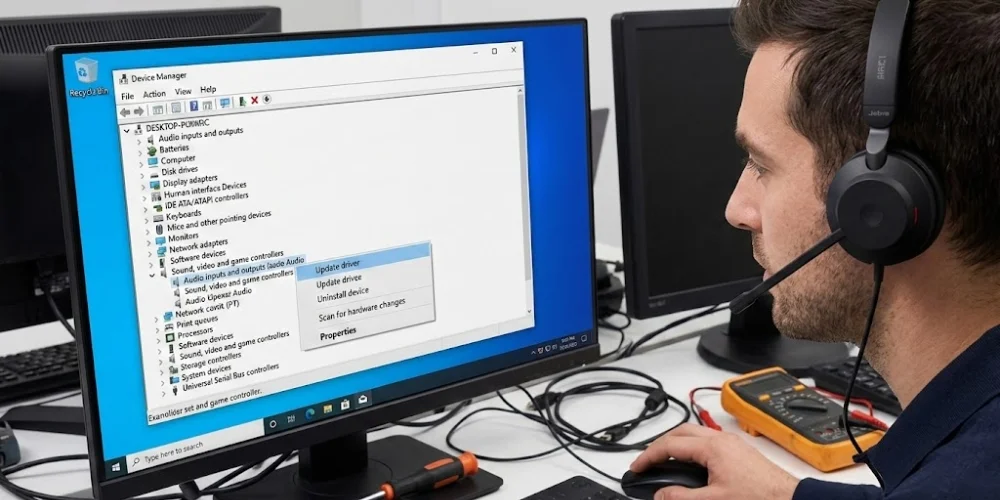
If your PC has an issue related to outdated, missing, or corrupted drivers, then you can update your drivers or reinstall them to continue the proper functioning. You can do it with the help of the steps given below.
Update Drivers:
Open Device Manager.Expand Sound, Video, and Game Controllers.Right-click your audio device → Update driver → Search automatically.
Reinstall Drivers
If updating doesn’t fix the problem:
Right-click your audio device in Device Manager → Uninstall device.Restart your PC — Windows will reinstall the driver automatically.
My Suggestion: “If you still hear no sound, then download the latest official drivers for your headset. Or else you can go to the motherboard manufacturer and install it manually.”
Try Another Output Device
This is very frustrating for every user when they try everything, but still they find a sound issue and their PC does not connect audio through the headphones. To find out whether the problem is with your headset or your PC, you need to connect a different headset or speaker. This will test if the other audio source works or not.
You can also try your headset on any other device, if possible, any other PC or your phone, to check if your headset is working or not. In this way, if the audio works on another device but not your PC or headset, you will know which device is not working properly, rather than wasting your time on going for blind hits.
Complete Windows Updates
If you find that the problem lies within your PC, then there is another solution that you can go for. Sometimes, a complete update can also resolve underlying audio bugs, or else it can update the drivers.
Settings -> Windows Update -> Check for updates
You can install all available updates and then restart your PC. This can fix compatibility issues that are introduced by the previous updates.
Test Different Audio File Formats
We usually do not check whether the audio file is compatible with the app or not. If only certain audio files or apps do not work with your headphones, this means that the issue is in the format compatibility or you have missing codecs. To fix this issue, you can try playing different formats like MP3, WAV, AAC, or use a media converter to fix this specific file-related problem.
Advanced Step: BIOS / Firmware Check
It happens in rare cases where nothing else works. And in this case, you can update the BIOS or UEFI firmware. This can help you restore your hardware compatibility with the audio device. But before doing this, you'll need to make sure that you back up all of your data and follow the official manufacturer instructions carefully.
Professional Help
If you have gone through all of the troubleshooting steps and your headset still does not produce sound. Then the issue is maybe related to a damaged audio part or faulty headset hardware.
According to my suggestion, a failing motherboard audio chip can also result in this issue. For this, you'll need to consult a qualified technician who can diagnose deeper hardware issues and provide advanced fixes. And if the issue is in your PC, then you can check the warranty and take it to the nearby PC store. Or if the issue is with your headset and it is still in warranty, then you can ask for a replacement or a quick fix.
Why You Can’t Hear Anything on Your PC: Quick Diagnosis Table
I understand that being a student who has an online class or a content creator who wants to upload his or her videos. It is really annoying to go through this issue. A small problem can become a huge headache when this kind of problem arises. Below is a table given which concisely explains what can be a possible issue and what can be its possible reason, so that you can fix it.
| Issues | Reasons |
|---|---|
| Volume bar moves, but no sound | Wrong output device |
| No device detected | Driver issue |
| Bluetooth connected but silent | Hands-Free mode selected |
| Works in the browser only | App conflict |
| Crackling sound | Driver or enhancement issue |
| No sound after update | Driver incompatibility |
Note: “If you have connectivity issues related to headphones of any specific brand, you can check our website. We have already addressed several troubleshooting issues in detail.”
Preventive Measures
It is often said that you must take precautionary measures before it is too late. This also applies to your audio issues on your PC. You can also avoid future sound problems on your PC by taking a few preventive measures. These include
Always keep your drivers updated.
Always install Windows updates regularly.
Avoid unplugging cables forcefully.
Always disable unnecessary enhancements.
Use quality audio hardware.
Restore your PC occasionally to clear background conflicts.
These little preventive measures can help you a lot in maintaining the audio delivery perfectly during meetings, online lectures, and games to help you stay more productive and functional.
Crux Of The Discussion
It is very common for users to face headset audio issues on their PCs. These problems can be due to several reasons, such as loose connections, incorrect sound settings, or outdated audio drivers. There are some cases observed in which the user still faces problems after they have updated their system.
At Find Headsets, we provide detailed Windows audio troubleshooting methods with the common symptoms and causes to fix your concerned issue. In this guide, we have discussed with you advanced fixes like how to update or reinstall audio drivers when necessary. We also explain the major causes and common symptoms so you can easily identify the problem, which you can apply to the right solution.
No comments yet. Be the first to comment!
Leave a ReplyYour email address will not be published. Required fields are marked *