
 By
By Logitech H390 USB headset is one of the best wired headset options for work and play. It has a movable microphone that works well for calls, virtual meetings, and webinars. Have you ever experienced a quieter voice but a lot of background noise when you are speaking? Or have you ever felt that you are not audible to others when you are not speaking louder? All these issues indicate the problem with mic sensitivity.
In this blog, we are going to walk through how to adjust the mic sensitivity on H390 headset. Let’s begin!
What is Mic Sensitivity?
Mic sensitivity is the measure of how effectively the mic picks up the sounds and converts them into electrical signals. In simple terms, it is about how easily a microphone picks up sounds. It determines how much background noise is audible behind you. Mic sensitivity is measured in decibels (dBs) or millivolts per pascal.
Different mic sensitivities shape your experience in different ways:
High Sensitivity
High sensitivity means the mic is efficient enough to hear soft sounds. But at the same time, it also captures the ambient or background noise, which can ruin the experience.
If your headset has a highly sensitive microphone, it will capture the surrounding noise like keyboard clatter, fan noise, or people's chatter. Therefore, the high sensitivity is good for quiet environments where there is no ambient noise.
Low Sensitivity
Low sensitivity means the mic will capture the loud sounds only. It will not capture any background or ambient noise, but still, you will feel too quiet for the people on the call.
Low sensitivity is good when you are working in a loud, noisy, and uncontrolled environment. The low-sensitivity mic will reduce the ambient noise and echoes on the call.
But high sensitivity or low sensitivity, both are not recommended, especially when you are working in the office. The microphone must be enabled with balanced mic sensitivity so that you sound clear to the people with minimal background noise.
Step-by-Step Procedure to Adjust Mic Sensitivity on H390
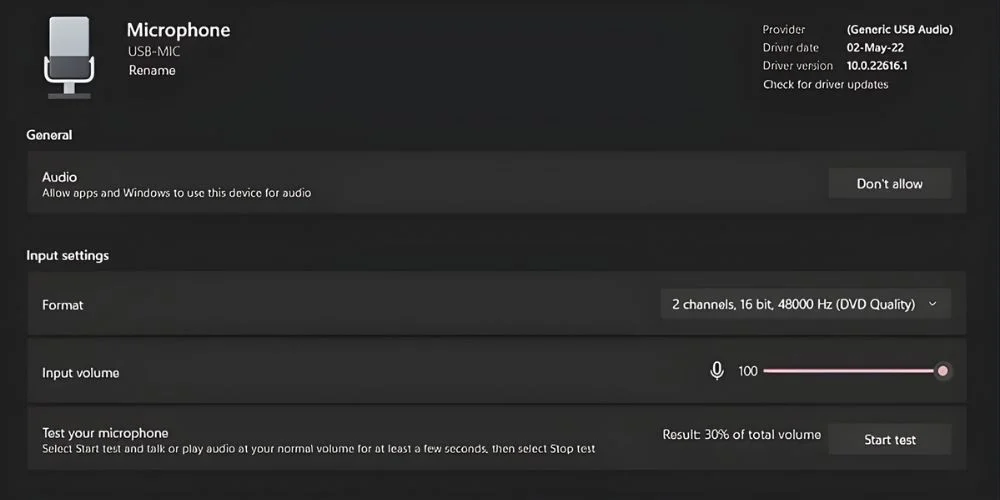
The mic sensitivity can be adjusted by the volume slider in the Windows or Mac Sound settings. Follow this step-by-step procedure to adjust mic sensitivity as per you need:
For Windows OS
- On a Windows OS, go to the settings> system and then select the sounds.
- Select the Logitech H390 as the input.
- Click on the Device Settings or More Sound Settings, depending on the Windows version.
- Go to the Levels Tab and adjust the microphone slider to increase/decrease sensitivity.
- Adjust the microphone to a sensitivity suitable for you.
For Mac OS
If you are using a Mac OS, follow these steps:
- Open the System Preferences/Settings.
- Select Sound.
- Navigate to the Input tab and select the Logitech Headsets H390 as input.
- Adjust the volume input slider up to the value of sensitivity you want.
Additional Adjustments for Balanced Mic Sensitivity
Besides the system settings, some minor physical adjustments can help you achieve balanced mic sensitivity for a better experience. You can make the following adjustments:
Rotate the boom microphone down and position it in such a way that it is 2 to 3 cm away from your mouth.
You can quickly adjust the volume with the help of the inline controls located on the h390 cord.
Quick Troubleshooting Tips for Mic Sensitivity Issues
| Problem | Troubleshooting Tip |
|---|---|
| Mic is too quiet | Set the microphone level to 100% in the Windows Levels tab. |
| Mic is too sensitive | • Reduce input volume in Sound Settings • Disable Microphone Boost • Keep the boom mic slightly away from your mouth |
No comments yet. Be the first to comment!
Leave a ReplyYour email address will not be published. Required fields are marked *