
A Poly headset connection problem can disrupt critical calls, web conferences and regular communication. One of the most frequent problems with Poly DECT headsets is that the headset fails to connect or pair with the base.
Fortunately, a number of these connection problems can be solved by taking a few simple troubleshooting measures. Knowing the type of connection, base, pairing status, battery, range, and firmware can help you determine the problem and get a reliable connection.
How Do I Know My Poly Headset Has a Connection Problem?
Before troubleshooting, determine the symptoms you are having. If your Poly headset has a connection problem, then:
- The headset is not attached to the base.
- The headset keeps dropping off while talking.
- The headset is not recognized by the base.
- The headset appears to be connected but is not communicating with the base.
- Only connected when very near base.
- The headset is not working with another device.
These symptoms can indicate pairing issues, power issues, range issues, compatibility issues or audio issues. Knowing exactly what the symptom is can help you select the appropriate troubleshooting action
What Causes Poly DECT Headset Connection Problems?
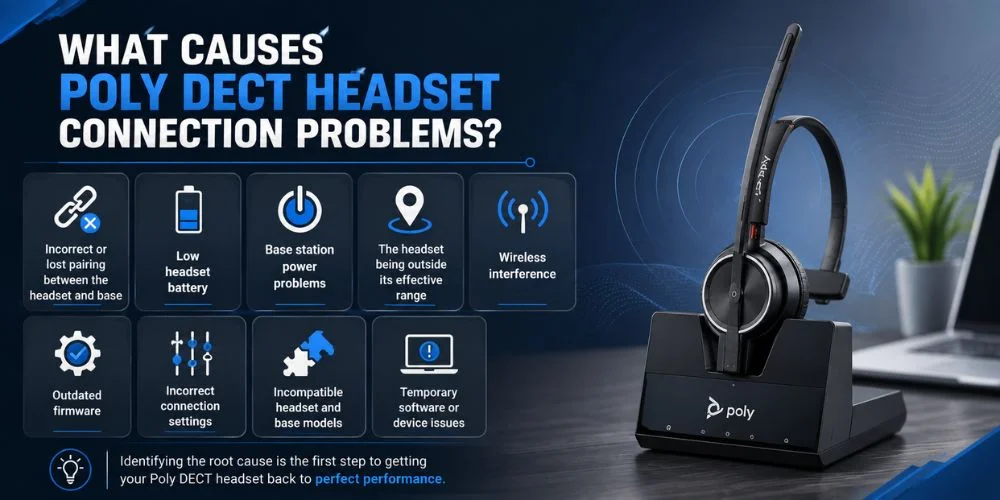
Several factors can cause a Poly DECT headset connection problem. Common causes include:
- Incorrect or lost pairing between the headset and base
- Low headset battery
- Base station power problems
- The headset being outside its effective range
- Wireless interference
- Outdated firmware
- Incorrect connection settings
- Incompatible headset and base models
- Temporary software or device issues
Checking these factors one at a time is usually more effective than immediately resetting the headset.
How to Tell If the Problem Is the Headset or the Base
When all power, pairing, range and settings have been checked and the Poly headset doesn't connect, the next step is to check if the problem is with the headset or with the base.
First, determine if the base is receiving power and communicating with the computer or desk phone it is connected to. If the base seems to be functioning normally but the headset is not detected, the headset, pairing or compatibility may require additional attention.
If you have another compatible Poly headset, you can use it with the same base to help determine the cause. If the second headset connects without any problems, the problem might be with the original headset. If they don't connect, however, inspect the base, cables, connection type, and compatibility.
If possible, you can also check the original headset with another compatible setup. If it works there, the original base or the device connected to the base may be the cause of the problem.
This easy procedure can save you from resetting/replacing the headset before you have determined what part is causing the connection problem.
Is Your Poly Headset a DECT, Bluetooth, or USB Connection?
Always determine the connection method of your Poly headset to your computer, desk phone or mobile device before you troubleshoot. Poly headsets may connect via DECT, Bluetooth, USB or a mix of these technologies, and each type may experience different issues with connectivity.
Typically a DECT headset requires a dedicated base station. The base is the primary interface between the headset and your computer or deskphone. For DECT models, verify the base power, pairing of the headset to base, wireless range and cables.
A Bluetooth headset is a wireless device that connects to a compatible computer, smartphone or other device. Some of the Poly models are connected directly via Bluetooth, others with a USB Bluetooth adapter. If it doesn't connect, see if Bluetooth is turned on and if the headset is paired with the right device.
A USB headset is a headset that is plugged directly into a computer via a USB cable or connection. If not, verify the USB port, cable, device settings and if the headset is listed as an audio device.
Some Poly headsets can have multiple connection types. For instance, an office base station can answer calls via DECT but also be compatible with a Bluetooth-enabled mobile device. Before you begin to troubleshoot, it is important to determine your connection type so that you can narrow your focus to the troubleshooting steps that apply to your setup.
How to Fix a Poly Headset Connection Problem
After you have determined how your headset connects, try the following solutions. Start with the basic checks before moving on to pairing or resetting.
1. Check the Poly Headset Base
First, determine if there is power to the base station. Ensure that its power cord is plugged in properly and that the base light bars are normal.
If the base is connected to a computer or desk phone and that is the case, inspect the computer or desk phone cables as well. If the cable is loose, disconnected or damaged, the headset system may not communicate with the connected device.
If the base does not seem to turn on correctly, reconnect it to the power and test again before changing the headset settings.
2. Charge the Headset
Insert the headset into its charging cradle and let it charge.
If the battery is very low, it may result in unexpected connection or performance issues. Charging the headset first and then troubleshooting eliminates a power problem.
If the headset seems to be not charging, make sure that the headset is properly positioned in the cradle and the base itself is charged.
3. Check the Headset-to-Base Pairing
There is a requirement for a DECT headset to be compatible with its base. If the pairing has been lost or the pairing has been changed, the headset might not pair.
If you are unsure how to pair poly headset devices, for pairing poly headset devices, please refer to the pairing instructions for your Poly model.
This may differ depending on the headset system, so refer to the instructions that come with the headset model and not to the same button combination you used with other headsets.
If the headset was previously paired and suddenly it doesn't work, it may be necessary to re-pair it.
4. Move Closer to the Base
Try using the headset close to its base station.
When the connection gets better if you get closer to the device, range or wireless interference may be a factor. Ensure the base is located in an appropriate place and not in a position that could affect wireless communications with the base.
An easy test to see if distance is an issue is to test the headset near the base.
5. Restart the Headset and Base
Temporary connection issues can be fixed by simply restarting.
Unplug the base, wait a few seconds and reconnect it. Restart or power cycle the headset as specified by the instructions for your model.
If both devices are prepared, then re-connect the headset. If the connection resumes upon restart, it may be due to a temporary device or software issue.
6. Check the Connection Mode
There are some Poly headset bases that can accommodate multiple connections, such as computers and desk phones.
Ensure the base is connected to the device to be used, and the proper audio source or connection mode is set.
When connecting a poly headset to computer, ensure that the base is correctly connected to the computer and that the headset has been set as the audio device.
If the headset is not working with a particular connection, cable or device setting, the problem may be related to the selected connection, cable or device setting.
7. Check for Firmware Updates
Firmware that is not up-to-date can sometimes cause compatibility and performance issues.
If there is a firmware update available for your Poly headset system, check for an update using the right Poly software or management tool for your model.
Please be careful when updating and follow the manufacturer's instructions, and don't disconnect the headset or base during the update process.
8. Reset and Re-Pair the Headset
If the problem persists after the basic checks, resetting and re-pairing the headset can be beneficial.
But, reset is different for different Poly models. Find out instructions for your specific headset before resetting it. Existing settings or pairing information may be lost during a reset.
Reset and connect the headset to the base again and test the connection.
How to Put a Poly Headset in Pairing Mode
When the headset and base are paired, they can connect together. Check if the headset is in the correct pairing mode if the base does not recognize the headset.
Pairing procedure varies according to the Poly model. For this reason, review the poly headset instructions for the particular Savi, CS or other DECT headset prior to the process.
After the headset is in pairing mode, use the pairing instructions specific to the model to connect the headset with the base. If pairing fails, check to be sure the headset and base are compatible before attempting to reset.
How to Re-Pair a Poly Headset With Its Base
If the headset was able to pair with the base before and now it won't, re-pairing can fix the issue.
Please ensure that the base is on and the headset has sufficient battery before using. Next, follow the pairing procedure that is given for your specific model.
Once the pairing is done, the headset and base, test the connection by calling or checking audio. If re-pairing fails, make sure to verify the model numbers and compatibility of the devices before resetting them further.
How to Check Whether Your Poly Headset Is Connected to the Correct Base
A Poly DECT base is required with a compatible Poly DECT headset. There is a possibility of working with the wrong base, if several headsets or bases are being utilized in the same workplace.
Look at the headset and base model specs and make sure they are compatible.
If the headset is compatible with other base units, it might be necessary to follow the correct pairing process before it can pair with the new base unit.
Can Any Poly Headset Connect to Any Poly Base?
No. It will depend on the headset and base model.
If two devices come from the same brand, they might not be compatible with each other due to differences in pairing methods or features. This is particularly important if you are changing headsets or bases for an existing office configuration.
Before attempting to connect a headset to a different base, verify the model numbers and compatibility information. An appropriate set can avoid unnecessary pairing and reset operations.
Poly Savi Headset Not Connecting to Base
Poly Savi headsets are based on DECT technology and base station for communication.
When a Savi headset is not connecting to its base, check the base power and headset battery. Then check if the headset is properly connected to the base.
If the problem persists, turn power back on to both devices and use the pairing procedure for your particular Savi model.
Do not use a standard reset as different models of Savi may have different steps.
Poly Headset Connected but No Sound: Is It a Connection Problem?
Not all headset issues are connection issues. If the Poly headset is connected but you don't hear sound, there could be a problem with audio settings, the output device you have selected, the application you are using, or the connection between the base and computer or phone.
If this is the case, verify the audio settings on the device and ensure that the Poly headset is set as the output and input device.
Poly headset bluetooth pairing can also impact the proper pairing of the headset with the desired device when using Bluetooth. Check the pairing status before changing other audio settings.
What If My Poly Headset Still Won't Connect?
If your Poly headset still doesn't connect with the steps above, test the system carefully to determine where the issue is.
Check the following:
- Does the base have power?
- Does the headset charge?
- Has the headset been synced with the base?
- Does the connection work if you get closer to the base?
- Is the base attached to the computer or desk phone?
- Does the headset have the latest firmware?
- Does the headset and base fit together?
- Will the headset fit another compatible system?
These tests will help identify if the problem is a headset, a base, a connected device, compatibility or settings issue.
If the issue persists, refer to your Poly model's troubleshooting guide or reach out to your Poly's technical support.
When Should You Reset a Poly DECT Headset?
Generally, resetting should be done after you've done basic troubleshooting.
A reset may restore normal operation if the headset has lost pairing information, frequently disconnects or exhibits unexpected behavior.
Resetting can, however, reset previously set pairings or settings. Check the instructions for your particular Poly model before resetting.
If the headset is still under warranty or support, you may want to review the options available before resetting the device as it may alter the configuration.
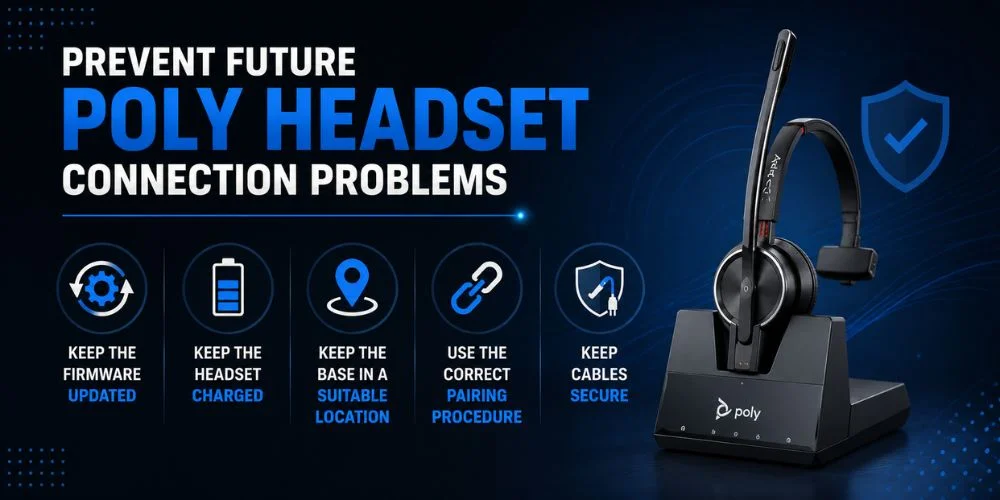
How to Prevent Future Poly Headset Connection Problems
After you've got your Poly headset up and running again, there are some simple practices you can adopt to avoid future problems.
Keep the Firmware Updated
Look for firmware updates and install as per manufacturer's instructions.
Keep the Headset Charged
Make sure to charge the headset regularly so that battery life will not be a problem while making calls or when unexpected battery power issues occur.
Keep the Base in a Suitable Location
Locate the base in a position where the headset can secure a good connection, and clear of possible sources of interference.
Use the Correct Pairing Procedure
When replacing a headset or base, use the appropriate headset/basestation pairing procedure, not a generic one.
Keep Cables Secure
When bases are plugged into computers or desk phones, ensure that power and connection cables are securely in place.
Explore More Poly Headsets and Find the Right Model for Your Needs
If you are still experiencing problems with connecting your current Poly headset, it might be appropriate to inspect if the headset model is compatible with your computer, desk phone or communication system.
Find Headsets has a selection of Poly headsets for office communication, remote work, and professional calling. There are several models and features that can be compared to get a headset that would suit your setup.
The poly bt700 can be used for connecting compatible Poly devices and computers via Bluetooth. When considering connections, ensure that the adapter and headset are compatible with your system before buying or installing them.
Check out Find Headsets for the different types of Poly headsets and choose the right one for you.
Final Thoughts
Sometimes a Poly headset connection problem can be solved by first checking the basics. Ensure that the base has power, headset is charged and that the headset and base are properly matched.
If the problem continues, check the connection range, cables, firmware, compatibility, and device settings. Always use instructions specific to the headset model when pairing or resetting the headset for Poly Savi and other DECT systems.
Following these steps sequentially will help you determine the problem source (headset, base, connection, connected device) and proceed with the next step.
Frequently Asked Questions
Why is my Poly headset not connecting to the base?
A Poly headset may not connect for any of the following reasons: pairing issues, battery level, base power problems, wireless interference, range limitations, compatibility, and/or outdated firmware. Before resetting the headset, perform the basic checks first.
How do I fix a Poly headset connection problem?
First, check the base power, charging the headset, pairing, getting closer to the base, restarting both devices, checking the connection mode, and checking for firmware updates.
Why is my Poly Savi headset not connecting?
Verify Savi base, headset battery, pairing and connection status. For specific Savi models, please refer to the pairing or reset instructions.
Can I pair my Poly headset with another base?
The models of the Poly headset and base are used that are compatible. Refer to the compatibility information for the model before trying to join it to another base.
Why does my Poly headset keep disconnecting?
Distance, wireless interference, low battery, pairing problems, compatibility, or firmware problems could all be a factor in frequent disconnections. Test the headset closer to the base to aid in determining if range is involved.
What should I know about the BT700?
The bt700 is a USB Bluetooth adapter for use with compatible Poly devices and computers. Before setting up, read the compatibility information for your headset.
Where can I find setup information for the BT700?
For a poly bt700 manual, ensure that you are using the documentation that fits your specific adapter and headset set-up, as this will guide you through the setup and pairing process.
Is the Plantronics BT700 the same device?
If you are using a poly bt700 headset, ensure that the adapter is properly attached to the computer and that the desired audio device is configured in your computer's sound settings.
What if I am using a Poly BT700 headset?
When using a poly bt700 headset, check that the adapter is securely connected to the computer and that the correct audio device is selected in your computer settings.
Why is my Poly headset not working?
After checking power, battery, pairing, range, compatibility and audio settings, if your poly headset still does not work, refer to the troubleshooting guide provided for your specific model or contact technical support.
Should I reset my Poly headset?
If the situation cannot be solved with simple troubleshooting, a reset may be helpful. Note, however, that the instructions for resetting vary between models, so be sure to read your specific model's instructions.
No comments yet. Be the first to comment!
Leave a ReplyYour email address will not be published. Required fields are marked *