
 By
By If you are a passionate gamer, you will have definitely heard about the Logitech G Pro X Wireless Headset. In fact, you might be the user of this amazing wireless headset by Logitech. Being one of the best gaming headsets, users may experience the G Pro X Wireless Mic not working. This situation is so frustrating that you have invested in a good headset, and its mic stops working suddenly. The worst thing is that you are unable to speak to your fellow players or collaborate with your squad while gaming.
This problem is not a hard nut to crack. In this blog, we are going to discover the possible quick fixes to make your G Pro X Wireless headset mic work. Let’s get started!
Why does the G Pro X Wireless Headset Mic Stop Working?
Different users may experience different problems despite using the same headset. For each mic problem, there could be a different problem that requires attention and a small fix. Let’s have a look at different mic problems and the possible reasons behind them:
Quick Fixes for G Pro X Wireless Headset Mic Not Working
The first step to solving the problem is to identify and understand it, so that you can easily solve it. In the above section, we have learned the common problems that most users may experience with the G Pro X headset mic. Let’s apply the quick fixes to solve this problem:
Problem 1: The Microphone is Working But You’re Not Audible.
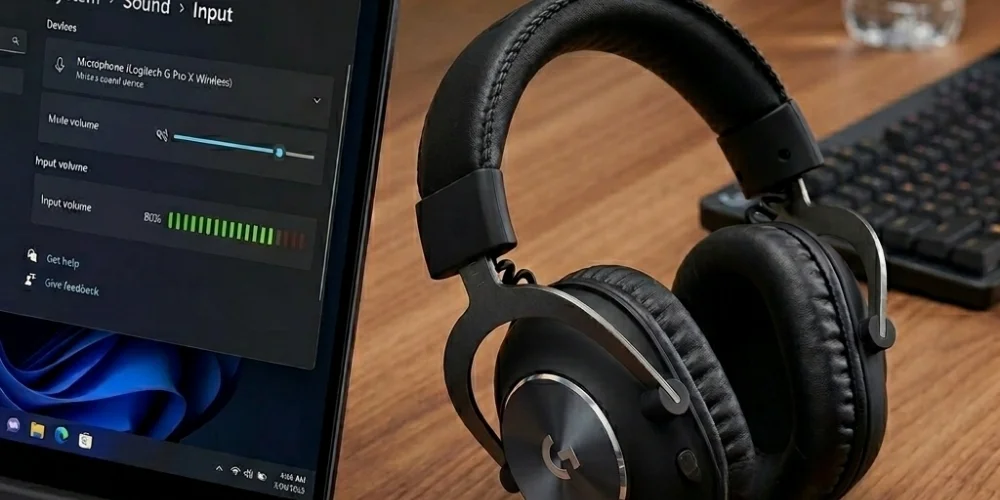
When the headset mic is working properly, but you are still not audible, there can be multiple. The reasons can be a jammed mute button while the mute is activated, or your device is not selected as the default input device. Perform the following quick fixes to solve the problem:
When the Mute Button is Activated and Jammed
If your mute button is activated and jammed after activation, gently press the mute button on the earcup to unjam it. This usually works, and the button is released.
Mic is Set to Mute in the System Settings
Follow these steps to check if the mute button is activated in the System Settings:
- Click on the Speaker icon in the system tray (located at the bottom right corner of the screen).
- Go to Sound Settings > Output > Select Logitech G Pro X Wireless as the default device.
- Deactivate the mute button (if it is activated).
- Test the mute function by playing some audio or video.
If this solution does not work, you might need to uninstall and reinstall the Logitech G Hub software. To do this, follow these steps:
- Press the Windows key.
- Type Logitech G Hub in the search box of the menu.
- Right-click the program > Click Uninstall.
- Once the program is uninstalled, reinstall the Logitech G Hub from the provided link.
Problem 2: The Microphone is Unable to Capture Voice.
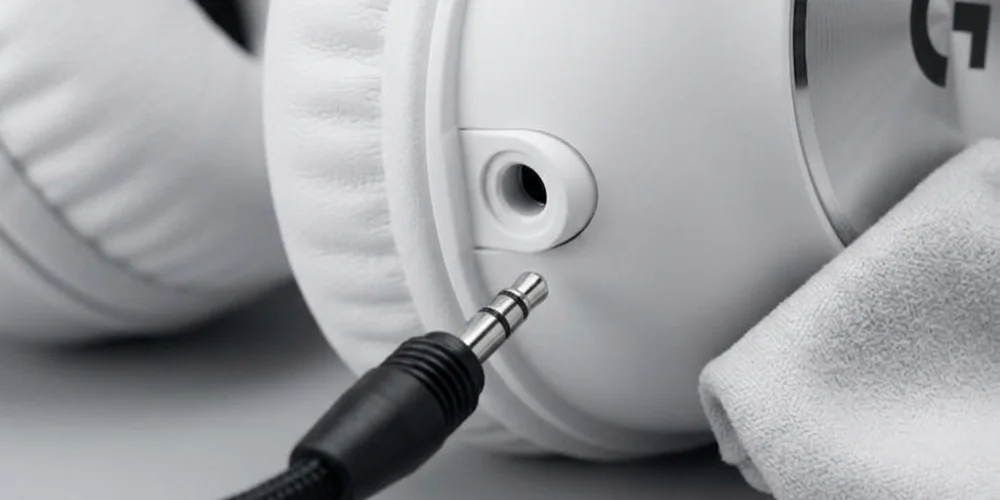
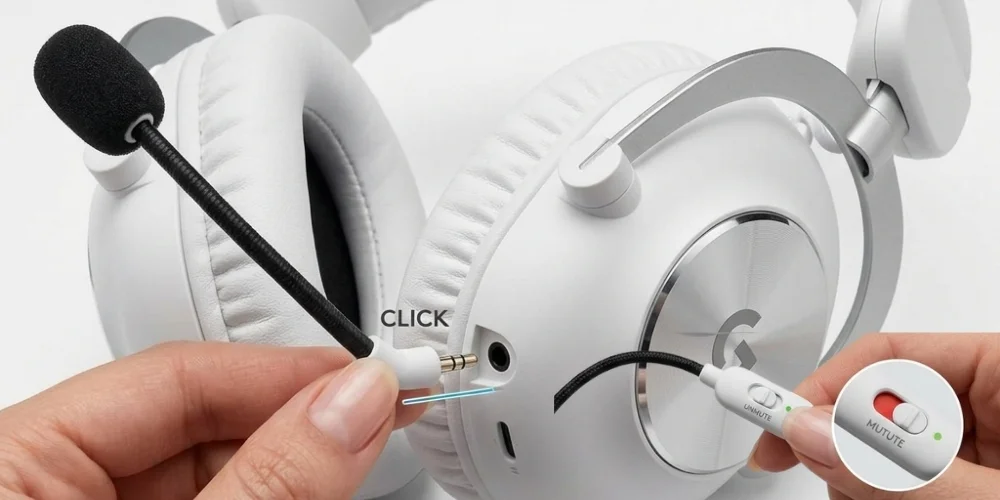
When your microphone is on, but it is not capturing your voice, this might be due to a connection issue. Logitech G Pro X features a detachable microphone, which is connected again via a 3.5mm connector on the headset. In this case, you can try the following fixes:
- Inspect the port for any damage.
- Check the ports for any obstructions or debris.
- In case of debris or obstruction, clean the ports and attract the boom microphone again.
- Ensure the microphone fits the port snugly and is not loose.
Problem 3: Mic does not Work in the Game.
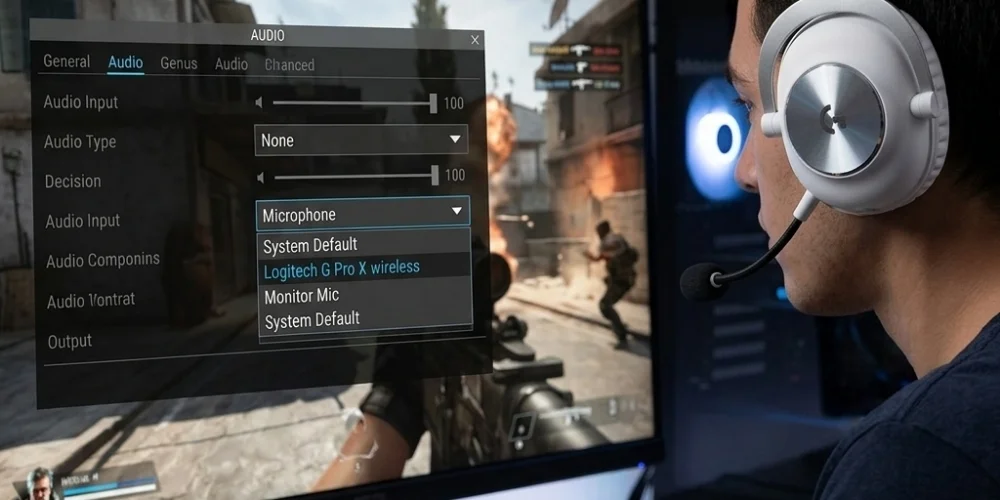
When you have tested the microphone, and it is working everywhere but not in the game only. This may be due to your mic being muted or the wrong selection of the input device in your game settings. Follow these steps to address this problem:
- Firstly ensure Logitech G Pro X wireless is selected as the audio input in the Windows settings.
- After this step, go to your game audio settings.
- Select the microphone input as Logitech G Pro X wireless.
Your problem will be solved.
Another reason can be that the physical mic is muted. Unmute the physical mic on the headset. Also, check in the control panel if the mic is disabled. If disabled, right-click >Select Enable.
When Nothing Works?
When none of the above solutions work, you can uninstall the Logitech G Hub and reinstall it. This usually solves the problem. In addition, disable the exclusive controls so that there are no restrictions. Now, you can test the mic in different apps and adjust the audio settings accordingly.
Quick Troubleshooting Steps
Above, we learned the fixes and solutions for a specific microphone problem. Many users occasionally face mic problems, such as the microphone not detecting, stopping working, or not capturing sounds. These problems are common among various users. The good news is that these problems are due to wrong settings, software glitches, or driver conflicts. Whenever your Logitech headset mic stops working, try the following troubleshooting steps:
Troubleshoot the Hardware Issues First
Before you start checking for the complex system settings, it is always a good idea to check the device for any hardware issues. Check for the following things first:
- Make sure the boom microphone is connected snugly in the port.
- Test the headset on any other device to ensure it is working or not.
- Turn off the physical mute switch.
Allow Access to Logitech G Pro X Wireless In Windows Microphone Settings
Windows 11 Microphone Settings
- Press Windows+ I to open the Windows Settings.
- Go to the System Settings> Select Sound > Input.
- In the input settings, select the right input device (Logitech G Pro X Wireless Headset).
- Also, adjust the level of input volume. Speak to check if the meter responds or not.
- Now, in the Settings, go to Privacy and Security.
- In the Privacy and Security, go to Microphone and enable access for apps.
Note: The access for Zoom, Microsoft Teams, Voice recorder, and other apps is enabled in these settings.
OR
- Press the Windows Key.
- In the search bar, type Microphone Privacy Settings and click on the result.
- Turn on the Microphone access and the access for Logitech Pro X Wireless.
Once you are done with all these steps, you can disable the Exclusive Mode to stop apps from blocking your mic. For this, follow the given procedure:
- Go to Sound Control Panel > Recording > Go to Microphone Properties > Advanced.
- Now you can disable the Exclusive Mode.
Windows 10 Microphone Settings
- Press the Windows button to open the Start menu.
- Search Microphone Privacy Settings.
- In the Microphone Privacy Settings, click on the “Change” button.
- Toggle on the button to give microphone access for this device.
- Turn on the button under the Allow Access to grant apps access to your microphone.
- Scroll down to turn on “Allow desktop apps to access your microphone”.
These solutions will make your mic work for different apps, games, and software. If your mic still does not start working, then try the next solution.
Check the Sound Setting
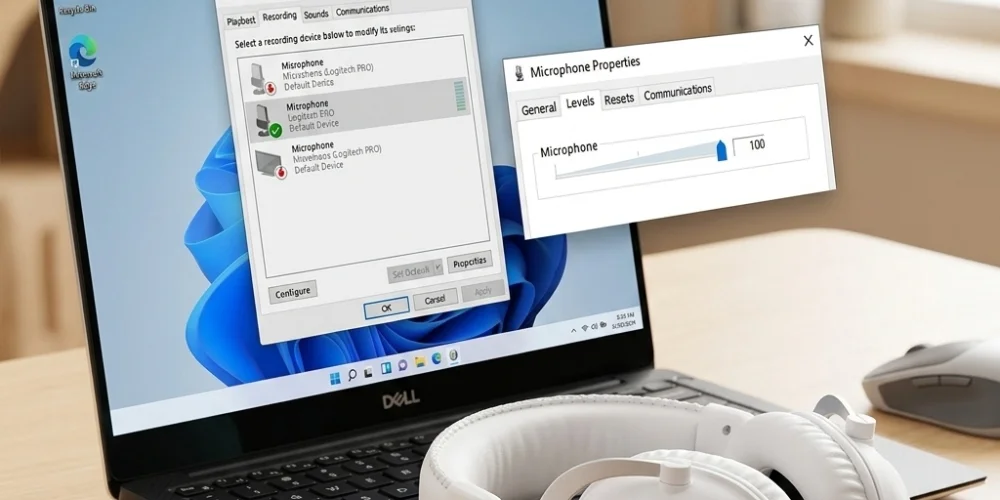
Sometimes, the problem is in sound settings in the control panel, which may stop your microphone from working properly. Consider the following sound settings:
- Open Control Panel > Select Small icons from the View by drop-down menu.
- Click on Sounds > Recording > Check for the green tick for Microphone.
- Click the microphone and then click Set Default.
- Right-click the microphone and select Properties from the context menu.
- Navigate to the Levels Tab.
- Adjust the volume slider to reach the maximum limit.
- Click OK.
Now the Logitech G Pro X has been set as the default headset, so you can test the mic. If it works, it’s well and good; otherwise, try the next fix.
Update Your Audio Drivers
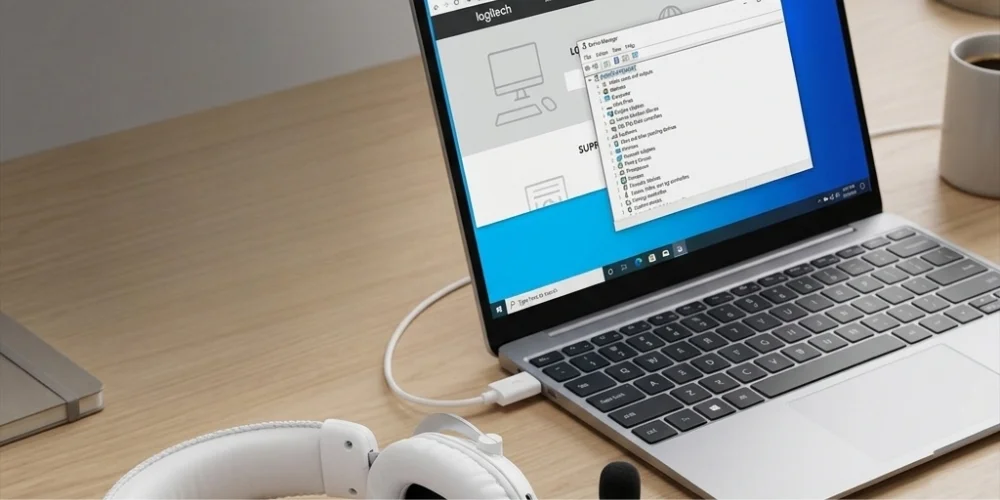
Sometimes the problem is nothing but that the drivers become outdated. If you want your gaming headset to perform well all the time, you need to keep it updated with the latest drivers. There are two ways to update your drivers:
How to Update Drivers Manually?
- Go to
- Search for the most recent driver for your headset.
- Download the driver that is
- Follow the on-screen sequence of steps to install the driver.
The drivers will be installed this way.
How to Update Drivers Automatically?
If you want to save your time or do not have enough expertise to install the drivers manually, try Driver Easy to automate this process. Driver Easy will recognize your device automatically and search for compatible drivers. It will download and install them correctly:
- Install and run Driver Easy.
- Click the Scan now button so that the computer can be scanned to detect any problematic drivers.
- Click Update All.
All the missing drivers in their correct versions will be downloaded automatically.
Note: These features are supported by the Pro version only.
OR
Try Driver Talent X
If you don’t want to use Driver Easy, there is an alternative option, Driver Talent X. This is also a fast and safe solution.
- Install Driver Talent X and open it.
- Go to Drivers.
- Scan the drivers to detect the audio and USB drivers causing the trouble.
- Click Repair Now or Update. This will automatically install all the drivers for Logitech G Pro X.
- Restart your computer so that the changes can be applied.
Reinstall G Hub
Many gamers reported that the latest updates in the Logitech G Hub cause issues in the microphone's performance. Try to uninstall and reinstall this app to check if the issue resolves:
- Press the Windows Key+R to open the Run box.
- In the open box, type appwiz.cpl > click OK.
- Click Logitech G Hub and then click Uninstall.
- Restart your computer so that changes can take effect.
- Go to Logitech G Hub’s download page.
- Click Download for Windows.
- Once the download is finished, install the app by following the on-screen instructions.
After performing these steps, you need to reconnect your Logitech G Pro X wireless headset. Your microphone will be found and work without any trouble.
Configure Logitech G Hub and Blue VO!CE Settings
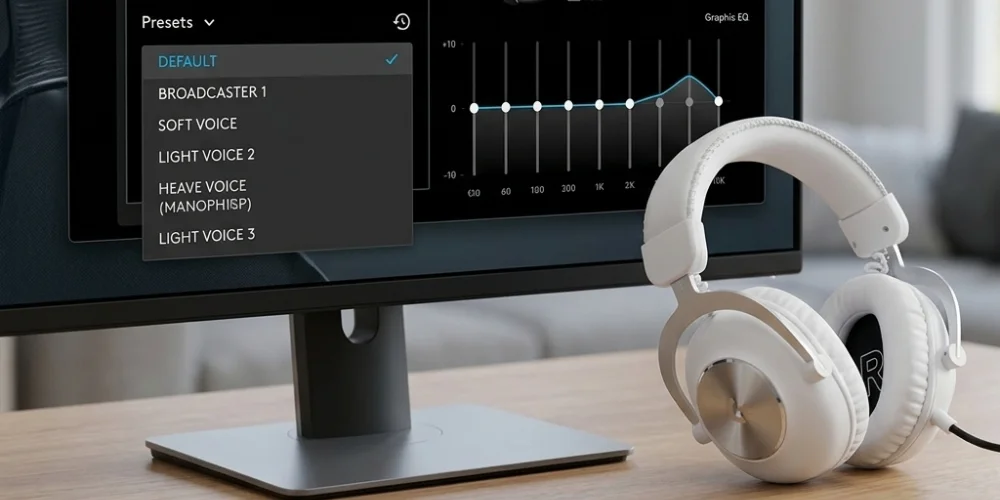
Logitech G Hub settings directly impact the microphone performance of the G Pro X wireless headset. Configure the following settings that might be disturbing your microphone's working:
- Open Logitech G Hub and check if the headset is properly detected.
- Go to the Microphone tab > Toggle On and Off Blue VO!CE to test.
- Reset the EQ and mic presets to default settings.
- Update the Logitech G Hub to get the latest version.
Run Windows Troubleshooter
Once you are all done with these troubleshooting steps, the last step you can try is to run the Windows troubleshooter. Because sometimes, this solves the problem. Follow these steps:
- Make sure audio enhancements are disabled in sound settings.
- Restart Windows Audio Services.
- If the new Windows update caused the microphone problem, roll back these updates.
By trying the above given troubleshooting steps, your mic problem will be solved. But if the problem persists, it’s high time to contact the tech support. They will help you solve the problem, or if the issue is in hardware and your headset is under warranty, they might give you a replacement.
Conclusion
Logitech G Pro X wireless headset is one of the best gaming headsets that offers a good quality microphone to collaborate with your gaming squad. But sometimes or occasionally, the mic may stop working. For gamers, it’s a frustrating situation when their mic stops working, and they are unable to collaborate. But that's not a big problem, impossible to solve.
In this blog, we addressed the common mic problems and how to troubleshoot these problems. Try these troubleshooting steps and quick fixes, they will make your mic work again. If these fixes fail, contact Logitech tech support. The support team guides you better in this regard. If possible, they may provide a replacement in case of hardware failure if the Logitech headset is under warranty. This is the last solution if nothing works from the above fixes.
No comments yet. Be the first to comment!
Leave a ReplyYour email address will not be published. Required fields are marked *