
 By
By At the time of the coronavirus pandemic, when everyone was isolated in rooms, Discord became the digital bridge between people with similar interests. There was a huge shift towards Discord because people wanted a platform where they could create communities and share similar interests. It was the best community platform because of the low-latency voice, multiple servers for gaming, and a lack of targeted ads.
If you belong to this era, then you might also be the one who is still using Discord and can't stop using it. As a Discord user on PS5, have you ever faced the issue of not being audible to others? If so, your headset mic might not be working. It feels frustrating when you have conveyed all the message in detail, but others were unable to hear you.
In this blog, we are going to find out the reasons behind the headsets mic not working on Discord PS5 and discover the ways to fix this problem.
Let's get started!
What is Discord?
Discord is a centralized community platform where people with specific interests join and create servers of their interests. It's the platform that supports real-time text chatting, voice channels, video calls, and text sharing.
This platform was popular among gaming enthusiasts, but now it has gained popularity among students and others. This platform offers better voice quality and lower latency rates during voice chats and real-time communication as compared to other platforms.
Common Reasons for the Headset Mic Not Working on PS5 Discord
Before finding the solution to the problem, we must know the cause of the problem. Imagine you plan to enjoy the voice chat with your friends about gaming, and you hit a game-changer point, you shared, but no one heard.
Sounds frustrating, right? What made you inaudible? Let's discover the common reason behind this:
Headset Mic Accidentally Muted
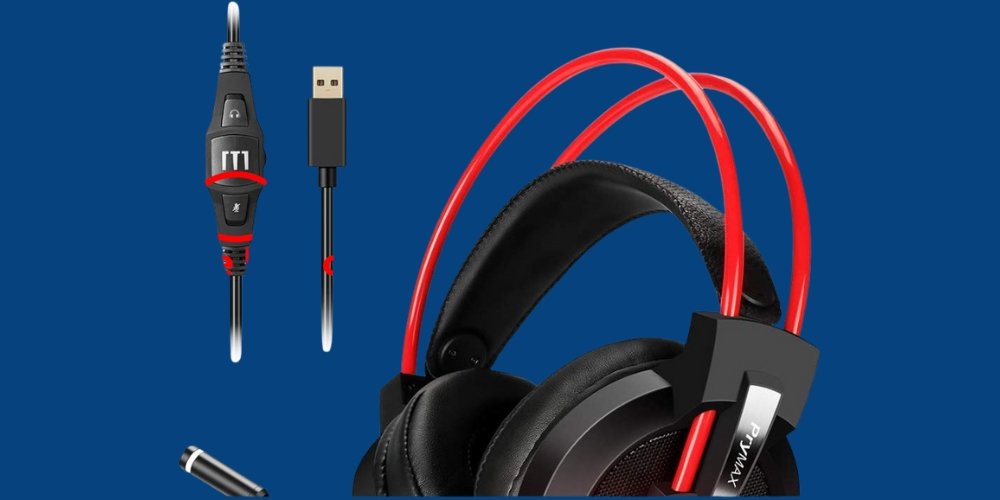
Sometimes, the user forgets to unmute when they are talking while using a PlayStation 5. That's one of the common reasons that make you feel that your headset mic is not working.
Incorrect Selection of the Input Device
Another common cause for your headset not working might be the incorrect selection of the input device. By default, the built-in microphone on the PS5 is set for speaking. When you are using a headset, you have to select the correct input so that you can speak through the headset mic.
Low Mic Sensitivity
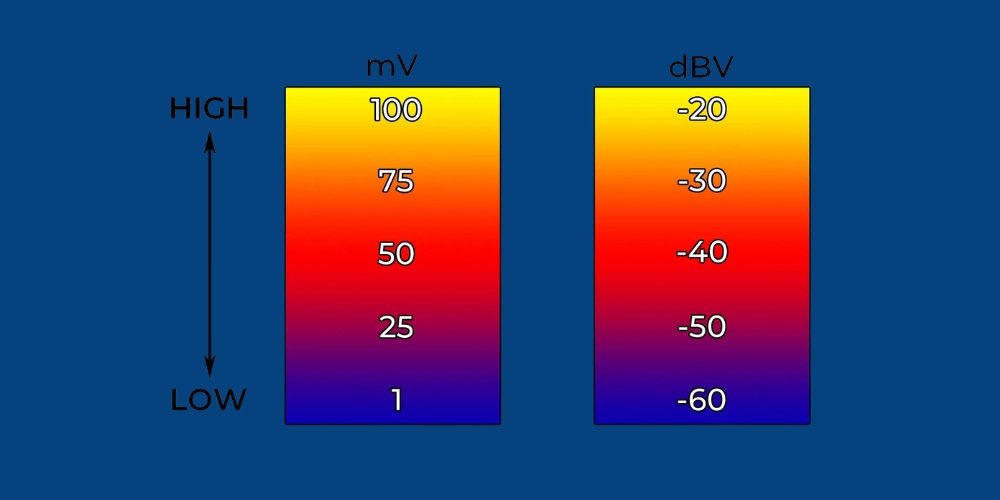
Some headset mics have lower mic sensitivity, with which the soft-spoken speakers might struggle. These mics demand you to speak louder; otherwise, others will have difficulty hearing you. And you will think that the mic is not working.
Compatibility Issues
Sometimes the headset you are using is not compatible with the PS5 controller. The headset or PS5 may have an outdated firmware update, or the Discord App version may be mismatched. All these are possible reasons behind your headset mic not functioning on Discord.
Hardware Issues
The PlayStation and your headphones both have mute buttons or switches. If pressed, they will not transmit your audio to others, and you will have no clue.
Moreover, the wired headset might not be plugged in perfectly, which causes a loose connection.
How to Fix Headset Mic Not Working on Discord PS5?
When you are excited to share your thoughts, and your headset mic doesn't support you, it's frustrating. Doesn't it? Well, sometimes the problem that feels bigger is solved with a small and quick fix. Let's discover different ways of troubleshooting that fix your headset mic:
Check for the PS5 Settings
The first thing you must do when your headset microphone is not working is to check the PS5 settings. In the settings, make sure that you have selected the right headset as input/output. Also, check if your mic is muted.
Check the Mute Status: How to Unmute on Discord PS5?
Sometimes, your mic is muted in the settings; that's why your voice is not transmitted. To unmute on Discord PS5, press the PS button and now observe the microphone icon in the control center. If it has a slash, your mic was muted. Then unmute the mic by pressing the mute button.
Adjust the Mic Settings on PS5
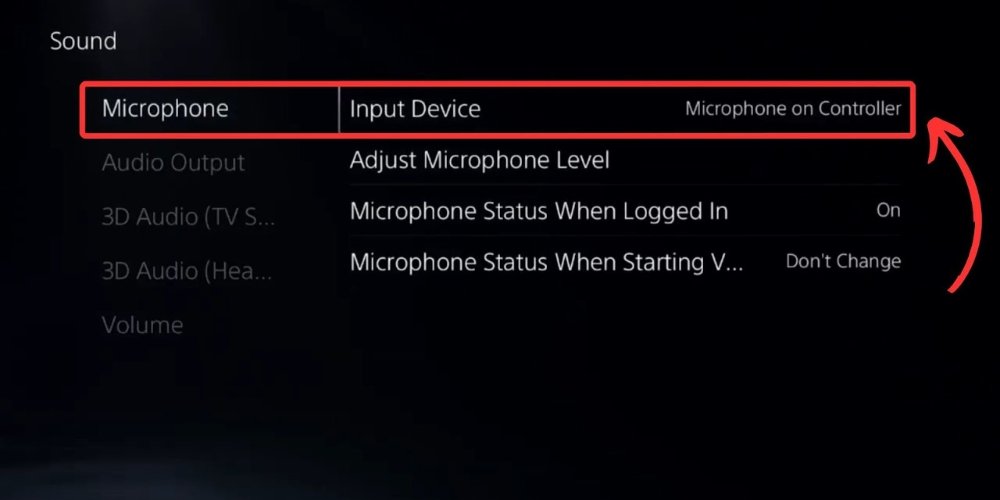
By adjusting the PS5 mic settings, you will be audible. To adjust the settings, follow these steps:
- Go to Settings, and then Sound.
- In the sound settings, select the microphone option.
- Now select the headset that you want to use as an audio device.
- Increase the volume of the microphone until the volume bar is full for your speaking.
This must make you sound clearer to your friends in the voice chat or calls.
Check the Essential Discord Settings Often Overlooked
Before you troubleshoot the audio and video in Discord. We recommend you to check these essential settings first. The settings include the Mute/Deafen status, channel or role permissions, and volume settings for desktop, browser, and mobile users.
Check the Mute/Deafen status
Look at the mic and headset icon, if there is a slash on it, means yourmic is disabled. Sometimes, the server administrators also mute or deafen some participants. If that's the case, contact the administrator to enable your mic.
Identify the Channel or Role Permissions
Narrow down the source of the problem by identifying audio or video problems that are either in all channels or in specific channels. The issue will be due to permissions if you are facing the problem with your microphone in certain servers. Contact the server administrator to check if you have the following permissions:
Connect: This permission lets you join the servers you want to join.
Speak: This permission is necessary to enable your microphone to support speech.
Video: This permission allows you to share your camera in the Discord voice chat servers.
Ask the Specific Recipient to Adjust Discord Volume Settings
Sometimes, the participant mistakenly mutes or lowers the volume of a specific profile. Ask them to:
Desktop and Browser Users: Right-click on your user profile and then adjust the volume using the slider until they can hear you.
Mobile Users: If they are a mobile user and currently in a call, long-press the user profile and adjust the volume on the slider.
Advanced Steps to Fix the Microphone Issues in Discord
If the participants in the voice call or voice chat can't hear you after adjusting the essential settings, follow these steps:
1. Update the system and audio drivers first to solve the common mic audio issues.
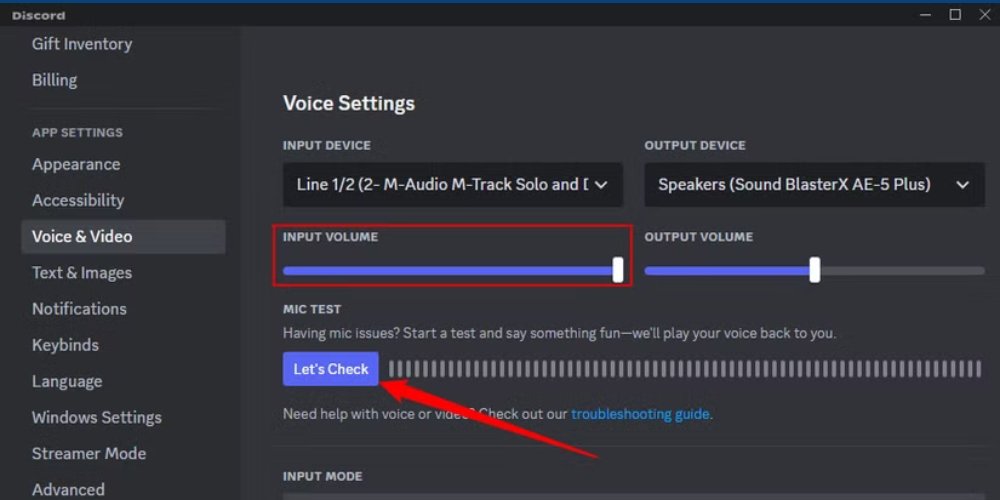
2. Go to the User Settings and then Voice and Video > Voice tab for input settings.
3. Now you have to select the microphone from the Input device dropdown menu.
4. Press the Let's Check button so that the Mic Test feature can be used.
In this way, you can also confirm whether your headset mic has started working or not.
Check if Others can Hear You from the Built-in Microphone
Sometimes, the issue is with the headset microphone. To confirm this, speak into the built-in microphone of the PS5 and ask them if they can hear you. If they are able to hear you, then this confirms that the headset microphone is not functioning properly.
Check the Headset Compatibility with Discord and PS5
If you are using a wireless headset, then keep in mind that the PS5 does not support Bluetooth audio. So choose a PS5-compatible headset, including the 3.5mm wired headsets and the USB headsets.
3.5mm Wired Headsets
Use the 3.5mm wired headsets that are plugged into a 3.5mm jack on the PlayStation5. They work properly with PS5 audio, in game voice chat, and with Discord when the right input is selected.
USB Headsets
The PS5 supports the USB headset with USB A/C connectivity and a USB dongle for wireless options. It usually works well with the Discord voice chat.
Check Discord App Settings on the Linked PC / Mobile
No matter whether you are using Discord on the PS5, it can still be managed through the linked PC or mobile. The settings on the linked PC or mobile may be causing the problem. Check if the correct input device is selected.
Disable the "automatically determine the input sensitivity" and manually adjust the slider. Check if your mic is muted. If so, unmute it. Make sure you have granted microphone permissions to Discord if you are an Android or IOS user. Don't use Bluetooth pairing for the PS5, as it does not support it. Instead, use a USB dongle.
Update the Firmwares
If the headset mic issue is due to the outdated software or firmware, it's time to update all. You must update the PS5 system software and the headset firmware if possible. The Discord version will be updated either via the console or mobile.
Disable Mute Game Chat
Your participants are unable to hear you during the in-game chats; the mute game chat must be enabled. In the settings, go to the Game Base and disable the Mute Game Voice Chat option.
Troubleshoot the Hardware Issues
Check if there are any hardware issues, like the microphone is muted from the mute switch or button. Unmute it. Also, try using another headphone; if it works, your headset may be faulty.
Re-Link Discord and the PS5
Sometimes, unlinking and relinking the PlayStation console account and Discord connection solves the problem. Simply unlink the Discord from the console in settings. After this, connect the PS5 again to the Discord from the app.
Leave and Rejoin the Voice Chat
When your headset mic was working initially on the Discord PS5, but suddenly the voice started dropping during the mid-call. Simply leave the chat and rejoin. It will solve the problem of mid-call cutouts during extended periods.
When Nothing Works, Restart the Console
When none of the above options work for you, restarting the console may automatically fix the temporary problems. Simply turn off the PlayStation5 and then turn it on.
Last Option: Contact the Tech Support
If nothing makes your headset mic work, now the last option is to contact the tech support. The issue may be in the hardware. The tech support will see the problem and perform the troubleshooting.
Contact PlayStation support if the PlayStation does not recognize the headset microphones, or if the USB ports or jacks are not working. Contact them if the new updates caused the mic or audio issues.
Contact the headset support if the microphone fails to be detected on different platforms and the microphone never activates.
If your PlayStation 5 or headset is within the warranty, you can also submit a warranty claim.
Common Problems and Quick Fixes
Common Problems & Fixes
Bottom Line
If you experience your headset mic not working on Discord PS5, it feels frustrating. With a few small and quick fixes, the problem can be solved. It is always recommended to check the PS5 and Discord settings first before troubleshooting. Once you are sure that there is no problem with the settings, you can perform the troubleshooting.
In this blog, we learned about the reasons that fail the headset microphone for Discord on the PS5. Moreover, we also understood how quick fixes can save you from frustration. Try these quick fixes, and your headset microphone will hopefully work.
FAQs
No comments yet. Be the first to comment!
Leave a ReplyYour email address will not be published. Required fields are marked *