
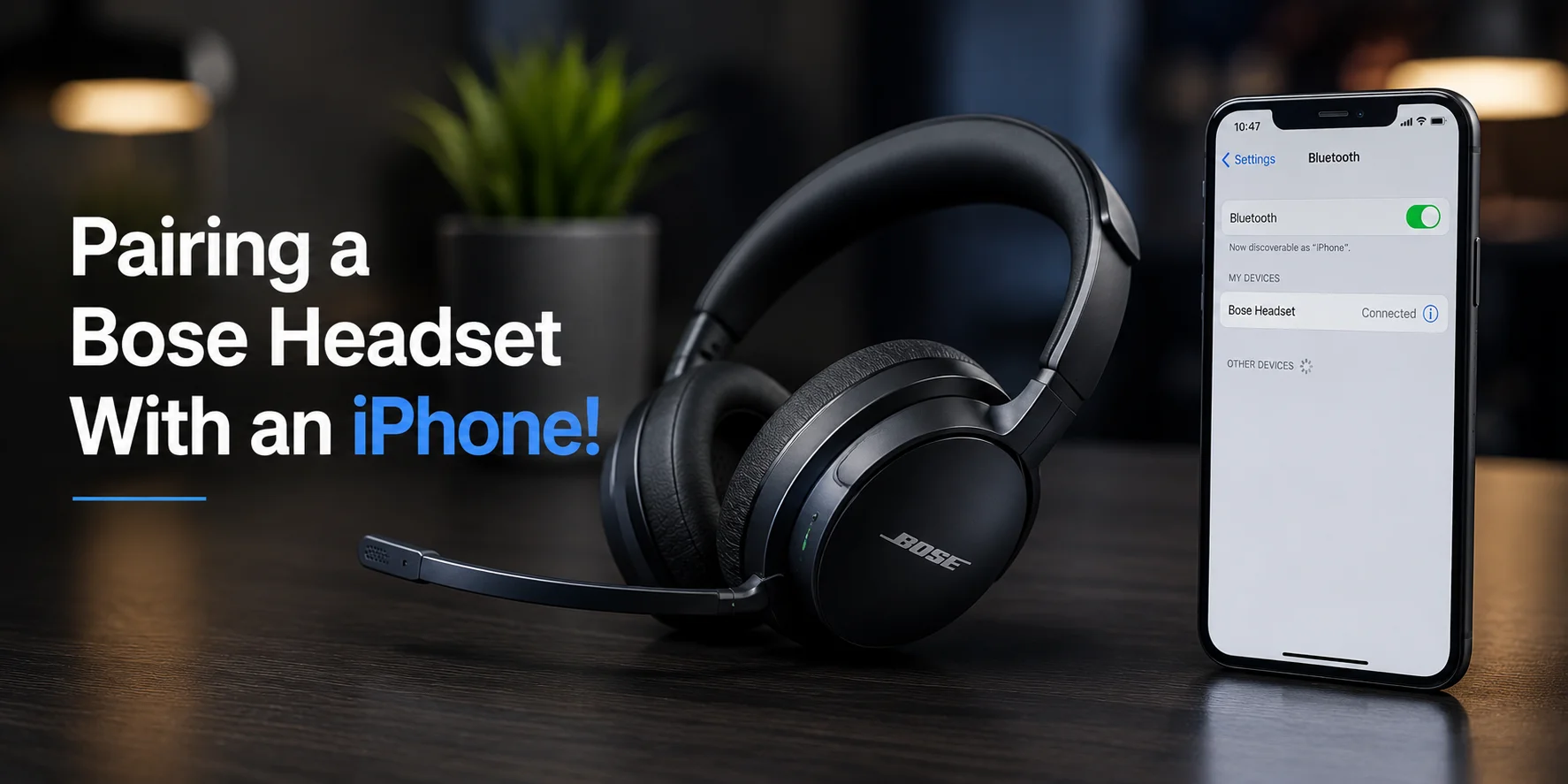
Pairing two Bluetooth devices always needs some understanding and critical thinking. To build a connection, you are to enable Bluetooth and put it in pairing mode. You can connect by tapping on the respective device in the searches.
People face difficulty connecting this headset to the iPhone. The reason may be that the headset is connected to an old device. People don't know what button to push to allow the Bose headset to pair.
This guide will make you understand how to pair your Bose headset with an iPhone. This guide works for almost all models of Bose headsets.
What Does Pairing Mean?
Pairing means your two Bluetooth devices are getting to know each other. Your device automatically finds the headset and connects to it after first setup.
Keep your Bose headphones in pairing mode. Press and hold the power button on the case until you hear a voice command. You will see the Bose Headset name showing up on the iPhone screen. Just tap to connect. Your devices will make a connection in a few seconds.
Steps to Pair Your Bose Headset with an iPhone
Charge Your Bose Headset First
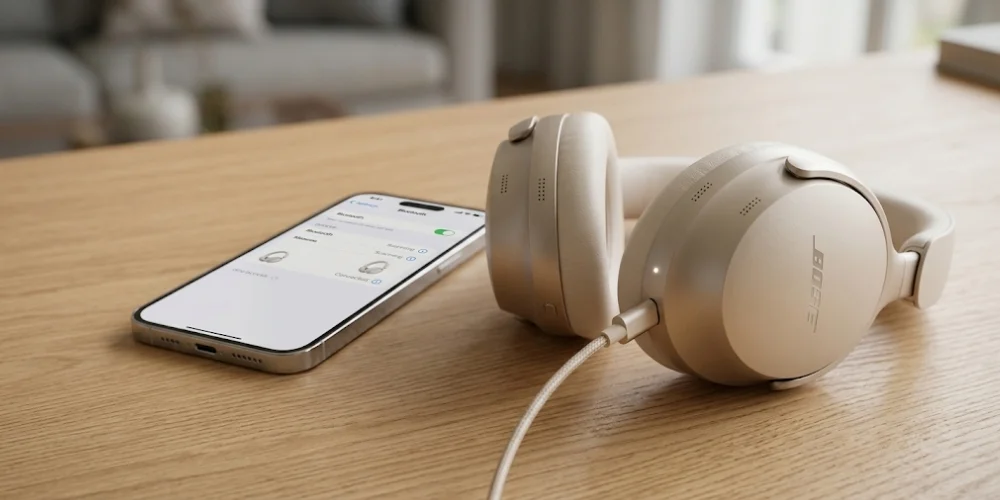
Before connecting your headset to an iPhone, charge it. You cannot connect the headphones if the battery is low. Keep your headset in pairing mode so that it can be recognized by the iPhone. People encounter numerous problems while pairing them.
Keep your device within the headset’s Bluetooth range. Bluetooth performs well at near range. Bluetooth is most effective when the devices are nearby.
Turn on Bluetooth on Your iPhone
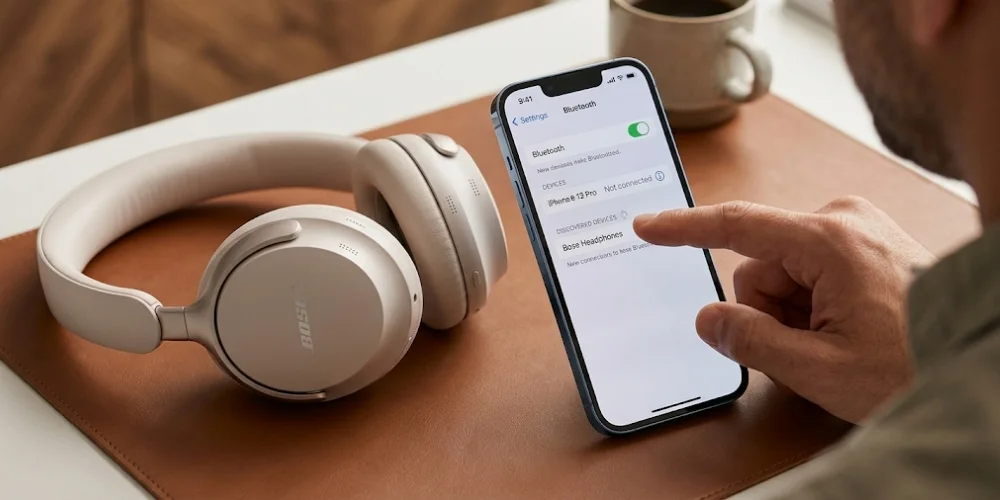
Turn on the Bluetooth on your iPhone device. It will also automatically scan and detect a device available to pair. When your headset name shows up in the Bluetooth searches on your iPhone, tap it. The headset will get connected to your device when you tap its model on the iPhone interface.
Put Your Bose Headset in Pairing Mode
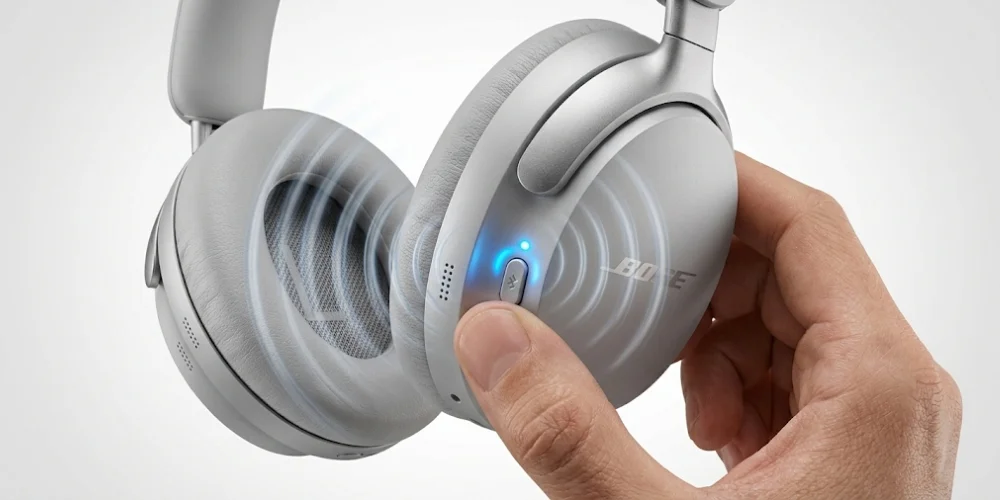
Turn on your Bose headset and put it in Bluetooth or pairing mode. Press and hold the power button until you hear the voice command “ready to pair”. You can also hold the power button till the blue light flashes. This light means the device is ready to connect.
Select the Bose Headset on Your iPhone
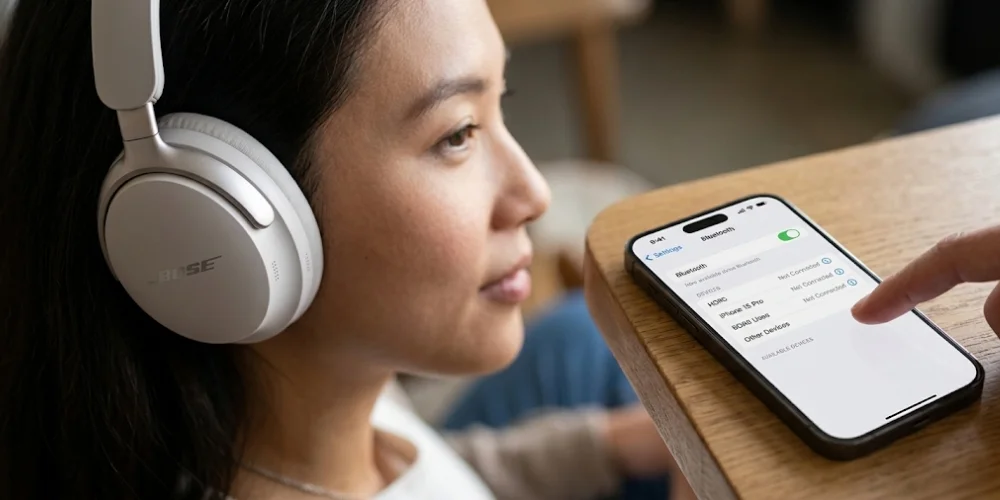
When your Bose headset is in pairing mode, access your iPhone Bluetooth screen. When you tap on it, you will be connected to it. This way, your Bose headset is now connected. Open different audio apps or YouTube to test audio. Wear the headset and play to test the connection. Access the control center of the iPhone if the output is the phone's speaker. Change the audio output to headset.
What to do If Your iPhone Cannot Find the Bose Headset
Your headset must not be in the normal power-on state. Hear a voice prompt or see the blue flashing light to make sure it is ready for pairing.Go back to your iPhone screen and reconnect your Bose headset. Restart your iPhone if it is not working. This will probably fix the connection issues. If you are still unable to connect it, that means your device is connected to an old device. Unpair it first and try again to pair with Bose.
How to Forget and Reconnect the Bose Headset
Do not worry if your Bose headset appears on the iPhone screen but does not connect. Go to Bluetooth settings on your phone and find the related device. Forget your old connections by unpairing or forgetting them. Now, your iPhone is ready to pair again. Go into pairing mode and connect to the Bose headset. This will repair your broken connection.
What If the Bose Headset Connects But There Is No Sound?
Restart your headset to tackle this problem. Before restarting the headset or doing anything else, check the volume on your iPhone. Now check the Bose headset. Go to the control center on the iPhone and see the audio output settings. Make sure the sound is directed to the Bose headset. Ensure sound output is not selected for the speaker.
Try playing the sound. You can also clear out the app where audio is played. Restart the app. Reconnect it by accessing the Bluetooth settings if the pairing does not work. Set call audio output to speaker/headset if on a call. It saves you the hassle of calling on the phone on speaker when you are attempting to listen to it in a Bose headset.
Is it possible to Use a Bose Headset with an iPhone without the Bose App?
The Bose App is a special application to assist Bose headset users. It allows you to configure audio levels and update headset firmware. You can easily pair your Bose headset without this app. The iPhone Bluetooth menu is enough to control sound levels and basic listening for calls. Use the iPhone Bluetooth settings if the Bose App is not responding or working properly.
Final Thoughts
It is sometimes tricky to pair a Bose headset with an iPhone. This manual explains everything to create a smooth Bluetooth connection within minutes. Begin by enabling Bluetooth on both devices. Have your Bose headset in pairing mode. Tap the Bose name on your iPhone. Ensure your headset is in the pairing mode. Your iPhone will find the headset. This way, you will be able to establish a pairing connection between both devices.
No comments yet. Be the first to comment!
Leave a ReplyYour email address will not be published. Required fields are marked *