
 By
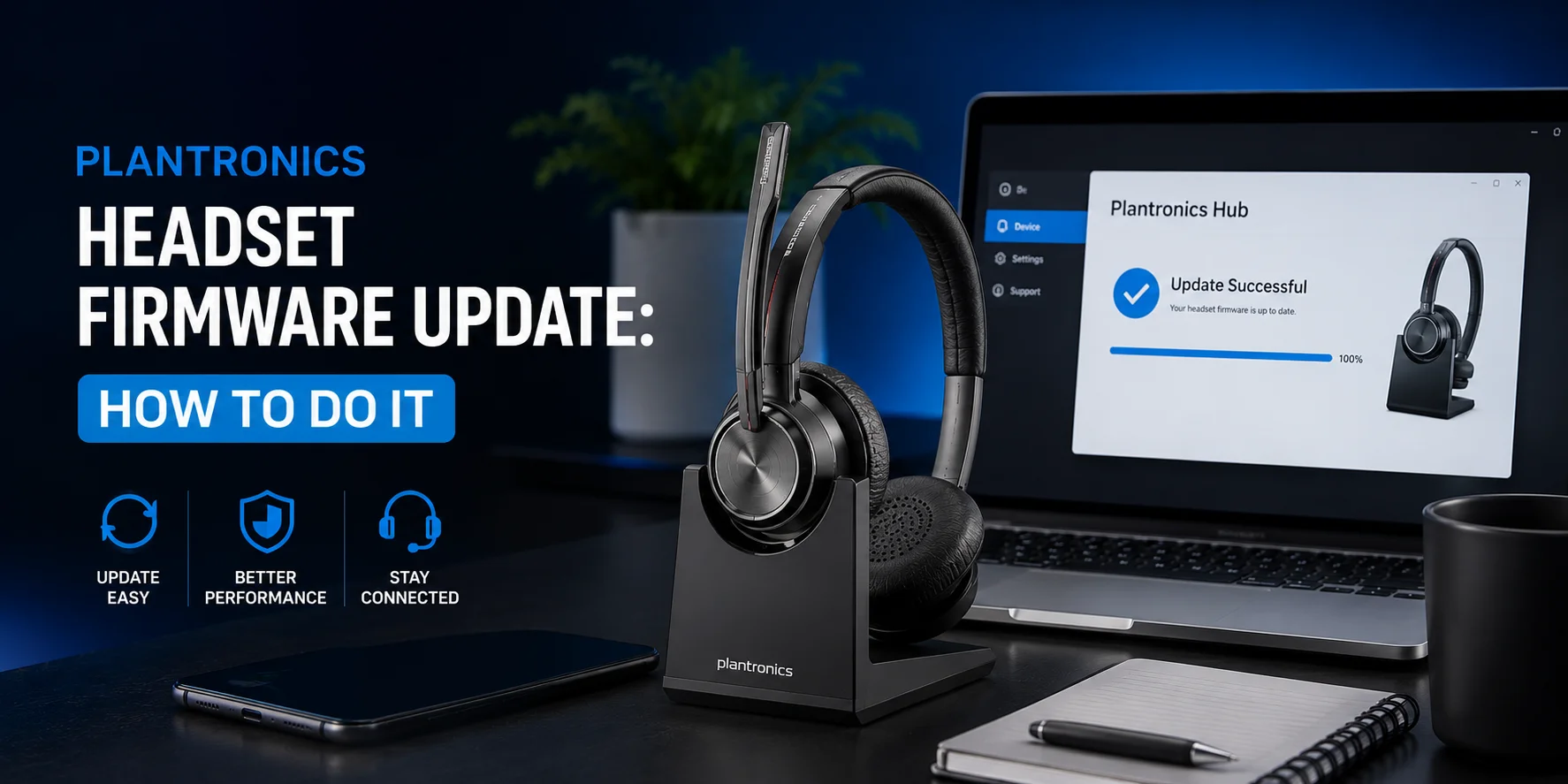
By If you own a Plantronics (Poly) headset, it is important for you to keep your model updated through firmware updates. The Poly HP keeps releasing periodic updates that improve your headset's audio, connectivity, and increase the lifespan. You can actually perform the Plantronics headset firmware update through HP Poly Studio. It is important to know that previously it was Poly Lens, but now it has been replaced by this app, as officially stated by HP.
Now let’s see how you can keep your Plantronics model, be it from the Savi 8200 series, Voyager series, Blackwire, or other category.
How to Update Plantronics Headset Firmware
Let’s start the update process. In order to do so, you need to have access to the following things:
- Plantronics Headsets
- A Laptop or Computer
- USB cable to connect the headset
- Stable internet connection
- Poly HP Studio App (Download It Here)
- A stable internet connection (Recommended speed 5–10 Mbps)
It is of much importance to note that the Poly HP studio App is now the current app used for firmware updates. Before that, Poly Lens and Plantronics Hub were used. You can download the app by visiting the above link.
Step by Step Procedure
To get started, first you need to download the Poly HP Studio app, the link for which has been provided before. Once that is done, you can follow the next steps:
Step 1: Connect The Headset with Computer
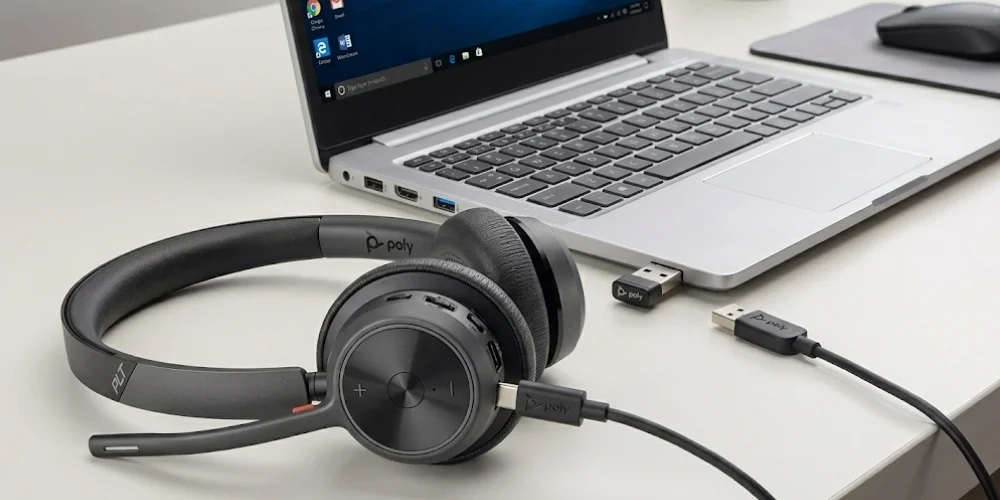
You can connect your headset to the computer through the use of a USB charging cable. However, for Bluetooth headsets, you would need a USB Bluetooth dongle.
Protip: Make sure that the USB is plugged in properly and the headset wire is also stable. The loose connections can somehow affect the firmware update process. It can cause update failure and may not even recognize the device.
Step 2: Review Updates
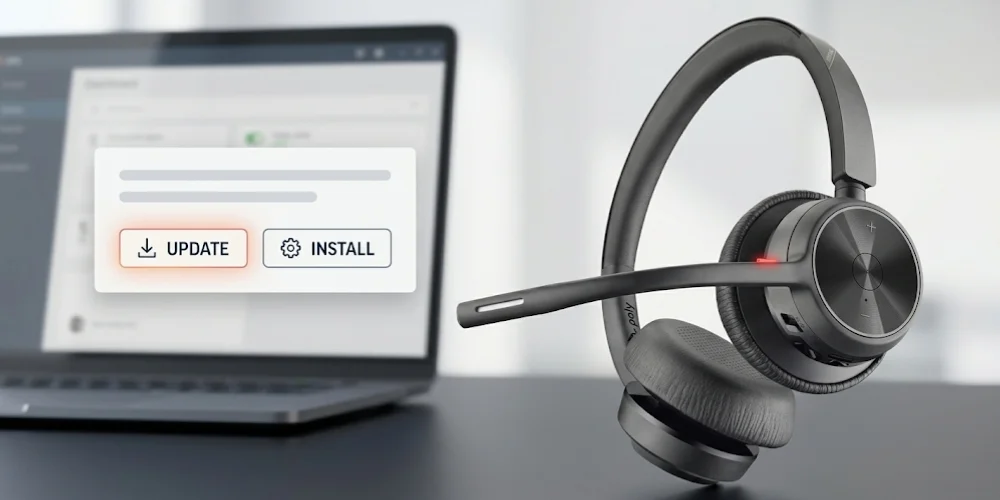
Now you need to check if there are any updates available for your model. To do that, you can navigate the Updates or Notification tab in the Poly Studio application. This way, the app will automatically scan for any updates. You won't need to perform anything.
If there is any update, then a prompt will appear on the screen. You would just have to click update or install to start the process.
Step 3: Allow Update To Complete
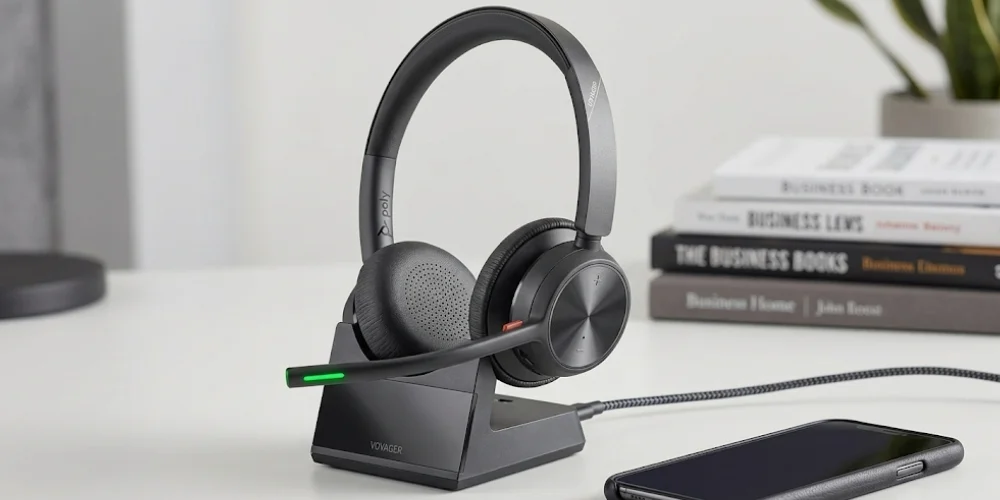
It only takes about 2-3 minutes for your Plantronics firmware update to be completed. But make sure not to interrupt this process. If you interfere during the update, it can actually corrupt your device's firmware. Once the update is finished, you would receive a confirmation message.
Protip: On your cellphone, you can enable ‘Do Not Disturb Option’ to avoid any sort of interruption.
After the update, your headset will restart automatically. If it doesn't, you may restart it. So in just a few simple steps within 4-5 minutes, your Plantronics headset firmware is updated.
Can You Do It Through Mobile Phone
Yes, the update is also possible to perform through iOS and Android. All you have to do is download the app through the Google Play Store or another related platform. The same steps would be applied. Although it is an easier option to upgrade your firmware through a smartphone, but for smooth and better updates, I would recommend to use the computer. Personally, I do it through PC, and it proves to be a much more hassle-free experience for me.
Is Firmware Update for Plantronics Really Necessary
A lot of users wonder if it is really necessary to update the headset. The clear answer is yes. Here is the thing: Poly releases the update so that your headsets can stay compatible with devices and improve voice quality and audio features. Sometimes, even brand new features are also added. The customization options are improved as well. The headset models may have bugs that affect their functions, but through the update, you can resolve this problem.
If you do not update your model, then it can have a degraded voice and audio quality over the course of time. You could also lose access to a lot of customization features. Your headset could also age and stop working in a few years without the proper upgrades. So to keep your headset as new and as advanced as possible, you surely need Plantronics firmware update.
When To Check For Updates
Updates can come at any period of time. But generally, it is advised to check for updates every 2-3 months. If your headset audio is affected, or you feel like there is something wrong with its function, then it is also an indicator that you need to check for updates. Furthermore, when you buy a new model, the first thing to do is actually check for updates. That is so because sometimes headsets stay in inventory for too long, so the new models may not have the latest updates. To keep up with it, you can download new updates through the official app.
Conclusion
When you hear about the Plantronics Headset Firmware Update, it sounds like a complex process. But in fact, it is an incredibly easy thing to do. All you have to do is download the HP Poly Studio App, connect with a computer or cellphone through USB, check the updates and install them, and voila, the process is completed. It is recommended to check for updates every 2-3 months, so your headset can keep working at its best capacity.
No comments yet. Be the first to comment!
Leave a ReplyYour email address will not be published. Required fields are marked *