
Just imagine being on a call, recording audio, or in a game, and suddenly you hear a voice of your own coming back to you through your headset? Not delayed like an echo and not too loud, but it is noticeable enough to distract your focus.
If it has happened to you, then it's not a big deal. Because you are not alone in experiencing this problem. So, many people search “ why can I hear myself in my headset?” It happens more often than you think.
But the good news is that it does not happen due to hardware failure. Usually, the issue is caused by settings, signal routing, environmental factors, or the design of your headset.
In this blog, we will guide you through all the causes step-by-step. With our recommendations, you can solve your problem on the first go.
Proven Solutions from Sound Resolving Specialists
This guide is by a sound resolving specialist. They are experienced in fixing these headset issues across PS4, PS5, and Windows. These fixes are all based on real testing. And the customer solutions from the top-ranking tech sites.
Real Testing
All solutions tested on actual PS4, PS5, and Windows systems
Expert Knowledge
Created by sound resolving specialists with years of experience
Customer Verified
Solutions validated by thousands of satisfied users
Tech Site Approved
Referenced and recommended by top-ranking technology websites
What are the Reasons for Hearing Yourself in your Headset?
You can hear your own voice from your headset again and again. Because there must be an issue in mic monitoring, feedback loops, environmental factors, improper device setup, and poor.
Below are some reasons for this common issue.
Microphone Hardware Monitoring (Sidetone)
Many headsets come with a sidetone or mic monitoring. It lets you hear your own voice while you are speaking. This is actually stylized to help the users to speak naturally instead of talking too loudly.
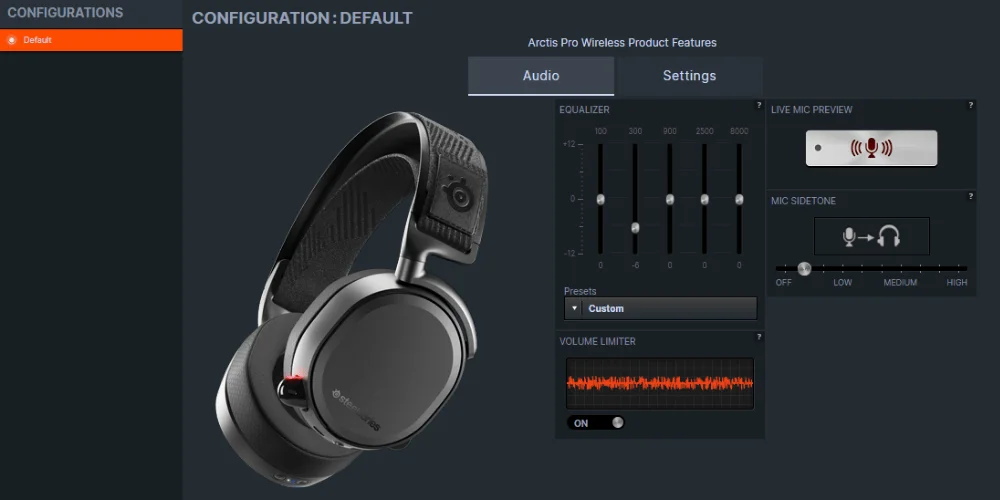
If you are hearing your own annoying voice. That means this feature is turned on. In most of the cases, you can turn off mic monitoring in your device’s sound settings.
Problem Hearing your Own Voice
If the sidetone is too loud or not set up correctly. Then you will hear your own voice clearly, which can be irritating and distracting.
Fix
Hearing yourself in your headset can be irritating. But it usually happens because mic monitoring or sidetone is turned on.
On Windows, open Control Panel → Sound → Recording → your mic → Properties → Listen, and just uncheck “Listen to this device.”
On Mac, go to System Preferences → Sound → Input and turn down input monitoring. If you are on a console or using a chat app. Check your headset settings or switch off mic monitoring.
Doing this gets rid of that echo and makes your sound clearer.
Sound Leakage from Headphones
Sound leakage occurs when the audio sound from your headphones comes out into the surrounding environment. It commonly happens when your earbuds or open-back headsets are not fixed properly.
It enables the microphone to pick up the sound that is heard by the people around you. It can create echoes. And allows the other people to hear you clearly what you are listening to.
Internal Echo Problem
The sound leakage happens when the volume of your headset is too loud. So the microphone picks up the voice in the surrounding environment. In this way, your own voice loops back, creating an external echo.
Let’s Fix it Now
Lower the headset volume.
Use headsets or earbuds that are noise-isolating.
You need to upgrade premium models like the Soundcore Liberty 5. It is specially designed to reduce the sound leakage.
Bluetooth Latency
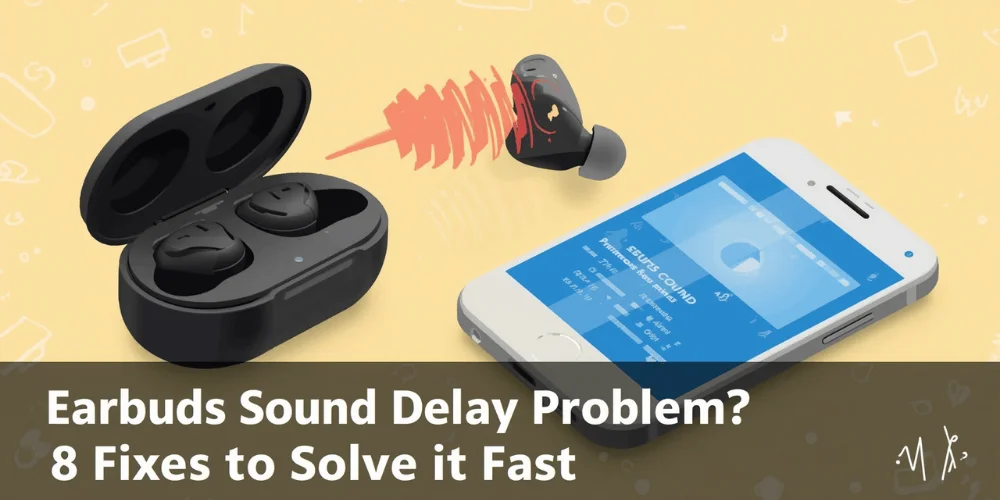
Lag in Bluetooth sound is a small delay. It occurs when the sound signals travel between your wireless headsets or earbuds and the device. It means that there, you may hear your voice a little bit late after speaking, which can irritate you.
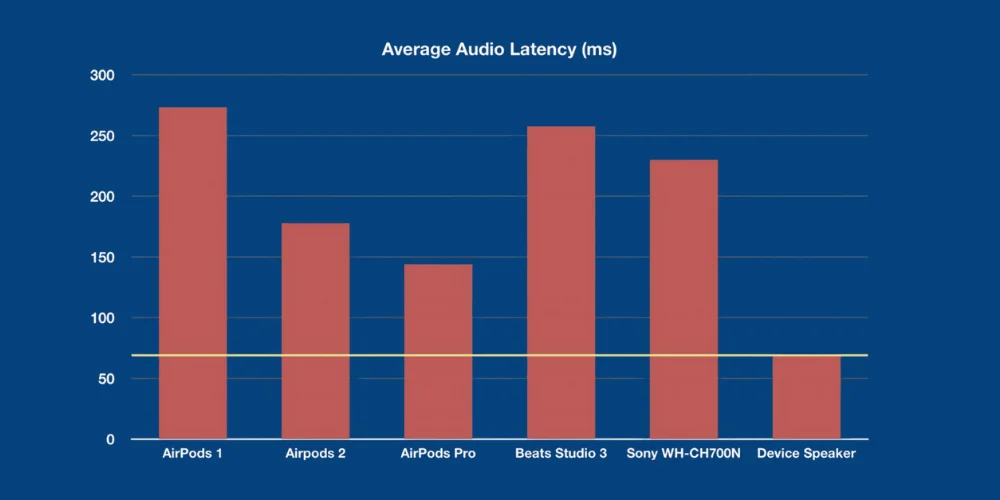
This delay is common with wireless earbuds. It can happen because of the older version of Bluetooth. Modern devices can reduce this delay. But you may still notice some delays after some time.
Problem Faced
Even a small delay in your headset voice can make you feel like it is echoing. It commonly happens with wireless headphones.
Fix
Keep your microphone close to your headset.
Try to use the modern version of Bluetooth and the latest earbuds.
Keep your system software updated to reduce delay.
Incorrect Input/Output Device Settings
It happens when your PC or apps like Discord or Windows Sound Panel are sending your mic sound back to your headset by mistake. It creates an echo or lets you hear your own voice. Caused by the “Listen to this device” feature being mistakenly turned on. The wrong speaker or microphone is set as a default, or low-latency monitoring is turned on.
Actual Problem
When multiple sounds are active at the same time. It can cause echoes. Make it hard to hear yourself clearly.
Fix
Check your system’s sound settings and make sure the headsets are fixed properly. Now turn off all the other microphones and virtual audios. Make sure that the right setting of devices makes your voice clearer.
Multiple Active Recording Devices
Multiple active recording devices mean having more than one microphone, recording, or camera devices is capturing sound or video at the same time. It is used in professional settings like film and music recording. To have a better sound quality and a backup in case one device fails.
Main Problem
Laptop mics, virtual devices, or webcams may capture your voice and play it back.
How to Solve this Problem
To open the classic Sound settings, press Win + R, type mmsys.cpl, and press Enter. Set your headset microphone as an active device and turn off all the other devices or microphones.
Environmental Factors and Echo
Most of the time, the problem is not in your headset at all. It is in your environment. The hard surfaces like desks, walls, or windows reflect sound. Which is picked up by your microphone and then feeds back into your earbuds.
Try to call or record in a quiet and carpeted space. Use the microphones with the built-in echo cancellation. Liberty 5 is designed with multi-mic AI noise cancellation. It helps to minimize external sounds and reflections for clear and echo-free conversations.
Problem
Hard surfaces that reflect the sound. It causes your mic to pick it up again.
Fix
Use quiet spaces to avoid such echoes.
Add foam for podcasts and recordings.
Put your mic away from the reflective surfaces.
Physical Headset Issues
Physical headset problems occur when the parts of your earbuds or headsets are damaged. It occurs from the regulated use, accidental drops, or rough handling. These issues can cause your headset to stop working properly. The physical-issues are related to the hardware. These issues do not happen due to the software or any setting issues.
Echo Problem
The dust, loose cables, or damaged drivers can cause the echo problem.
How to Fix
Check that the headset is fixed properly.
Disconnect the headset and then check the drivers; they should be dust-free or dirt-free.
Check the cables if they are damaged or twisted, then change them.
Check the loose parts or cracks on the ear cups.
Avoid dropping or pressing the headset too hard.
If the sound is still not clear, then your driver may be damaged or broken.
Faulty or Low-Quality Headsets
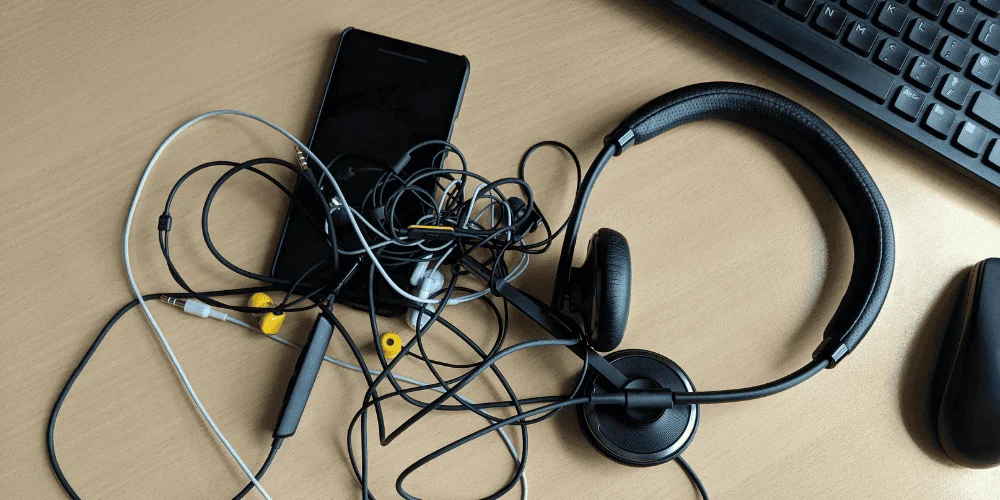
The low-quality and faulty headsets are sound devices. Theyare featured by poor audio re-creation and uncomfortable functional designs. In the case of wireless models, unreliable connectivity.
These headsets mostly fail to give clear sound. It is leading to problems like low volume, audio distortion, or unclear sound.
Problem
Cheap or old headsets can cause echo due to their poor mic design and isolation.
Fix:
Use the premium quality headsets with active noise cancellation, noise isolation, and sidetone control.
Recommended model with AI noise reduction, high-res audio, and multiple mics is Soundcore Liberty 5.
OpenDots ONE is an open ear design, smart mic processing, and reduces feedback in meetings.
Microphone Boost or High Sensitivity
Microphone Sensitivity and Microphone Boost are related to the loudness of your audio signal. But they operate at different stages of the recording process. These mic boost helps when your voice sounds too low. When the mic boost is turned on. They also capture the noise coming from the background and the sound from your headphones.
Problem
You hear your own voice in your headset during calls. The mic boost also captures the background noise that is noticed.
How to Fix
System— Go to Sound— then Sound Control Panel— then Recording — Choose Microphone— Select Properties — Now Levels, turn off mic boost
Keep the microphone volume at a normal level.
Avoid keeping the microphone volume at 100%.
Stay close to the microphone.
Keep the sound low to avoid sound leakage into the microphone.
Console-Specific Settings (PS4/PS5)
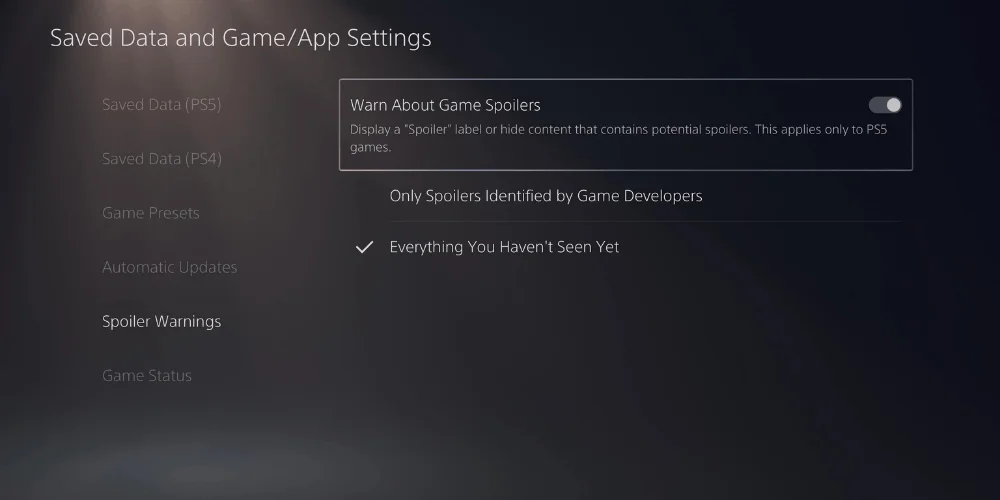
These are the sound and microphone settings on your PlayStation. The consoles is control of how the voice chat works. By adjusting these settings, you can fix the headset volume and mic monitoring. In this way, you can improve the sound quality and stop problems like hearing your own voice in the gaming sessions.
What is the Problem
You hear your own voice while gaming on the console.
Fix
To avoid sound leakage, keep the volume of the headset low.
Decrease the microphone sensitivity in the console sound settings.
Choose the headset with built-in noise cancellation.
How Hearing Yourself Affects Communication.
Lower Clarity: It becomes very difficult to understand the communication. The people need to repeat themselves again and again.
Voice Distortion: Echo makes the voice sound unclear or muffled.
Real-Time Issues: Delays make conversations feel awkward, and it irritates the natural flow of calls and gaming chats.
Loss of immersion: Hearing yourself distracts you from the game. And in this way, your team will also be distracted.
Quick Problem Fixing Table
Here is a quick problem-fixing table:
Gaming Headset Echo Issues: Quick Troubleshooting Guide
Identify and resolve common echo problems with these proven solutions
| Problem | Symptom | Solutions |
|---|---|---|
| Hearing your own voice | ||
| Voice loops in headsets | ||
| Delayed voice | ||
| Echo continues | ||
| Amplified echo | ||
| Room reflections | ||
| Friends hear the system sound | ||
| Continuous echo | ||
| Poor sound | ||
| Echo on PS4/PS5 |
Final Suggestion
Hearing yourself in a headset is not caused by hardware issues. It has happened due to settings like multiple devices being active at the same time. Sidetone, poor sound quality, and the microphone boost. You can fix all these issues by applying the methods given above. To avoid these problems yopu need to keep your software updated. You can also use well-designed headsets as well. They give you clear sound for games, calls, etc.
You don't need to ask, “Why can I hear myself in my headset?” Once you make these changes. You would not be worried about hearing yourself in the future. Your voice will sound clear and natural. Communicating with others without echoing back into your ears.
Additional Tip
You can pair this guide with the headset for sidetone control and ANC. To avoid the issues from happening again, make sure to regularly check your audio settings and keep your headset firmware updated.
Headset Echo & Voice Monitoring Questions
This is known as microphone monitoring, also called sidetone. It occurs when your mic sends your voice back to your headphones immediately. It does not sound like an echo. Instead, it feels like you are talking into speakers in the room.
No, listening to your own voice through the sidetone is safe. It may be uncomfortable for some people. But it does not cause any damage.
Yes, this is common to hear your voice in your headset with sidetone. You will hear your own voice in the headset. It will help you speak naturally and avoid talking too loudly. If it is irritating, you can lower or switch off mic monitoring.
Yes, in some cases, wireless headphones may introduce a bit of lag. Making your voice sound delayed. Staying close to your device and using modern Bluetooth headsets usually minimizes the issues.
Absolutely. Hard surfaces reflect sound. That can be picked up and sent back to your headset. Using a quieter room with carpeted floors can help reduce this issue.
Yes, if you have activated multiple microphones at the same time, it can make your voice echo. To avoid this issue, switch off all the rest of the virtual devices to fix this problem.
Sidetone is when you hear your voice instantly. Which helps you speak naturally. An echo is a delayed repeat of your voice. It happens due to poor room setup or signal loops. The sidetone is normal, but the echo is a problem.
You can stop hearing yourself in a headset by applying a few things:
- Disable sidetone in your headset or app
- Turn off the microphone
- Keep the volume of your headset low
- Make sure multiple virtual devices are not active
PS4 and PS5 have built-in voice monitoring. You can keep the headset volume low. Or use a noise-canceling headset to cut down on feedback.
If your microphone is too sensitive or the mic boost is on. It can pick up the external voice and your voice from your headset at the same time. Adjust the sensitivity, and keep the microphone closer to your mouth to fix the mic boost.
Yes, you can resolve these issues by updating your software. It also helps to solve the sound problem.
Yes, noise-canceling headsets with proper mic design and sidetone are stylized to prevent hearing your own voice. It can help slow-down hearing your own voice.
No comments yet. Be the first to comment!
Leave a ReplyYour email address will not be published. Required fields are marked *