
 By
By In this fast-growing technological world, everyone uses headsets not only for gaming but also for some important meetings, business work, and interviews as well. When you depend on them properly without having any backup. It does not matter how strong a candidate you are. You can become nervous when your tech betrays you at the last minute.
What will you do if your headset stops working in between your interview or a business meeting call? This normally happens, but we do not keep the information generally. Because we do not pay attention, we simply depend on support.
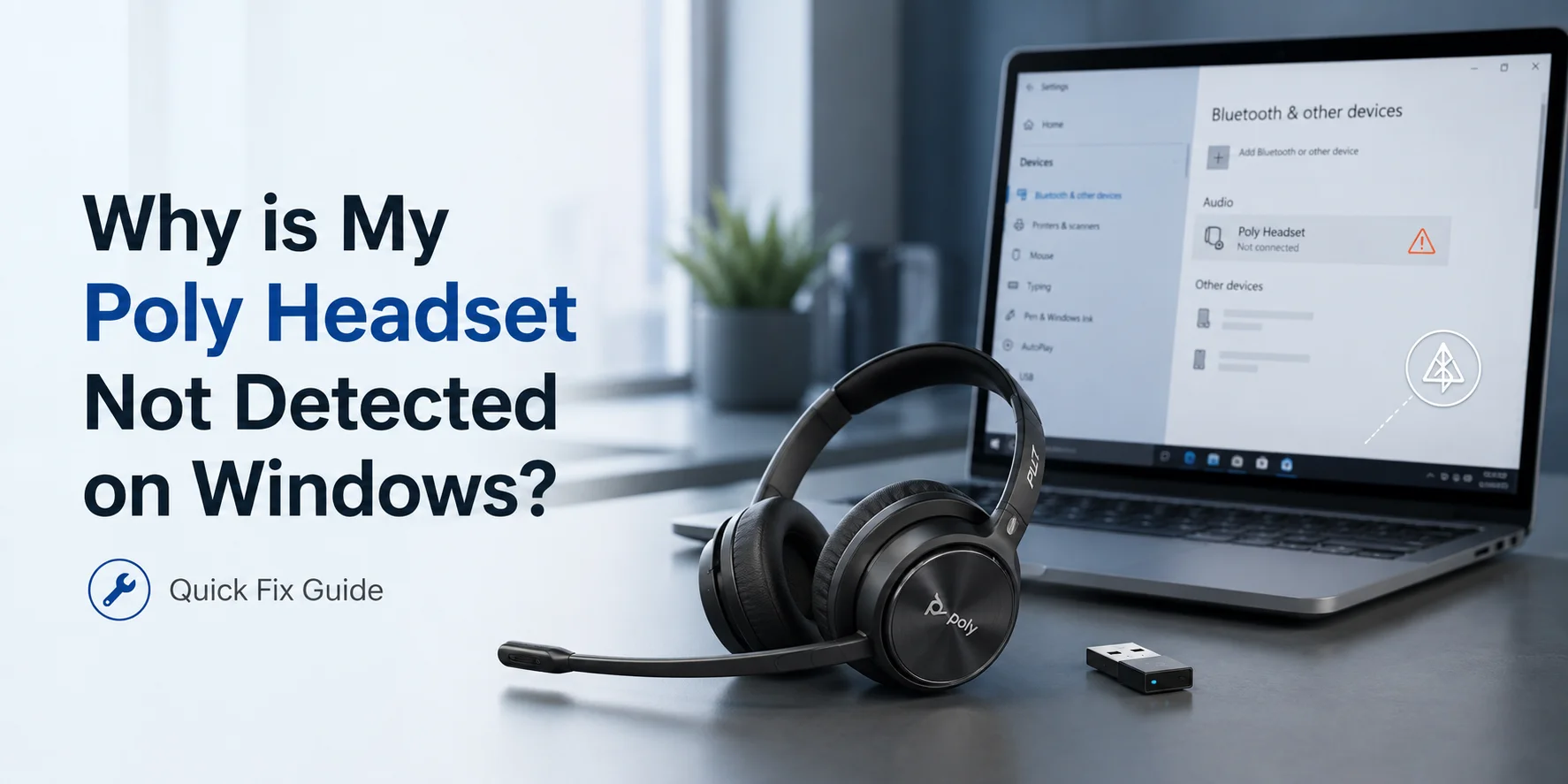
Though poly headsets do not betray their users, sometimes it happens that suddenly their users' windows stop detecting them right before business meetings, important calls, or interviews. If it happens, then you don't have to take stress. Your focus should not drop, and your confidence should not shake.
There are some simple ways through which you can fix this problem. This guide will explain why this problem happens and how you can fix it in easy steps just before your calls or meetings. So that you can prevent them from happening in your future as well. The goal of this blog is very simple. You can fix this issue fast and keep the focus on your meetings, not on your technology.
Disclaimer: All The Issues and Fixes are Test Proofed
All these troubleshooting methods have been tested by our software experts and engineers. Moreover, these steps are written by an audio troubleshooting specialist with hands-on experience fixing Poly headset detection issues on Windows.
Every issue and its corresponding fix discussed in this blog is based on real-world testing. We have gathered information from industry documentation and verified user-reported solutions from top-ranking tech platforms. This blog provides a detailed explanation of how to detect symptoms and causes, along with easy-to-follow resolution steps for why your Poly headset may not be detected on Windows.
Why is this Issue So Serious for Professionals or People Working from Home?
When your poly headset is not detected by Windows. It can cause loss of audio, and your microphone may not work. Moreover, you can also face a problem with your apps, which may not recognize your device at all. And this can sometimes result in huge losses to interviews, and sales can also fall apart.
These issues can decrease your confidence and give the impression to others that you are unprepared. Obviously, no one wants to listen to this voice again and again, “Can you hear me, can you hear me? It is really annoying.
So it is very important to know what to do when something like this happens so that you can be prepared for the future.
Common Symptoms When a Poly Headset is Not Detected
When we talk about why Windows failed to detect a poly headset. There are several technical factors that can prevent Windows from recognizing your headset.
You'll need to understand the root cause so that you can help with the right fix instead of just guessing.
There are several symptoms and signs that you can notice when your headset stops working. They are
USB Dongle Base Looks Connected, But Audio Fails
If your headset USB dongle is powered on, and it is showing a successful connection, but your Windows is not transmitting audio correctly. This can be due to driver issues or a faulty dongle. If this happens, then no sound will come through until the problem is resolved.
Headset Not Listed In Sound Settings
Sometimes it happens that the device does not appear under playback or recording in Windows.
The Microphone Appears Disabled Or Not Plugged In
It sometimes happens that your computer stops recognizing your headset's microphone. This can happen due to several reasons. One of the reasons is that your device is not properly set as the default input in Windows. Or maybe permissions are disabled for certain apps. So without access to the mic, your voice won't be transmitted during calls, recordings, or meetings.
No Sound Or Audio Cutting In And Out
You can sometimes notice that your headset produces no sound, or your sound is distorted or intermittent. This can be caused by drive issues, loss of connections, and sometimes interference from other devices also cause this issue. You can face poor audio issues that can disrupt meetings, calls, and your gaming experience.
The Headset Connects To Another Device
It happens that your headset automatically pairs with any other tablet or device instead of your PC. If this happens more than once during calls or meetings, it can really make you feel unreliable for professional use.
Apps Like Zoom Or Teams Do Not Recognize The Headset
If you face this problem, where your Zoom or team-like apps do not detect your headset. Then the issue is with outdated software, or it may be due to incorrect audio settings. If you have any other connected devices, then you will not be able to effectively participate in the call as well.
Common Causes Why The Poly Headset is Not Detected by Windows
It is not always possible for users to face issueless connection. Sometimes, many factors gather together and make one cause that can interrupt your headset's connection with the window. Below are some common causes.
Windows Update And Driver Conflicts
Sometimes it happens that a major automatic Windows update can modify or replace your drivers. And sometimes, corrupt audio and USB drivers also cause detection problems.
So when this happens, your operating system may fail to communicate properly with your headset or USB adapters. And it can cause the device to disappear from your sound settings.
Audio Driver Issues
Drivers are basically translators between hardware and the operating system. If drivers for audio USB or Bluetooth are outdated, Windows may not detect the headset even though it is physically connected. You also need to take care of corrupted or missing drivers because they also cause this issue.
Bluetooth Connection Limitations
You can face instability in the Bluetooth connection when you use the built-in PC Bluetooth instead of using a USB adapter. The local Bluetooth connections have low bandwidth for audio, which can cause connection limitations.
You can face high delays in sound and also go through interference from other wireless devices. This will make you face pairing failures and microphone issues.
Outdated Headset Firmware
Firmware is basically the internal software of the headset through which it runs. So, if the headset firmware is not updated, or it does not support your new Windows builds.
You can face the disconnection problem. You can also look for updated drivers or modern connection apps because they can also affect the performance of old types of headsets.
Incorrect Windows Sound Settings
When Windows is set as another device, it shows a " disable or route audio to another output problem. This makes it look as if the headset is not working when it is simply misconfigured.
USB Port Or Power Issues
If your headset is not properly recognizing your device, then you need to check whether you have loose connections, USB ports or hubs, or low power. The headset or dongle may light up, but still fail to initialize correctly in Windows.
Hardware Problems
Sometimes we only focus on technical problems, but we ignore the physical faults that can also be responsible for delayed connection or no connection. These can be damaged cables, faulty USB dongles, low batteries, especially for wireless models, or internal headset malfunctions.
Recent System Or Device Changes
If a window updates, it installs new softwares or if you change your USB ports, detection problems may occur.
How can I Troubleshoot a Poly Headset Not Detected in Windows Step By Step
- Fast visual checks (0-2 minutes)
- Check if your headset is ON and charged or not. If the batteries are removable, then reset them.
- Check the mute switch of your headset and in your meeting application.
- Check the USB dongle for full insertion, and if you have Bluetooth headphones, then check pairing.
- Try restarting and resetting (2–5 minutes)
Note: If none of this works, then go for some other troubleshooting processes that are explained below
Restart And Reset The Connection (2-3 minutes)
If even after a reset, the detection failure still exists, then you need to follow a few steps.
- Restart your PC
- Unplug and reconnect the USB cable or USB wireless dongle.
- If you are using a wireless base station, then power off the base and headset.
- Wait for 10 seconds, and power on both.
Note: “Power cycling sometimes restores communication between Windows and Poly devices.”
Confirm Device Visibility In Windows (1-3 minutes)
- Open Windows Sound Settings
- Go to Manage Sound Device
- Make sure your Poly headset is enabled for playback output and recording input.
- If it is not visible, then open Control Panel,=> Sound
- Go to the Recording tab, right-click in the empty space. Then select Show Disabled Devices.
- Enable any hidden Poly microphone device.
Set as Default Audio Device (1-3 minutes)
- Your headset may be detected there, but not come up in the selected items.
- In sound settings or Control Panel, go to Sound
- Set your Poly headset as the default playback device and the default recording device.
Note: “This method will make sure that all apps automatically use the headset.”
Run Windows Audio Troubleshooter (3-5 minutes)
Windows can automatically fix some common conflicts.
- You need to go to Settings and then Update & Security
- Troubleshoot
- Run Play Audio and Recording Audio
Note: “You need to allow Windows to detect and apply fixes. It will automatically fix the problem.”
Update Drivers And Firmware (5-15 minutes)
When your firmware is outdated, it causes a major detection issue.
Update Poly firmware
- Install or Open Poly Hub( Plantronics Hub)
- connect headset and install all available firmware updates
Update Audio Drivers
- Open Device Manager
- Expand Sound, Video, and Game Controllers,
- Right-click your audio device and update drivers.
If the Issue Started After a Driver Update
- Use Roll Back Drivers.
If caused by a window update
- Temporarily uninstall the update via Windows Update History.
Use A USB Dongle Instead of PC Bluetooth (5-10 minutes)
You can use a Poly USB dongle (e.g., BT700) for wireless models. Moreover, you need to avoid the built-in PC Bluetooth if you want better performance.
Note: “Local Bluetooth controllers are less stable and cause detection failures. The dongle is optimized for Poly headsets.”
Test on Another Device (5 minutes)
You can test your headset on other devices, like a smartphone or a computer, to check whether the connection problem is with your headset or Windows. Plug the headset into another computer or a smartphone and then match the result.
Result Outcome Table
| Result Outcome | Meaning |
|---|---|
| Work somewhere else | The problem is in your Windows configuration |
| Fails everywhere | Possible hardware or firmware issue |
Advanced Recovery (20 to 60+ minutes)
If everything else fails, then you can go for the advanced recovery step. You can do it in easy steps.
- You can perform a system restore to a time when audio worked.
- You can go for a Windows repair or installation.
- You must back up important data before major system actions.
- You can block problematic updates if they are identified as the root cause.
Contact Support
If the headset fails on multiple devices, and you have also gone for the firmware updates. Then you must contact the Poly headset or your vendor for warranty or service options.
Note: You can check the manufacturer's firmware instructions (polydocs) and community troubleshooting thread for Windows.
What Quick Fixes can be Used for Last-Minute Connection Failure?
You can quickly fix your connection failures at the last minute by just following a few easy steps.
Restart Your PC
This is the quick fix. You'll need to restart your PC. It mostly helps Windows recognize the headset again.
Unplug And Reconnect Everything
You'll need to remove the USB dongle or cable and then turn the headset off. Then again, plug it back in and turn it on again.
Check Sound Settings
You'll need to go to sound settings and make sure that your Poly headset is selected as the default speaker and the default microphone.
Enable Hidden Microphones
You'll need to go to sound settings and show disabled recording devices. And if they are disabled, then enable the Poly microphone if it's turned off.
Check The Mute Button On The Headset
Sometimes it happens that the headset may look fine, but it is still muted. So toggle mute on and off to be sure.
Close Other Apps Using Audios
Close apps like Zoom, Teams, or Skype. These apps can block your headset from working.
Use A Backup If Needed
If your wireless still does not work, you need to quickly switch to a wired headset, Earbud, or your phone on speaker.
How to Prevent Poly Headset from Being Not Detected on Windows during Important Calls?
It is always better to fix the problem if you already know about it. And if you are sure that there is no problem, then you can prevent the problem. You can follow the simple steps to avoid headset issues during interviews or important calls.
Test your headset early: You need to check your Poly headset on the same app that you will use for the call or interviews at least one day before the call. It can be Zoom, Team, or Google Meet
Update software ahead of time: You need to make sure that your Windows updates are installed and PolyHub updates are also installed well before the interview. After updating, you need to test the update to make sure it still works.
Use the Poly USB dongle: You can use the USB transmitter if your headset is wireless. Always go for the Poly USB dongle instead of using PC Bluetooth. This gives a more stable connection.
Reduce Bluetooth interference: You can turn off or move away from other Bluetooth devices that are near your PC. This will avoid connection problems.
Keep a backup ready: If you have a meeting call or an interview, then you always need to have a wired headset, earbud, or fully charged phone. If you need it in any case.
Run a quick checklist before the call.
You can run a quick checklist before your important calls.
- Check if the headset is powered on
- Your USB dongle is plugged in
- The Poly headset is set as the default audio device
- Your microphone is not muted.
Final Checklist To Fix “Poly Headset Not Detected On Windows” Before An Interview
If your interview is about to start and time is limited, follow these simple steps in order to ensure your headset is ready:
- Restart your computer to refresh device connections.
- Reconnect the USB dongle and restart your Poly headset.
- Check Sound Settings in Windows to ensure devices are recognized.
- Show disabled devices in the Sound Settings and enable your Poly headset.
- Set Poly as the default device for both playback and recording.
- Run Windows audio troubleshooter to automatically fix minor issues.
- Update software if time allows, including PolyHub and Windows drivers.
- Switch to a backup headset if the main one still fails to work.
Following this checklist ensures you can handle headset issues quickly, stay confident, and avoid last-minute technical problems during your interview.
How FindHeadsets Helps When a Poly Headset Is Not Detected on Windows
At FindHeadsets, we provide troubleshooting solutions based on real-world headset issues. We educate our customers on how to stay prepared when they face problems like a Poly headset not being detected on Windows.
Our team has tested Poly headsets in realistic calls, interviews, and professional meeting setups. These proven fixes help you understand common failure points and guide you on how to respond calmly when facing audio drops or sudden disconnections.
Through this guide, you’ll learn how to stay patient and confident during technical interruptions—without panic or guesswork.
Smart Backup & Recovery Strategies
- Switch quickly to a wired headset when wireless fails
- Use a USB dongle instead of unstable PC Bluetooth
- Prepare backup options before important calls
By following these clear checklists and practicing recovery steps in advance, you can avoid panic, maintain professional communication, and handle technical issues confidently—without needing immediate help from anyone else.
No comments yet. Be the first to comment!
Leave a ReplyYour email address will not be published. Required fields are marked *