
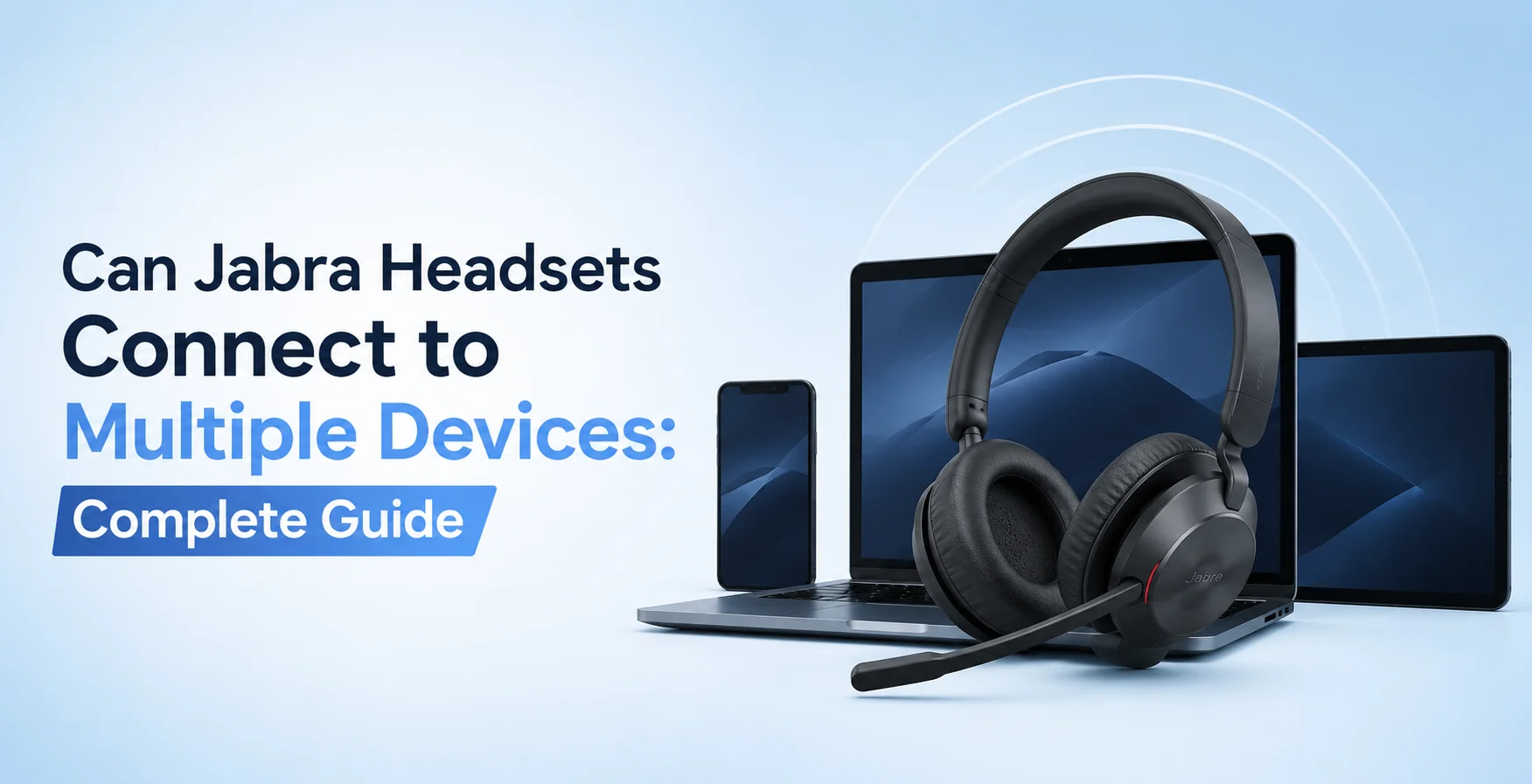
Let’s just be honest here: dealing with Bluetooth connections can quickly become frustrating. Constantly unpairing your headset from one device just to connect it to another drains your time and disrupts your workflow. To eliminate this frustration for your work, most modern Jabra wireless headsets can connect to multiple devices at the same time.
This capability is known as Multipoint connectivity or Multiuse in the tech world. It allows your headset to connect to two or more active sources at once.
Let’s discuss in depth how Jabra multi-device connectivity works and which models support it, how to set it up, and how to troubleshoot common switching issues.
Understanding Jabra Multipoint: How Many Devices Can Connect?
To get the most out of a multi-device headset, it helps to understand the difference between what a device can remember and what it can actively stream at any given moment.
Simultaneous Active Connections
Most standard Bluetooth Jabra headsets maintain active connections to two devices simultaneously. Such as your laptop and your smartphone.
Paired Device Memory
While only two devices can stream or link actively at once, the headset’s internal memory stores a larger list of paired devices. It usually stores between 6 to 10 devices depending on the specific model. This means you don’t have to run through the pairing process every time you switch between your tablets, personal phone and work PC.
The Audio Priority Rule
Only one device can play media or transmit audio at a time. If you are watching a video on your laptop and hit play on a podcast or music app on your phone, the headset will prioritize the incoming media source or pause the computer audio automatically.
Jabra Models With Multiple Device Connectivity
Different product lines handle multi device pairing depending on whether they are built for mobile daily use, hybrid office workers, or heavy duty business environments.
| Jabra Model Series | Active Connection Limit | Primary Target Use Case | Connection Method |
|---|---|---|---|
| Jabra Evolve2 Series (e.g. Evolve2 65, 75, 85) | 2 Devices | Hybrid work, remote setup &office environments | Bluetooth + USB Bluetooth Adapter (Jabra Link 380) |
| Jabra Elite Series (e.g, Elite 5, 7, 8, 10) | 2 Devices | Everyday mobile use, commuting & personal listening | Standard Bluetooth |
| Jabra Engage Series (e.g., Engage 55, 65) | 2 Devices | Desk-bound professionals & call centers | USB / DECT / Bluetooth wireless base |
| Jabra Engage 75 | Up to 5 Devices | Multi-device desk environments | Desk phone, softphone & mobile base simultaneously |
Jabra Evolve2 Series (Best for Remote & Office Workers)
The Evolve2 lineup is engineered specifically for professionals who move between softphone apps on a computer and traditional phone calls. They typically use a pre paired USB dongle (such as the Jabra Link) plugged into your PC, while simultaneously connecting via standard Bluetooth to your mobile phone.
Jabra Engage Series (Best for Heavy Duty Enterprise Desks)
If you need multi device connectivity across physical office hardware, professional DECT systems like the Engage 65 Mono can tie a computer softphone and a physical desk phone together at once. The Engage 75 SE connects to five separate devices at once and gives you absolute maximum connectivity.
Real World Scenarios: How Multi Device Switching Works
To understand why multipoint is such a valuable feature, consider a typical workday afternoon:
The Starting State
Your Jabra headset is connected to both of your work laptops (via a USB adapter) and your smartphone in your pocket.
The Media Stream
You are listening to training videos or focus music on your laptop.
The Incoming Call
Suddenly, a cellular call comes through on your smartphone.
The Seamless Handoff
Without you touching a single button on your laptop or pulling your phone out to fiddle with Bluetooth settings, the headset automatically pauses the computer audio and routes the phone call directly to your ears.
Resuming Work
Once you hang up the phone call, the headset lets you jump right back to your computer audio stream.
How to Turn On Multipoint on Your Jabra Device
If your headset supports multiple device connection but refuses to switch over when a second device tries to link, the feature might be turned off in your settings. You can enable it using these steps.
Via Smartphone App
For Jabra Elite earbuds or personal headsets, open the Jabra Sound+ app on your phone, go to settings, look for Headset settings and toggle on Multipoint or Call handling.
Via Computer Software
For office models, plug your headset or its USB desktop dongle into your computer, launch the Jabra Direct app, navigate to settings and enable the Multiuse option.
Manual Pairing Mode
If you are adding a brand new second device, power off your headset completely. Press and hold the power or Bluetooth button until the LED indicator light flashes blue (signalling pairing mode). Open the Bluetooth menu on your second device and select your Jabra model to establish the link.
Troubleshooting Common Connection Issues
Even with reliable technology, Bluetooth interference or software glitches can occasionally disrupt multi device setups. If your headset is struggling to stay connected to two devices at once, try these quick fixes.
Check Firmware Updates
Ensure your headset has the latest software version via Jabra Sound+ or Jabra Direct. Many multipoint features and bug fixes are removed through routine updates.
Clear Paired History
If your headset has reached its memory limit (remembering up to 8 devices), it may reject new pairings or perform active connections. Perform a factory reset or clear the Bluetooth pairing list directly from the headset controls.
Verify Audio Sources
You need to remember that two devices can connect at once but only one device can play the sound. If your computer audio is blocking your phone alerts, make sure media playback is completely paused on the primary device.
Final Verdict
Investing in a Jabra headset with multipoint connectivity completely transforms how you handle multi-screen workflows. By eliminating the the problem of reconnecting, you can stay focused on your tasks. You can remain effortlessly reachable across all your devices.
Frequently Asked Questions
What does multipoint connectivity mean on a Jabra headset?
Multi-connectivity is a feature that allows your headset to connect or pair to two or more different devices at once. It can be your laptop or your mobile phone. This means you do not have to disconnect or switch between devices manually.
Can a Jabra headset connect to three or four devices at once?
For a standard Bluetooth headset like Evolve2, the active connection limit is two at a time. The specialised office system like Jabra Engage 75 can connect to up to five devices simultaneously.
How many devices can a Jabra headset remember in its memory?
While a Jabra headset can connect to two active devices at a time, its internal memory typically stores between 6 to 8 paired devices. This saves you from running through the pairing process over and over.
Why is my Jabra headset not switching audio to my phone when a call comes in?
If your headset isn’t switching automatically, the multipoint or multiuse feature might be disabled in your settings. Open the Jabra Direct desktop app on your computer to verify that multipoint is turned on. Moreover, ensure that media playback is paused on your primary device, as only one device can actively stream audio at a moment.
Do all Jabra headsets support multi-device pairing?
No. While almost all modern wireless Jabra headsets and earbuds support multipoint, some older versions do not perform the task. Always check the product specifications or manufacturer manual for your exact model number before purchasing.
How do I pair a second device to my Jabra headset?
To connect a second device, turn off your headset, then press and hold the power or Bluetooth button until the LED light flashes. Open the Bluetooth settings menu on your second device, look for your Jabra model in the list and tap it to complete the connection.
No comments yet. Be the first to comment!
Leave a ReplyYour email address will not be published. Required fields are marked *