
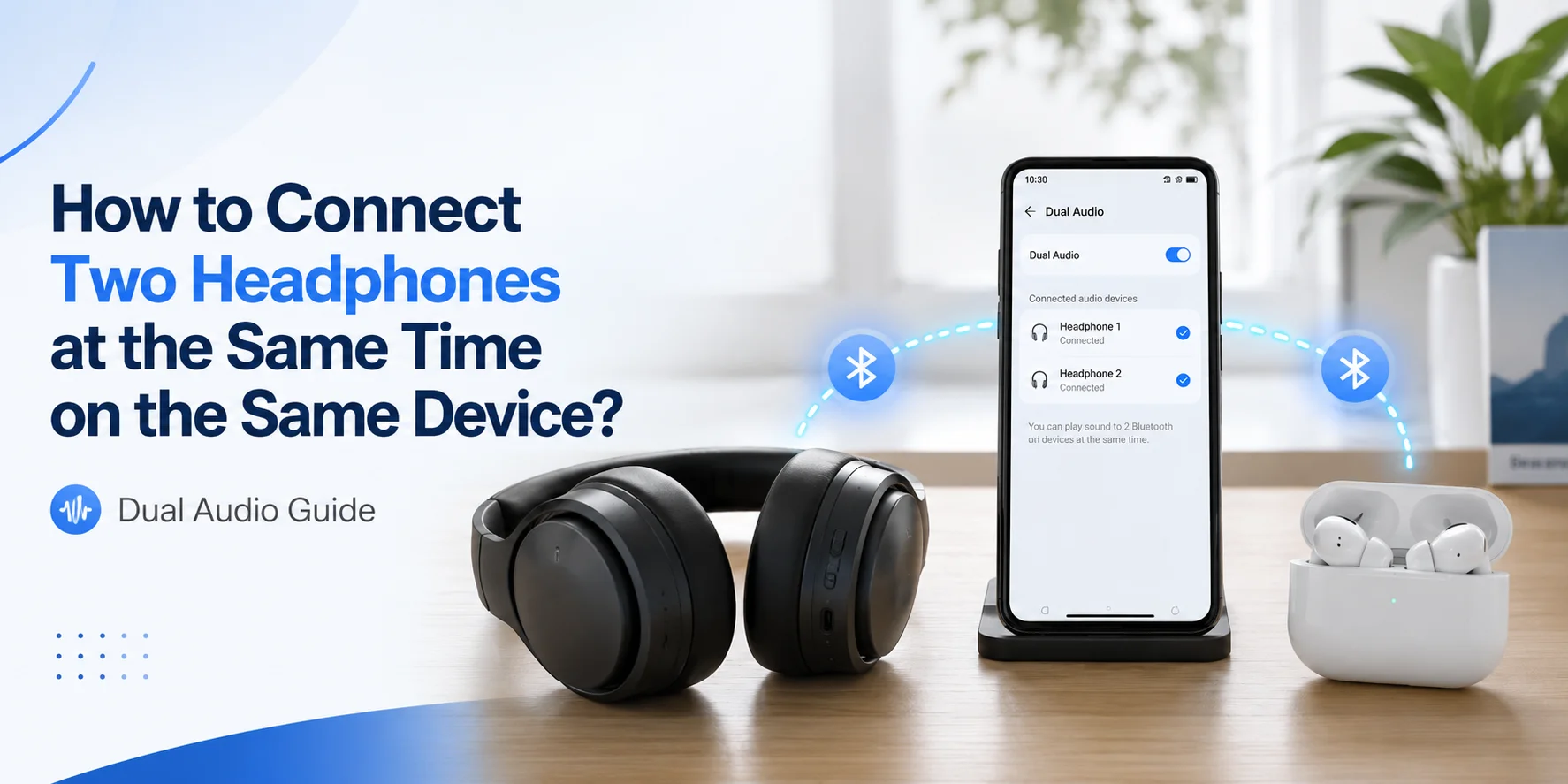
Have you ever tried to listen to sound with two people at the same time on a PC? You have noticed that it is very difficult to do that. Most people prefer to do that when they want to watch a movie with someone or want to share the game audio, etc. But the Window is mostly designed to play sound through one device at a time.
But there are some guides that talk about using a “Stereo Mix”. But there is an issue that it does not always work. But to make things poorer, many guides tell you to use “ Stereo Mix”, which:
It is not available on many computers
Commonly, it can cause an echo, microphone issues, or delay as well
The stereo mix is also not supported by many laptops
Now, the problem is that if you cannot have two headsets on PC without depending on Stereo Mix, how can you get two headsets listening at once?
Apart from this, we have some good news to tell you. You can definitely use two headsets on a PC without Stereo Mix. How? Let's discuss it. All you need to do is just follow the right method.
In this blog, We have discussed 4 methods that will help you to guide on “how to have two headsets on PC without stereo mix”.
These methods include common problems, tips, and working. Read this blog, and you will definitely “thank me” as your problem is solved.
Why Windows does not Play Audio through Two Headsets by Default
Windows is designed to manage the sound devices in this way:
PC can only play audio through one device at a time: Windows mostly picks one speaker or headset and sends all the sound there.

A USB headset is known as a separate device: When you connect a USB headset. Windows reviews it as it is its own sound system. Not as something that can easily deliver sound.
Many apps does not support various audio outputs: Games, browsers, and media players are built to play sound by using one device. It does not use two audio devices at the same time.
Here is the reason what happens when you plug in:
When you connect a USB headset to your PC, and at the same time, you connect a standard 3.5mm wired base headset as well. The windows do not support using both of these devices at the same time. But you don't need to worry about it, as it is the way Windows works.
The Best Ways to Use Two Headsets on a PC (Without Stereo Mix)
The best ways to use two headsets on a PC, starting from the easiest and most reliable methods, are given in detail below, step by step.
Method 1: Use VoiceMeeter (Best Solution)

If you want to hear both of the headset’s audio at the same time. The Voicemeeter is the best solution. This software is widely used by streamers, gamers, and sound techs. With voicemeeter you can connect to USB, wired, and even Bluetooth headsets together. You can also use it to control the volume and balance for each device. It also helps to avoid delays and echoes. Once the Voicemeeter is set, you will be able to fully control your audio.
Why VoiceMeeter Works!
Voicemeeter works like a virtual audio mixer. It sends your PC’s sound to multiple headsets at the same time.
What You Need to Get Started
10 or 11 Windows
Two headsets (Both or 3.5mm, USA)
Free software like Voicemeeter Banana or Voicemeeter
Simple & Easy Setup
Firstly, install the Voicemeeter
Now, set Voicemeeter Input as your default/main playback device
Assign your headsets as given below
Headset 1— Hardware Output A1
Headset 2— Hardware Output A2
Play the sound now; both headsets work instantly
Pros About This Method
Works with USB headsets
Freedom to control volume
Mostly used by professionals
No need for Stereo Mix
Cons About This Method
It takes a little bit of time to learn
You need to set the correct sample rate to avoid audio issues
Best For: This method is the best choice if you want flexibility and reliability
Method 2: App-Level Audio Routing (Best for Different Apps, Different Headsets)
If you want different apps to play audio through different headsets. App-Level Audio Routing is the best method to go. Rather than sending all the audio to one specific device. It helps you to select where every sound of the app goes.

For example, you can send game sound to one headset and keep the music and chat on another headset at the same time. It is used to perform various tasks. The App-level audio routing does not require any advanced tools. Windows has already included basic support for this feature.
Why App-Level Audio Routing Works
App-level routing allows each app to select its own output. Instead of following the system's default sound device. It means that the one app can use a USB headset. And the other app can use Bluetooth or a wired headsets at the same time.
What You Need to Get Started
Windows 10 or 11
USB,3.5mm, or Bluetooth two audio output devices
Apps that can support output audio selection.
Simple & Easy Setup
Open the window settings
Go to System—- then Sound—- than Advanced sound options
Now, find the app you want to organize
Select the specific headset under output
Repeat all these steps for the second app
Play audio and confirm each app uses its selected headset
Pros About This Method
Easy to organize
No special software is required
Perfect for multitasking
Each app uses its own headset
Cons About This Method
The apps would not share the same sound
Less flexible than Voicemeeter
Not all programs support per-app audio output
Perfect Choice For: This method is a great choice if you want to use separate headsets. Such as listening to music on one headset and gaming on another headset.
Method 3: Hardware Splitter (Quick & Simple Solution)
If you want a way to share audio fast and easily. Hardware Splitter works perfectly for this. This small device connect into your PC’s headphone jack. It support to connect two wired headsets at the same time.

No software, controllers, or complicated setup is needed. You just have to plug it and you are ready to listen together.
Why a Hardware Splitter Works
A hardware splitter divides the sound signal from your PC. So, it reaches to two headsets at once. This method works well with a standard 3.5mm headset. Making it a perfect plug-and-play solution for normal listening and gaming with a friend.
All You Need to Get Started
You need a PC with a 3.5mm headphone jack
Two regular 3.5mm wired headsets
3.5mm Y-splitter cable
Simple & Easy Setup
Connect the splitter to your headphone jack
Connect both headsets to the splitter
Adjust the volume on your headphones or PC if required
Play the sound and check that both headsets receive sound.
Pros About This Method
It is fast and simple
You don't need any special software for this method
It can work with any regular wired headset or headphones
It is very reasonable and budget-friendly
Cons of This Method
It keeps the volume low. It cannot fix the volume of each headset separately. A hardware splitter can only work with wired headsets.
Ideal For: You can use this method if you want a quick way to share audio. Especially for normal gaming sessions or listening to music with a friend.
Method 4: Bluetooth Dual Audio / Dual-Link (Best for Wireless Headsets)

You want to deliver sound with two wireless headsets at the same time. The double-link transmitter or the Bluetooth dual audio is the way to connect two wireless headsets.
Unlike the wired solutions, this method works without cables, games, or movies. It allows you to enjoy music freely across multiple headsets. It is especially useful for shared spaces, living rooms, etc. And also when you want to listen quietly without disturbing others.
How Bluetooth Dual Audio Works
Some transmitters support Bluetooth devices dual link technology. It allows one source stream audio to two headsets at once. Only Windows cannot support multiple Bluetooth audio devices at the same time.
So that is the reason why a dual-link transmitter is required.
All You Need to Get Started
Two Bluetooth headphones that support sound. A Bluetooth double-link transmitter like TaoTronics or Avantree. And Windows 10 or Windows 11.
Simple & Easy Setup
Connect the dual-link Bluetooth transmitter to your PC or audio source
Pair both headsets with the transmitter
Now, play the sound that should stream to both headsets at the same time
Now you can adjust the volume for each headset if required
Pros About This Method
No cables required because they work wirelessly
It allows two people to listen to the same audio at the same time
It is perfect for watching movies or gaming together
Clean, simple setup
Some Cons UsingThis Method
It is more costly than the software or splitters
A little bit of delay in sound may occur on some headsets
It requires a suitabledual-link transmitter
Best Choice For: This method is an ideal choice for those players. Those who prefer wireless freedom and need to share audio without messy cables. It is a good choice for watching movies with a friend, listening to music commonly, and playing games together with Bluetooth headsets.
Common Problems & Solutions
Quick solutions to resolve the most common issues when using two headsets on your PC
| Problem | Solution |
|---|---|
| Bluetooth Delay / Lag | Use wired headsets if timing is critical for your application |
| USB Headphones Don't Play Together | Use audio routing software like Voicemeeter to enable multiple USB devices simultaneously |
| Headphones Sound Too Low With the Splitter | Use headphones with individual volume control or upgrade to an active splitter with built-in amplification |
Tips to Avoid Echo, Delay, or Sync Issues
Match Sample Rates
Make sure both headsets are set to the same sample rate. 48kHz is recommended for optimal audio synchronization.
Disable Exclusive Mode
Switch off exclusive mode in your Windows sound settings to prevent interference and improve compatibility between devices.
Expect Minor Delays
A small delay can be expected between USB headsets. This is normal and typically not noticeable during regular use.
Use Wired Headsets
Use wired headsets for the best sync and minimal latency. Wired connections provide more stable audio streaming than wireless.
Final Advice
When you have to use two headsets on a PC. The main key function is to select the right method that supports your system and meets your desires. If you want full control and professional-level flexibility. The Voicemeeter software is difficult to beat. It is a favourite among streamers, gamers, and audio pros in the USA. If you just want something quick and simple. A hardware splitter works perfectly for wired headsets. You can enjoy the wireless freedom without compromising if you use Bluetooth dual-link transmitters.
Pro Tip
To enjoy the audio with two headsets on a PC without using "Stereo Mix". Whether it is a hardware splitter, virtual audio software, or a dual-link Bluetooth transmitter. There is a solution for every setup.
Recommendation for USA Users
Want something quick and easy to set up and use right away? Check out good-quality splitters like UGREEN or AmazonBasics. Dual-link Bluetooth transmitter from Avantree or TaoTronics. These products are commonly available in the United States of America. They have excellent reviews for both reliability and performance.
Frequently Asked Questions
Everything you need to know about using multiple headsets on a single PC
What is the easiest way to use two headsets on a PC?
The fastest and easiest way to use two headsets on a PC is to use a headset splitter. It allows you to plug two headsets into a single audio output. So both users hear the same sound at the same time. No special software setup is required.
How can I use two USB headphones without software?
Windows does not support two USB headphones at the same time. Software like Voicemeeter is required to configure multiple USB audio devices to work simultaneously on your PC.
What is the best method for watching movies with two headsets on a PC?
The best method for watching movies with two headsets on a PC is to use a headphone splitter for zero setup. You can also use audio routing software if you are using a USB headset. Both of these methods allow you and your sibling to watch a movie together with the same sound quality.
Can splitting audio harm my headphones?
No, a standard splitter would not harm them. But the volume level may decrease. When using a passive splitter with two headsets, the audio signal is divided between both devices, which can result in slightly lower volume. Consider using an active splitter with amplification if volume is a concern.
Can I mix Bluetooth and wired headphones?
Using audio routing software, you can share your sound across different devices. This allows you to connect one Bluetooth headset and one wired headset simultaneously, with both receiving the same audio output from your computer.
Is VoiceMeeter safe?
Yes. Voicemeeter is safe. It is widely used and trusted by audio professionals, streamers, and podcasters worldwide. It's an open-source audio routing application that allows you to manage multiple audio inputs and outputs without compromising your system security.
No comments yet. Be the first to comment!
Leave a ReplyYour email address will not be published. Required fields are marked *