
 By
By Got your Jabra headsets or earbuds? Finally, you are one of the luckiest people who can afford the top-notch Jabra headsets. The headsets are quite easy to use, but you might face difficulty in pairing if you are using them for the first time.
Whether you want to use your Jabra headset with a Mac, Windows PC, iPhone, or Android phone or tablet, this pairing guide is for you. In this Jabra pairing guide, we are going to learn how to connect your Jabra headset to any device you want to use. Let’s get started!
How to Turn On the Jabra Headset Pairing Mode?
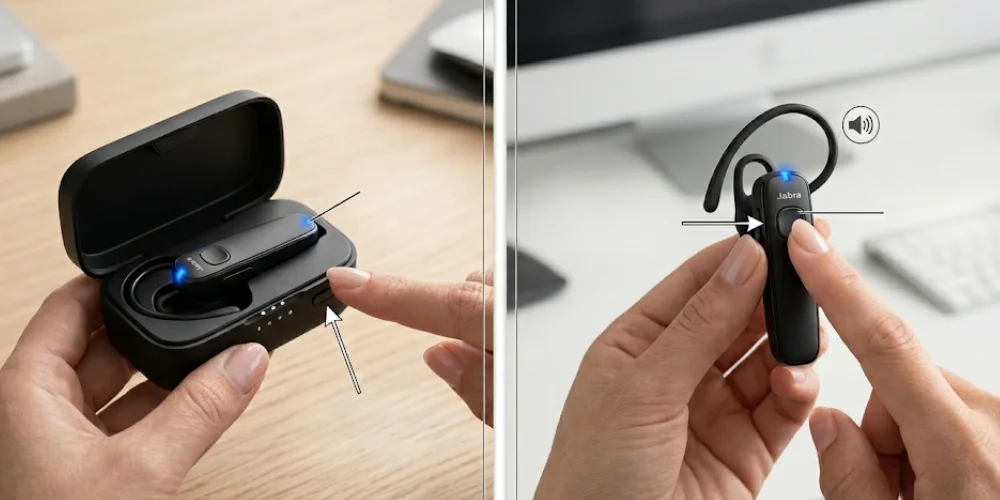
The first step you must perform to connect your Jabra headset is to turn the pairing mode on. How to turn on pairing mode depends on the type of model you use.
How to Turn On Pairing Mode in Mono Headsets with a Charging Case?
If you want to put your mono headsets with a charging case in the pairing mode, dock the headset in the charging case. Press and hold the battery status for three seconds. The headset will be in pairing mode as soon as the blue light flashes.
How to Turn On Pairing Mode in Mono Headsets without a Charging Case?
If you want to turn on the pairing mode in mono headsets without a charging case, press and hold the answer button for three seconds. The pairing mode is turned on when the blue light flashes and you hear the loud “pairing mode”.
How to Connect Your Jabra Headset/Earbuds with a Mac?
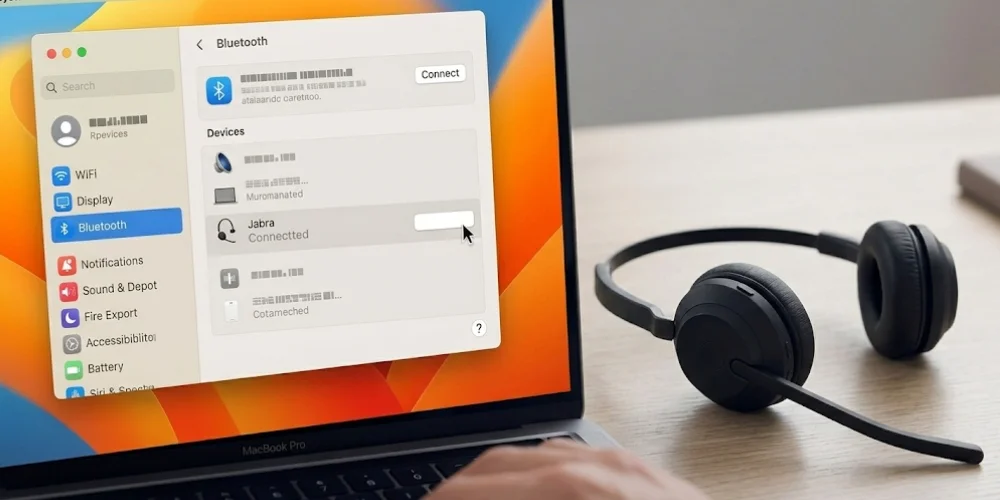
To connect your Jabra headsets or earbuds with a Mac or MacBook, you need to follow these steps:
- Turn on the pairing mode.
- Click the Apple Menu> System Settings > Bluetooth.
- Turn on Bluetooth.
- Find your Jabra headset under the nearby devices once the Mac completes the quick scan of Bluetooth devices.
- Hover the cursor over the device.
- Click Connect.
In these simple steps, your Jabra headset will be connected to the Mac or MacBook.
How to Connect Your Jabra Headset/Earbuds with a Windows PC?
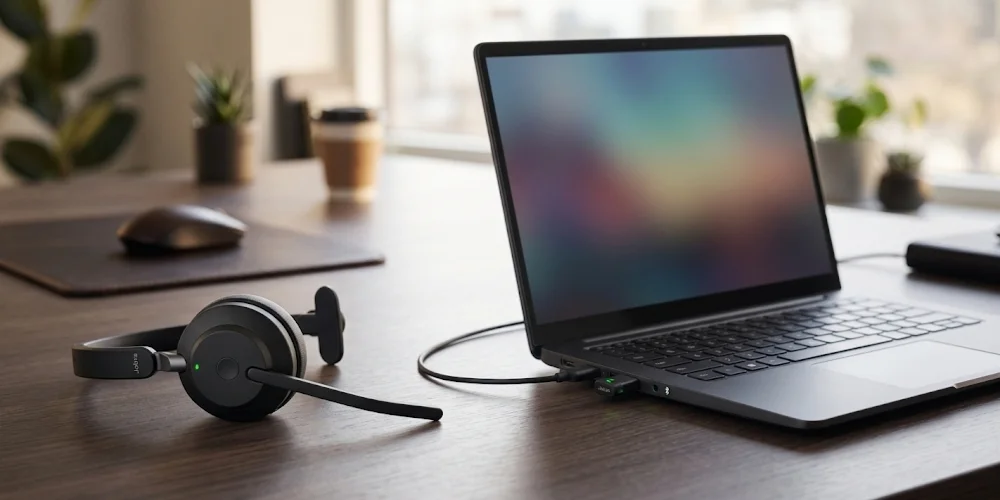
Once you have turned on the pairing mode, your headset is ready to be connected to a Windows PC. Just perform the following steps:
- Search for Bluetooth on the Windows Search bar.
- Click on Bluetooth and Other Device Settings.
- Click Add Device.
- Under the " Add a device window”, select Bluetooth.
- Select the Jabra headset or earbuds from the list to pair them once Windows completes the scan.
Your headset will be connected to your Windows PC, and you can enjoy listening to music or attending meetings.
How to Connect Your Jabra Headset/Earbuds with an iPhone or iPad?
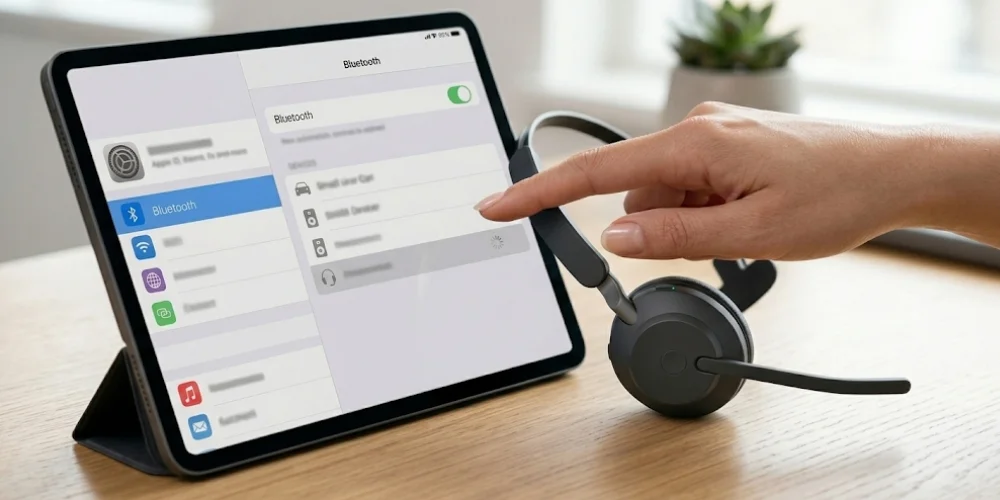
If you want to connect your Jabra headset/earbuds with an iPhone or iPad, they will be paired and connected in the following way:
- Open Settings on your Apple device and tap Bluetooth.
- Turn on Bluetooth to discover the nearby Bluetooth devices.
- Select your Jabra headset or earbuds in the other devices section.
How to Pair Jabra Headphones or earbuds with an Android Phone or Tablet?
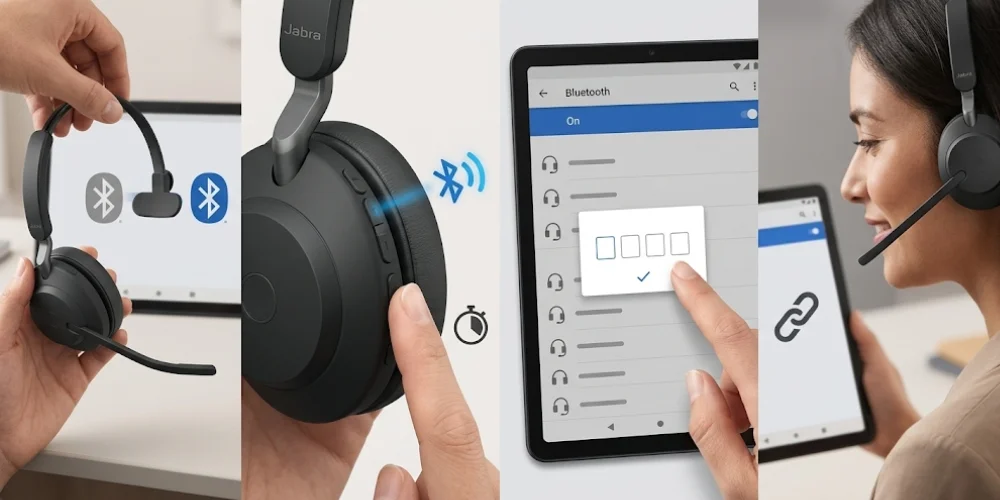
For pairing your Jabra earbuds with an Android phone or smart tablet, you have to follow these steps:
- Make sure Bluetooth is turned on on your Android device.
- Remove the earbuds from the charging case to turn them on.
- Now press and hold the left and right buttons for 1 second at the same time, but alternatively. The LEDs on both earbuds will flash green.
- To turn on the pairing mode, press and hold the Left and Right buttons on the earbuds. The light on the earbuds flashes blue to indicate successful pairing.
- Now go to the Bluetooth menu on your mobile device > select Jabra earbuds from the list.
- Wear the earbuds to hear the in-voice instructions.
- Enter “0000” if you are asked to enter the PIN.
Once you connect the earbuds for the first time, they will be automatically connected the next time when you turn on the Bluetooth.
How to Pair Jabra Headsets via Right Earbud Only?
If you want to pair your Jabra headset via the right earbud only, you have to follow these steps:
- Ensure Bluetooth settings are turned on in your mobile device.
- Press and hold the right button until the LED flashes red to turn off the right earbud manually.
- Press and hold the Right button for 3 seconds until the blue light flashes to enter the pairing mode.
- Go to the Bluetooth menu on your mobile device > select Jabra Earbuds.
- Wear the earbuds so that you can hear the voice-guided instructions.
- If you are asked to enter the PIN, you have to enter “0000”.
When the pairing is successful, your earbuds will be listed in the list of connected Bluetooth mobile devices. Bluetooth will also be announced in the earbuds.
Disclaimer: The pairing method may differ from model to model. The above given procedure is general, which is true for most Jabra headset and earbud models. If you want a pairing guide for specific headset models, visit Jabra support.
Wrap Up
Pairing Jabra headsets with your device initially may seem difficult, especially when you are using it for the first time. In this Jabra pairing guide, you can learn how to pair and connect your Jabra headsets with any device.
To connect the Jabra headset, it must be in pairing mode first. If you want to connect a Jabra headset with a Mac or MacBook, go to the System Settings. Go to Bluetooth option > Devices. Then select your headset and click Connect. But if you want to connect with a Windows PC, go to Bluetooth and other device settings > Add device > Bluetooth. Select your Jabra headset.
No comments yet. Be the first to comment!
Leave a ReplyYour email address will not be published. Required fields are marked *