
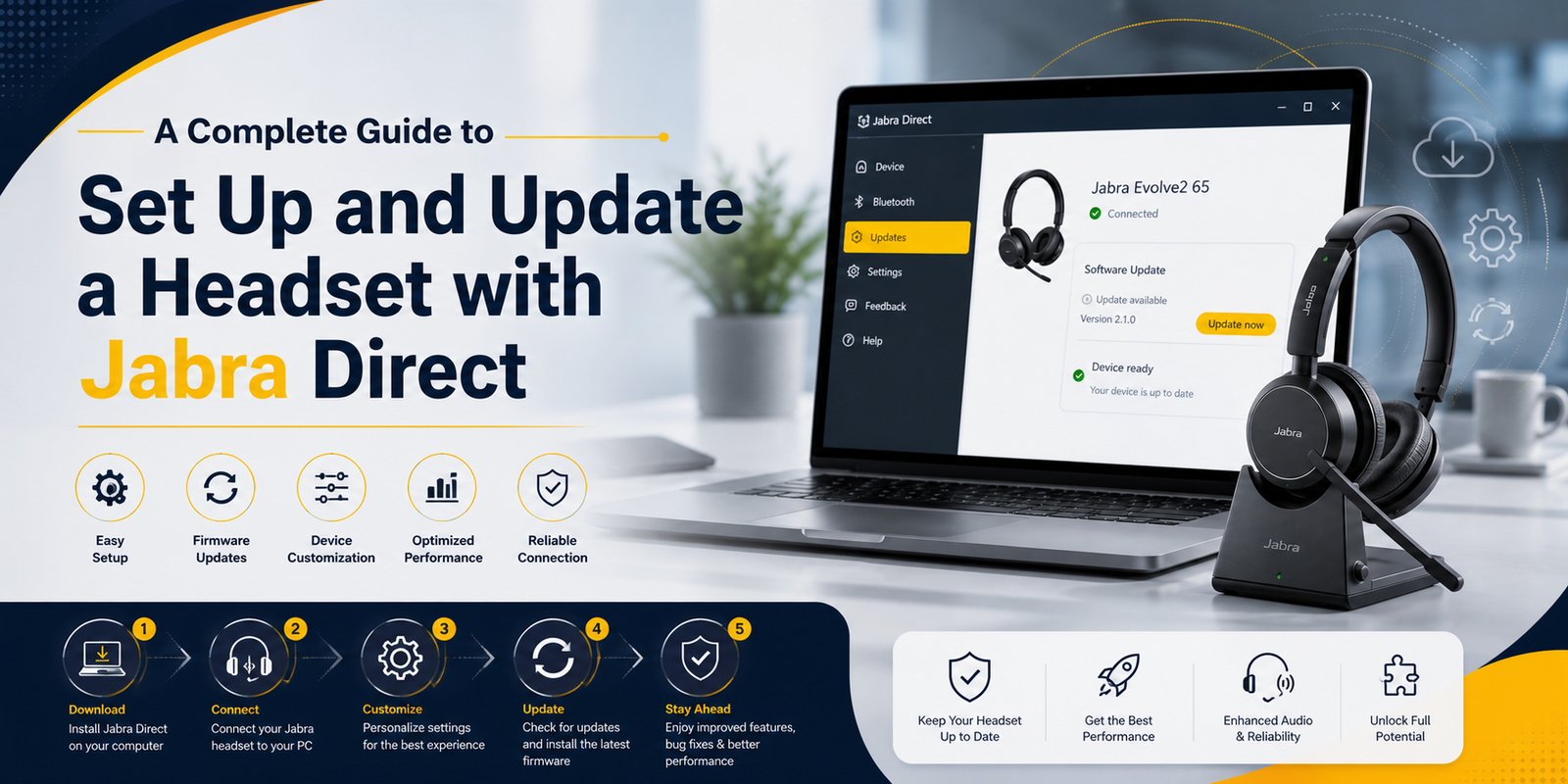
Irrespective of the use, your Jabra headset is the most important hardware in your professional or daily life. But most users make an expensive mistake when they buy a new headset. They plug the headset into a USB port without looking under the hood and expect maximum performance.
As basic plug and play functionality will give your ears sound, it completely ignores the underlying software layer. This layer makes modern professional audio brilliant. Without device configuration, you may miss out on advanced noise-cancellation tuning, microphone optimization, and other useful features.
It is always a good idea to make sure you have the right model for your workflow before we dive into software configuration.
Enter Jabra Direct, the powerhouse companion to get the maximum potential of your headset. If you are facing trouble or are lacking in your new Jabra headset. This guide will walk you through every single angle of using Jabra Direct.
What is Jabra Direct?
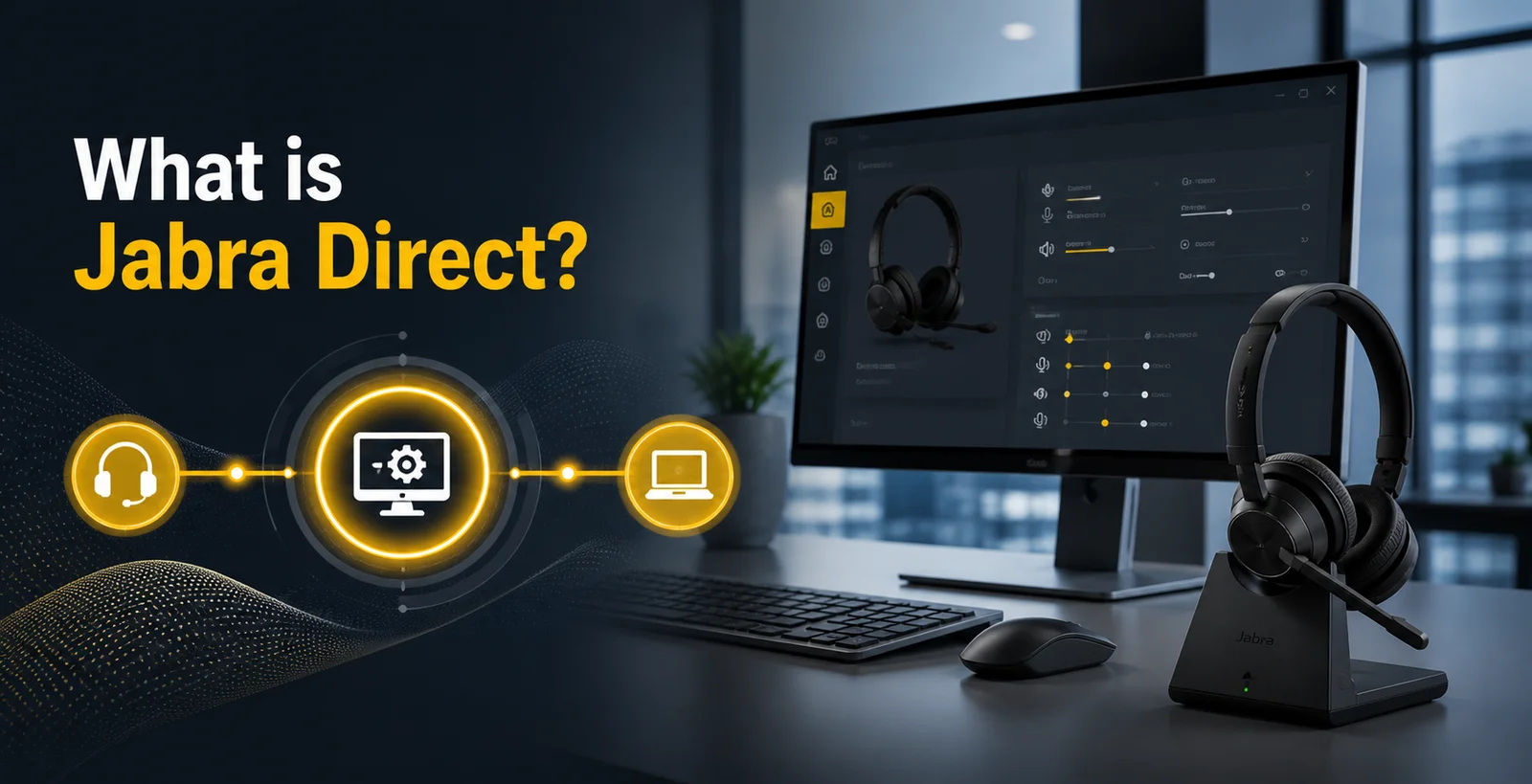
Think of Jabra Direct as the central command center for your full desktop audio system. Modern headsets are now not only simple speakers and microphones. They are advanced mini computers with complex internal firmware.
Jabra Direct removes the gap between your physical hardware and the system on your computer. Without it your headset operates on default device drivers. Jabra Direct gives control over how your voice is captured and how audio is delivered to your eardrums.
Why Do You Need Jabra Direct?
Firmware Lifecycle Management
Hardware manufacturers bring important updates from time to time. These updates fix bugs, optimise battery consumption, improve microphone performance, and address security vulnerabilities. Jabra Direct ensures your hardware never falls behind.
Advanced Audio Personalisation
Everyone hears and speaks differently. Jabra Direct allows you to adjust settings like the amount of your own voice echo into your speaker. It tweaks multi-band EQs for music or voice clarity. Protects your hearing by adjusting volume entrance.
Universal Softphone Integration
One of the greatest challenges of modern remote or hybrid work is managing multiple communication platforms. Jabra Direct enables native Remote Call control (RCC). This means when someone calls you on any platform, pressing the physical button on your headset answers, ends or mutes the call.
Diagnostic Telemetry and Troubleshooting
Jabra Direct provides immediate error logging and recovery options that eliminate guesswork when a device begins acting erratically. It collects all the information about the device and helps resolve issues.
System Requirement and Pre-Installation Checklist
Before moving to the installation process, it is important to know that your workstation meets requirements for a smooth deployment. Running lightweight Jabra Direct on outdated or restricted systems can lead to installation errors or connection issues with your USB devices.
Operating System Compatibility
Microsoft Windows
Fully compatible with Windows 10 and Windows 11, both 32-bit and 64-bit architectures. Ensure your Windows installation has recent cumulative updates applied to prevent conflicts.
MacOs
Compatible with recent macOS releases. Note that macOS has a strict privacy and security framework. You need to grant necessary permissions to install Jabra Direct.
Step-by-Step Installation: Getting Jabra Direct on Your Machine
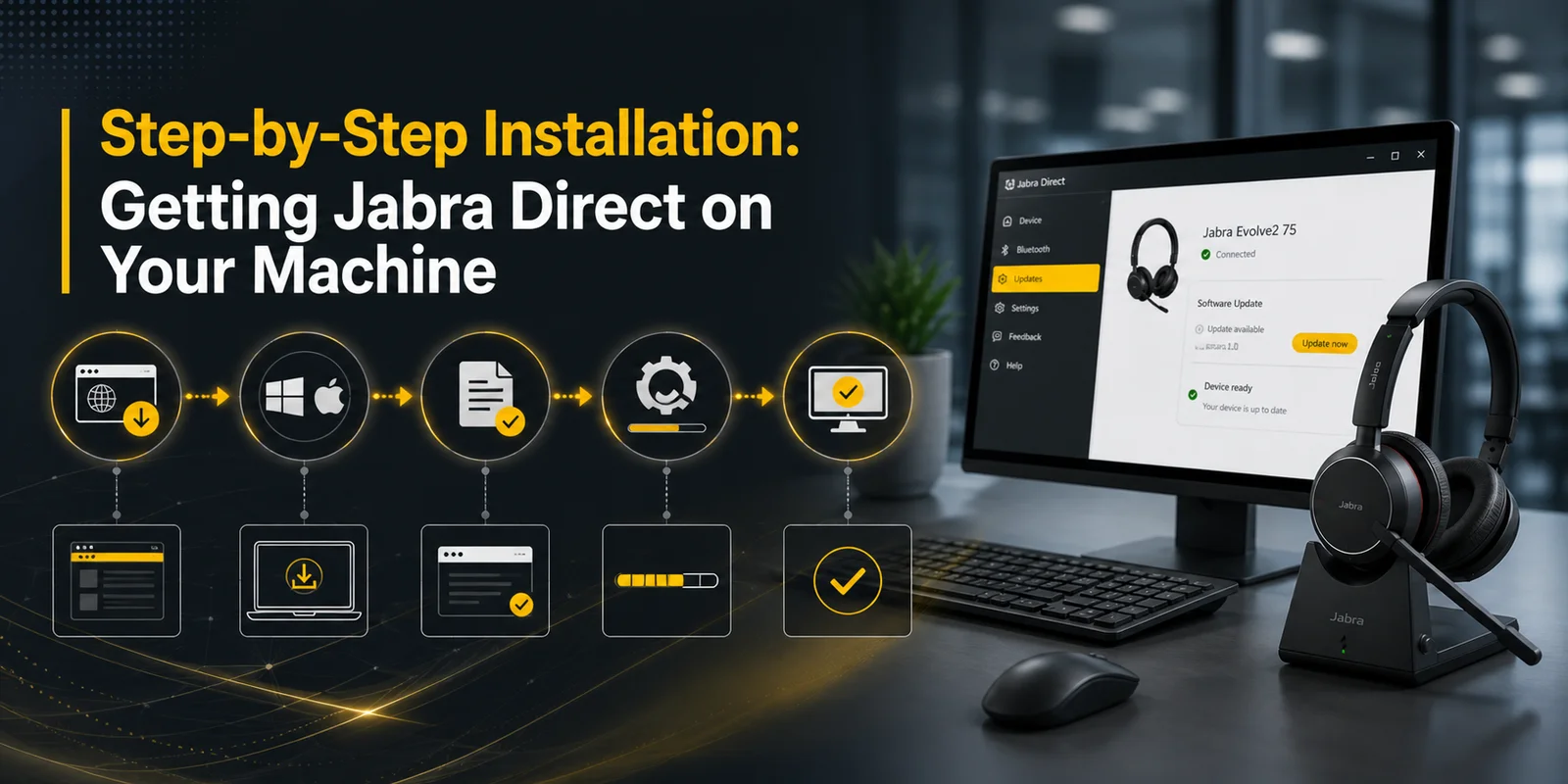
The installation process is streamlined and user-friendly. Set up Jabra Direct without any extra technical skills.
Locating and Downloading Official Installer
Open your preferred web browser and go to the official support of Jabra portal or the dedicated Jabra Direct download page.
Locate the download section that matches your operating system. Jabra Direct itself detects whether you are browsing from Windows or Mac. It offers you the right .exe or .dmg according to your device.
Now download the installation package to your local device, which is typically saved to your downloads. Always be aware and avoid third-party software. For a clean and uncompromised installer package use only Jabra Direct
Executing the Installation Tool
For Windows users, double-check the downloaded .exe file. If Windows User Account (UAC) gives you a security waring if you want to allow this app to make changes to your device, click Yes.
And for Mac users, check .dmg files. Open the disk image and drag the Jabra Direct application icon into your Applications folder. Launch the app for the first time from your Applications list.
Accept the End User License Agreement (EULA) when Shown
Select your installation path. It is heavily recommended to leave this at the default system directory.
Click Install and wait for the progress bar to complete. The wizard will copy necessary driver libraries, background service hooks and application files.
Once it is completed, click Finish or Launch Jabra Direct.
Establishing a Rock-Solid Connection: Linking Your Headset
Now that you have installed the software, it is time to connect your headset to your system physically. The connection method entirely depends on whether you are using a wired USB device, a wireless Bluetooth device or a DECT wireless office system.
Connecting Wired USB Headsets (USB-A or USB-C)
Take the USB cable that is attached to your Jabra Headset and plug it into a USB port on your computer.
Best practice warning for you is whenever possible, plug your headset directly into a motherboard level portal. It will be on the back or side of your computer. Avoid unpowered external USB hubs, cheap multi-port splitters or keyboard passthrough ports.
After you plug in, Windows or macOS will briefly pop up a notification indicating a new audio device has been recognised.
Connecting Wireless Headsets
Most of the premium Jabra wireless headsets such as the Evolve2 series come with an already paired adapter. You do not have to rely on your computer’s internal and lower-tier Bluetooth card.
Insert the Jabra Link Bluetooth Adapter Directly into a USB Port on Your Computer
Power on your wireless headset. Because the adapter and headset are pre-paired, they will automatically establish a secure and low latency audio link. The tiny LED indicator on the USB adapter will turn blue or purple that indicates an active connection.
If you are connecting your new or replacement dongle, you may need to put both the headset and dongle into pairing mode. Hold their respective pairing buttons until the LEDs flash blue.
Connecting DECT Wireless Headsets
- The physical connection steps vary little for the heavy duty office wireless range.
- Connect the power supply adapter of the DECT base station into a wall outlet.
- Then connect the supplied USB cable from the back of the DECT base station to your computer USB port charging cardle.
You need to make sure the headset is inserted perfectly in the base station charging holder. It signs the handshake between the hardware and your workstation.
Navigating the Jabra Direct Dashboard
Launch Jabra Direct after your drive is securely plugged in and recognised. You will greet a sleek and intuitive graphical user interface (GUI). For your ease we will break down the primary sections of the dashboard so you can find your way.
The Home Tab
The home screen serves as your immediate status overview. Here you can see;
- A visual graphic of your specific connected headset model.
- Live battery percentage indicators for wired models.
- Connection type (Direct USB, Bluetooth Adapter or DECT).
- Smart suggestions notifying you if a new firmware version is available.
The Settings Tab
This is where the magic happens. Clicking on Settings opens a menu of detailed device configuration. It allows you to mold the headset’s physical behaviour and audio processing to your exact liking.
Customising Your Headset Settings in Jabra Direct
Just take 10 minutes for accurate Jabra Direct configuration. It can completely transform your daily user experience and reduce listening fatigue. Everything depends on which series of Jabra headset you are wearing.
Audio and Voice Settings
Sidetone
Sidetone is the feature that feeds a faint and live loop of your own voice back into your headset. Without sidetone, humans naturally tend to speak much louder on phone calls because their ears are covered with ear cushions. Adjusting sidetone to a comfortable medium level ensures you speak in a normal tone.
Audio Protection
Workplaces are unpredictable; the unexpected noises and loud fax machine tones can damage hearing over time. Jabra’s PeakStop technology at once removes sudden sound spikes above 118 dB(A). You can personalise these safety measures in the settings menu.
Equaliser Profiles for Music and Speech
If you are someone who frequently switches between listening to human voice or music, use the equaliser settings. You can increase highs for enhanced vocal clarity or add bass for music playback.
Side Tone and Mic
Fine tune your microphone gain levels. If people on calls frequently say you sound too quiet, increase the microphone input level slightly. If you suffer from heavy breathing sounds on the mics, adjust placement and sensitivity profiles.
Call Management and Integration Settings
Softphone Integration
Ensure your preferred communication apps are checked and enabled. This guarantees that your hardware call control buttons communicate properly with your softphone.
Busylight Configuration
Many Jabra headsets feature an integrated LED light on the earcups that glows red when you are on a call. Within Jabra Direct, you can configure whether this light turns on automatically during calls or you can operate it with a physical headset button.
Voice Prompts and Language
Customise the spoken audio status notifications (e.g Battery low, Connected, Muted). Also change the system language to match your preference.
How to Check and Update Your Headset Firmware
Firmware is the permanent software sunning into the read-only memory (ROM) or flash memory of your hardware. Updating firmware is not just about getting new features but it is necessary for security and hardware longevity. Manufacturers release updates to fix bugs and lacking in your headsets.
Step-by-Step Firmware Update Procedure
Open Jabra Direct and ensure your device is properly connected and recognised on the main dashboard.
Click on the Updates icon on the left hand navigation pane. Jabra Direct will immediately check your device’s current firmware version against Jabra’s cloud servers to see if a newer version is available.
If a newer version is detected the interface will display an Update now button along with the details.
Now click Continue or Update. The software will download the firmware package and begin presenting it to your headset’s memory chip. A progress bar will track the installation percentage.
Safety Precautions During Firmware Updates
Do not unplug your USB cable, remove your Bluetooth dongle or turn off your headset while you are updating firmware. Interrupting the update process can corrupt the device bootloader and make the headset completely unresponsive.
If you are updating a wireless headset then make sure it has at least 50% battery charge. Place it on its charging stand or plug it into a USB power cable during the update.
Allow the process to run completely until the screen reads Update Successful. Click Finish.
Post-Update Best Practices
Once the update is successful, it is always best practice to perform a quick power cycle:
- Unplug your USB cable or wireless dongle.
- Turn your headset off completely. Wait 5 seconds and turn it back on.
- Plug the device back into your workstation. This allows the newly updated firmware to initialise clean driver structures with your operating system.
What to Do If a Firmware Update Fails
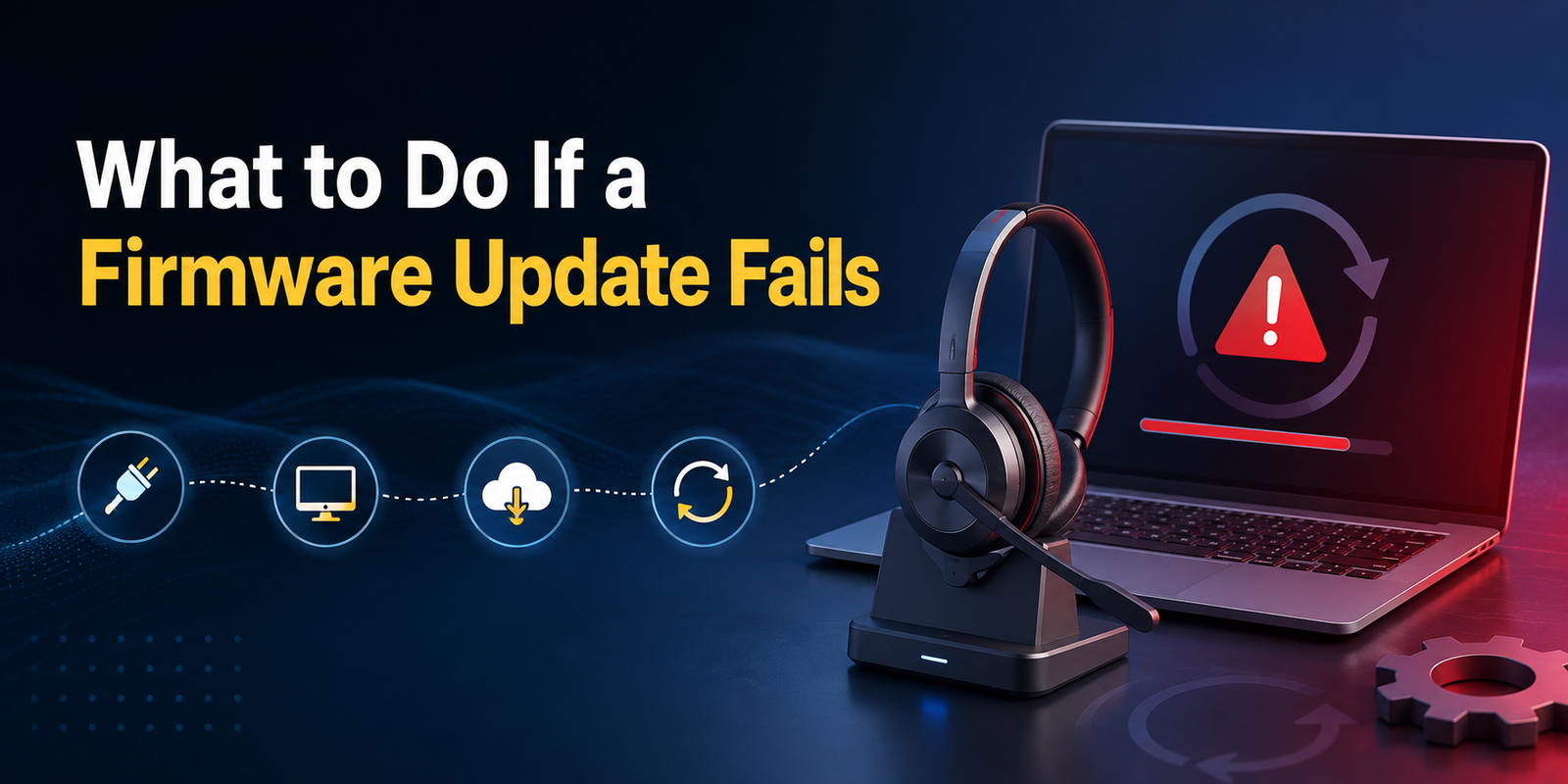
Even with proper precautions rare events can happen. It may be a sudden computer crash, operating system sleep mode interruption or accidental disconnection that can cause the firmware update to fail. If your headset becomes unresponsive or no longer recognised by your computer, you do not need to panic because Jabra Direct includes a built-in recovery mechanism.
The Recovery Protocol
Leave the unresponsive device plugged into your computer via USB.
Launch Jabra Direct
Navigate to the Update or Device section. Jabra Direct will detect that a device is in an abnormal or incomplete recovery state.
A notification banner will appear indicating that an update was interrupted and prompting you to recover the device.
Click Recover
Follow the on screen wizard instructions carefully. The software will download the clean firmware image again.
Once the recovery process completes, disconnect and reconnect the hardware.
Final Thoughts
Your headset is more than just a peripheral. It is your professional voice to the world. Keeping your Jabra headset updated and properly configured takes only a few minutes. With Jabra Direct, you ensure crystal-clear calls and reliable performance every single day.
No comments yet. Be the first to comment!
Leave a ReplyYour email address will not be published. Required fields are marked *