
 By
By So your gaming season on Discord was just interrupted thanks to the sudden mic failure. But when you checked the microphone functioning in Windows Voice Recorder, it seems to be working just fine. What could be the problem, right? It seems very concerning that the Corsair HS80 mic works, but Discord is not detecting it.
It may sound like a unique problem to face, but thousands of users worldwide have reported going through with this same concern. I also had to deal with a similar issue, which prompted me to write this guide.
After going through a series of troubleshooting guides and reading the forums about fixes, I was finally able to find the perfect solution to this particular issue. But you won’t have to browse here and there. You’ll find all the useful information right here. I have compiled the list of problems that you could potentially face, and also mentioned the quick fix for the problems. You can read this guide further to get the answer to your specific problem.
Why Discord is Not Detecting Your Corsair HS80 Mic
Discord is a great communication and team-building platform. But it can be quite selective when it handles the audio devices. The problem can most particularly occur with wireless headsets. Here are some of the common reasons why the Corsair HS80 Mic Works, but Discord doesn't detect it. If you understand these problems, it can help you to resolve the problem much more quickly.
Wrong Input Device Selected in Discord
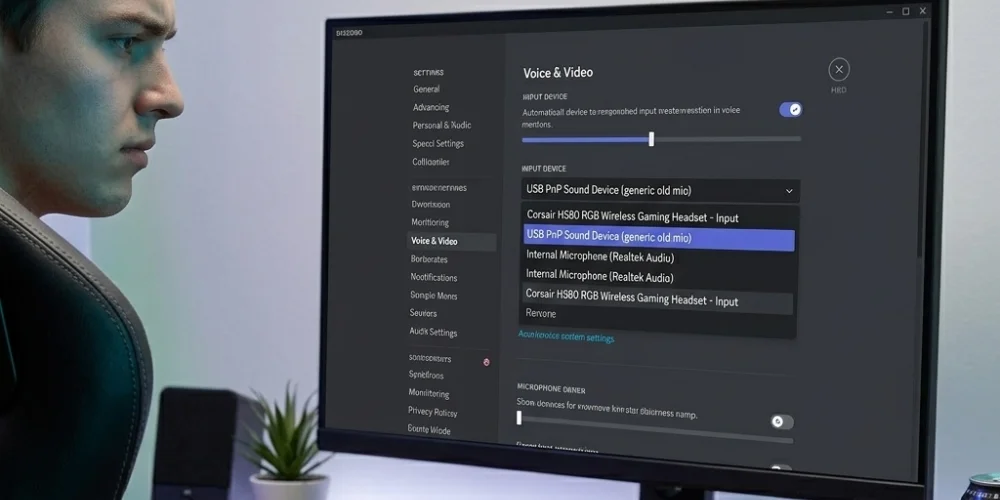
The most common concern with Discord is that it does not automatically detect when a new audio device is connected. Most particularly after an update or restart, it does not recognize the new device. It may still be detecting your old microphone.
Windows Microphone Privacy May Block Access
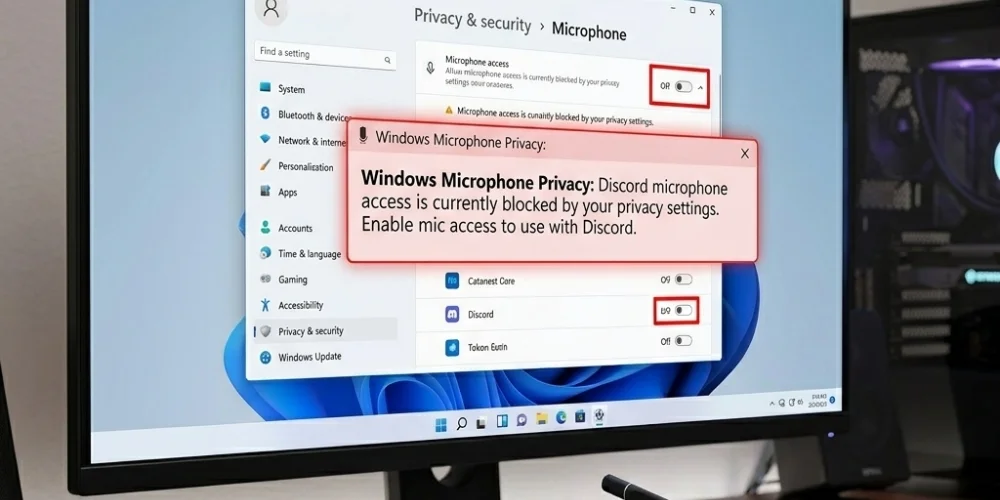
The Windows update can also interfere with the privacy permissions for Discord. It is reported by users that after the Windows 10 and Windows 11 updates. Their mic stops working on Discord. This happens because the update resets the microphone privacy permissions. Due to this, Discord no longer retains the permission to access your microphone. Hence, the problem occurs.
iCUE Software Conflict
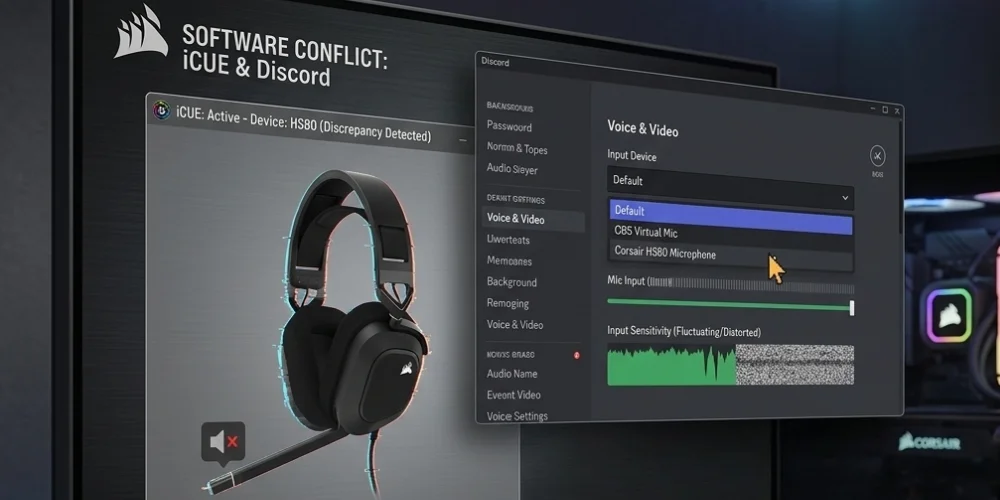
The software that runs the Corsair HS80 is the iCUE. It may be the features of headsets, such as EQ, lighting, and firmware.
The software needs to run in order for the mic to work properly. This iCUE may have compatibility issues with Discord's audio pipeline. Due to this, the mic disappears from the platform's device list. Even if it is connected, the mic can transmit distorted audio.
Outdated or Corrupt Audio Drivers
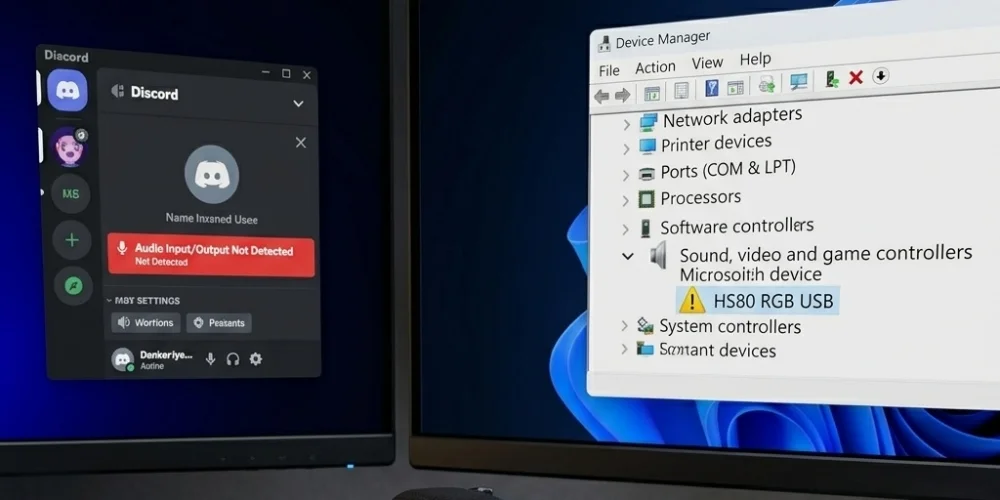
Audio drivers connect your OS to the hardware. If they are outdated or corrupted, they can conflict with iCUE software. This can make your HS80 model appear in Windows but not be recognized by the third-party applications such as Discord.
Discord Audio Subsystem Incompatibility
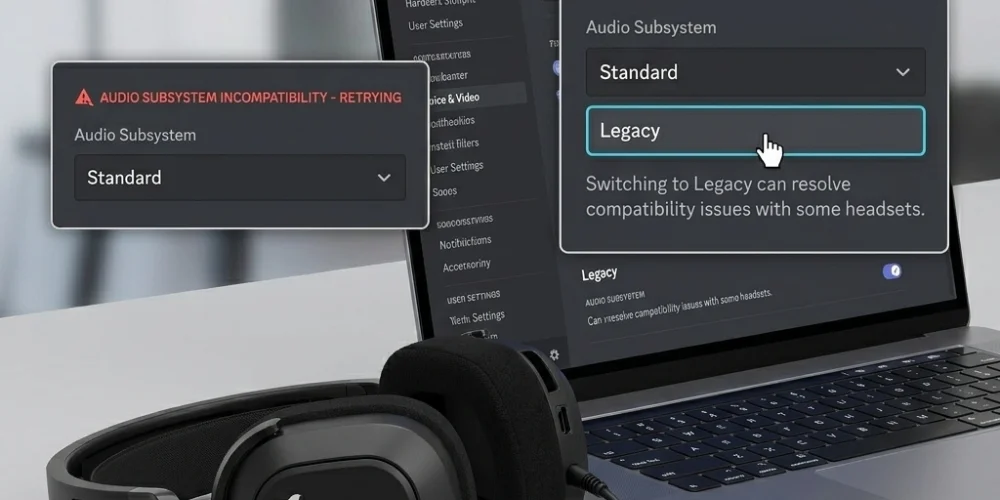
Discord continuously keeps updating its audio subsystem. Such updates can cause compatible issue with some headset models. The issue can be easily resolved by switching to Discord's Legacy Audio Subsystem.
Incorrect Windows Sample Rate
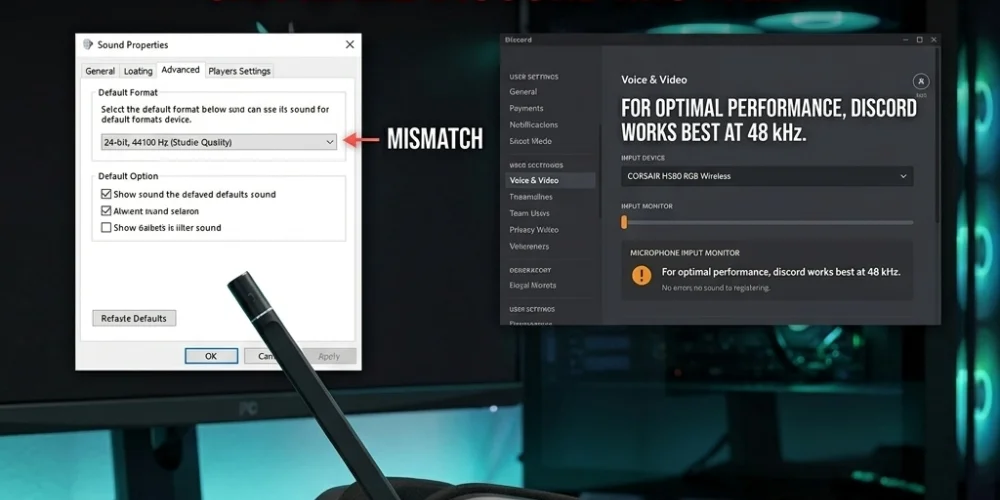
Discord actually works best at 48 kHz. However, Windows may use a different sample rate. This mismatch can make Discord fail to register your microphone. Hence, the HS80 mic often does not work on Discord.
How to Fix Corsair HS80 Mic Not Detected in Discord
To fix the Corsair mic not being detected by Discord is easier than you think. You do not need to go to a tech expert or worry about finding new model. Here are some simple steps that can help you to deal with the issue. Make sure not to miss any step for proper fix:
Fix 1: Manually Set HS80 as Input Device in Discord
Discord may be detecting the wrong input device. To solve this, you can follow these simple steps:
1. Open user settings in Discord (through the gear icon at the bottom left)
2. Click Voice & Video option (From left menu)
3. From the Input Device drop-down, you can select the Corsair HS80 headset microphone.
4. Through the Output Device drop-down, try to make sure that the headset is selected for audio playback
5. Under Mic Test, click the Let’s Check Button to confirm if the mic is working.
Here is the fix in a nutshell: Open User Settings > Voice & Video > Input Device/Output Device = Select Headset, then Mic Test > Let’s Check button to confirm mic working.
Fix 2: Enable Microphone Access in Windows Privacy Settings
If the issue arises after a Windows update, then you can fix it by following the steps below.
- Open settings on Windows (shortcut Windows + I)
- Go to Privacy & Security (simply Privacy in Windows)
- Click Microphone ( from left sidebar)
- Turn the Microphone Access On and let the app access it
- Scroll further, and see if Discord is toggled on in the app list
- To test your mic again, restart Discord.
Here is a summary of the fix: Settings > Privacy & Security > Microphone = Toggle On & allow app access, then scroll to confirm Discord toggled on. Restart Discord to test the mic.
Fix 3: Reset Discord Voice Settings
There may be a problem with Discord's voice settings, but the good news is that it can be easily solved within less than a minute. Here is what you need to do:
- Open Discord Settings through the gear icon
- Go to Voice & Video options from the left panel
- Scroll to the bottom of page
- Press Reset Voice Settings
- Click the confirm when the pop-up appears
- Once Discord restarts, you can set HS80 as an input device
- Test the Mic
Here is the fix simplified: Discord Settings > Voice & Video > Reset Voice Settings. After the app reset, select HS80 as an input device by following the steps from Fix 1.
Fix 4: Switch Discord Audio Subsystem to Legacy
Discord's updated audio subsystem can be incompatible with some headset models. The Corsair HS80 is included in them. To deal with this problem, you can switch to legacy mode. Here is how to do it:
1. Go to Discord settings
2. Navigate Voice & Video
3. Scroll to Audio Subsystem option
4. Change from “Standard” to “Legacy.”
5. Restart option will appear; select it.
6. Test the microphone after Discord reopens
Here is a fix in simple terms: Discord settings > Voice & Video > Audio Subsystem= change to Legacy. After Discord reopens, perform the Mic Test.
Fix 5: Check and Fix Windows Sound Settings
In order for your Corsair HS80 to work, it needs to be set as the default recording device. This way, Discord can detect it. Here is how you can do it:
- Right-click the speaker icon on the taskbar
- Select Sounds or Open Sound settings
- Click the Recording tab (navigate to Input in Windows 11)
- Find the headset microphone in the list
- If greyed out, then press right-click to enable it
- Alternatively, right click and select HS80 as the Default Device
- After that, click properties and go to the Level Tab
- There set the volume to at least 80
- Also, in Properties, go to the advanced tab
- There, set the format to channel 2, 16-bit, 48000 Hz (DVD Quality).
- Click Apply and Then Ok. This will relaunch the Discord.
Here are the steps mentioned in a simplified way: Taskbar > Sounds Recording/ Input > Headset Microphone > Right Click to enable it, Then Go to Properties > Level Tab = set volume at 80. Then, Advanced Tab = set the format to channel 2, 16-bit, 48000 Hz (DVD Quality). Click Apply and OK. Once Discord relaunches, everything will be fixed.
Fix 6: Update or Reinstall Audio Drivers
Another common problem for the mic failure is actually the outdated or malfunctioned driver. This is how you can update them:
- Press + X and select Device Manager.
- Click on Audio Inputs and Outputs
- Right-click your Corsair HS80 microphone and update the driver.
- Select the Search automatically options for drivers
- Let Windows find the latest version.
- If no updates are found, move to next step
- Right-click the HS80 again and select Uninstall device
- After that, restart the PC. This will automatically update the driver
- Open Discord and check if your mic is now detected.
Here is a fix in a simplified version: Device Manager > Audio Inputs and Outputs > Right Click Model > Update the Driver. If there is no update, then Uninstall the Device. Once the PC restarts, the driver will update automatically, and the mic issue will be resolved.
Fix 7: Reinstall or Repair Corsair iCUE Software
On top of other issues, the problem may also arise due to the mismatch between the iCUE software of the Corsair headset and the Discord audio system. But this problem can be easily handled with by following the detailed steps below:
- Press Windows + I to go to Settings
- There select Apps option and find the Corsair iCUE
- Uninstall it and complete the removal process
- Now, go to Device Manager and uninstall the driver using Fix 6
- Restart the PC to clear all the residual drivers
- Now, from the official
- Let the software detect and also update your HS80 firmware
- Now relaunch Discord and test your microphone
Here is the quick recap of solutions: Settings > Apps > Corsair iCUE, then Device Manager > Uninstall Drivers > Restart PC. After that, download iCUE software from the Corsair website. It will update the firmware. Relaunch Discord to test the mic.
Fix 8: Perform a Soft Reset on the Corsair HS80
If all of the above steps fail, there is another last option that you can consider. This fix will clean the internal hardware glitches. You can do so in the following way:
- First, make sure that the headset is powered off
- After that, press the mute button and hold it for about 15 seconds
- Simultaneously press and hold the power button until the headset is turned on
- Now, release both the buttons. This will reset the headset
- Reconnect the USB dongle and wait for at least 30 seconds
- Finally, open Discord to test the mic
Here is a quick recap on how to soft reset: Power off the headset → Press and hold the mute button → Along with that, press and hold the power button → Reconnect the USB dongle → Wait for 30 seconds → Test the mic on Discord.
Issue Not Resolved?
If you have followed all of the above steps but still the issue persists, then you can contact the Corsair Support team. You can contact them through the official site and discuss your concerns.
Wrapping Up
There are many factors that can make the Corsair HS80 mic work, but Discord does not detect it. This could be due to software incompatibility. Windows update or driver issues. You can fix it by following the right steps that are mentioned in this guide. You can update the iCUE software, reinstall drivers, and manually select the headset mic as the default input for Discord. For every problem, there is a quick fix. If the issue remains even after all these steps, then you can contact Corsiar's support team.
No comments yet. Be the first to comment!
Leave a ReplyYour email address will not be published. Required fields are marked *