
 By
By Jabra is the leading name for reliable headsets with advanced features. Whether you want office headsets, consumer headsets, or headsets for listening to music, the hype is real. But what if these reliable headsets stop working despite investing a good amount? Users may experience problems like a microphone not working, Bluetooth not connecting, or no sound. All these problems are sufficient to ruin your workflow and affect your productivity.
In this blog, we are going to find out the common reasons behind your Jabra Headset not working. We will find quick fixes and solutions for these common problems. Let’s get started!
Common Reasons Behind Your Jabra Headset Not Working
For different users, there can be different problems when using the Jabra headset. But the reasons behind these problems can be the same. Let’s understand the common reasons so that troubleshooting becomes easier. The following are often the common reasons your Jabra headset might not be working:
Bluetooth Connectivity Issues
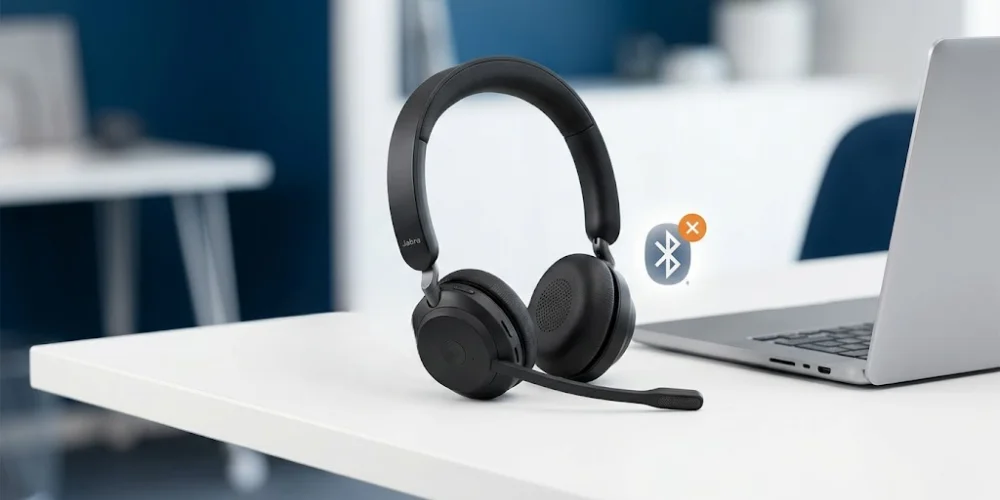
If you are using a Bluetooth wireless headset, other Bluetooth devices may interrupt the Bluetooth connection. As a result, a beeping sound is produced that indicates a connection drop or disconnection. Another reason can be the improper pairing and connection to multiple devices at once. If you go out of the allowed wireless range, the headset disconnects and does not work out of range.
Low Battery
When the headset is not charged, it will not turn on or connect with any device. In case of a low battery, the headset will keep disconnecting. In both scenarios, you need to charge the headset.
Outdated Firmware or Drivers
The updates come at the speed of light, so your headset firmware gets outdated. Your headset, dongle, or app might need a firmware update. You can update the firmware through the Jabra Direct app.
Physical Damage
The wire or any part of the headset might be broken. The USB dongle or the charging cable might be broken or damaged. These damages make it impossible for your headset to work as long as they are not repaired.
Incorrect Audio and Sound Settings
Sometimes, everything is good with the headset, but the audio or sound settings are incorrect. The headset may not be selected as the default input device for playback and recording.
System or App Compatibility Issues
The headset may not be compatible with some apps you want to use. If a headset is not UC certified, it may not be compatible with Zoom, Microsoft Teams, and other platforms. Another reason can be outdated drivers.
How to Fix Jabra Headset Not Working?
Once you know the problem and the reasons behind it, the solution becomes easier. Now, as we are familiar with the common reasons, we can find the quick fixes to solve the Jabra headset not working problem.
Disclaimer: The following fixes are general, irrespective of Jabra headset models. These fixes are generally applicable to all headsets but may also vary from model to model.
Quick Fixes First to See if the Problem Gets Solved
Sometimes, the small fixes solve the overall problems. The first thing you can try when you find your headset not working is to restart your headset and devices. Check the battery, is it fully charged or not? In case the battery is not charging, you can try another cable or charger. In case you are facing Bluetooth connectivity issues, just turn off Bluetooth and turn it on again.
If none of the above fixes work, you can move towards the following fixes that will surely solve your problem.
- 1 Go to System Settings in Windows.
- 2 Select your Jabra headset as both an input and output device.
- 3 In the case of Mac OS, go to System Preferences ⇒ Sound ⇒ select your Jabra headset.
- 4 Manually set your Jabra headset as a microphone and speaker in the Microsoft Teams or Zoom settings.
- 5 If you hear no voice or hear too much, just adjust the sidetone in Jabra Direct as per your convenience.
Check Audio and Microphone Settings
Sometimes, there is no problem with the headset, but the system settings for audio and microphone are incorrect. Follow these steps to change the audio and microphone settings:
- Go to System Settings in Windows.
- Select your Jabra headset as both an input and output device.
- In the case of Mac OS, go to System Preferences => Sound => select your Jabra headset.
- Manually set your Jabra headset as a microphone and speaker in the Microsoft Teams or Zoom settings.
- If you hear no voice or hear too much, just adjust the sidetone in Jabra Direct as per your convenience.
This must solve the sound-related problems of your headset.
Update the Jabra Headset Firmware
In case of outdated software, you need to update the firmware through the Jabra Direct or Jabra Sound+ software. Download any of these and update the firmware. This will solve your problem.
Contact the Jabra Support
If none of the above options worked, it’s high time to contact Jabra support. The support team will troubleshoot the headset and will see what can be done. Always visit Jabra’s official support page or customer support team for guidance. If your headset is under warranty, they might give you a replacement.
No comments yet. Be the first to comment!
Leave a ReplyYour email address will not be published. Required fields are marked *