
Whether you're in the office, handling customer calls, or working from home, having the right cordless headset can make communication smoother and more productive. If you're exploring reliable audio solutions for your workspace, you'll find plenty of professional options on our website. Like any piece of technology, these devices can occasionally run into connectivity, sound, or battery issues that interrupt your workflow.
Fortunately, most of these problems are quick and easy to fix. In this guide, we'll walk you through the most common issues, explain how to solve them, and share a few practical tips to help your headset perform reliably for years to come.
Why Do Wireless Headsets Have Problems?
Wireless headsets connect to your laptop, smartphone or desk phone via Bluetooth, DECT or USB wireless technology. They do not use wires or cables so the connection or performance may sometimes be affected.
The majority of issues stem from simple matters like:
- Low battery
- Incorrect device settings
- Wireless interference
- Outdated firmware
- Software conflicts
- Pairing issues
For those who are unfamiliar with wireless technology, Wireless Headsets in Simple Terms covers the basics of wireless connections and why they can sometimes go wrong.
Common Wireless Headset Problems and How to Fix Them
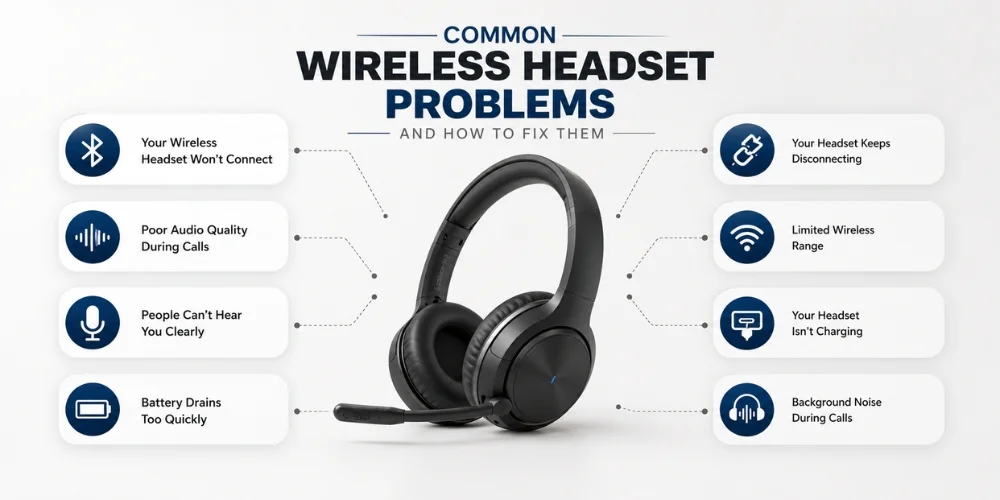
1. Your Wireless Headset Won't Connect
One of the most frequent problems is when the headset won't connect to your device.
This may occur after a software update, if Bluetooth settings are altered or if the headset is already hooked up to another device.
How to Fix It
If you're thinking of something complicated, start with these simple steps:
- Make sure the headset is turned on.
- Ensure that the battery is charged.
- Turn Bluetooth on and off again.
- Unplug and re-plug headset.
- Restart headset and connected device.
If you are using a USB wireless headset, reconnect to the USB adapter and use another USB port.
The Logitech Zone Wireless, EPOS ADAPT 260 and the Cisco Headset 562 are other business-oriented solutions that receive frequent firmware updates to enhance connection stability.
2. Poor Audio Quality During Calls
If voices sound distorted, break up during calls or voices cut out, it's not just a problem with the headset.
Call quality can also be impacted by outdated software, internet connection or wireless interference.
How to Fix It
- Keep a close distance to your connected device.
- Avoid having the headset near wi-fi routers or other wireless devices.
- Check your computer's sound settings.
- Restart meeting application.
- Install all needed firmware updates.
If the issue persists, check the headset with another computer to determine if the problem is related to the headset or the computer.
3. People Can't Hear You Clearly
If anyone comments on your voice being soft or cutting out, make sure to check the microphone settings.
How to Fix It
- Ensure that the microphone is NOT muted.
- Choose the appropriate microphone for your meeting software.
- Check microphone permissions in your operating system.
- Position the microphone closer to your mouth.
- If necessary, turn your communication app back on.
A headset with noise-canceling microphone can be beneficial for users who frequently encounter noise in their work space, as it helps to filter out some background noise and allow for clearer voice transmission.
4. Battery Drains Too Quickly
The capacity of all rechargeable batteries decreases with use over time. But there are times when the battery is not the reason for poor battery life.
Also, having an old version of firmware or leaving the headset enabled throughout the day can affect the battery's performance.
How to Fix It
- Make sure that the headset is fully charged before use.
- Turn it off when you're finished working.
- Ensure that the firmware is kept up-to-date.
- Do not place the headset in extremely hot or chilly areas.
- Reduce the loudness of the speakers as much as possible.
Today's business headsets, like the Jabra Evolve2 65 Mono, Poly Voyager 4300 Series and Yealink WH68, are engineered to deliver long-lasting battery life for an entire workday.
5. Your Headset Keeps Disconnecting
Few things are worse than a wobbly headset that's dropping out during a critical meeting. This is often due to signal interference or because the connected device is too far away.
How to Fix It
- Don't operate the device outside the specified range.
- Unplug unused Bluetooth devices.
- Restart both your headset and computer.
- Update the headset software.
- Avoid wireless interference by keeping away from other wireless devices.
For those considering other types of connections, this on Bluetooth vs. DECT Wireless Headsets comparison will help you decide which is better for various work scenarios.
6. Limited Wireless Range
If you can't hear audio when you leave your desk, the wireless range might be to blame.
For general use and online meetings, Bluetooth headsets are an excellent option, however, a DECT headset is a better option for moving around a larger office.
How to Fix It
- Remaining in the recommended range.
- Avoiding headsets that are near Wifi routers and other wireless devices.
- Staying away from heavy walls or metal objects between the headset and the device that is connected to it.
- Ensuring headset is battery-powered.
For greater flexibility in the workplace, read the article on Types of Wireless Headsets to learn more about the various wireless headset types.
7. Your Headset Isn't Charging
If the headset doesn't charge, don't worry! The problem isn't always the battery.
A defective cable, soiled charging contacts or a faulty power source can prevent the headset from charging correctly.
How to Fix It
If you need to replace your headset, consider these simple steps first:
- Inspect charging cable for damage.
- Try a different USB port or power adapter.
- Thoroughly clean the charging contacts.
- Make sure the charging dock is connected properly.
After trying these things, if the headset still doesn't charge, it may be time to reach out to support, or perhaps consider replacement.
8. Background Noise During Calls
It can be challenging for people to hear you in an office or shared workspace.
A headset with a noise-canceling microphone helps minimize unwanted sounds and enhances the clarity of conversations, enhancing professionalism.
How to Fix It
- Closing of nearby windows and doors.
- Placing the microphone near your mouth.
- Selecting a more quiet meeting location for significant meetings.
For voice clarity, models like the EPOS IMPACT 1000, Poly Voyager Focus 2, and BlueParrott M300-XT SE will help to enhance voice clarity even when in noisy environments.
How to Prevent Wireless Headset Problems
By continuing to maintain your headset regularly, you can make it work more efficiently and help it last longer.
These are a few simple practices that can avoid many problems:
- Make sure to always have the headset's firmware updated.
- Do not allow the battery to run out of charge.
- Keep the headset in a clean dry area.
- Regularly clean ear cushions and microphone.
- Use manufacturer recommended charging cable and accessories if possible.
You'll save time and prevent unforeseen issues during critical calls by spending a few minutes of maintenance.
You're new to wireless headsets or want a complete overview before making your decision, be sure to read our Wireless Headsets Complete Guide. It explains everything from wireless technologies and key features to choosing the right headset for your workspace.
When Is It Time to Replace Your Headset?
While most headset issues can be resolved, there are times when it is better to replace the wireless headset.
You may want to upgrade if:
- The battery no longer lasts until the end of your day at work.
- Microphone or speakers are turned off.
- After troubleshooting, there are still connection issues.
- Your headset is incompatible with devices or communications software.
If you're considering a new headset purchase, our Wireless Headsets Buying Guide for Beginners can help you determine what features to consider before making your purchase.
Our Wireless Headsets section also allows you to buy for headsets with business-grade performance by different manufacturers.
How to Reset Your Wireless Headset
If you have performed the basic troubleshooting measures and headset is still not functioning correctly, it may be beneficial to reset the headset.
A reset will clear temporary errors, erase the pairing information and return the headset to its default settings. This can help resolve connection problems, pairing problems, and unexplainable performance problems.
While this varies by brand and model, these are the general steps that are typically employed:
- Turn off headset.
- Hold down the buttons for the desired length of time until the indicator light begins to flash.
- Wait for the headset to boot up.
- Reconnect your device with it again.
See the user manual or manufacturer's instructions if you don't know how to reset your model. Headsets such as Jabra, Poly, Yealink, EPOS, and Logitech have reset instructions available for their respective line of products, which are quick and easy to follow.
Conclusion
So, you know all about common wireless headset problems and how to fix them. Most of the headset issues can be resolved simply as the first glance suggests. Sometimes the problem is as easy as checking your settings, updating the firmware, charging the headset or reconnecting the headset.
Keeping the headset well-maintained can also help to avoid further problems and improve its performance.
If you are considering upgrading or replacing your headset, explore our wireless headsets and discover the similarities and differences on different headsets in different work environments and communication scenarios.
Give the team a call if you are looking for the right headset for your business or workspace. We'll be glad to suggest a solution that will fit your devices, budget, and work needs.
Frequently Asked Questions
Why won't the wireless headset work?
This can be caused by low battery, wrong Bluetooth configuration, pairing problem, or out-of-date firmware. Common issues are resolved by restarting the headset and reconnecting.
What causes my wireless headset battery to go dead so fast?
The battery life may be influenced by old software, high volume levels, age or keeping the headset switched on when it's not being used.
How to enhance the quality of calls?
Use the wireless distance suggested, keep headsets in good working order, minimize radio waves and ensure Internet connection is secure when using wireless for meetings.
How often do I need to change my wireless headset?
When your headset is not retaining charge, often it's unplugging, or simply not fitting with the demand of the job, it is commonly easiest to invest in a newer model.
No comments yet. Be the first to comment!
Leave a ReplyYour email address will not be published. Required fields are marked *