
Imagine you are ready to make a call, start streaming, or record. You have plugged your headset in, and the voice meter banana is open. Everything looks perfect. But what you realize is that nothing is working; your mic is not working. No sound in your speakers and headphones. You can't hear anything. It's confusing and frustrating.
If this feels familiar, you’re not the only one.
The voicemeter banana is a very powerful sound application. But it may be a little bit difficult to use it. Even if you perform one wrong step while setting it can make it feel like your headphone is not working at all. But the good news is that most of the time, it is easy to monitor the issue. If you know what to check.
Let’s go through each problem and its solution step by step in this blog, so you can get your sound working again without the stress.
The Problem: Headset Not Working in VoiceMeeter Banana
When your voicemeter banana is not working properly with your earbuds.
There must be one or more problems; they may be:
There is no audio in your headphones
The microphone is not picking up your voice
The audio sound must be robotic or distorted
The sound keeps starting and stopping again and again
The windows detect your wireless headset, but the voicemeter does not
Suppose you are facing any of these issues. The problem is almost always related to the routing, drivers, or selection of the device. Not a broken headset.
Now lets start to fix these problems step by step.
Solution 1: Set the Correct Default Audio Devices in Windows
It is the most common mistake that is made. And it can be solved easily. Even if the voicemeter banana is running. The window might still be sending the sound to the wrong device.
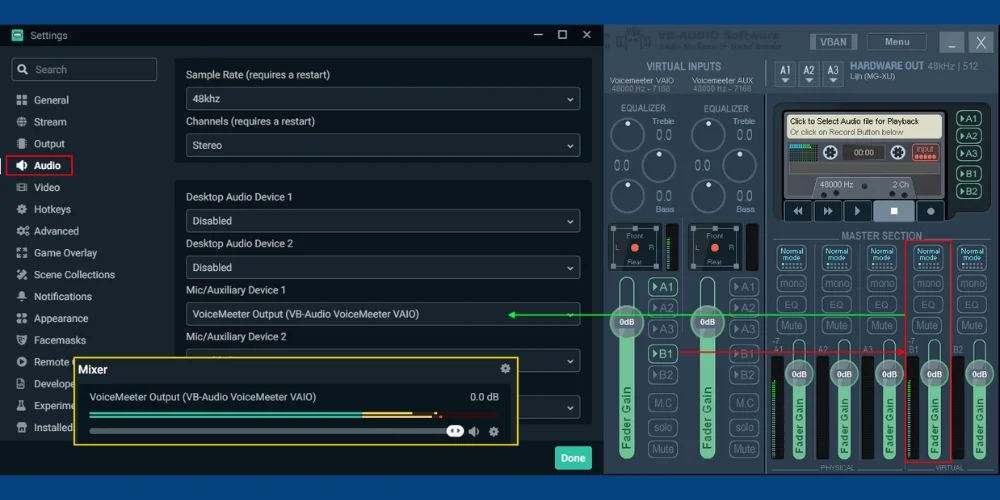
What Should you do Then!
Firstly, right-click the icon of the speaker in the system tray
Now open sound settings
Below the Output, choose Voicemeeter Input (VB-Audio VoiceMeeter VAIO)
Now under the select, VoiceMeter Output (VB-Audio VoiceMeeter VAIO)
Then open the Sound Control Panel and setup your headphones as acommunication device.
It will tell Windows Sound to send all the sound through the Voicemeeter first. In this way, you can control it properly.
Solution 2: Make Sure Your Headset Is Selected Inside VoiceMeeter
Now, firstly, you have to tell the Voicemeter Banana. Because it is not possible that the voicemeter magically knows by itself what kind of headset you are using.
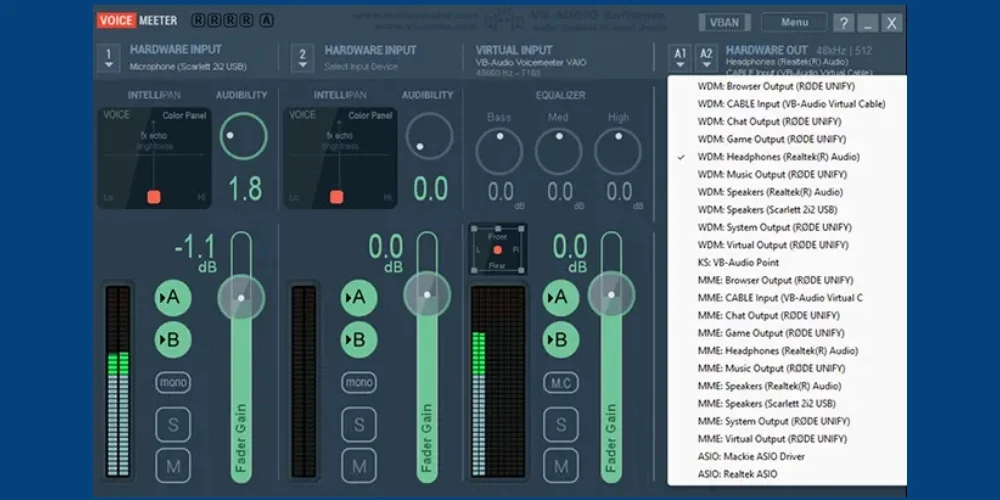
You can check this inside VoiceMeeter Banana:
Here are some steps on how to check this inside the setup voicemeeter banana written below;
At the top right corner, click A1
Now select your physical headset output
All you need to do is always try WDM first
If your headset has a microphone:
Set the Hardware Input 1 to your headset mic
Additional Tip:
If you don't know which is your headset device? Unplug it and then plug it back in. The right device is the one that vanishes when unplugged. And then reappears when plugged again.
Solution 3: Use the Right Driver (WDM vs MME)
It is very important to select the right driver. As the Voicemeeter Banana gives you various options of driver. If you choose the wrong driver, it will break everything.
Which driver should you use?
The best choice for most of the users is Windows Driver Model (WDM).
The MME is perfect for older hardware or PC, but is not a good choice if you want low delay or latency.
You can switch to the MME temporarily to test it. If your headset is not working properly on WDM.
Solution 4: Restart the VoiceMeeter Sound Engine
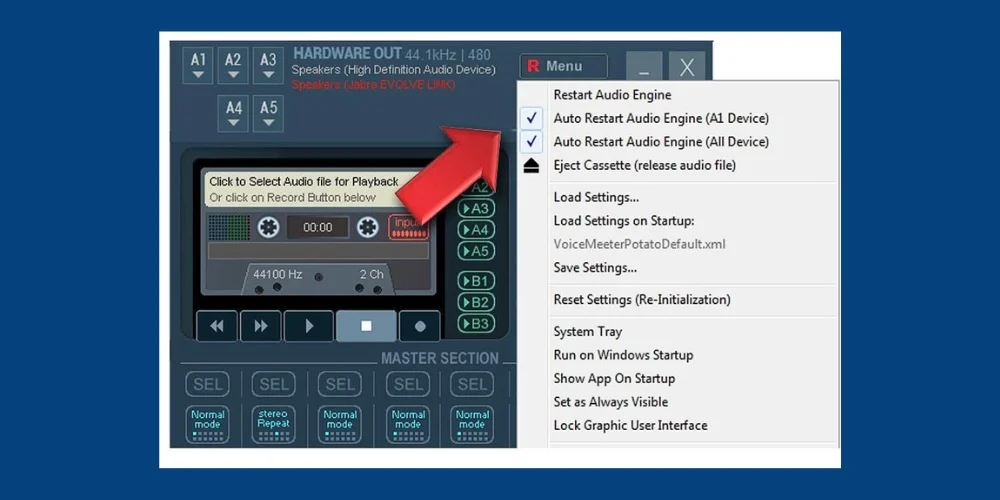
Sometimes it happens that there is nothing wrong, only the Voicemeeter needs some time to start properly. In this case, you need to try some things that are given below:
Close all the apps that are using sound
Exit the Voicemeeter Banana completely
Restart the program with administrator access
You can even restart your PC if required
This process refreshes the sound system, and it helps to solve many common problems or glitches.
Solution 5: Update or Reinstall Your Audio Controller
If you are using the old or outdated drivers. They can also block the communication between Voicemeeter and your headset.
Quick Fix Now:
Open the device manager
Open the video, sound, and game controllers section
Now, right-click on your audio device (update controllers)
Select search automatically
If it does not help, download the latest drivers
If the issue is still not resolved. Then download the latest driver directly from the headset manufacturer's website.
Solution 6: Check Cables, Ports, and Adapters
Sometimes the volume issues are not related to the software at all. They can be caused by the hardware.
Double-check:
The green jacket is for your headphones
The pink jacket is for your microphone
If your headset has a single combo jack. You will definitely need a TRRS splitter to use it with your PC.
The USB headsets plug directly into the motherboard rather than using a USB hub.
A single incorrect port section can cause your Voicemeeter virtual audio or microphone output to fail completely.
Solution 7: Verify Virtual Cable Routing in VoiceMeeter
If all the devices are even detected. Still, the audio will not pass through until the routing is set up correctly.
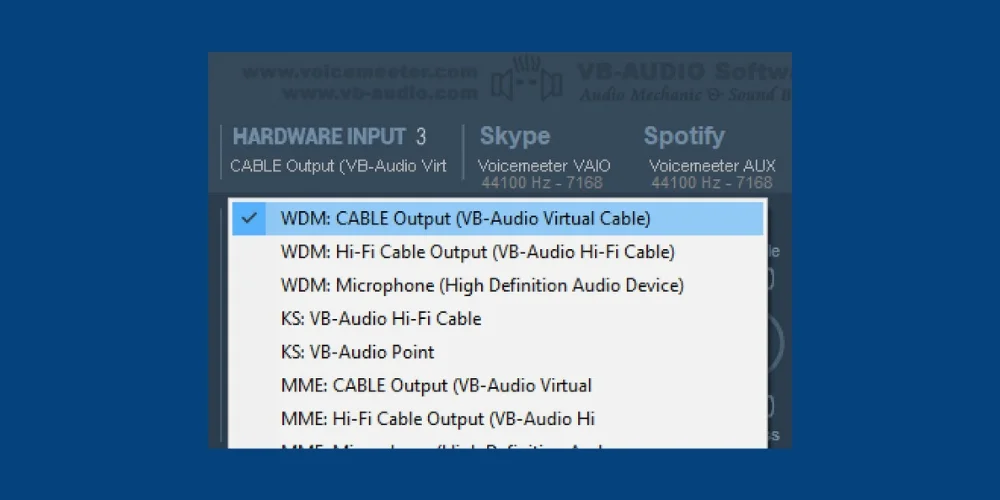
Look for this:
Make sure that the A1 is turned on for the channels you want to hear
Turn B1 or B2 on. If you are sending audio to the apps
Now double-check that the volume controller is not mute or turned all the way down
If the routing is not set up, you would not be able to hear anything at all.
Solution 8: Test Everything in Windows
Before blaming Voicemeeter, you should confirm whether your headphone works well in Windows sound settings.
Do this:
Open the Sound Control Panel
Under playback, check your headphones to make sure you can hear the volume
Under recording devices, speak into your mic, and watch for the signal bars
If Windows 10 shows the activity, but the installed Voicemeeter does not. Then the problem is mainly internal routing.
Last Resort Solution: Reset VoiceMeeter Configuration
If all the solutions fail and do not work. Then the issue may be caused by the corrupted Voicemeeter Configuration file.
Reset steps:
Close VoiceMeeter completely
Go to
C:\Users\YourUser\AppData\Roaming\Voicemeeter
Back up all the files from the laptop and PC, then delete the configuration files
Restart the Voicemeeter
This resets everything to a clean state, and it mostly fixes the stubborn problems right away.
Final Thoughts: Clear Audio Is Just a Few Clicks Away
A headset or headphones not working well in Voicemeeter Banana can be irritating. But in reality, it mostly happened due to a small setup mistake.
Once you are aware of how Windows audio, controllers, and Voicemeeter routing work together. Fixing these issues becomes much easier. Follow these solutions step by step, and you will be back to clear audio, smooth calls, and irritation-free streaming in no time.
No comments yet. Be the first to comment!
Leave a ReplyYour email address will not be published. Required fields are marked *